Is your BodyFit app not working? Learn how to easily fix common problems and get back to using the app for your fitness routines without any interruptions.
The BodyFit app is like your personal fitness buddy, tailored to help you start your fitness journey in a way that suits you best. Powered by Bodybuilding.com, this app offers a 7-day free trial to get you going. Whether you like hitting the gym or prefer working out at home with your own gear, BodyFit has training plans designed just for you to reach your fitness goals.
The app has a wide range of workout options and the workout plans are made by fitness experts and provide daily exercises, nutrition plans, yummy recipes, useful tips, alternative exercises, and more. The app covers diverse programs like strength training, powerlifting, bodybuilding, and nutrition guidance.
If you are a fan of this app, you might be experiencing issues with the BodyFit app suddenly not working. It can be frustrating when your BodyFit mobile app stops functioning unexpectedly. We understand your annoyance with problems like the app crashing, freezing, not opening, not logging in, or not loading, which several BodyFit users have encountered recently.
In such cases, it’s helpful to understand the potential errors, the reasons behind them, and some solutions to troubleshoot the problems. Below, we’ll provide guidance on how to resolve these issues and get your BodyFit app working smoothly again.
Why is My BodyFit App Not Working?
The BodyFit app may not be working on your Android or iPhone today for a few reasons. Sometimes, there could be issues with the BodyFit app server or maintenance happening on the app.
Also, it’s possible that there’s a problem with your internet connection, which could be causing the app to not function properly. There could be bugs, or glitches, within the app that are causing it to not work correctly.
The issue could be because of the cache as well. Lastly, errors related to your phone’s operating system might also be affecting how the BodyFit app operates.
How to Fix BodyFit App Not Working
Check BodyFit App Server Status
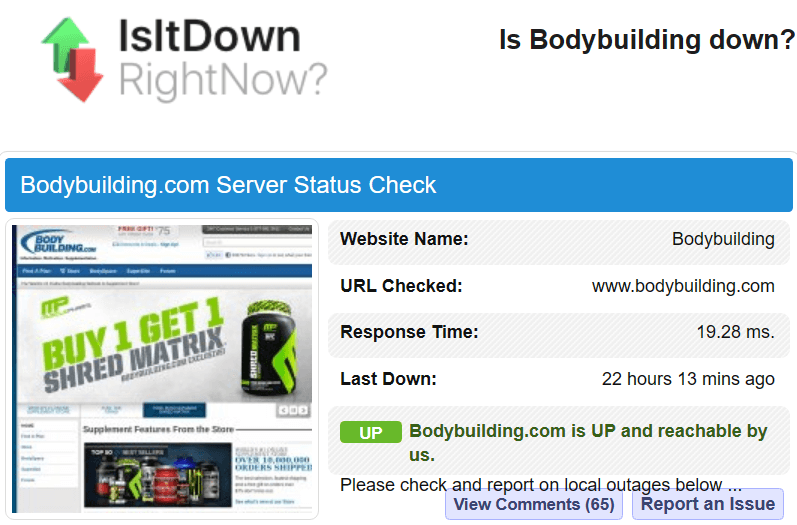
If you’re having trouble with the BodyFit app not working properly, it’s a good idea to check the status of the BodyFit app server. You can do this by simply going online and checking whether the BodyFit app is down or up and running by using platforms such as Twitter.
On these platforms, other users facing similar problems might have shared their own experiences, providing insight into the app’s status. You can also use sites like IsItDownRightNow to check the server status.
Sometimes, if the server is down or facing problems, that could be why you’re experiencing issues with the app. Checking the server status can help you figure out if that’s the cause of the app not functioning correctly.
Check the Internet Connection
Sometimes, we forget to check if our internet is connected before using apps. So, it’s important to confirm that you’re connected to the internet and that the connection is reliable. Remember, the BodyFit app operates online, so without an internet connection, you won’t be able to use it effectively.
Also, don’t forget to check the speed of your internet connection. It’s not just about being connected; the speed matters too. Sometimes, a slow internet connection can cause the app to lag or not load properly, ruining your experience.
Clear Cache
If you’re still dealing with the BodyFit app not working issue, try clearing the app’s cache. This means deleting the temporary data that the BodyFit app has stored on your Android phone or iPhone. Here’s what you need to do:
- Head over to your phone’s settings.
- Look for and select “Apps” or “Application Manager” from the options available.
- Scroll through the list to find and tap on the “BodyFit” app.
- Inside the BodyFit app settings, you’ll see an option to clear the cache. Tap on “Clear Cache” to remove the temporary data associated with the app.
By doing this, you’re essentially getting rid of temporary files that might be causing issues with the app. After clearing the cache, give the BodyFit app another try to see if this resolves the problem you’ve been experiencing.
Update the App
Even after clearing the BodyFit app cache, you’re still experiencing the BodyFit app not working issue, it’s possible that you’re using an outdated version of the app. In such a situation, you should update the BodyFit App. Here’s what you can do:
- Open the App Store (for iOS) or Play Store (for Android) on your device.
- Use the search option to find the BodyFit App (Android/iOS).
- If an update is available, you’ll see an “Update” button. Tap on it to update the app to the most recent version.
- You need to wait until the installation and download are complete
- Once that’s done, open the app and see whether the issue has been resolved.
Update OS
Apart from updating your apps, make sure to regularly check for updates on your Android or iOS phone’s operating system. Sometimes, the app might not function properly due to bugs from an outdated operating system. So, keeping the system software up to date is just as important as updating a specific app.
To check and install a system update on your Android and iOS device, follow the below steps.
For Android:
- Go to Settings > System.
- Tap on the “System Update” menu and click “Check for Updates”.
- If you find “Your system is up to date,” you don’t need to take any action. But if there are new updates, proceed to install them.
For iPhone:
- Go to Settings > General > Software Update.
- Tap on “Automatic Updates“.
- Turn on both “Download iOS Updates” and “Install iOS Updates“.
- This will upgrade your iPhone operating system to the latest version.
Disable VPN

If you have a VPN enabled on your device, you should disable it. VPNs can cause interference with app performance, so turning it off might help resolve the issue with the BodyFit app,
VPNs reroute your internet traffic through different servers globally, potentially disrupting app connectivity due to altered network configurations. Some apps may struggle to function optimally with this redirection, causing slowdowns or connection failures.
So make sure you turn off the VPN app while using the BodyFit app. After disabling the VPN, try using the BodyFit app again to see if the problem is resolved.
Restart your Phone
If you’re experiencing the BodyFit app freezing or crashing while you’re using it, a simple and effective solution is to restart or reboot your phone. Restarting your phone can often resolve these issues, providing a quick fix to ensure the smooth functioning of the BodyFit app.
Here are the steps to restart both Android and iOS devices:
For Android:
- Press and hold the power button on your Android device.
- A menu will appear with the option to restart.
- Tap on “Restart” to initiate the process.

- Once the device powers down completely, press the power button again to turn it back on.

For iOS (iPhone or iPad):
- Press and hold the power button located on the right or top of your device.
- A slider will appear on the screen.
- Drag the slider from left to right to turn off the device.
- After the device powers down completely, press and hold the power button again until you see the Apple logo, indicating it’s restarting.
Contact BodyFit Customer Support
If you’ve attempted the suggested solutions outlined earlier and the problem with your BodyFit app persists, reaching out to customer support is the next step. It’s important to communicate the issue you’re encountering and seek their assistance. Once you’ve reached out, allow some time for their response and guidance in resolving the issue.
In this article, we’ve gathered some fixes for the BodyFit app not working issue that might come in handy if you’re encountering technical glitches while using the BodyFit app. It’s important that you give these fixes a try one by one to see which one does the trick for you.
Remember, sharing is caring! If you’ve stumbled upon another solution that worked for you, don’t hesitate to drop it in the comments.