QUICK ANSWER: Long-press the WhatsApp icon > Tap “Require Face ID” — this will prevent WhatsApp calls from appearing in your iPhone’s call log.
If you’re like me and use WhatsApp for most of your voice and video calls—whether it’s chatting with friends or catching up with your partner—it quickly becomes your default calling app. But if you’re using an iPhone, there’s one frustrating issue: every WhatsApp call also appears in the iPhone’s Phone app call log.
Whether it’s a quick voice call or a long video chat, iOS logs each one under the Phone app history. Worse, if you’ve called someone multiple times, each entry stacks up separately, cluttering your call list. This not only makes it harder to find regular calls but can also lead to awkward moments if someone else opens your dialer.
I’ve faced this issue on my iPhone 13 for a long time, and despite many user complaints, Apple hasn’t given us an option to hide WhatsApp calls from the call history. But after digging around, I finally found a simple way to stop WhatsApp calls from showing in the iPhone call log—and in this guide, I’ll show you exactly how to do it.
Note: To use the solution below to stop WhatsApp calls from appearing in your iPhone’s call log, your device must be running iOS 18 or later. This method won’t work on older iOS versions.
How to Disable WhatsApp Call History in iPhone
For a long time, iOS lacked even the most basic app locking feature. But with iOS 18, Apple finally introduced built-in app locking for iPhone users.
Now, you might be wondering—why am I talking about this in an article about WhatsApp call logs? Well, here’s the surprising part: the method to stop WhatsApp calls from appearing in your iPhone’s Phone app call log actually uses this new app lock feature.
Even though Apple hasn’t given users a direct option to hide third-party call history from the Phone app, this new feature gives us a simple workaround.
If you enable app lock inside the WhatsApp settings, it won’t stop the calls from showing in the call history. But if you use iOS’s built-in app lock to lock WhatsApp, the call logs will no longer appear in the Phone app.
How to Do It:
- Long-press the WhatsApp app icon on your home screen.
- Tap on “Require Face ID”.

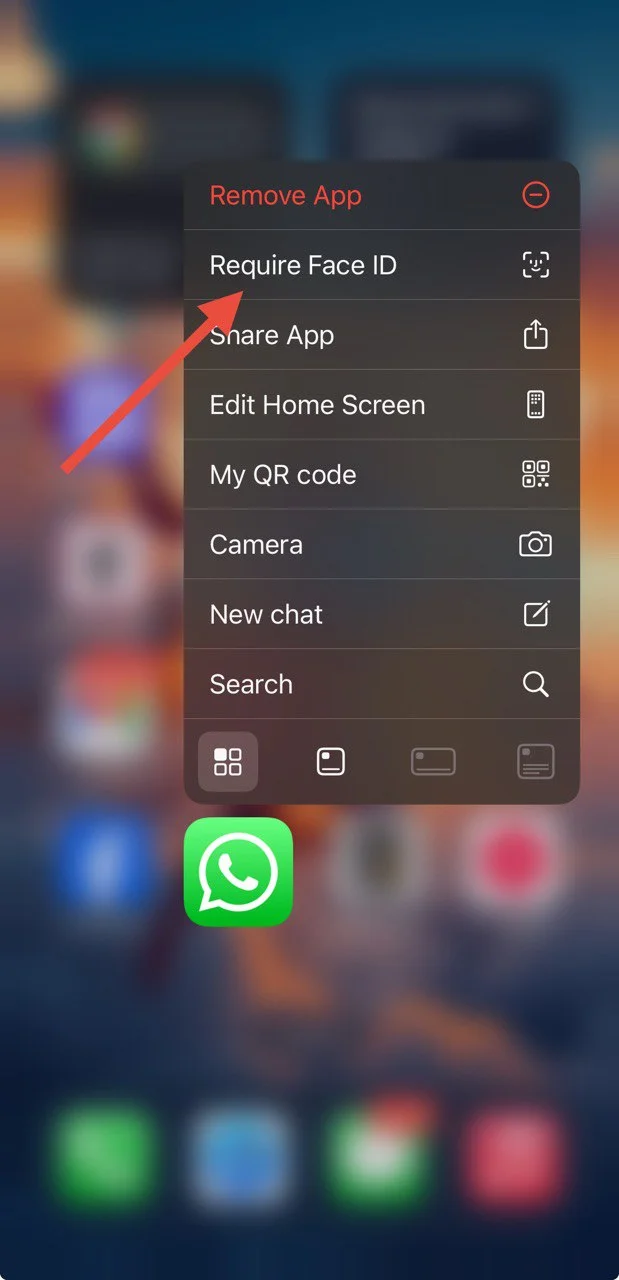
Once enabled, WhatsApp calls will no longer be visible in your iPhone’s Phone app call history. That’s it—an easy and effective trick Apple didn’t officially announce, but it works like magic.
How to Remove WhatsApp Calls Showing on Call Log in iPhone
There are several reasons why someone might want to hide WhatsApp call history. If you share your iPhone with family, friends, or coworkers, you may want to protect your privacy and avoid exposing your call activity. Also, it’s worth noting that iOS limits the Phone app’s “Recents” tab to just 100 call entries. So if you’re someone who makes or receives a lot of WhatsApp calls daily, your important regular calls could easily get pushed out of view.
Unfortunately, this trick—using the new iOS app lock feature—only works on devices running iOS 18 or later. If your iPhone doesn’t support iOS 18 or you haven’t updated, there’s no permanent way to prevent WhatsApp calls from showing up in the call log.
However, as a temporary solution, you can manually delete WhatsApp calls from the Phone app one by one. You can also manually remove WhatsApp call history from your iPhone’s Phone app by following these steps:
- Open the Phone app and go to the Recents tab.
- WhatsApp calls will be labeled as “WhatsApp Audio” or “WhatsApp Video” under the contact name.
- Swipe left on the call entry you want to remove.
- Tap the red Delete button to remove it.

- After deleting the unwanted entries, tap Done.
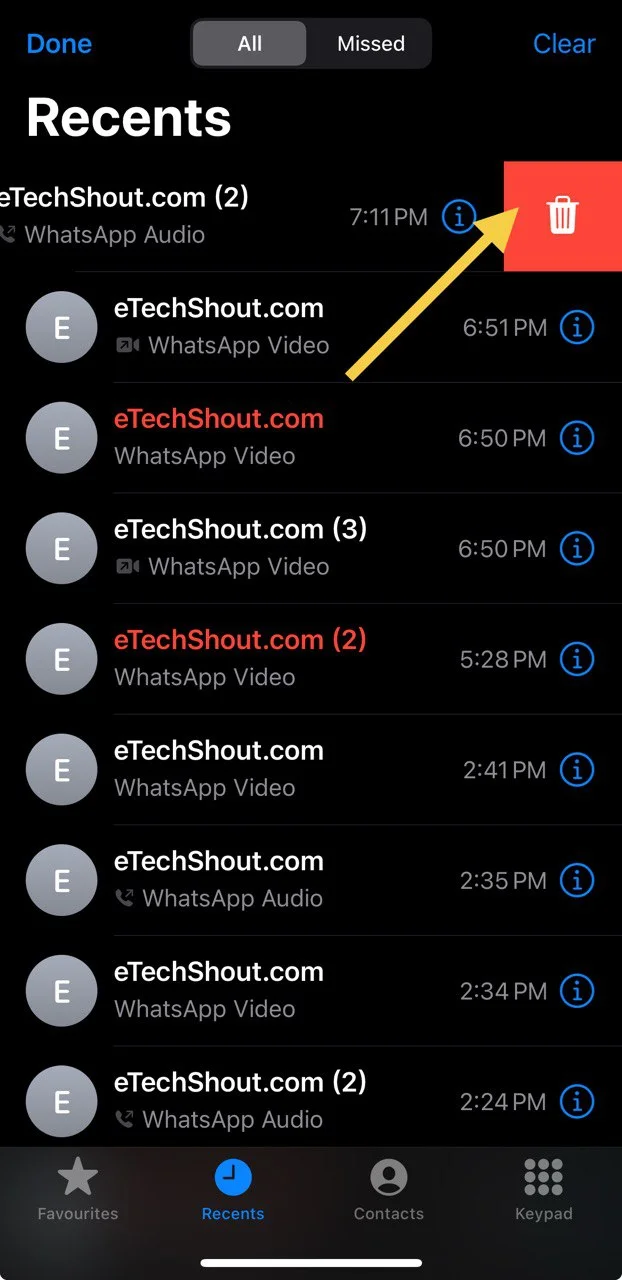
That’s it! The selected WhatsApp call logs will no longer appear in your iPhone’s call history.
If you want to remove all call entries, including both regular and WhatsApp calls, iOS allows you to do it.
- Open the Phone app and go to the Recents tab.
- Tap Edit in the top-right corner.

- Then tap Select.

- Now, in the top-left corner, tap Clear > Clear All Recents.
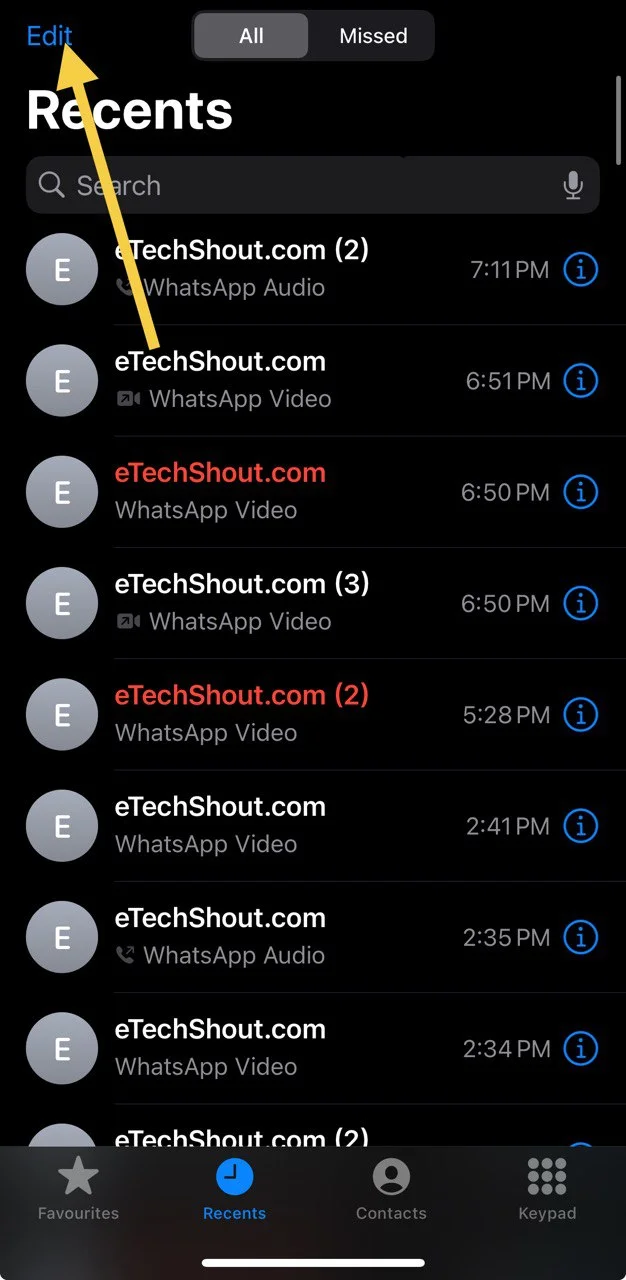
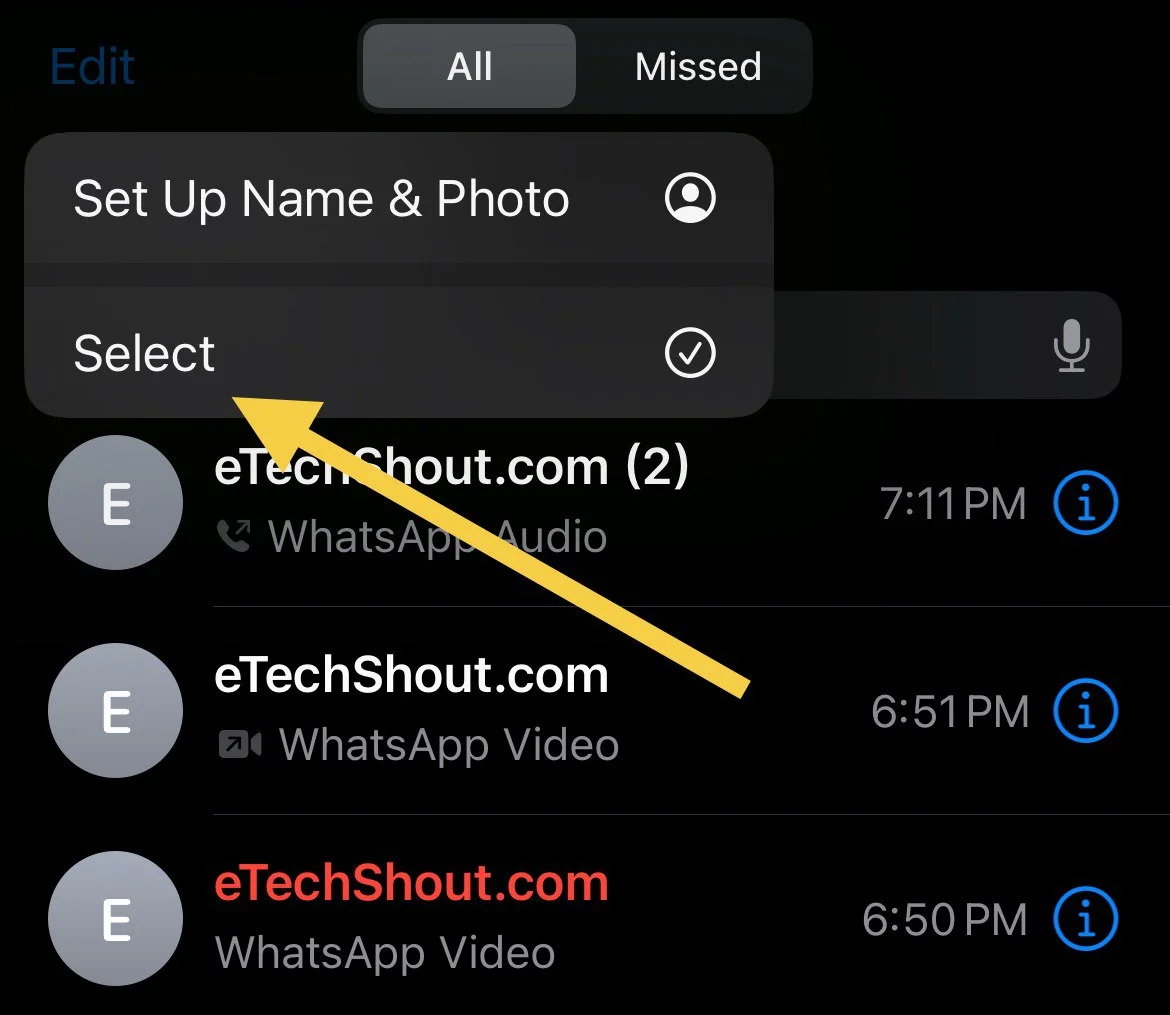
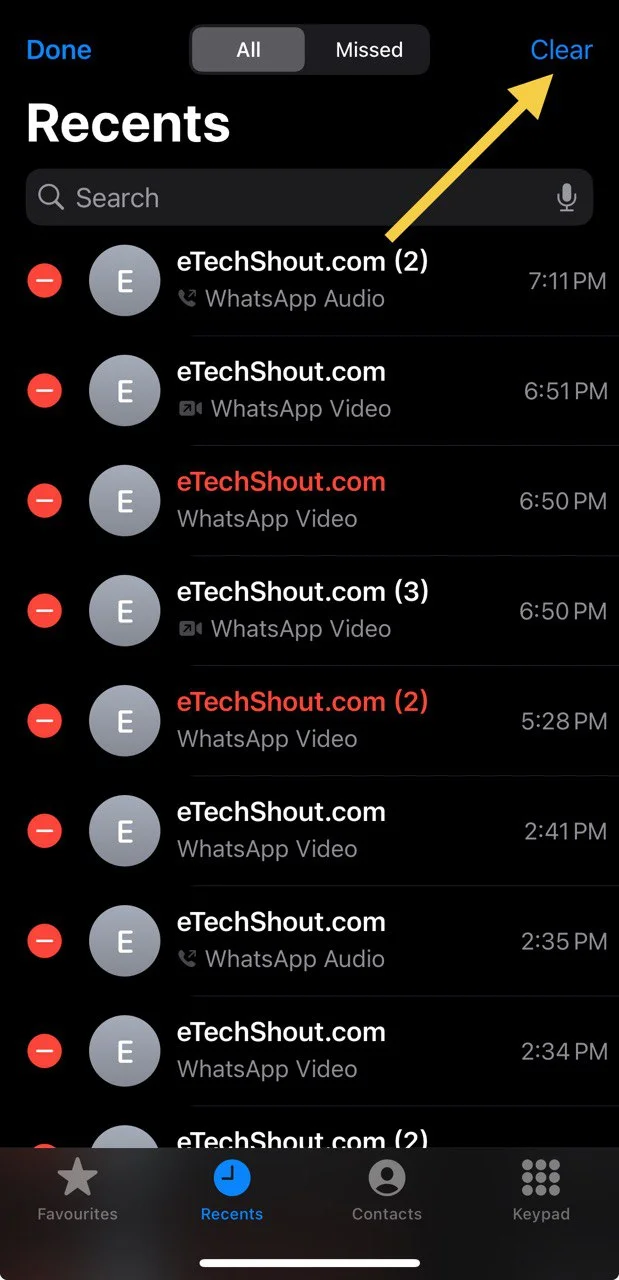
That’s it. Your iPhone’s call history will now be completely cleared, including all WhatsApp call logs.
RELATED:
- WhatsApp GIFs Not Working/Loading? Easy Tricks That Actually Work
- How to Fix Login not available right now on WhatsApp
- WhatsApp Stuck on Initializing? Here’s How to Fix It Fast!
- How to Fix ‘You Need the Official WhatsApp to Use this Account’
So, this is currently the only effective workaround to disable WhatsApp call history on iPhone. We’ve tested it on our device, and it works perfectly, as long as you’re running iOS 18 or later.
Just a quick reminder: this won’t work if you’re using WhatsApp’s built-in app lock. You must lock the app using the iOS system-level app lock feature for the call logs to stop syncing with the Phone app.
If you know any other method to stop WhatsApp call logs from appearing in the iPhone’s Phone app, feel free to share it with us in the comments below!