Instagram did not always feel this addictive. Earlier, it was just a simple photo-sharing app. People posted pictures, liked a few posts, and closed the app. After the TikTok ban, everything changed. Instagram slowly turned into an all-in-one app. Reels took over, scrolling never seemed to end, and before we knew it, hours were gone. Now people scroll daily, share posts, reply to stories, chat with friends, and even shop without leaving the app.
With all this usage, small details on your profile begin to matter more than you think. One of those details is your age on Instagram. Many people do not pay attention to it while creating an account. Some just tap a random date to finish signup faster. At that time, it feels harmless. Later, it can create confusion.
Your age on Instagram decides a lot behind the scenes. It controls what content you see, which tools appear on your account, and how Instagram treats your profile. During birthdays, Instagram even changes how your account behaves. Ads, branded content tools, and reach can depend on the age listed on your profile. A tiny mistake in the date of birth can quietly limit features without any clear warning.
I noticed this myself when one of my posts suddenly had very low reach. A few options I used earlier are gone. After checking my account details, I realized my birthdate was wrong. That one error was enough to trigger restrictions. Instagram uses age to manage privacy and content visibility, so accuracy matters more than most people realize.
If you entered the wrong birthday earlier or just want your real age reflected on your profile, this guide is for you. After trying the age update process on both Android, iPhone, and desktop, below, I will share the clear steps so you can change your age on Instagram without confusion.

How to Change Age on Instagram on Android, iPhone, and Desktop
On Android and iOS
- Open Instagram and make sure it’s logged in
- Now, tap the profile icon at the bottom right to open your profile page.

- Once you are there, tap the menu button in the top-right corner.

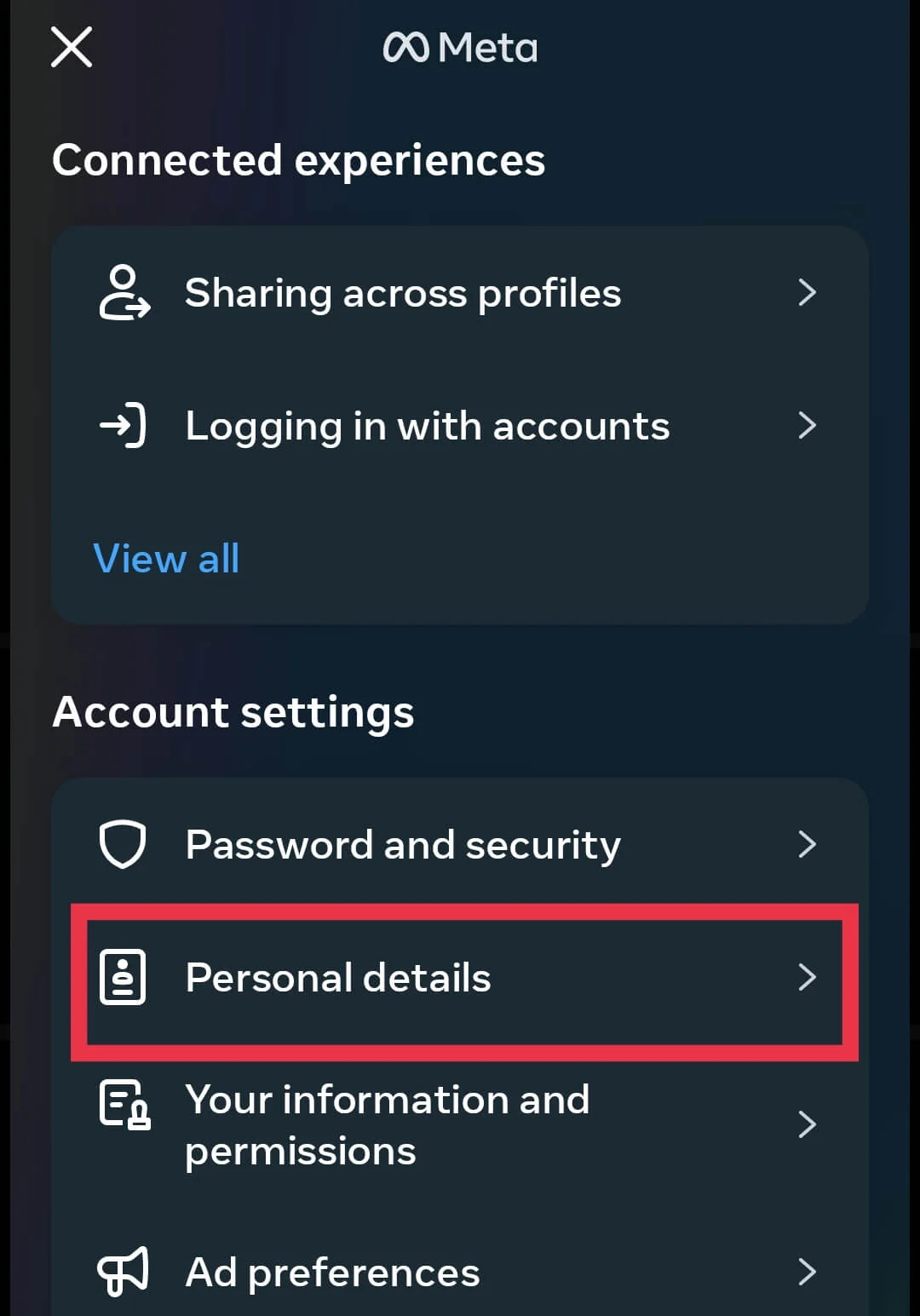
- Scroll through the settings screen and tap on Meta Accounts Center. If you handle multiple accounts, make sure you are inside the correct one since personal details are shared across linked accounts.

- Under the Accounts Center section, tap on Personal details

- Then select the Birthday option, then click the Edit button

- Now, enter the correct details. Save your changes.



Note: If your age update moves your account from under 18 to over 18, Instagram may ask you to confirm your identity. You will need to upload the requested proof and then wait for the review. In most cases, approval takes around 24 to 72 hours.
On Desktop Browser
The steps stay mostly the same on Android and iOS, but if you are using Instagram on a desktop PC browser, the flow is slightly different.
- Open Instagram on your desktop browser and log in to your account.
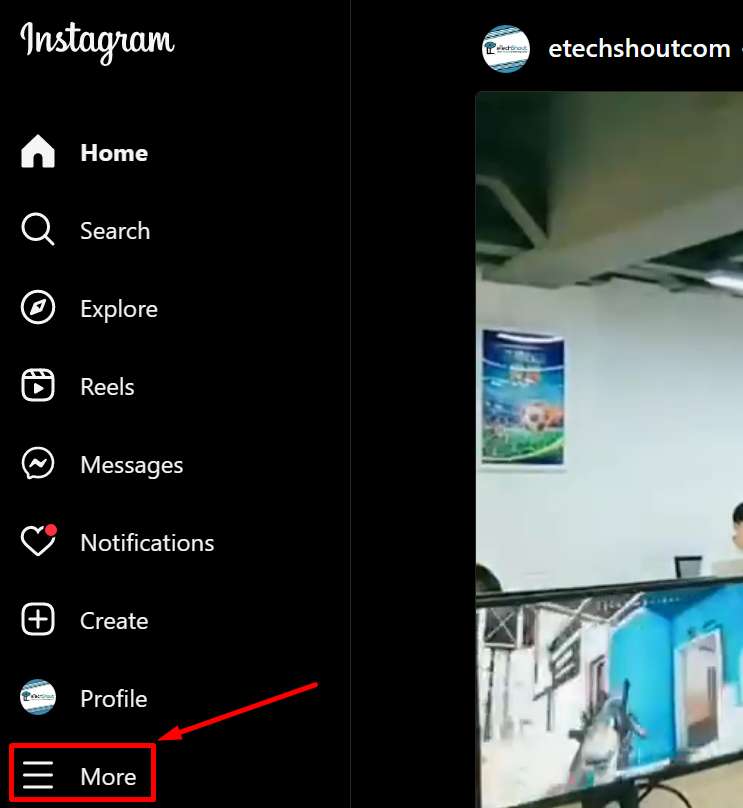
- Look at the bottom left corner and click More.

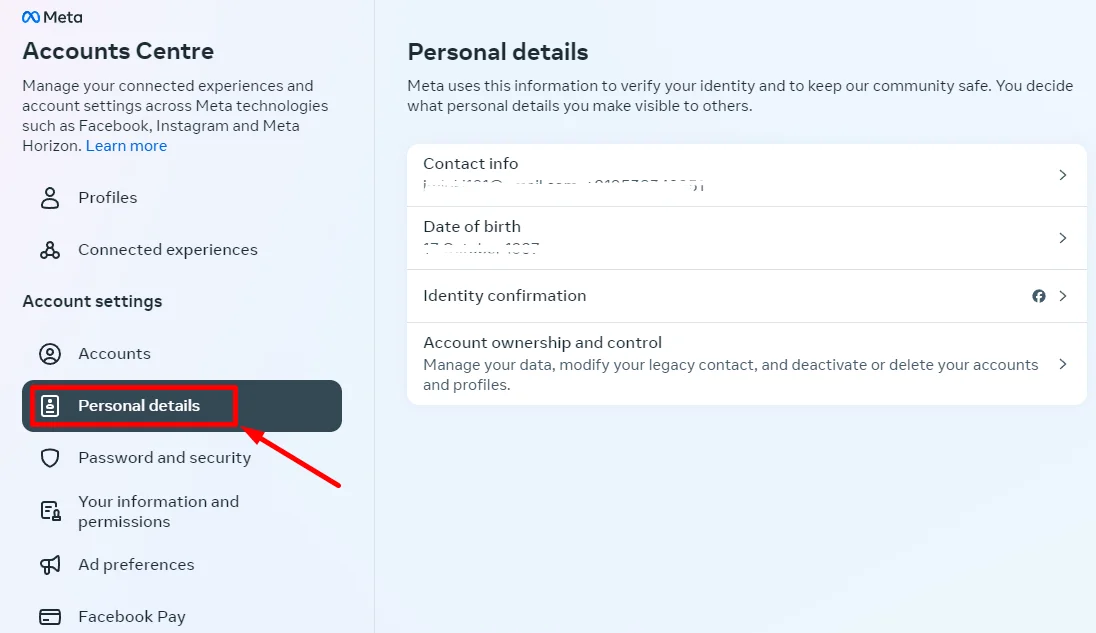
- From the menu, select Personal details.

- Click on Date of birth

- After that, tap on the Edit button
- Now, update your birthday as needed and save the changes.

RELATED GUIDES: Instagram Age Checker: How to Check How Old An Instagram Account Is
FAQs (Frequently Asked Questions)
Why can’t I change my age on Instagram?
This usually happens if your account was created as a teen account, if you changed your age recently, or if Instagram flagged your profile for age verification. In these cases, Instagram temporarily locks age edits until the review or waiting period is complete.
Can I change my Instagram age without ID proof?
Yes, you can change your age on Instagram without uploading an ID as long as the birthday edit option is open. Instagram only asks for identity proof when the date of birth field is locked or when the change triggers age verification.
How long does age verification take?
Instagram usually takes about 24 to 72 hours to review age verification. Sometimes it finishes sooner, and other times it can take a little longer.
How many times can I change my age on Instagram?
Instagram does not clearly say how many times you can change your age. However, making too many changes can raise flags and may lead to an age verification request.