WhatsApp was once the most trusted messaging app for quick chats and reliable calls, but over time, many users feel the service has lost its focus. The platform is slowly turning into a social media app with features that add little value and changes that make the experience less simple than before. With talk of ads and constant experiments, it no longer feels like the clean messaging tool people loved.
Recently, many users have also started facing new issues that make the app even more frustrating. One common problem is the “Call failed, the group has too many participants” error that appears when trying to join or start a group call. It shows up without warning and stops the call immediately, even when the group size seems normal.
I ran into the same error and had to spend time trying different methods to make WhatsApp work again. In this guide, I will explain how I fixed the issue and list other simple ways that helped to continue the group calling on WhatsApp.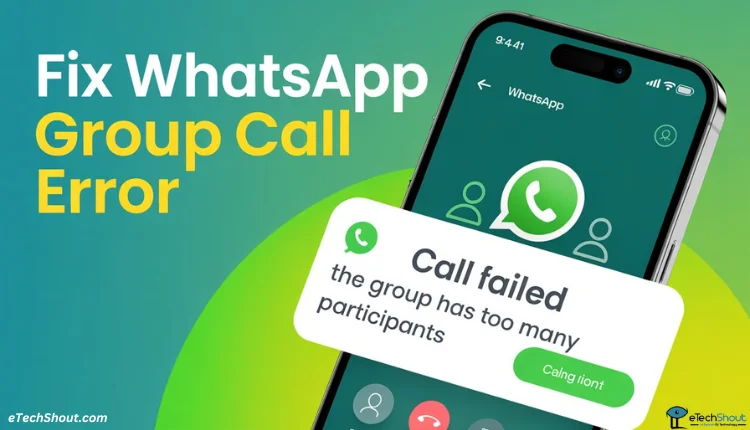
How to Fix WhatsApp “Call Failed, the Group Has Too Many Participants” Error
Update the WhatsApp
If your call is within the group limit and the error still shows up, the issue may be caused by a bug in the version of WhatsApp you have on your phone. Updating the app to the latest version can clear this issue.
Tap the link to open the WhatsApp app page on Android or iOS, then press the “Update” button if it is available.
Restart the Group Call
WhatsApp lets you add up to 32 people for voice calls and up to 8 people for video calls. If the call has more than that, it will stop right away. The easiest way around this is to remove a few people or split the call into smaller groups. Another quick way to try is to make a fresh group call from the start.
End the current call and wait till everyone is fully out of it. After that, open WhatsApp again and try creating a new call from the group chat.
- Open WhatsApp and go to the group chat.
- Tap the video call icon in the top right and choose “Voice Call” or “Video Call”

- Pick the contacts you want to include and start the call again.
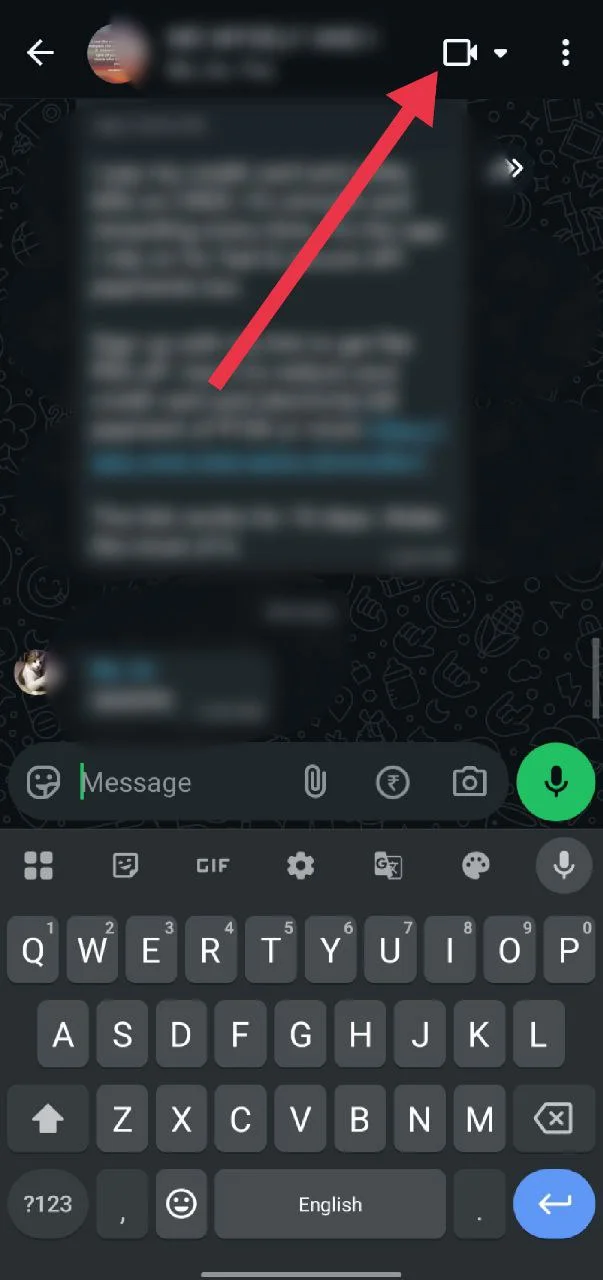
If the call still does not work, move to the next method in the list.
Manually Choose Who Joins the Call
You can also pick the people for the call yourself instead of letting WhatsApp decide.
- Open WhatsApp and go to the group chat.
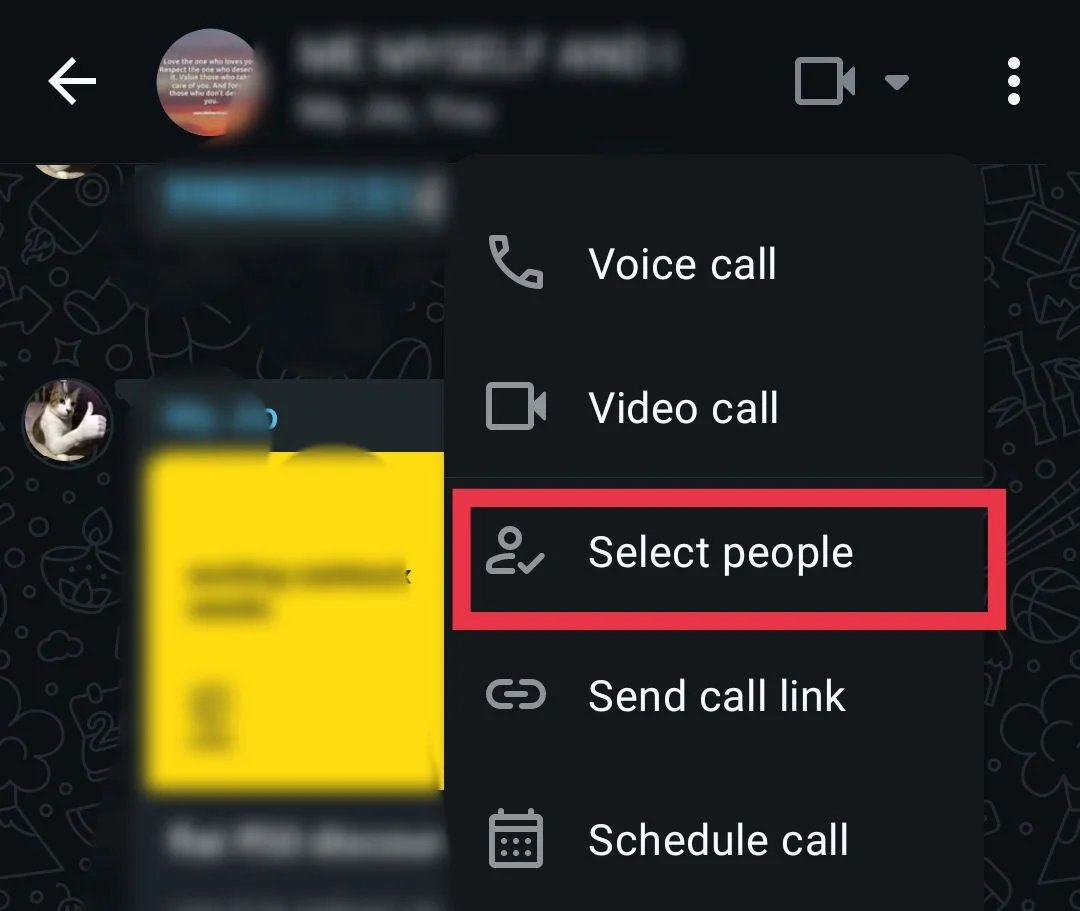
- Tap the video call icon at the top and choose Voice call or Video call. You can also tap the “Select people” option to pick who you want to include.

- You will see everyone in the group. Choose up to 32 people for voice calls or up to 8 for video calls.
- Tap the call icon again to start.
Clear Cache
If the app keeps showing the same call issue, clear the app cache to clean out old files that the app no longer needs.
If you are an Android user, open your device settings > Apps > WhatsApp > Storage > Clear cache. (If you want the quickest way, long-press the WhatsApp icon in your app drawer, select App info, then open Storage and tap Clear cache.)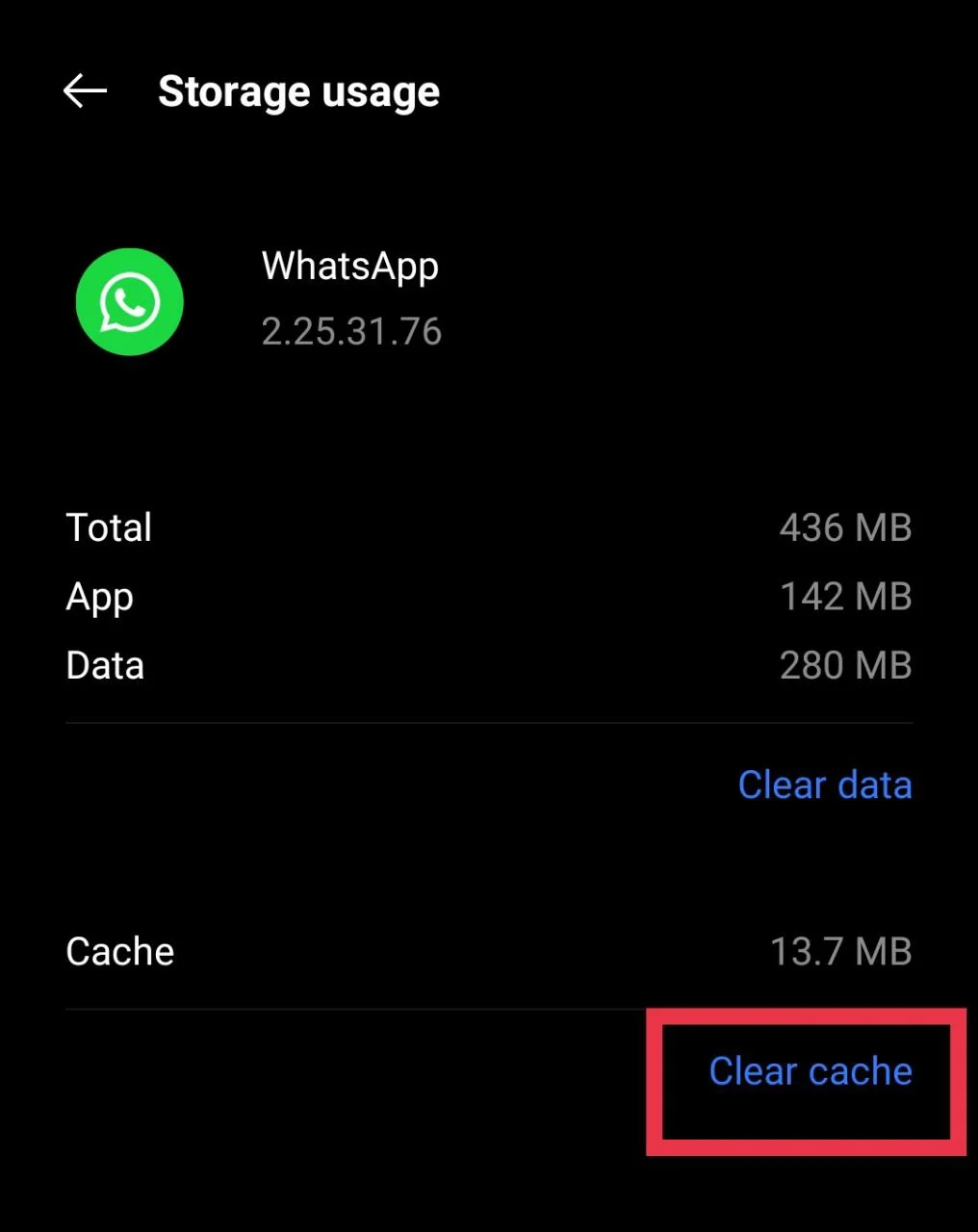
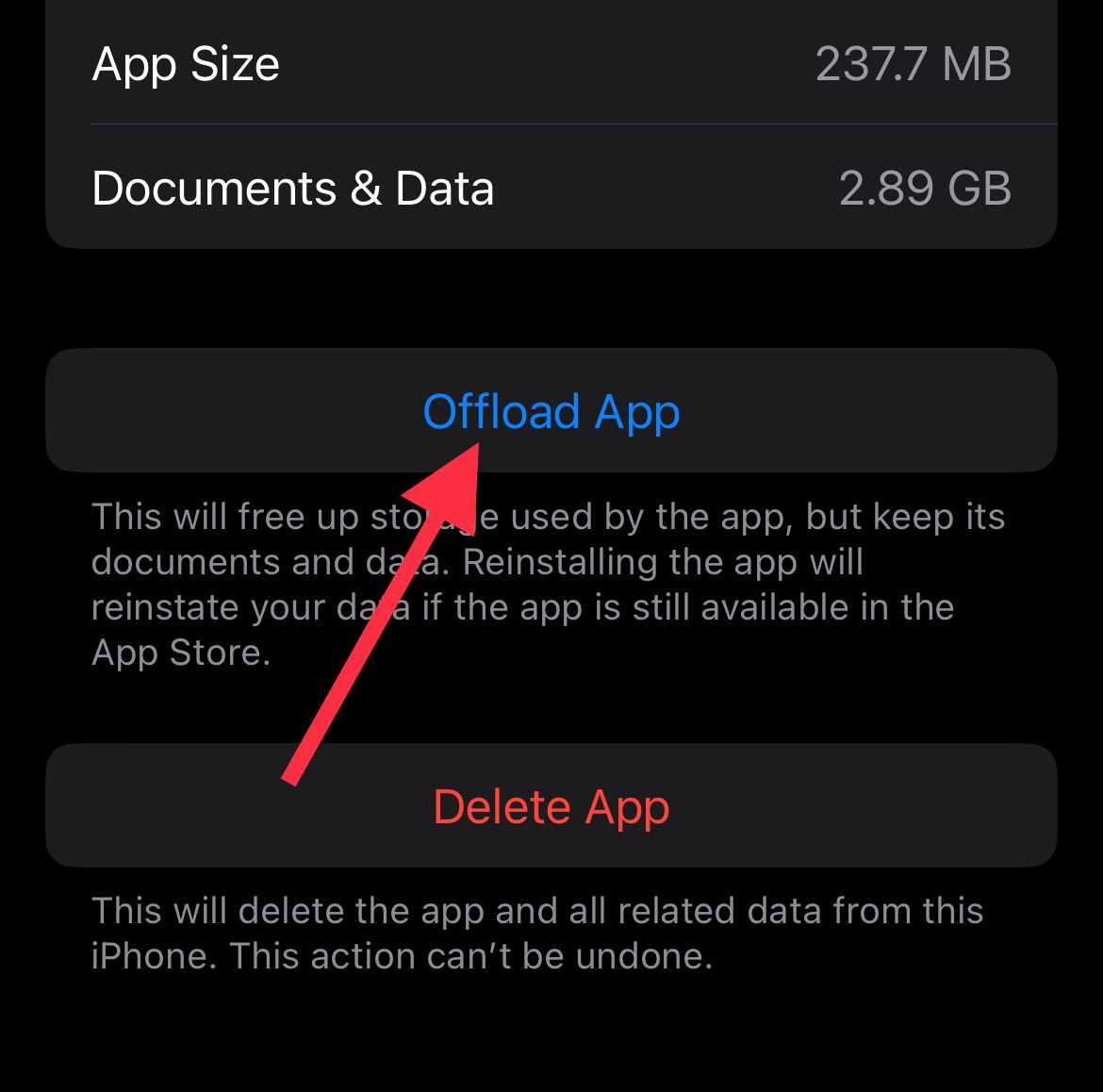
iPhone does not have a direct option to clear the cache. Instead, you can offload and reinstall the app. Offloading removes the app itself but keeps your chats and media.
- Open Settings and go to General
- Tap on iPhone Storage > WhatsApp.
- Tap the Offload App and then Reinstall the app.

Try Any Other Calling App
If you often talk with more people than WhatsApp allows, you can move the call to another platform that can hold a larger participants. Apps like Microsoft Teams, Zoom, or Google Meet can handle far more people at once and also give you useful tools such as recording, meeting notes, waiting room, etc, which WhatsApp lacks.
RELATED:
- How to Fix “The File Format is Not Supported” on WhatsApp
- How to Fix “Your battery usage is restricted for WhatsApp”
- How to Fix “WhatsApp was unable to start the camera” (iPhone & Android)
This is how you can fix the WhatsApp “Call failed, the group has too many participants” error. I have shared the methods that worked for me along with a few other options you can try. If nothing helped, WhatsApp might be facing a server outage or your internet connection may be weak, so check that as well. If you discover any other fix, feel free to share it in the comments.