WhatsApp has become one of the most used apps for staying in touch with friends and family. Even though it was once known for being a simple and clean messaging app, things have changed over time. With more features being copied from other social media apps and a growing list of tools that many users find unnecessary, the app has slowly lost some of its old charm.
Still, WhatsApp continues to grow every day with millions of people using it to send messages, make calls, and share photos or videos. Its popularity remains strong among Android and iPhone users despite the occasional bugs and technical issues that show up now and then.
One issue that’s been showing up for a lot of users lately is the “WhatsApp was unable to start the camera. If you continue to experience issues with the camera, please restart your device.” message. It pops up out of nowhere when you try to take a picture or video inside the app.
Here, we have combined multiple ways to solve this error message on both iPhone and Android.
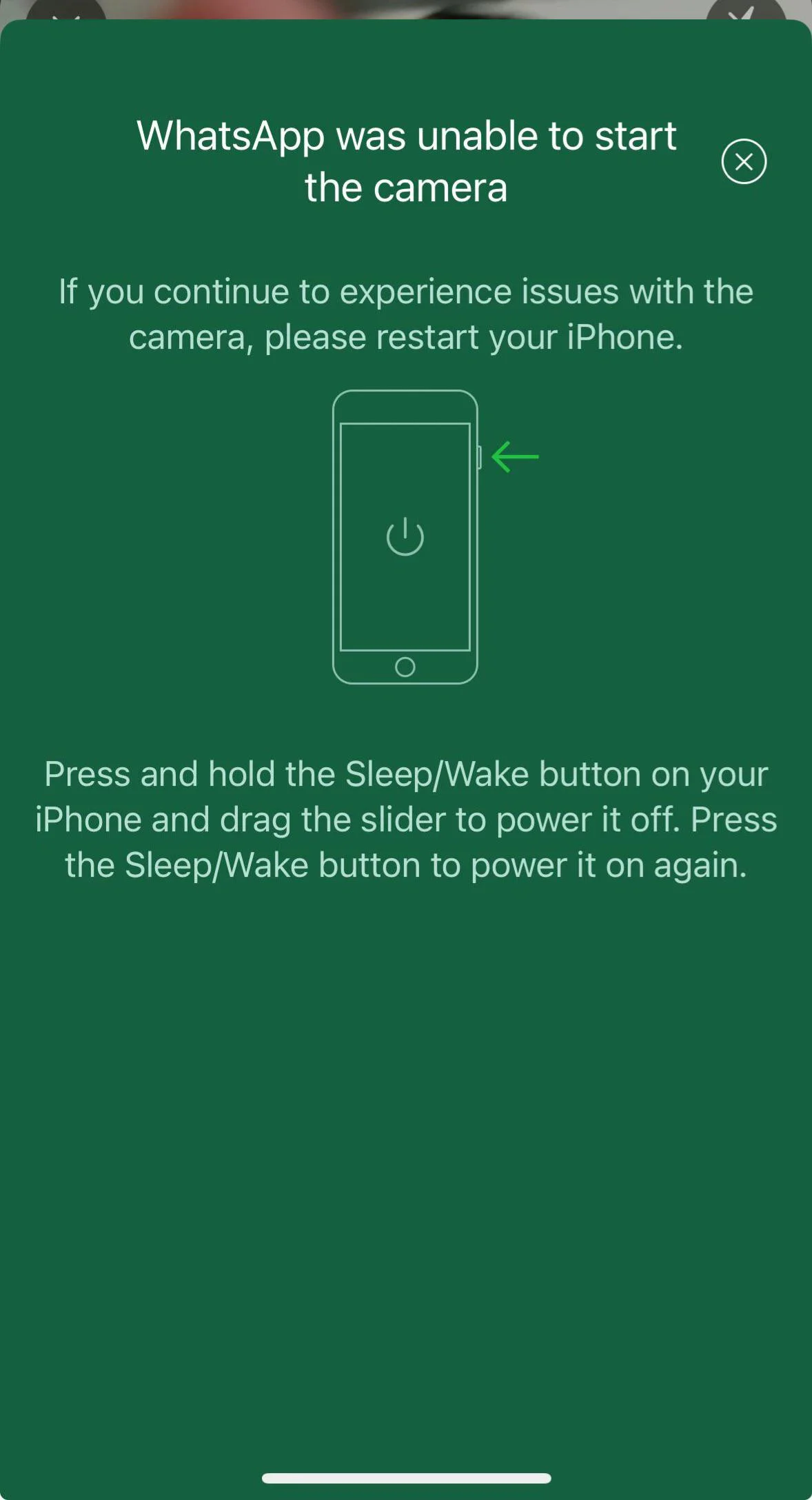
How to Fix ‘WhatsApp was unable to start the camera’ Error on iPhone and Android
Turn Camera Permission Off and On Again
A lot of people have managed to fix this error by just turning the camera permission off and then turning it back on.
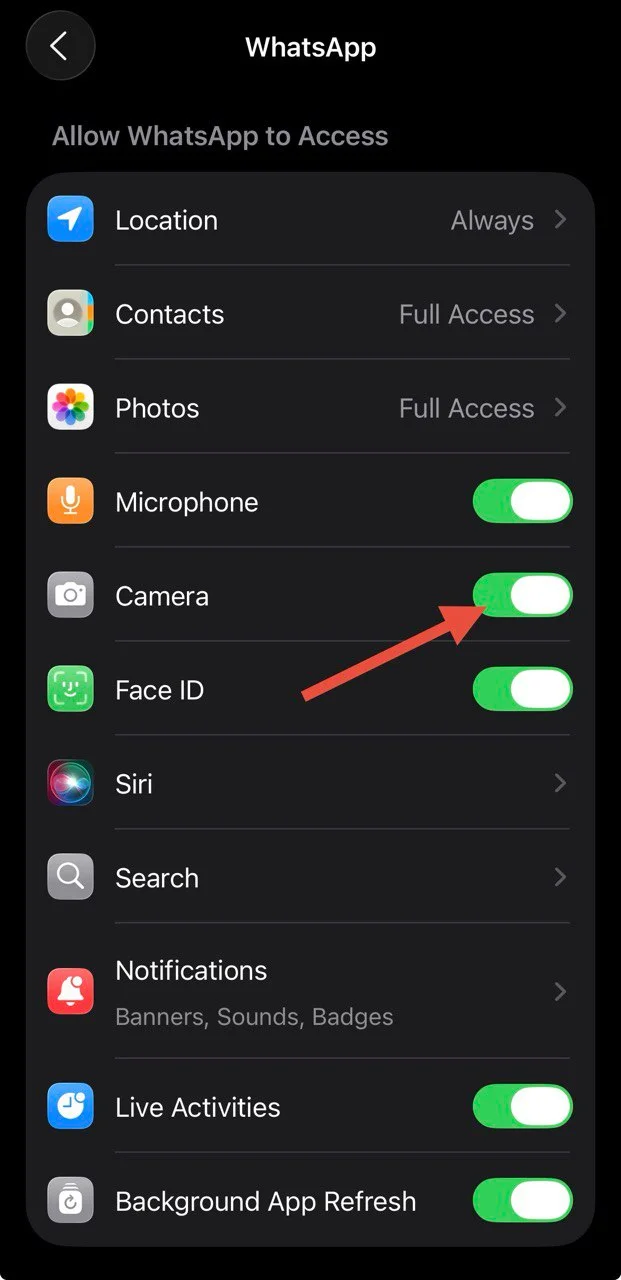
On iPhone
- Open your “Settings”
- Scroll down and tap “WhatsApp” (On iOS 18 and above, tap Settings > Apps > WhatsApp)
- Turn off the switch next to “Camera”
- Wait for a few seconds, then turn it back on.

On Android
- Open your device’s “Settings”.
- Tap on “Apps”
- Select “WhatsApp” and go to “Permissions”
- Now, choose “Camera”
- Tap “Don’t allow” and wait for a few seconds
- Then tap “Allow only while using the app.”
Update WhatsApp to the Latest Version
It’s common that most of us don’t update our apps often and don’t have auto-update turned on. Since many bugs found in earlier versions have been fixed by the developers in new updates, having the latest version of WhatsApp is important.
WhatsApp releases multiple updates regularly, so it’s worth checking if a new one is available. Go to the Google Play Store or App Store > search WhatsApp, and tap “Update” if you see the option.
Close WhatsApp and Restart Your Phone
Another simple fix is to close WhatsApp completely and restart your phone to quickly clear temporary system bugs that might be blocking the camera from opening inside the app.
- Close WhatsApp from the recent apps or app switcher screen.
- After closing it, restart your phone.
- Once your phone turns back on, open WhatsApp and try using the camera again.
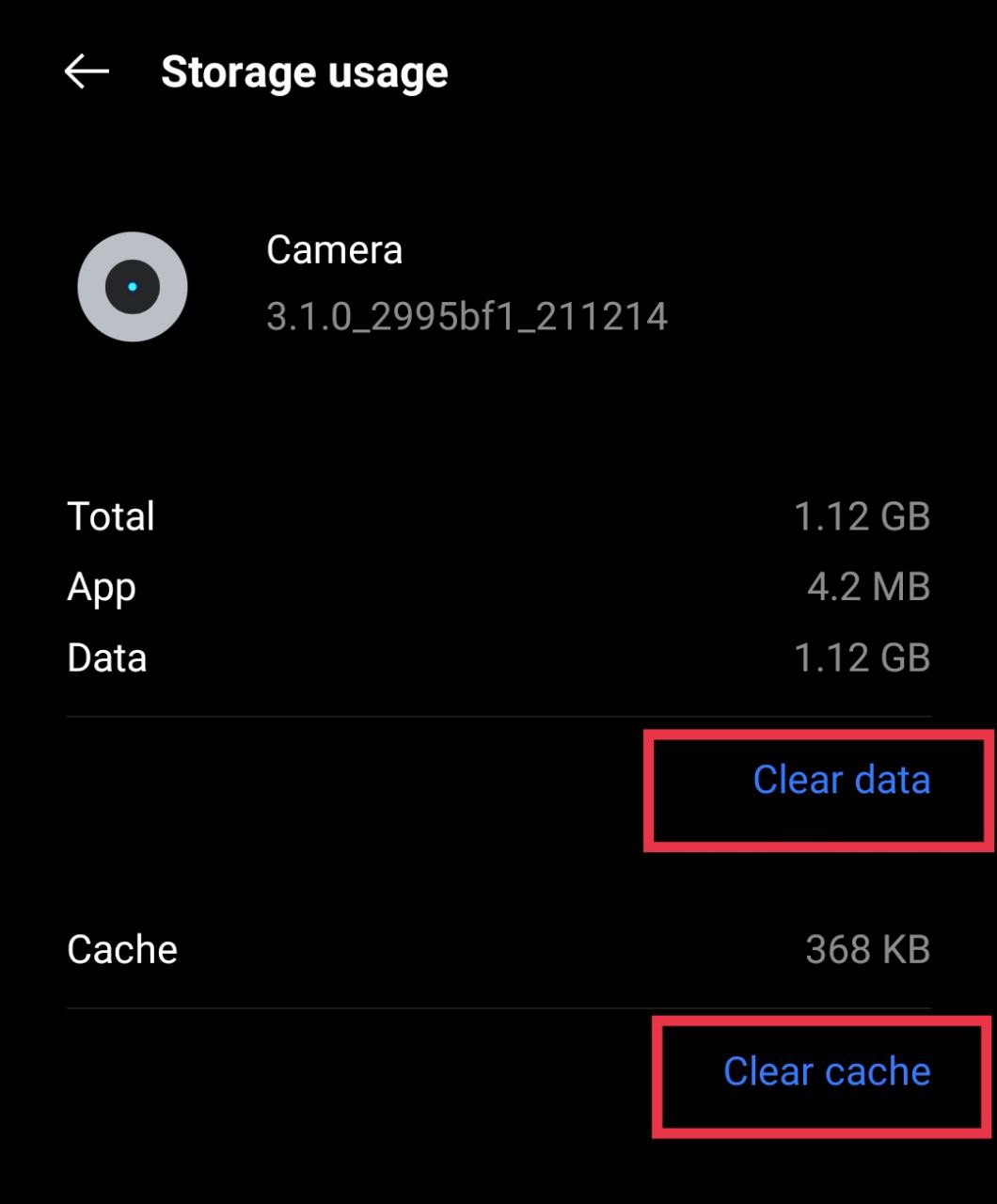
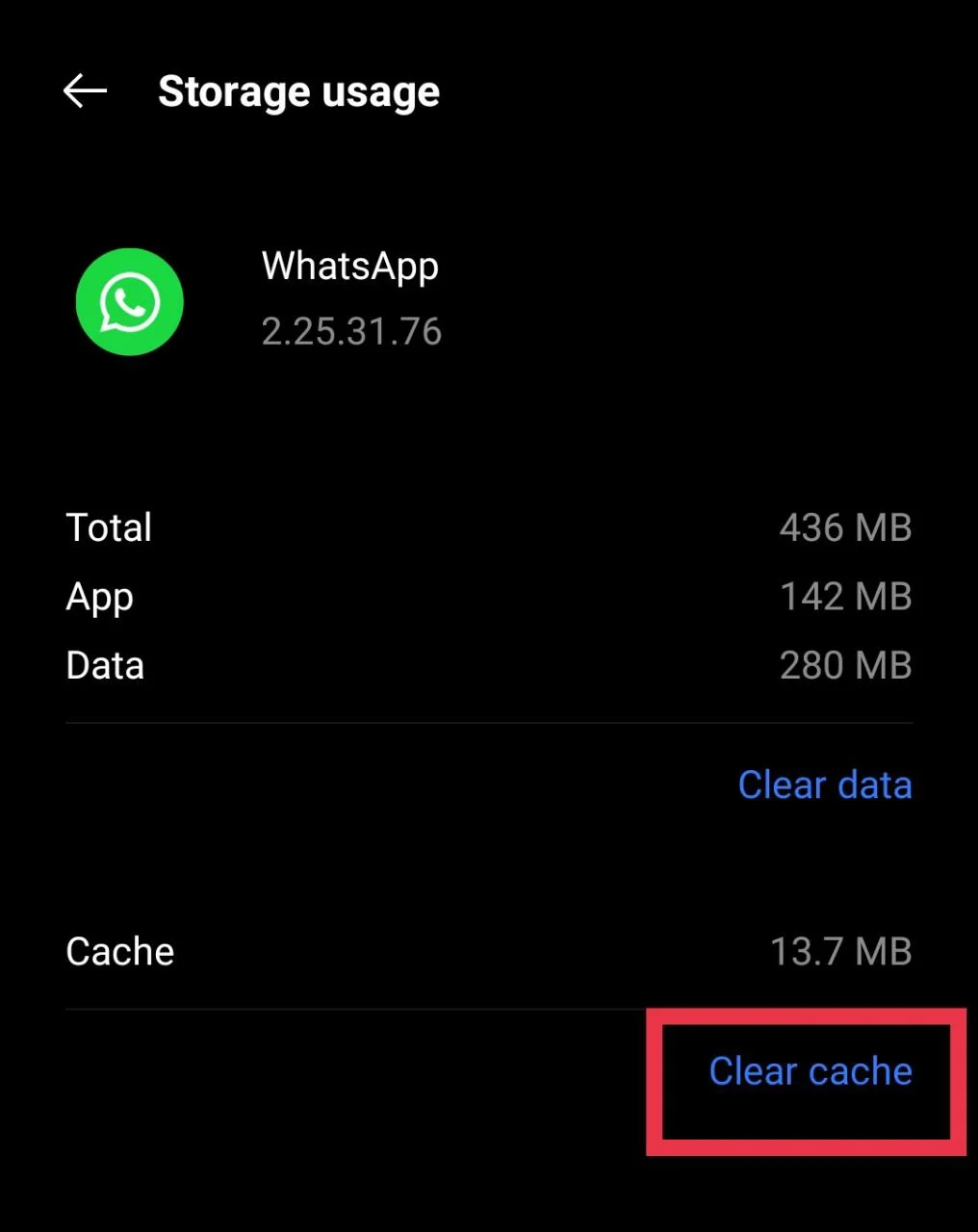
Clear Cache of Camera and WhatsApp (Android Only)
If you’re using an Android phone, clearing the cache can help fix this issue. Over time, stored cache files can cause apps to behave strangely, and clearing them gives the app a clean start.
- Open your Settings.
- Tap “Apps” and tap “Camera”
- Go to “Storage” and tap “Clear Cache”

- Do the same steps for WhatsApp. Open “WhatsApp” from the app list, go to “Storage,” and click “Clear Cache.”

Update Your Device Software
If your phone’s current software has any issues, the company might have already fixed them in a newer update. It’s always a good idea to check if your device has a pending software update, as these updates often include fixes for issues faced in earlier versions.
So, open your device Settings > System or About Phone > Software update and tap “Check for updates.” If you see a new version, install it and restart your phone once it’s done.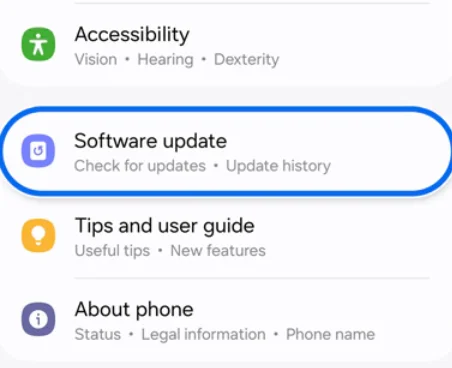
Make Sure No Other App is Using the Camera
If the error still shows up, another app might be using your camera in the background. This can happen if a video call, recorder, or security app is open. Close all apps that might be using the camera, wait a few seconds, then open WhatsApp again and try using it.
Uninstall and Reinstall WhatsApp
While this isn’t a solution that everyone likes, since many of us have chats going back years or important conversations, sometimes uninstalling and reinstalling WhatsApp is needed. Make sure you take a backup first because this step will remove the app and all its data from your phone.
To back up your chats, open WhatsApp > Settings > Chats > Chat backup and save everything to Google Drive or your phone.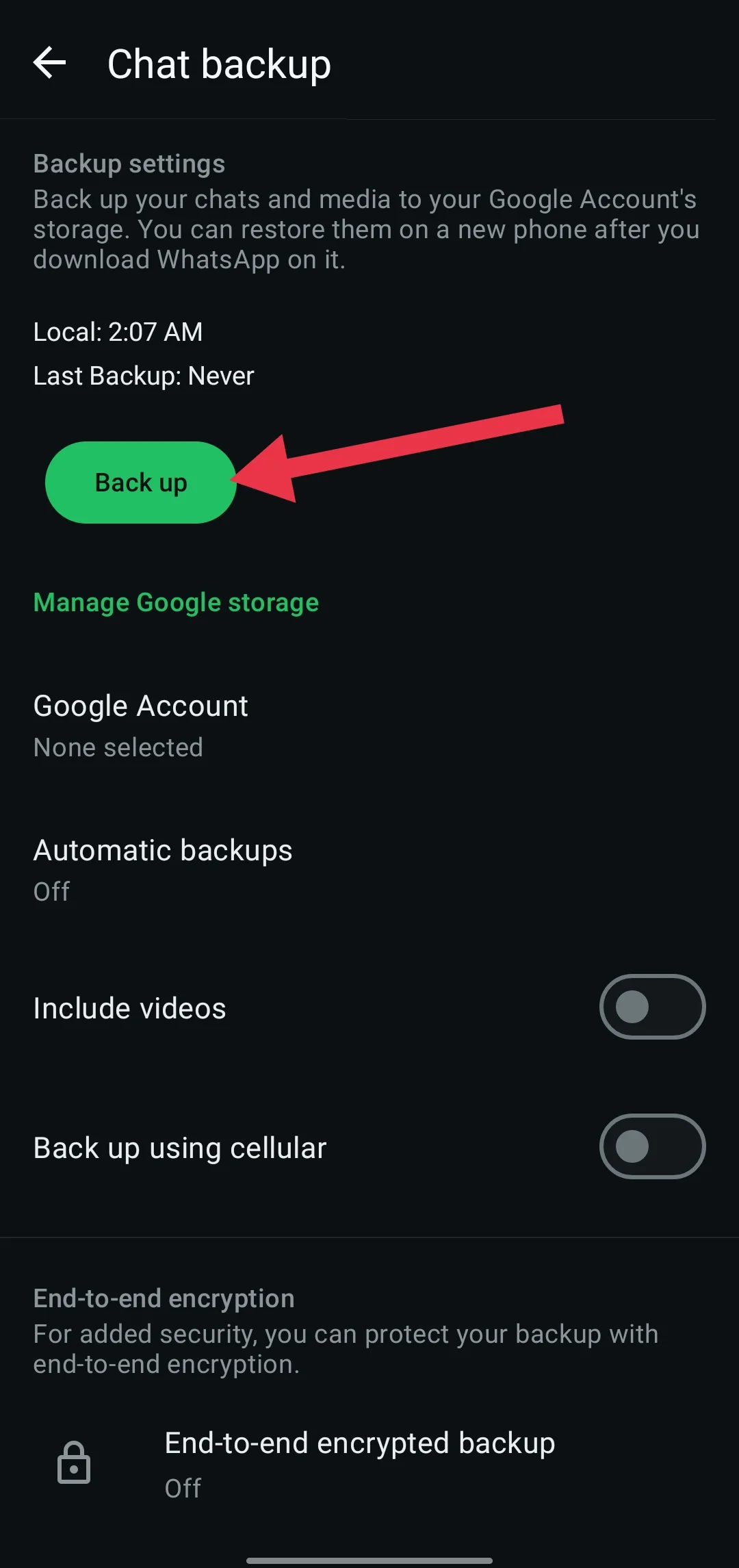
After that, uninstall WhatsApp and reinstall it from the Play Store. During setup, restore your backup to bring back your chats and media. Android users can also use the WhatsApp APK from the official website if needed.
Make Sure Your Phone Camera is Working
The camera problem might not always come from WhatsApp. To check, open your phone’s regular camera app and take a few pictures or record a short video. If it does not work here either, the issue could be with your phone itself.
For Android users, check guides below to fix common camera problems, which can help identify minor software issues.
- [FIXED] ‘Can’t Start Camera, Please Restart Your Device’ on WhatsApp
- [FIXED] Camera error, please re-enable it later or restart the phone to recover
- How to fix ‘unable to use camera as the front camera is being used’ error
If your camera still has trouble, visiting a nearby service center or a trusted local repair shop is the safest way to find out if there is a hardware or internal fault.
These are some effective ways that have helped many users fix the “WhatsApp was unable to start the camera” issue. If you know any other methods that worked for you, feel free to share them. And if this guide helped you, let us know which solution worked best for you.