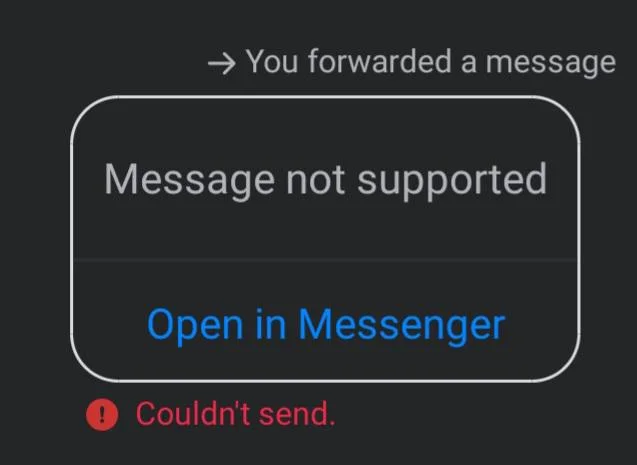
Many people do not really use Facebook Messenger for daily chatting anymore, since apps like WhatsApp handle most regular talks. Messenger is usually opened when someone wants to share a video, a post, or a news link they found on Facebook. It is also widely used. When the “Couldn’t send” error appears, it can stop messages from going through in new chats, group conversations, or even ongoing messages. This can happen when you try to message a new person or even while chatting with someone you were already talking to a few minutes ago. This often shows up when reaching out to a new person or replying in a group, and Messenger does not clearly say why the message failed.
Quick Answer: Most of the time, this issue is caused by a Messenger bug, and it fixes itself after a while. If not, make sure the person is not blocked, your internet is fine, and you are not sending content that is unsupported or goes against Facebook terms, then check the sections below to try the remaining options.
How to Fix Facebook Messenger “Couldn’t Send” Error
It is a Temporary Messenger Bug
Let us clear this first. This issue is usually caused by a long-standing Messenger bug. It has been around for years and still shows up for some users from time to time. There is no official fix for it right now, which is strange, but that is how it is.
In most cases, the error goes away on its own after a few hours or a few days. Then, after weeks or even months, it may show up again for a small number of users. If this is the reason behind the error, the only option is to wait until Messenger fixes itself automatically.
Use Messenger.com Instead
If the Messenger app or Facebook.com is not letting your messages go through, try sending the message from Messenger.com. Many users have been able to bypass the “Couldn’t send” error this way.
Try Private Browsing Mode
Another option is to send the message using private browsing mode in your browser to bypass the use of saved site data for that session. Open a private window, visit messenger.com, sign in, and try sending the message again. If you use end-to-end encrypted chats, make sure secure storage is turned on after you log in.
Try Facebook Lite on Android
If you are using an Android phone, Facebook Lite is worth trying. This app is made mainly for Android users and is built to use less storage, less data, and fewer background processes. Because of this, it often avoids issues seen in the main Facebook or Messenger app.
Facebook Lite also handles messages in a simpler way compared to the full app. If the main app is facing a bug, Lite may still allow messages to go through.
Check Facebook Server Status
If messages are still not going through, the problem may be on Facebook’s side. Server issues can affect Messenger without any warning, and users have no control over it.
You can check official Facebook social media accounts to see if there is any update about outages. Asking friends if they are facing the same issue can also help confirm this. You may also look at trending posts on other apps or use third-party outage monitoring services to see if other users are reporting Messenger problems at the same time.
RELATED:
- How to Fix Messenger “This message is not available on this app version.”
- [100% FIX] Messenger “Please restart Messenger to rejoin this chat” Error
Hope this guide helped you deal with the Facebook Messenger “Couldn’t send” error. If none of these methods work, the last option is to contact Facebook support.
Just keep in mind that replies are usually slow, and many users only receive automated responses. Since this bug has been showing up for years without a clear fix, support may not give a direct solution, but it is still worth reporting the issue.