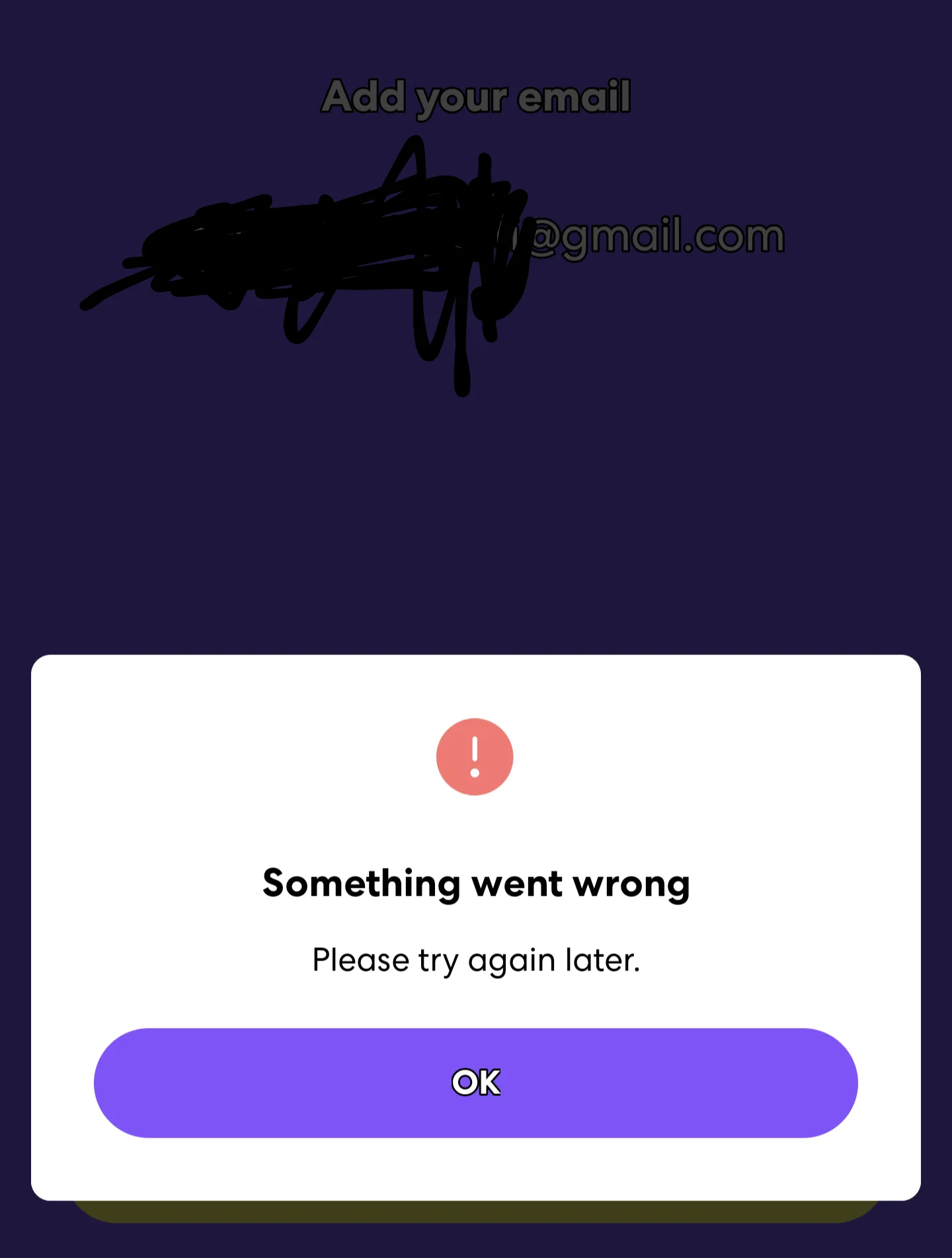
If you are here, you probably know what Life360 is already. Or maybe you just heard the name from a friend or saw it online and thought of giving it a try. You install the app, open it, enter your email, and then a random error shows up saying “Something went wrong. Please try again later.”
Life360 is mainly used to stay connected with family and close people and keep an eye on locations. Many users have been using it for a long time without any trouble. At the same time, some people notice it works fine on one phone but doesn’t work on another phone or a brand new device.
I have faced the same issue myself, and that is the reason I decided to write this post. Below, I have shared everything related to the something went wrong error on Life360 and how it can be fixed, based on what worked for me and others who faced the same situation.
How to Fix Life360 Something Went Wrong Error on Android and iPhone
Allow All App Permissions
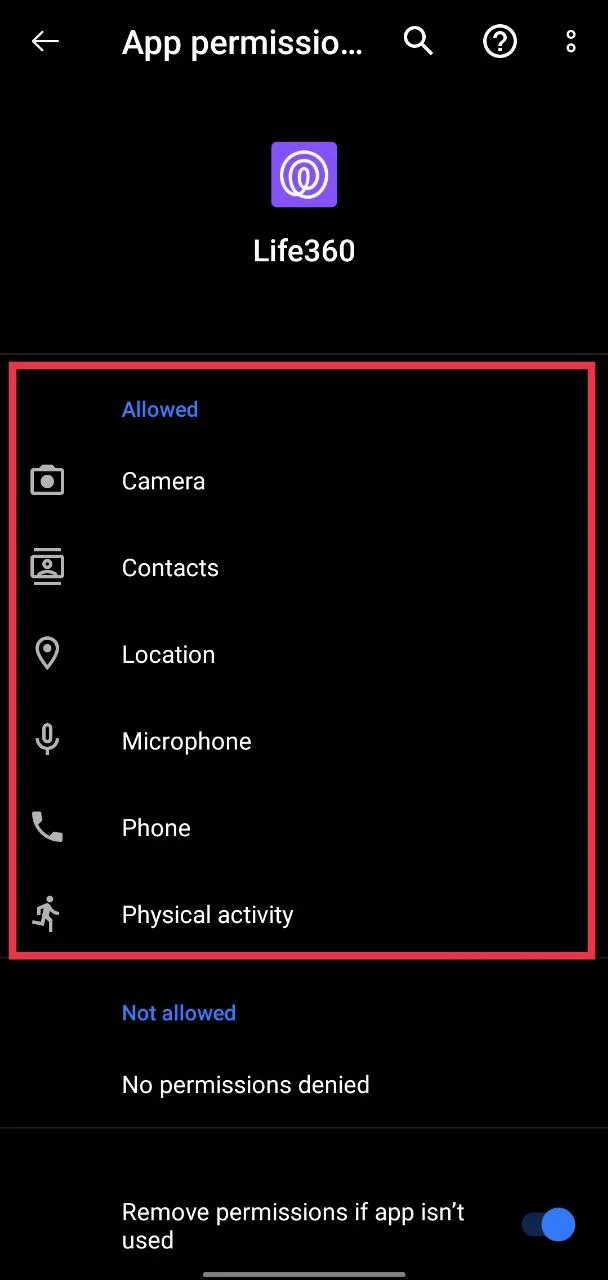
One common reason this error appears is that the app does not have permission to access important features on your phone. Life360 depends on permissions like location, phone access, and background activity to work as expected. If even one required permission is blocked, the app may fail during email entry or account setup.
- For Android users, open your phone settings > Apps > Life360 > Permissions section and make sure all available permissions are allowed, including location, phone, microphone, storage, and notifications.

- For iPhone users, open Settings > Apps > Life360 and enable location access, background app refresh, notifications, and any other option that is turned off.
Reset Location and Region Settings and Reinstall the App
This fix worked for me after trying many other options. The issue was linked to custom location and region settings on the phone. When these settings are changed from the default, the app may fail during account creation.
- Open your phone’s Settings
- Go to Language and Region or Location and Region
- Change the region back to the default option
- Now, reset measurement settings like temperature, date format, time format, and first day of the week
- Make sure the main language is set to the default for your region
- Once done, close the settings menu
- Now, uninstall the Life360 app from your phone
- After that, restart your device
- Reinstall the app from the Play Store or App Store
- Open the app and try creating your account again.
Disable Developer Options
Life360 works differently compared to many other apps. It relies heavily on real-time location data, device status, and system-level trust to function as expected. When developer options are turned on, the app may treat the device as modified or under testing conditions.
Developer options allow advanced controls such as mock locations, background limits, and system debugging. While these features are useful for testing, they can interfere with how Life360 reads location accuracy and device behavior. Because of this, the app may stop the sign-up process or show repeated errors even though nothing seems wrong on the surface.
- Open Settings on your phone
- Search for and open Developer options

- Turn the main toggle off at the top
- After that, close the settings and restart your phone.
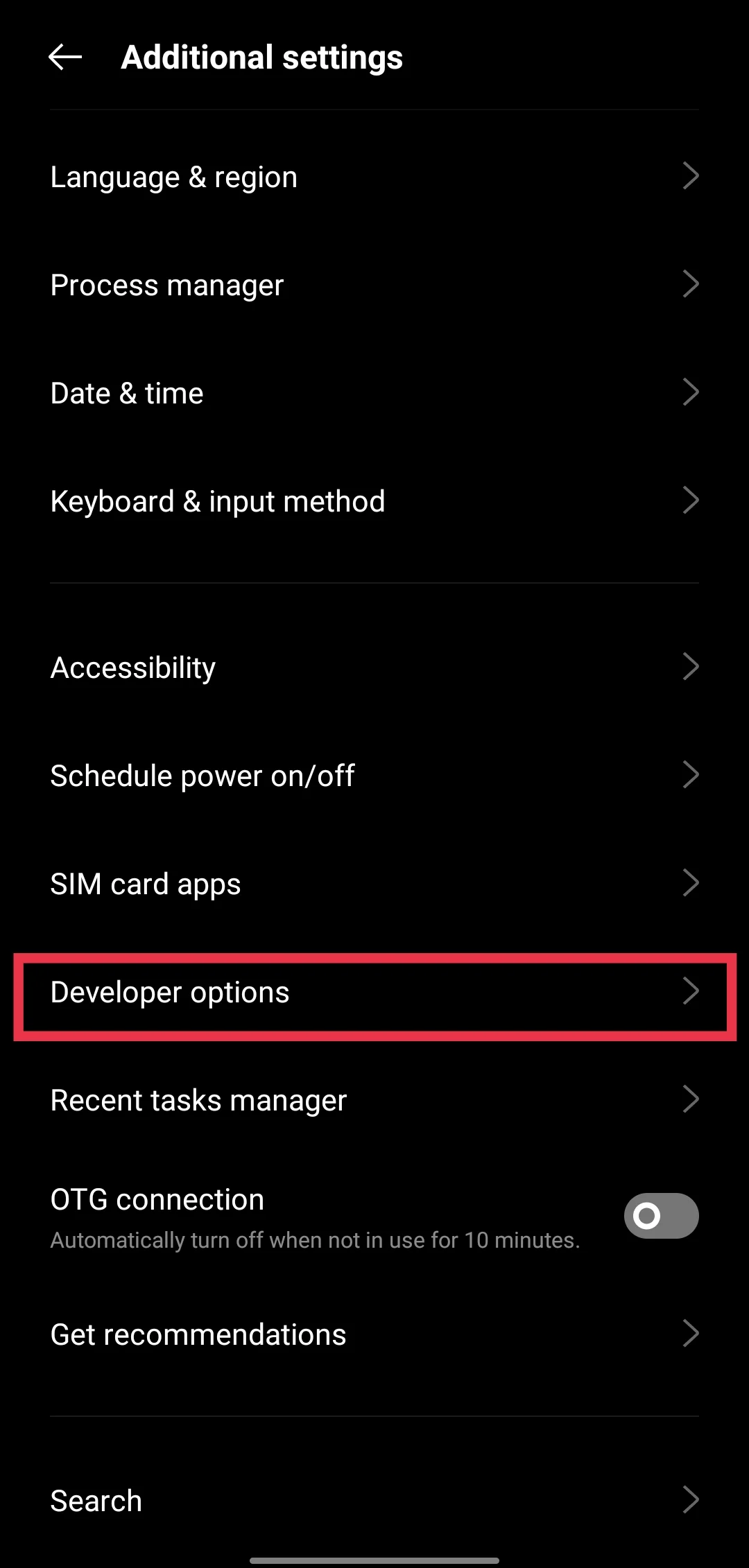
Note: iPhones do not have developer options enabled by default, so this solution mainly applies to Android devices. If you are on iOS, you can skip this step and move on to the next fix.
Turn Off VPN and Try Again
Life360 depends on accurate network and location data to create and verify an account. When a VPN is active, the app may read the connection as coming from a different region or an unknown network.
VPN services change your IP address and reroute traffic through external servers. While this is useful for privacy, it can interfere with the apps that rely on real-time location checks and trusted network signals. Life360 may pause or block the sign-up process if the connection does not match the phone location or region settings, and may show a something went wrong error.
To resolve, turn off any VPN app installed on your phone before opening Life360. After disabling it, close the app fully and open it again using your normal mobile data or WiFi connection.
Contact Life360 Support
If none of the fixes worked, the last option is to contact Life360 support directly. They have an official help page where you can scroll down and tap on Chat with Us. This connects you to a virtual chatbot that asks a few basic questions about the issue you are facing.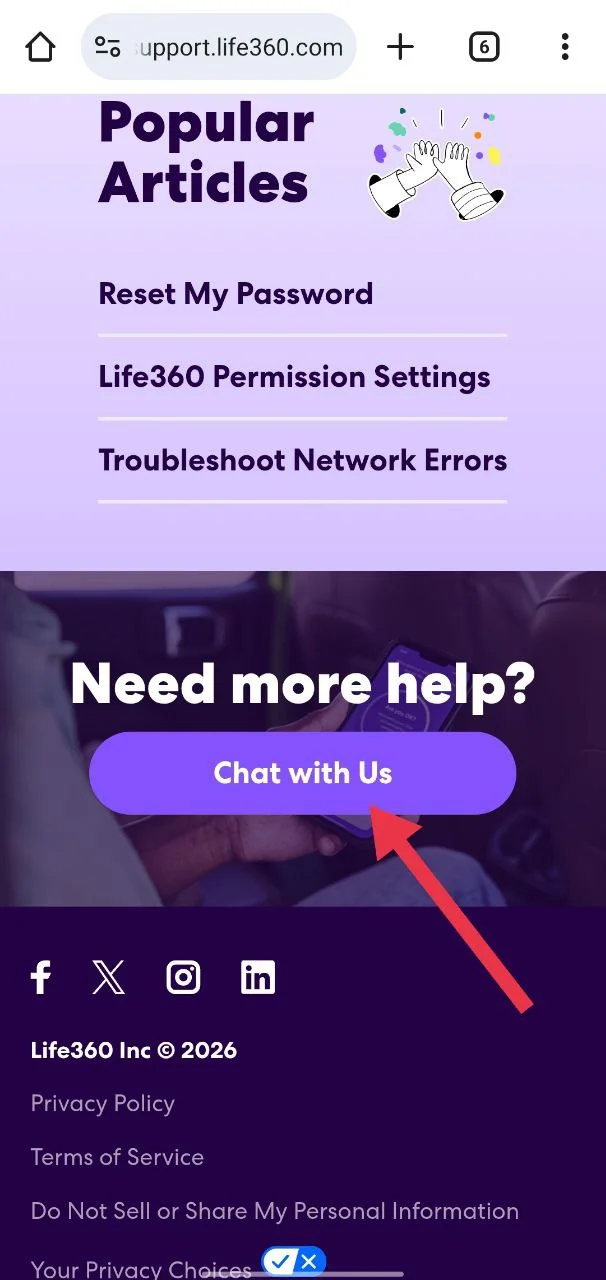
From there, you can request to connect with a real customer support agent or choose the option to submit a support ticket. Make sure you share all details clearly, including the exact error message, your device type, and what you have already tried.
But remember, the responses are not always quick, and many replies are automated and may not fully solve the issue. Still, it is worth trying since this is the official support channel. In rare cases, they do respond with a helpful fix or account-level update that clears the problem.
Other Fixes You Should Try
- Clear data and cache on Android
- Offload and Reinstall on iPhone
- Uninstall and Reinstall App
- Sign out and Sign in
- Try a Different Email Address
RELATED: Why Life360 Not Working (SOLVED)
These are all the fixes that usually work on both Android and iOS phones to resolve the Life360 something went wrong error. Hope this helped. Do share this with others and let us know which method worked for you.