If you are seeing the error “This application is not supported on debug mode and rooted devices” while opening the Poshan Tracker app, it is mainly because of how your phone is set up. The app is used by Anganwadi workers and officials to manage data of pregnant women, children, and other beneficiaries. It also helps track daily activities and service delivery, so the app keeps strong security checks in place.
This error usually shows up for a few common reasons. Your phone might have developer options turned on, which includes USB debugging. Or the device might be rooted, which means the system settings are changed from the default. In some cases, apps also block phones that have custom setups or modifications, as they try to protect sensitive data.
I have faced this issue myself while using the Poshan Tracker app, so I understand how it feels when the app just does not open. After trying a few methods, I found what works. I will share the exact steps I used below. If you are seeing this error in other apps too, the same methods should help there as well. 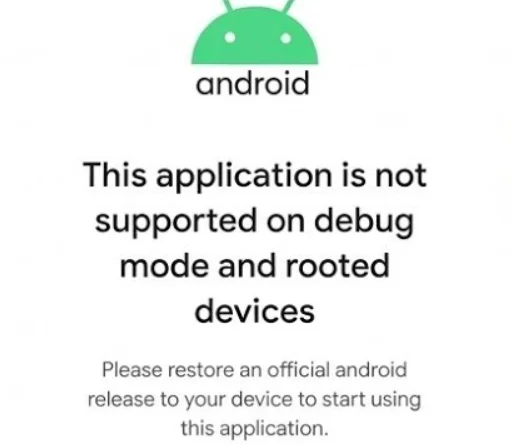
How to Fix “This application is not supported on debug mode” Poshan Tracker
Turn Off Developer Options
First, make sure that Developer options is disabled on your device. If it is turned on, the app will not open. Many users enable it by tapping the build number multiple times without realizing its impact.
“Developer options” on Android is mainly intended for app testing and system-level control. It includes features like USB debugging and background process settings, which are not required for regular usage.
To disable it, open Settings > Developer options, then turn off the toggle.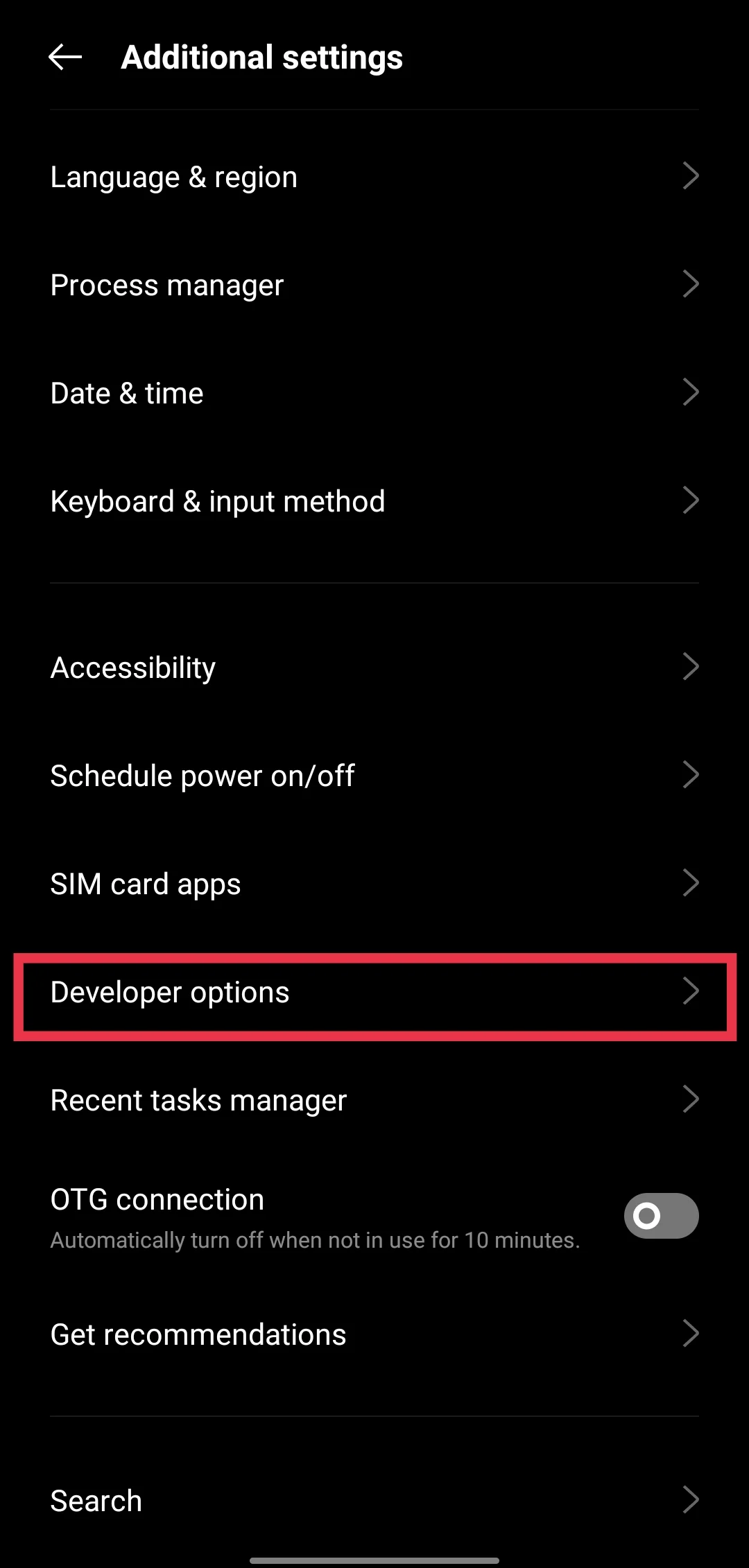
If you do not see it directly, use the search bar in Settings and type “Developer options” to locate it quickly. After turning it off, restart your phone and open the app again.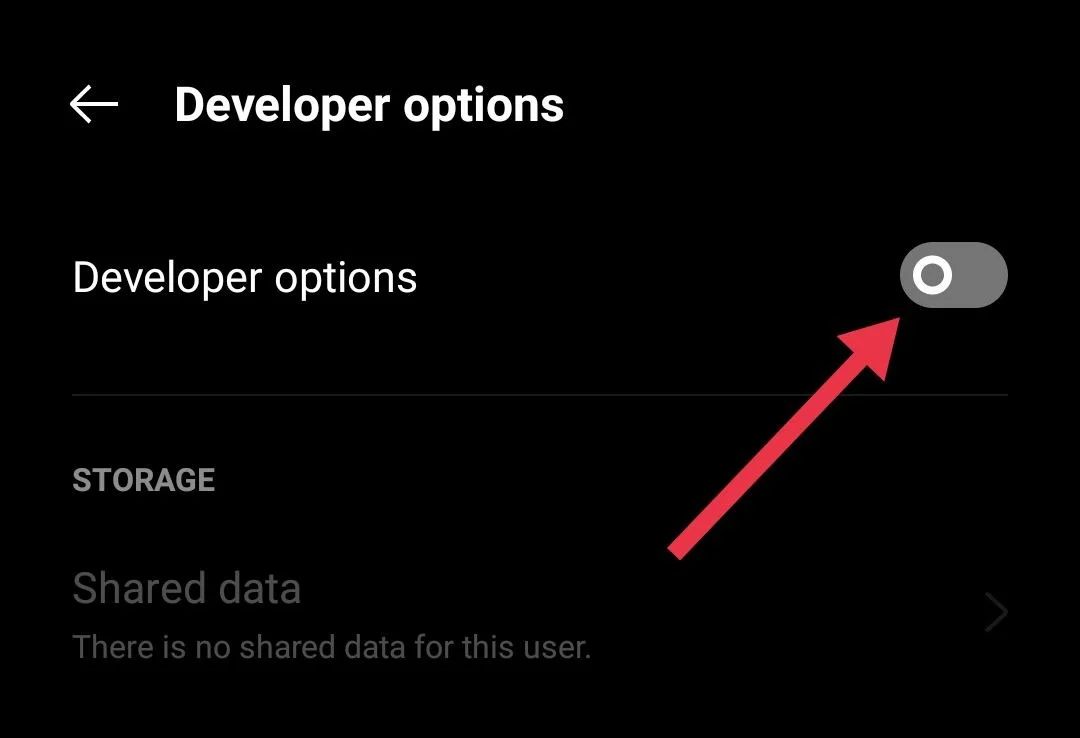
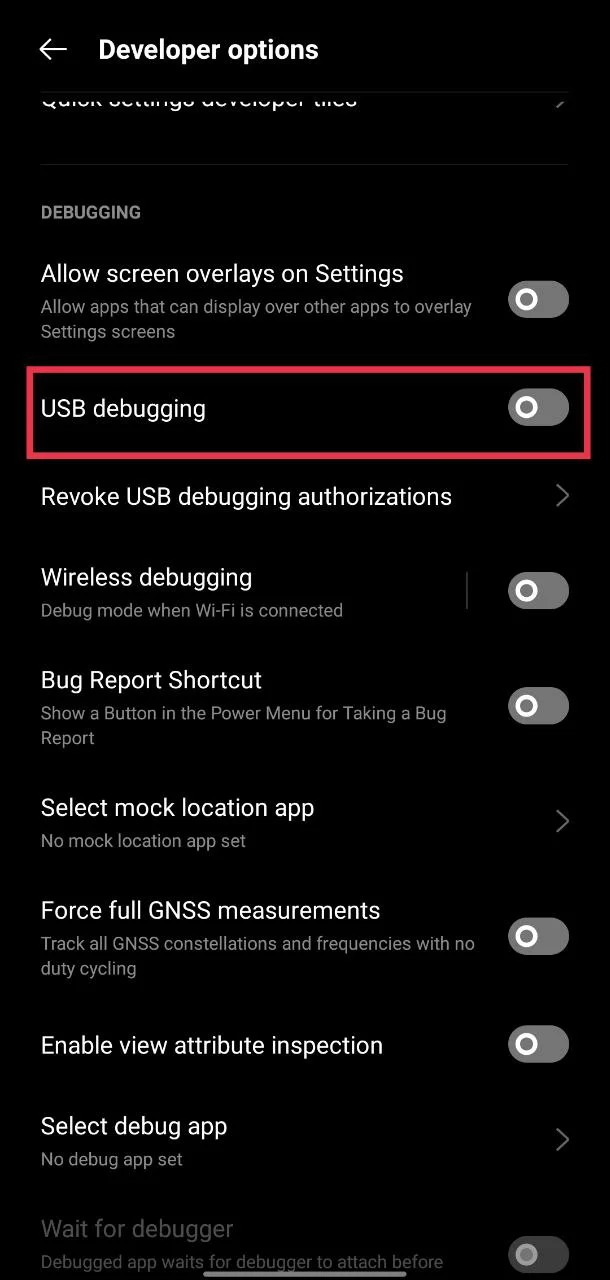
Turn Off USB Debugging
If the first method did not help, try this one. Open your phone settings and go back to Developer options. Since you already turned it off earlier, you will need to switch it on again for this step.
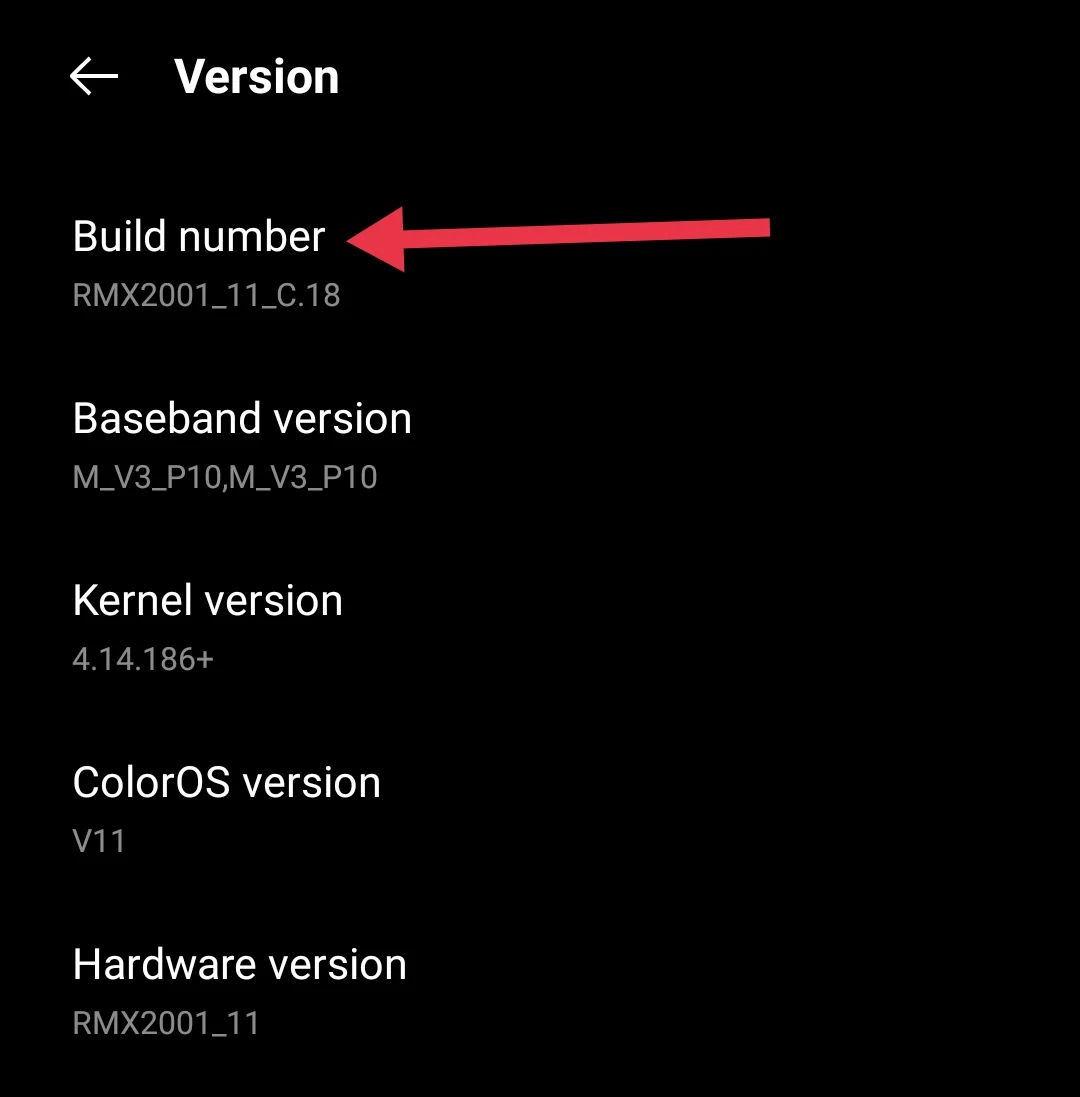
- To do that, open About phone and tap on the build number seven times.

- Then go back to Settings and tap on Developer options. (You can check under Additional settings, or just type it in the search bar to find it faster.)

- Now scroll down and turn off the USB debugging option.

- After that, turn off Developer options again.

- Once you finish, restart your phone and open the app to see if it works.
Unroot Your Device
If your phone is rooted, this app will not work. Rooting changes the default system settings, and many apps block access on such devices for security reasons.
Earlier, rooting was easy and could be done in a few steps. Now it takes more effort, but people still do it to gain extra control and customization on their phones.
If your device is rooted, you will need to remove root access before using this app. Without doing that, the app will continue to show the same error and will not open.
These are three simple ways to fix the “This application is not supported on debug mode” error in the Poshan Tracker app. I hope this helped you.
If this worked for you, feel free to share it with others who might be facing the same issue. And if you found any other method that works, do let us know as well.