Roblox has been growing fast, and many robloxuser enjoy trying out new features as soon as they are released. When the face tracking option came out, it caught a lot of attention. It lets your avatar copy your real facial expressions using your device camera, which makes chats and games feel more lively and fun. Since you already know how this feature works, there is no need to explain it again.
Lately, a lot of players have noticed that the face tracking feature is missing or not responding. For some people, the option does not appear at all. For others, the camera turns on, but the avatar’s face does not move.
If face tracking is missing or not responding on your Roblox, there are a few usual things that tend to cause it. We have seen many players run into this for different reasons, and most of them are easy to check once you know where to look.
That is why we put this guide together for our viewers. Below, we explain what might be blocking the feature and how you can sort it out on your Roblox step by step.
Common Reasons Why Roblox Face Tracking Not Working or Not Showing Up
From what we have seen, there are a few main reasons why face tracking might not show up on Roblox. The first thing is age. If your age is not confirmed on your account, the feature stays locked. Another common reason is the camera itself. If your device camera is not working or Roblox does not have permission to use it, the option will not appear.
Another thing many people miss is the account setup. If face tracking is turned off in settings or your email and mobile number are not verified, access can be blocked. On top of that, this feature may not be active in all countries or regions right now.
7 Methods to Fix Roblox Face Tracking Not Working or Not Showing Up on Mobile and Desktop
Verify that You’re 13+ Years
If face tracking is missing on your Roblox account, the first thing we suggest checking is your age. This feature only works for users who are 13 years old or older, and your age must be confirmed in settings. Once your age is verified, Roblox also needs permission to use your camera and microphone, and the experience you join must support camera-based communication.
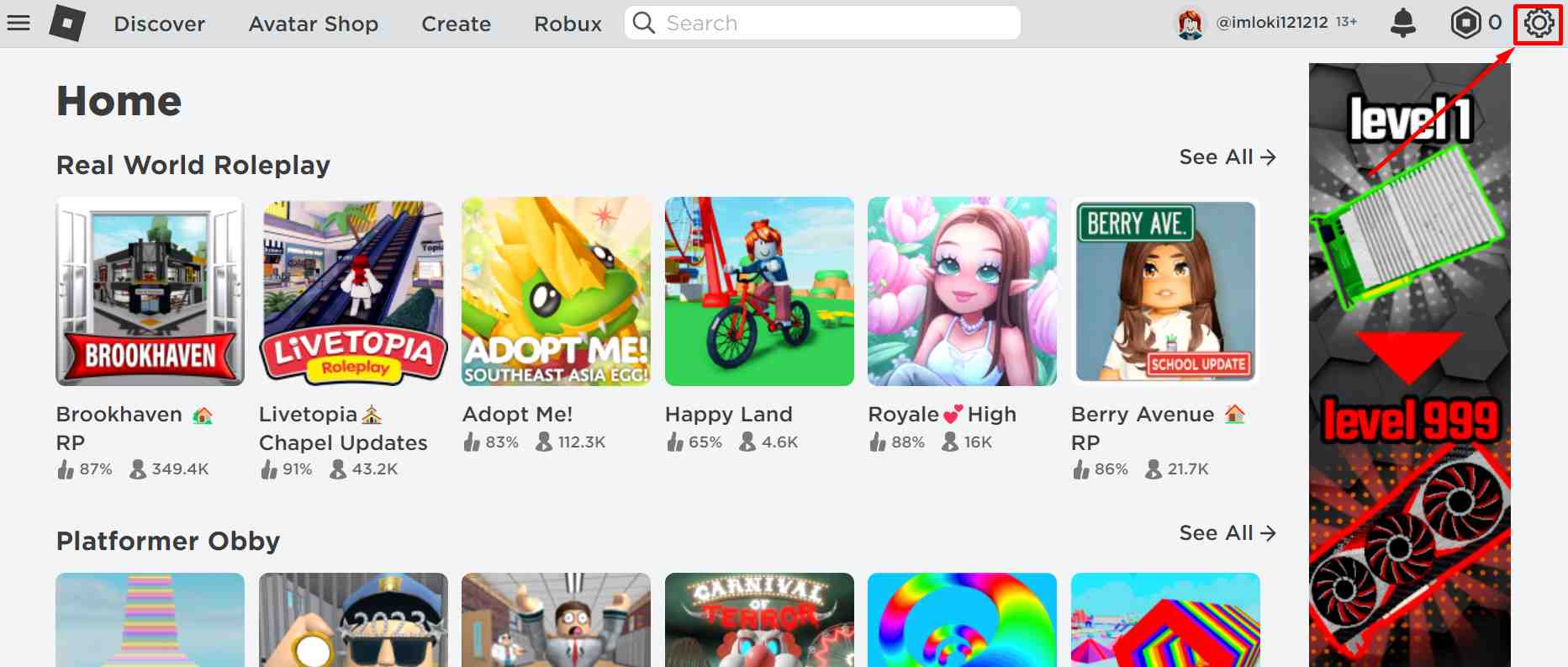
- Log in to your Roblox account and click the settings icon.

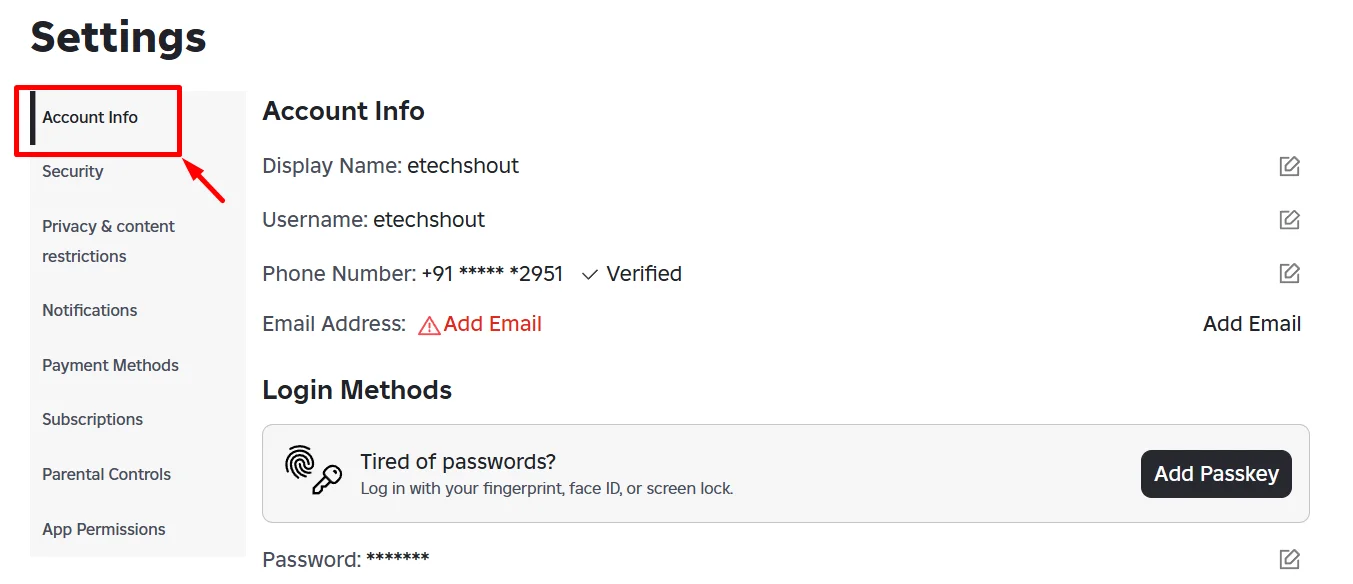
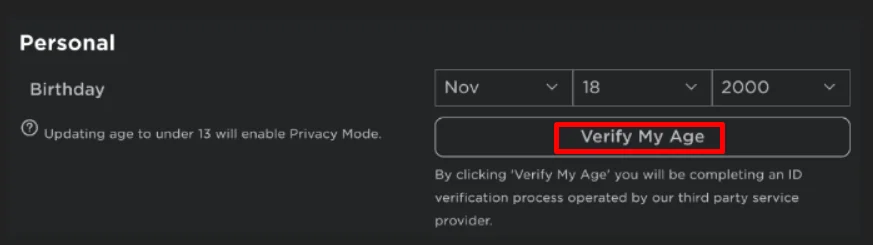
- Open the Account Info section and enter your date of birth.

- Make sure the date confirms you are above 13 years old.
- After that, select the Verify My Age option to verify your age and follow the instructions shown on the screen.

- Now, a pop-up will open on your screen showing a QR code. Scan this QR code using your mobile phone.
- On your phone, tap the Start Session option and follow the instructions shown. You will be asked to allow camera access so the process can continue.
- Next, scan your government-issued ID. Roblox will automatically detect the type of document you are using. If your ID has a barcode on the back, you will also need to scan the back side. After that, you will be asked to take a selfie so Roblox can confirm the photo matches your ID.
Once you finish all the above steps on your phone, return to your original Roblox session on your computer. Wait a moment for the verification to complete. You will then see a result showing if the age check passed or failed.
Check If Your Camera is Working
If Roblox face tracking is not responding to your expressions, the camera is usually the first thing to look at. Make sure the camera on your device is turned on and actually working. If Roblox cannot detect a camera, the feature will not respond. In some cases, older devices may not support this feature at all.
We suggest testing your camera using another app to confirm it works. If the camera does not turn on anywhere, it may need fixing or replacing. Also, make sure Roblox has permission to use the camera. Sit in a place with good lighting and avoid bright light behind you, as the camera needs a clear view of your face to recognize expressions.
If nothing changes after checking all this, you can try resetting Roblox settings back to default.
Make Sure Your Camera and Microphone are Connected
Another point we always remind our viewers to check is the camera and microphone connection. Roblox face tracking will not show up unless both of these are connected and working on your device. If either one is missing, Roblox cannot activate the feature.
So, confirm that your camera and microphone are detected by your system and allowed for Roblox. If one of them is disabled or not connected, face tracking will stay unavailable. Once both are active and recognized, the feature should appear when you join a supported experience.
Turn on Face Tracking In Roblox Settings
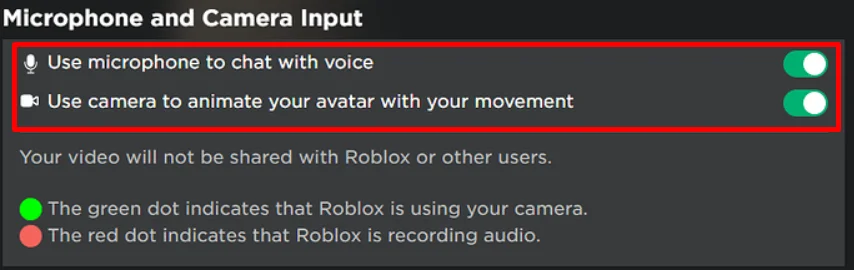
Another thing we often see is that the face tracking option is simply turned off. Even if your age and camera are fine, the feature will not work unless it is enabled in settings. So this is an important place to check.
- Open Roblox and sign in to your account.
- Click the gear icon on the top right to open settings.

- From the left side menu, navigate to the Privacy section.
- Now, open the Microphone and Camera Input option and turn on both the microphone and camera options.

Try Using a Virtual Camera
We want to share one more option that actually worked for one of our team members. In their case, face tracking did not respond with the built-in camera at all. The fix was using a virtual camera app instead.
They installed a virtual camera tool like Altercam and then switched the camera source inside Roblox settings to that virtual camera. After changing the camera, face tracking started responding. This may not be needed for everyone, but if the built-in camera refuses to work, this is worth trying.
Check If Face Tracking is Available in Your Region
Another main thing we want our viewers to keep in mind is regional availability. Face tracking is not active in every country yet. If the feature has not reached your region, it will not appear in settings, no matter what you try.
In this case, there is nothing to change on your side. You will need to wait until Roblox enables face tracking in your location. Once it becomes available in your region, the option should show up automatically, and you do not need to do anything extra.
Verify your Mobile Number and Email Address
Before wrapping up, we also suggest checking your account contact details. Face tracking may stay locked if your mobile number or email address is not verified on your Roblox account.
- Sign in to Roblox and click the settings icon at the top right. (You can also do it on the Android or iOS Roblox app)
- Open the Account Info section from the left menu.
- Here, you will see your registered mobile number and email address.
If you notice a Verify option next to either one, click it. Roblox will send a verification message or email. Open the message and confirm it. Once both details are verified, head back to the game and check if the face tracking feature appears.