X has seen a clear rise and fall over the years. It started as Twitter and quickly became one of the most popular social platforms in the world. People used it to share news opinions and real time updates. Over time, the platform faced many changes and challenges that affected how users experienced it.
Things changed even more after Elon Musk entered the picture and Twitter was renamed to X. Since then, the platform has gone through many updates experiments and policy shifts. Even now many people still like X because it is fast open and allows users to see what is happening around the world in seconds.
However, not everything works all the time. Many users, including me, recently started seeing an error message on X that says, “Some privacy related extensions may cause issues on x.com. Please disable them and try again.” It appears on browsers like Firefox and Microsoft Edge, and the Try Again button does nothing. After facing this issue myself and going through many trial and error attempts, I finally understood what was happening, which is why this guide exists.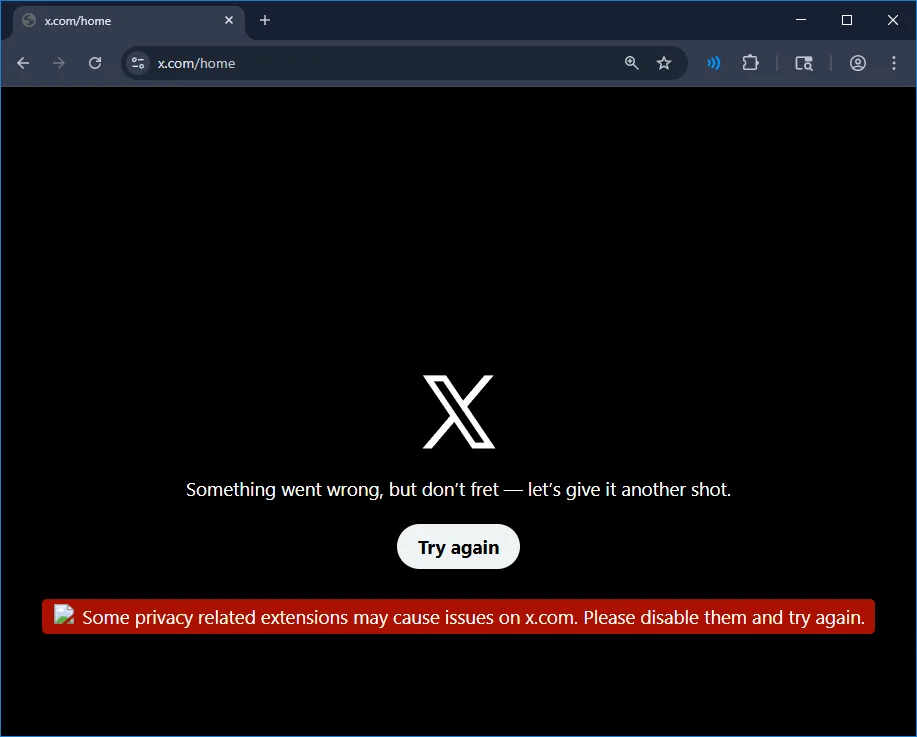
6 Ways to Fix “Some privacy related extensions may cause issues on X.com” on Firefox, Edge, & Chrome
Disable Tracking Prevention
This error often appears because the browser tracking protection blocks some scripts used by x.com. Turning it off for the site usually fixes the problem.
Mozilla Firefox
- Launch Firefox and open x.com.
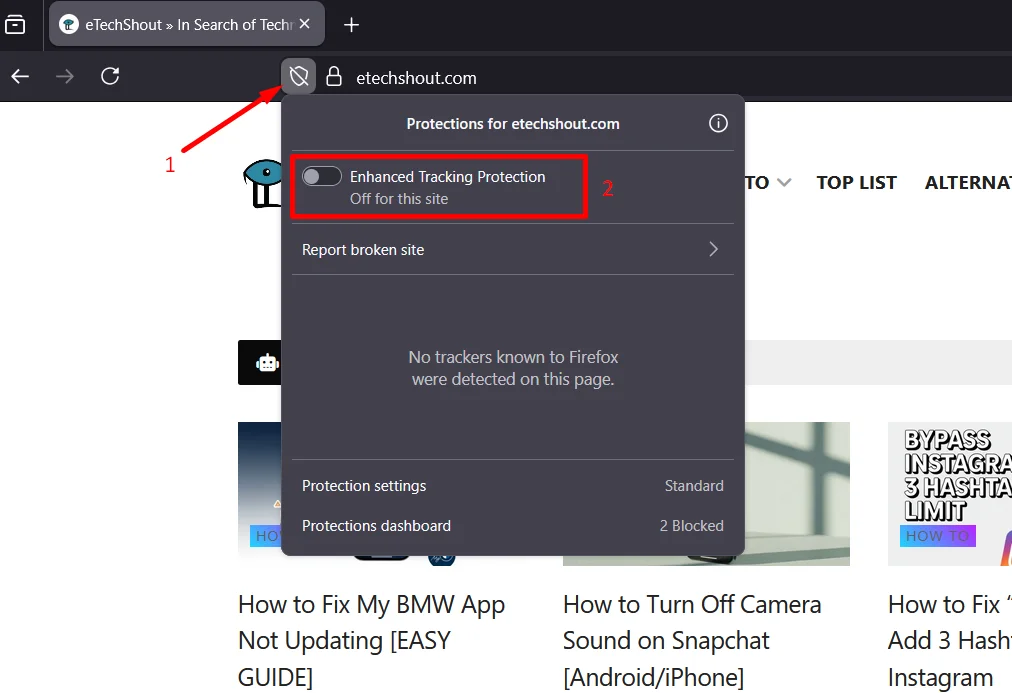
- In the address bar, click on the shield icon next to the site URL.
- Now, disable Enhanced Tracking Protection for this website and refresh the page.

Microsoft Edge
- Open Edge and click on the three dots at the top right.
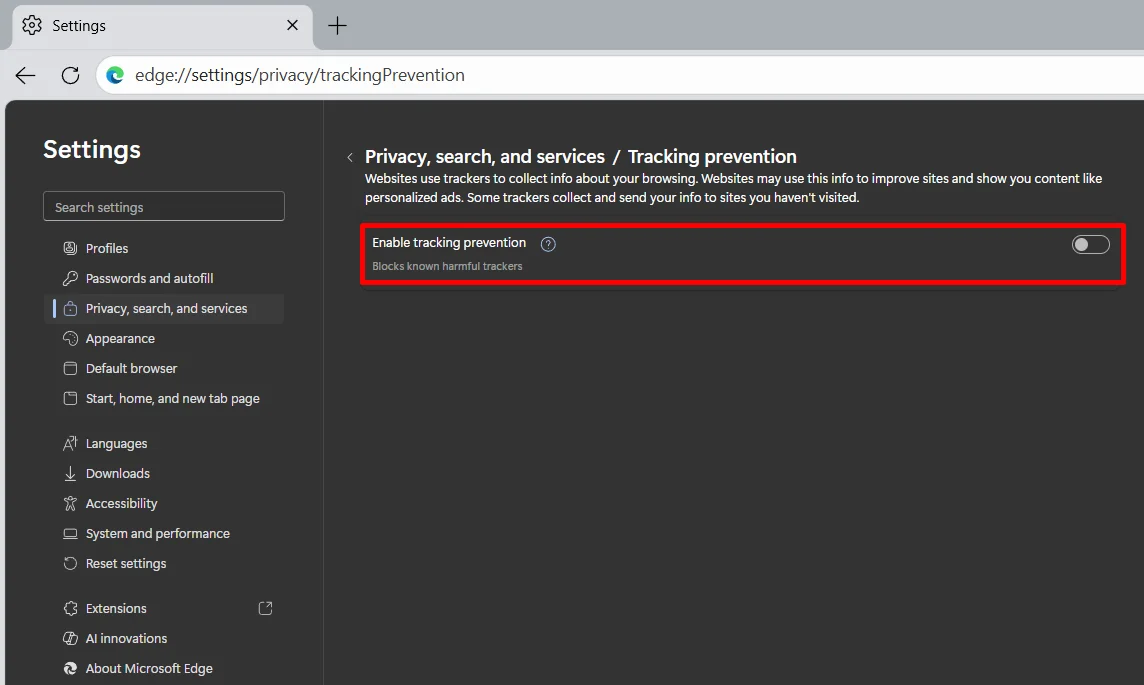
- Go to Settings and then open Privacy, search, and services.
- Now, select Tracking prevention
- Then turn off the Enable tracking prevention option.

- After that, reload x.com and check.
Opera GX
- Open Opera GX and visit x.com.
- Click on the lock icon in the address bar.
- Open Site settings and go to Tracking protection.
- Then disable tracking protection for the site and reload the page.
Turn Off VPN
If you are using a VPN while accessing X.com, this error can appear on the screen. X.com may block or limit access when it detects traffic coming through a VPN connection. Because of this, the site may show the privacy-related extensions warning.
So, turn off the VPN you are currently using and then fully close your browser. Then, reopen your browser and check X (Twitter) again.
If you have enabled a built-in VPN inside your browser, such as the VPN feature in Opera GX, make sure to turn that off as well.
Disable All Extensions
Many websites do not work properly when certain browser extensions are enabled, especially privacy-related ones. After Twitter.com was redirected to X.com, a lot of users started facing issues caused by extensions running in the background. If the error is still showing even after trying the earlier fixes, disabling all extensions is the next best step.
- Open the Chrome browser and click on the three dots in the top right corner.
- From the menu, select Extensions and then click on Manage extensions.

- Now, remove or disable all the privacy-related extensions such as VPNs, proxies, ad blockers, and tracking blockers.
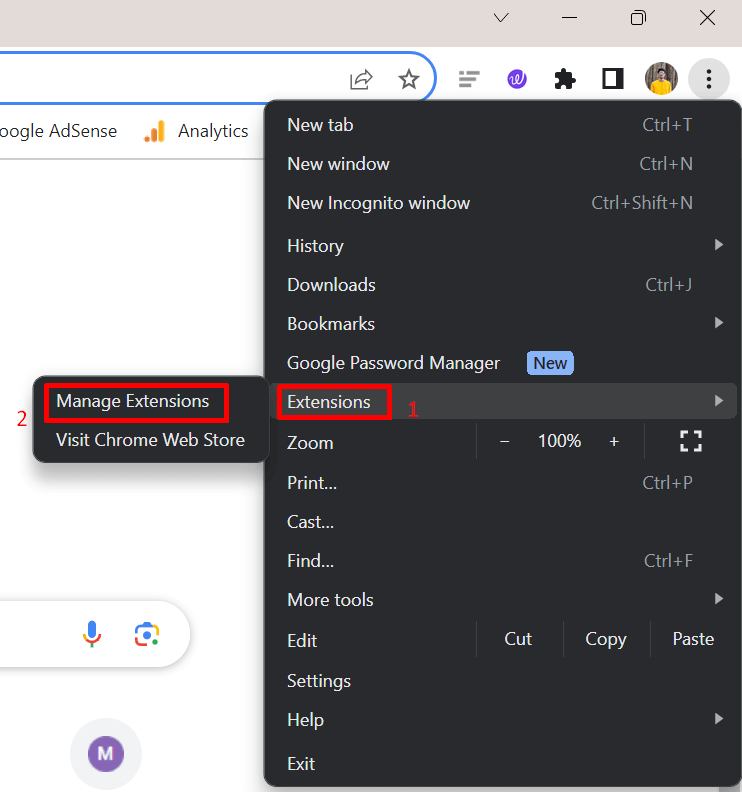
While the steps above are written for the Chrome browser, the process is almost the same in all browsers. If you are using another browser and have been using it for a long time, you likely already know where the Extensions section is located.
Clear Cache and Open Twitter Directly
Some users have found a simple workaround by clearing the browser cache and then opening Twitter directly instead of relying on a cached redirect.
Open your browser and press Ctrl + Shift + Delete on Windows or Command + Shift + Delete on Mac. This shortcut works on most browsers, like Chrome, Edge, Firefox, and Brave. Once you are in the browsing data section, clear the cached images and files, then close all your browser windows.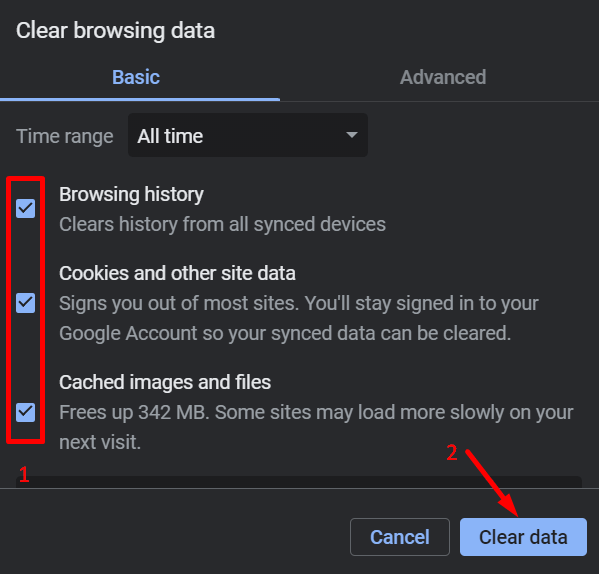
After that, reopen the browser and type X.com directly in the address bar and press Enter instead of using bookmarks or saved links.
Disable Cache from Developer Tools
In some cases, the error on X.com is caused by cached site data that does not refresh correctly. You can quickly test and fix this by using the browser Developer Tools.
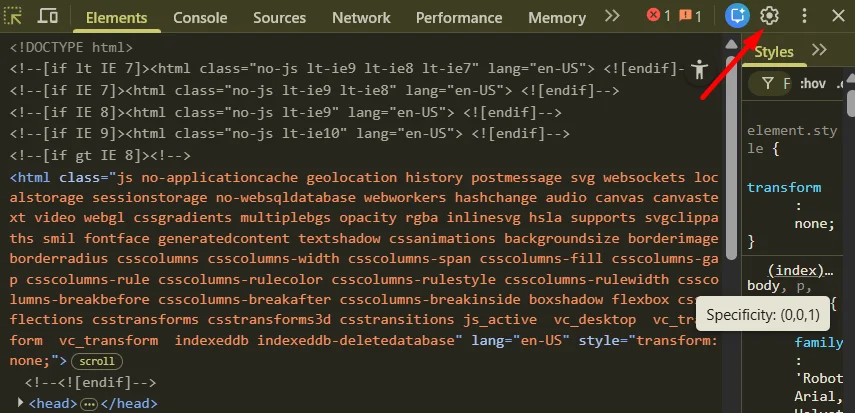
- First, open the Developer Console by pressing Ctrl+Shift+J (Windows/Linux) or Cmd+Option+J (Mac) on your keyboard.
- Once it opens, click on the settings button at the top.

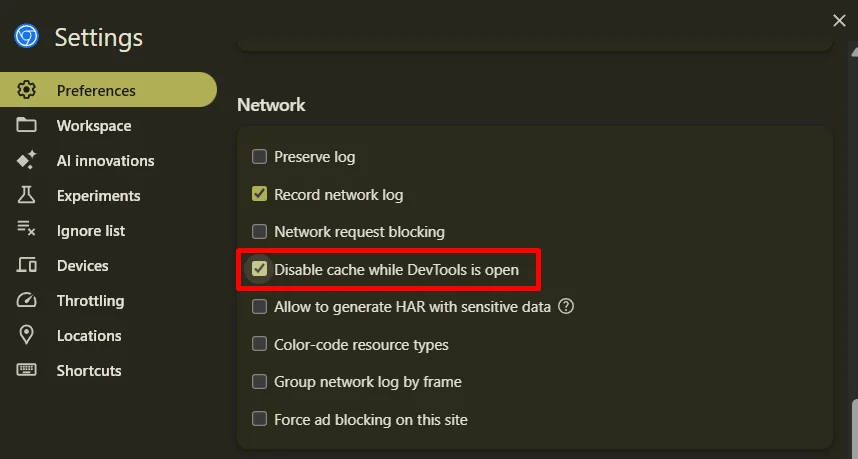
- Inside this section, find and check the option called Disable cache while using DevTools

- Now reload X.com by pressing F5.
- After confirming that the X is loading without the previous error, go back to the same section and uncheck the Disable cache option.
Try Using a Different Browser
Many users have noticed that this error appears more often on Firefox and Microsoft Edge. In fact, Firefox has also acknowledged that this issue can happen on their browser in some cases. Because of this, the problem may not always be related to your settings alone.
As a quick workaround, try opening X.com in a different browser like Chrome or Brave, etc. Simply copy the X.com link and open it in another browser to check.
If X.com works fine in the alternative browser, you can continue using it there until the issue is fully resolved on your main browser.
RELATED:
- Fix X (Twitter) “It Looks Like You Have Turned Off Permissions Required for This Feature”
- How to Fix ‘Cannot retrieve posts at this time’ on X (Twitter)
- Something isn’t right. Try your request again later Twitter/X [Here’s the Fix]
These are tested methods that have worked for many people facing the “Some privacy related extensions may cause issues on x.com” error.
Let us know which method worked for you. If you found an alternative way to fix this issue, feel free to share it in the comments so it can help others as well.