Telegram these days, even with many new apps coming up, still has a very large user base. It is not just used for basic communication anymore. People rely on it for its constantly added features, smooth performance, and even for downloading and sharing many types of content. Because of this, users expect the app to work reliably at all times.
However, sometimes a strange issue shows up where Telegram does not sync contacts properly. When this happens, saved contacts may not appear, new numbers may not show up, or the contact list may look incomplete.
The good part is that this issue can usually be fixed without doing anything complicated. In the sections below, I am going to share a few easy fixes that have helped many users solve the Telegram not syncing contacts issue on Android and iPhone. Just follow along, and you should be able to sort it out.
How to Fix Telegram Not Syncing Contacts on Android and iPhone
Enable Contact Sync in Telegram
The first thing you should check is the contact sync setting inside Telegram. If this option is turned off, the app will not show any new contacts that you add to your phone. So before trying anything else, make sure this feature is enabled. After turning this on, check your contact list again to see if everything is showing up on Telegram.
On Android
- Open the Telegram app.
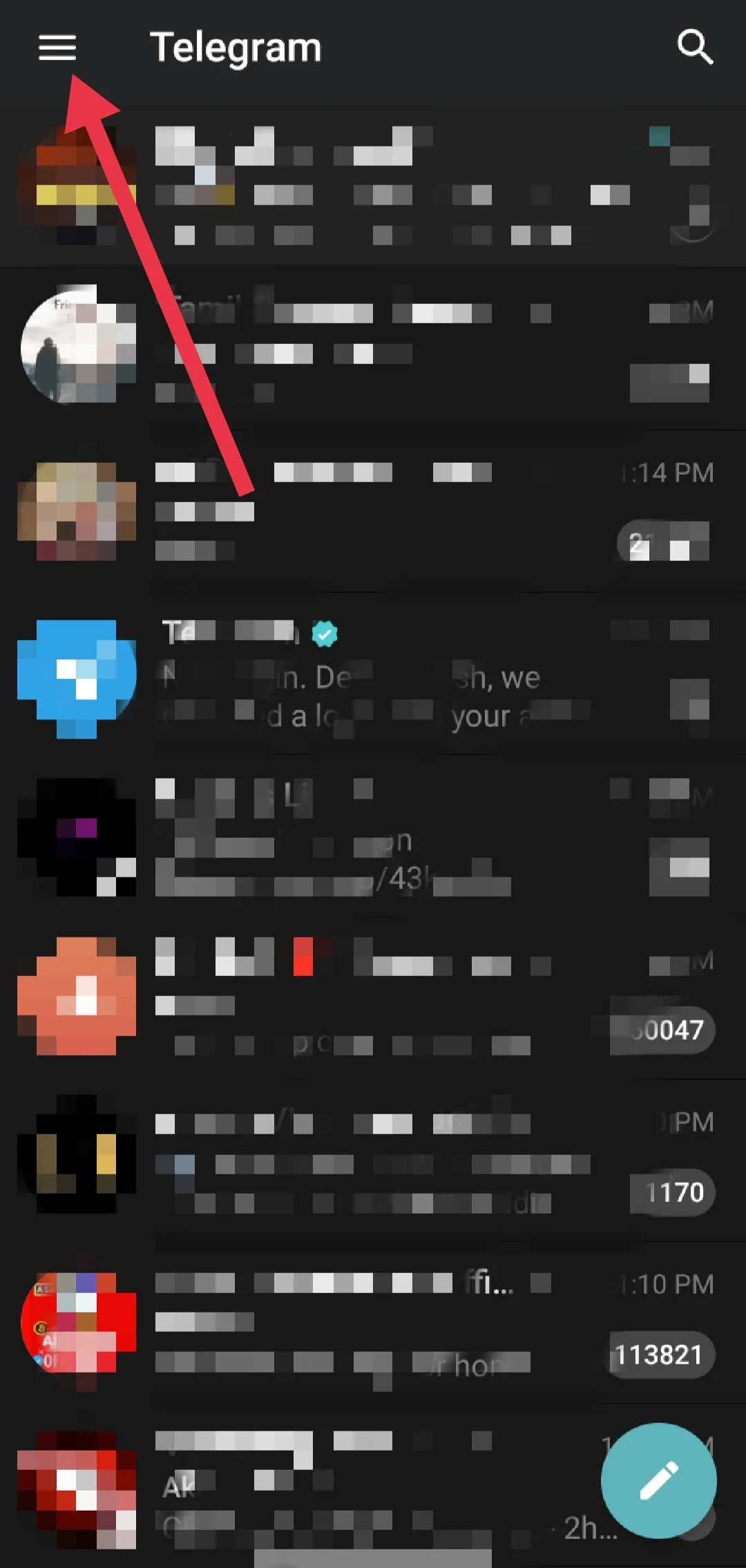
- Tap the three horizontal lines at the top left corner to open the menu.

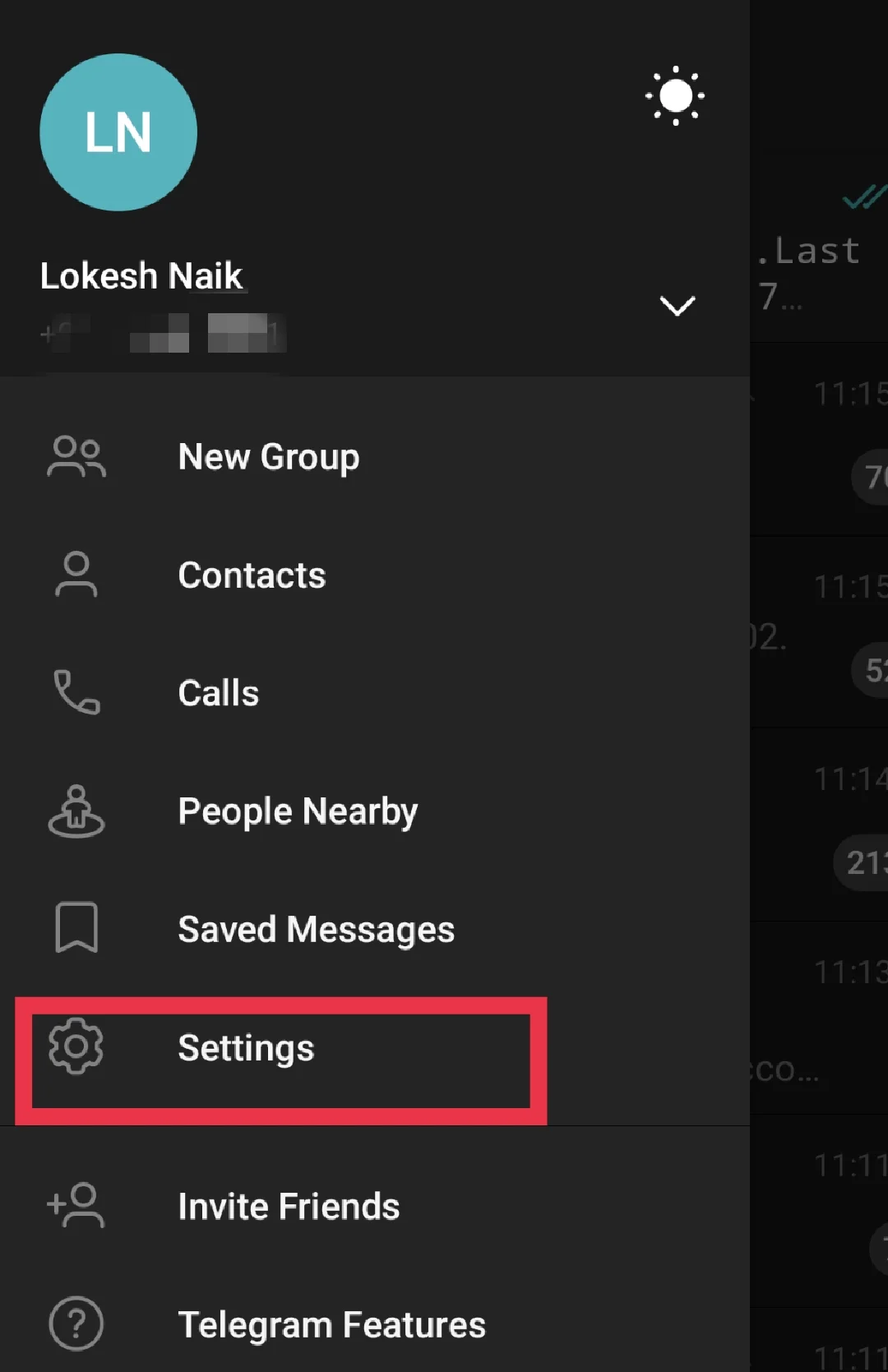
- Go to Settings. (In the newer version of Telegram, you can find Settings directly from the bottom bar on the home screen.)

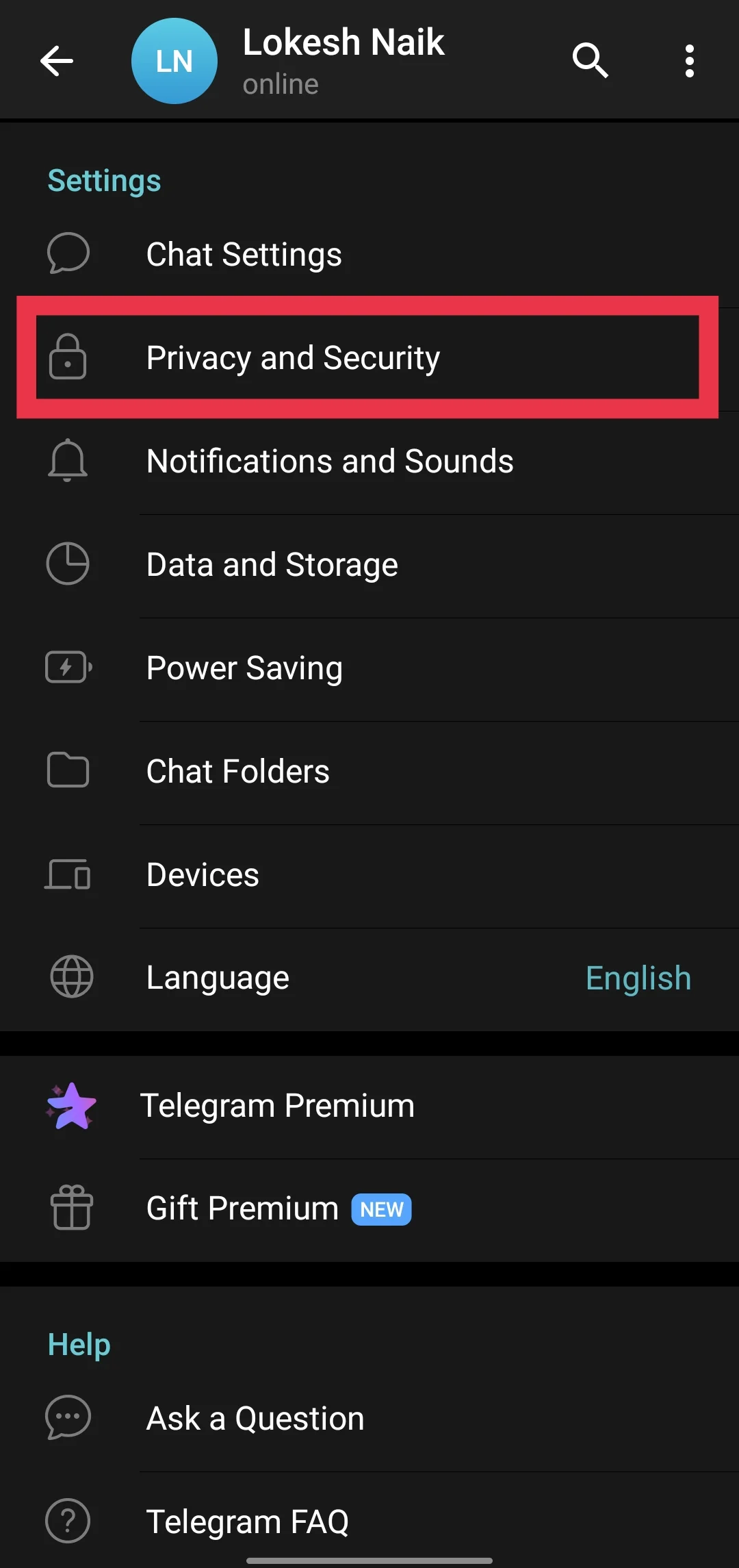
- Tap on Privacy and Security.

- Scroll down and under the “Contacts” section, turn on the switch next to Sync Contacts.
On iPhone
- Open Telegram on your iPhone.
- Tap the Settings tab at the bottom right corner.
- Select Privacy and Security.
- Tap on Data Settings.
- Enable the Sync Contacts option.
Enable Contact Permission for Telegram
If Telegram does not have permission to read your phone contacts, it will not be able to display them inside the app. So the next thing you should check is whether contact access is allowed on your device.
On Android
- Open your phone’s Settings.
- Go to Apps > Installed Apps > Telegram.
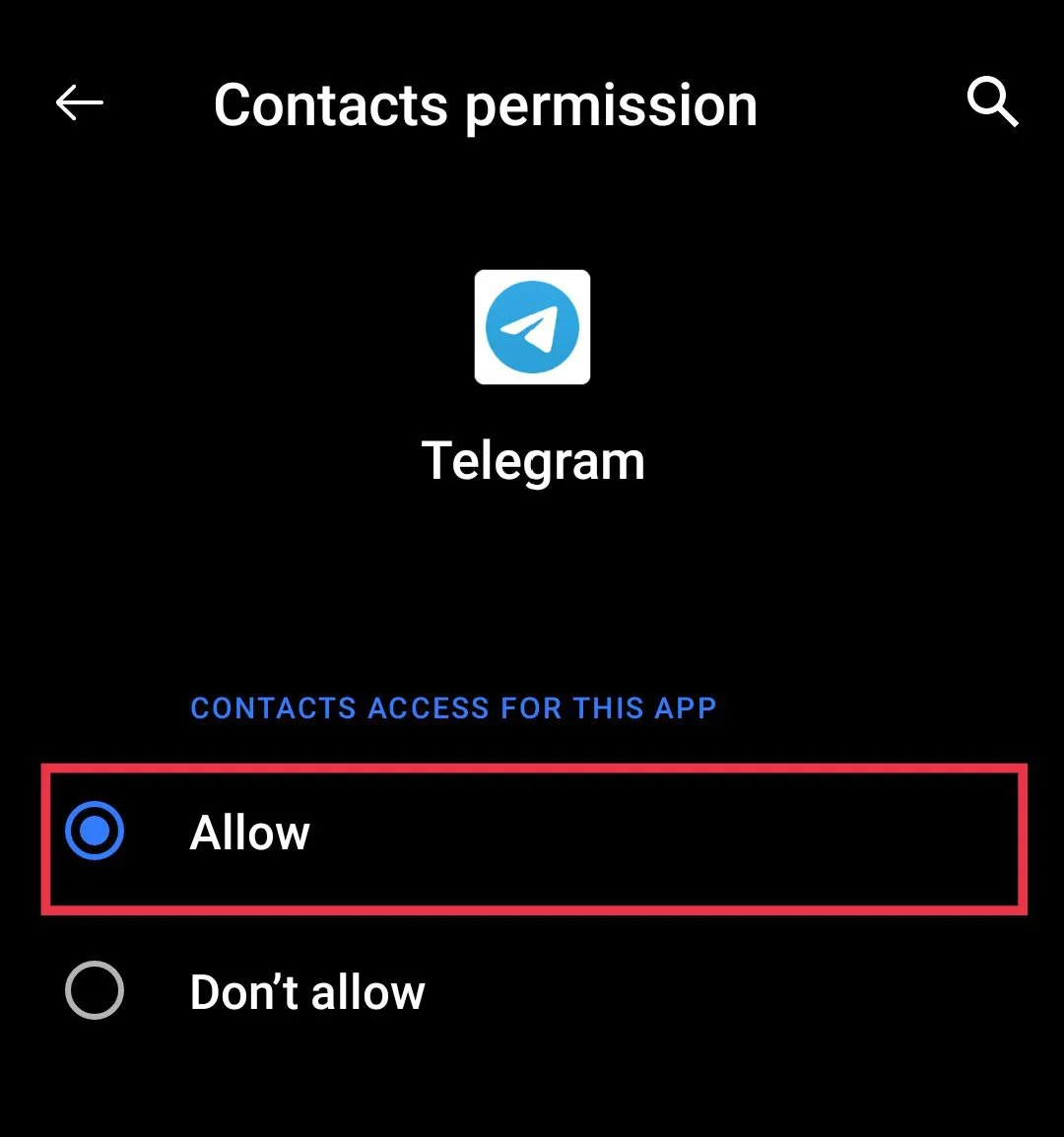
- Tap on Permissions.
- Select Contacts and “Allow access” to contacts.

On iPhone
- Open the Settings app on your iPhone.
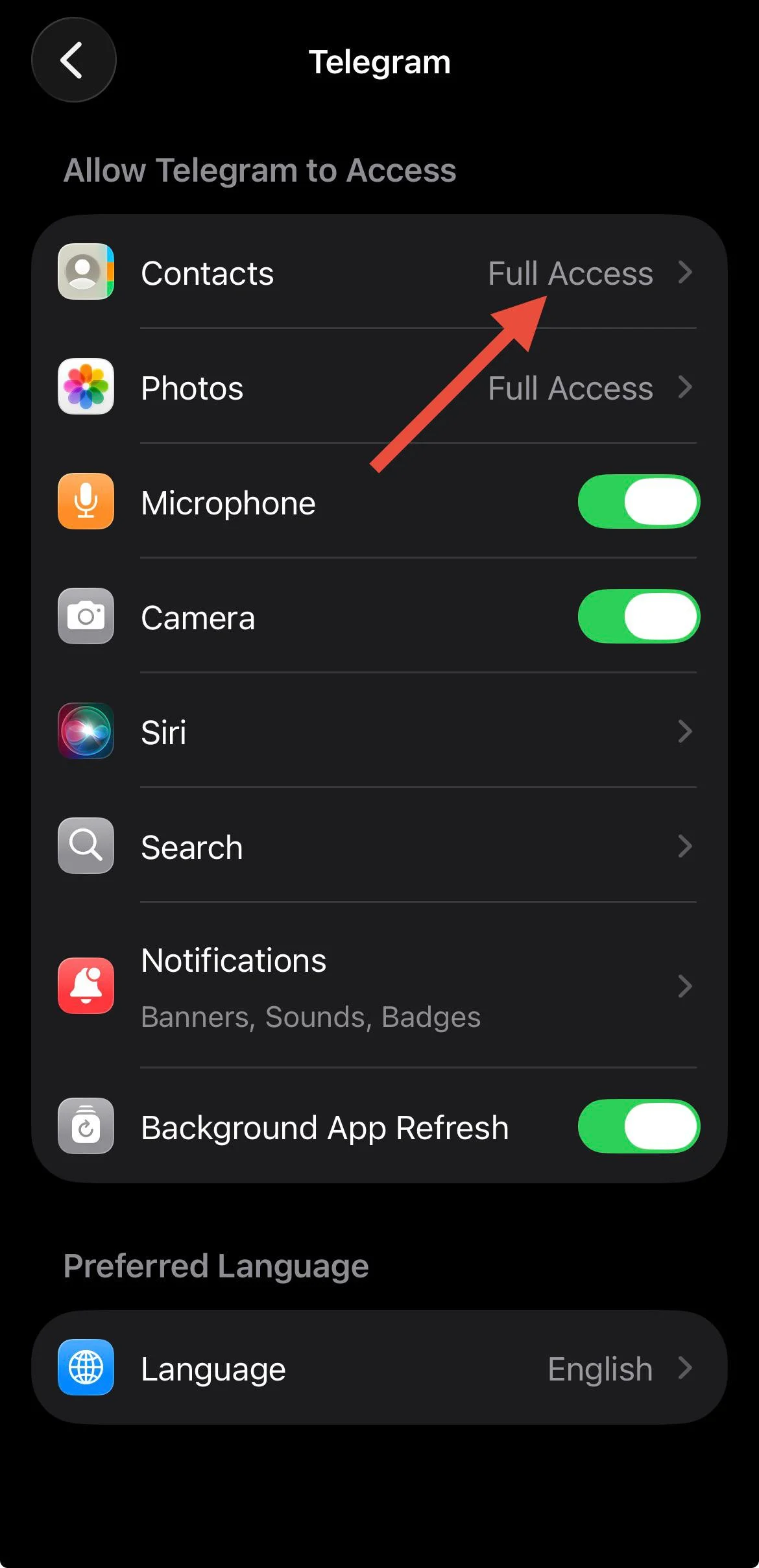
- Scroll down and tap on Telegram (In iOS 18 and above, click on Apps > Telegram)
- Make sure the toggle is turned on, or full access is granted to the Contacts option.

Manually Sync Telegram Contacts on Android
If your contacts are still not showing up in Telegram on Android, you can force a manual sync from your phone settings.
- Open the Settings app on your Android phone.
- Scroll down and tap on Accounts.
- From the list of accounts, select Telegram (If you do not see the Telegram name in the list, look for any option that shows the Telegram logo, as in some cases it may appear with random numbers instead of the app name.)
- Tap on Account sync or Contact sync
- Press the three-dot menu at the top right corner.
- Choose Sync now.

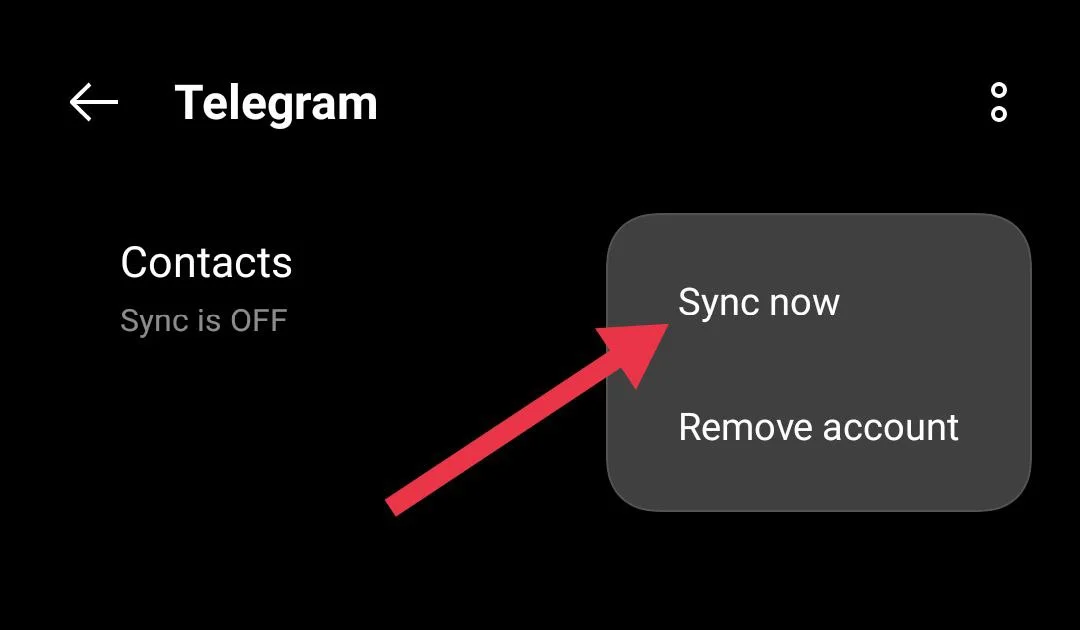
After you tap Sync now, your phone will begin syncing data immediately and wait for the completion.
Add Contacts Manually in Telegram
If the sync issue is only affecting one or two contacts, you do not have to wait for the full list to update. You can simply add those contacts directly inside Telegram.
On Android
- Open the Telegram app.
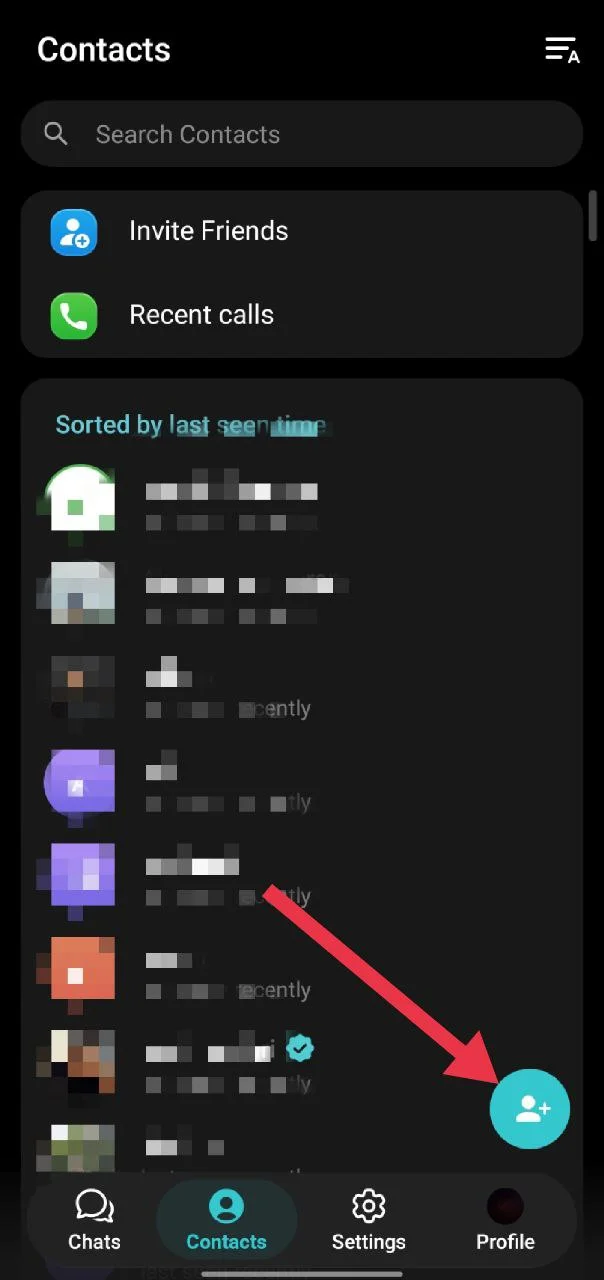
- Select Contacts from the menu.
- Tap the add contact button at the bottom right corner.
- Enter the person’s name and phone number in the given field.
- After that, tap the checkmark at the top to save the contact.
On iPhone
- Open Telegram and tap the Contacts tab at the bottom left.
- Tap the plus icon at the top right corner.
- Enter the contact’s name and phone number in the given fields.
- Tap the checkmark at the top to save that contact.
Delete Synced Contacts and Sync Again
If the problem is still there, you can remove all synced contacts from Telegram and let the app sync them again from the beginning.
On Android
- Open the Telegram app.
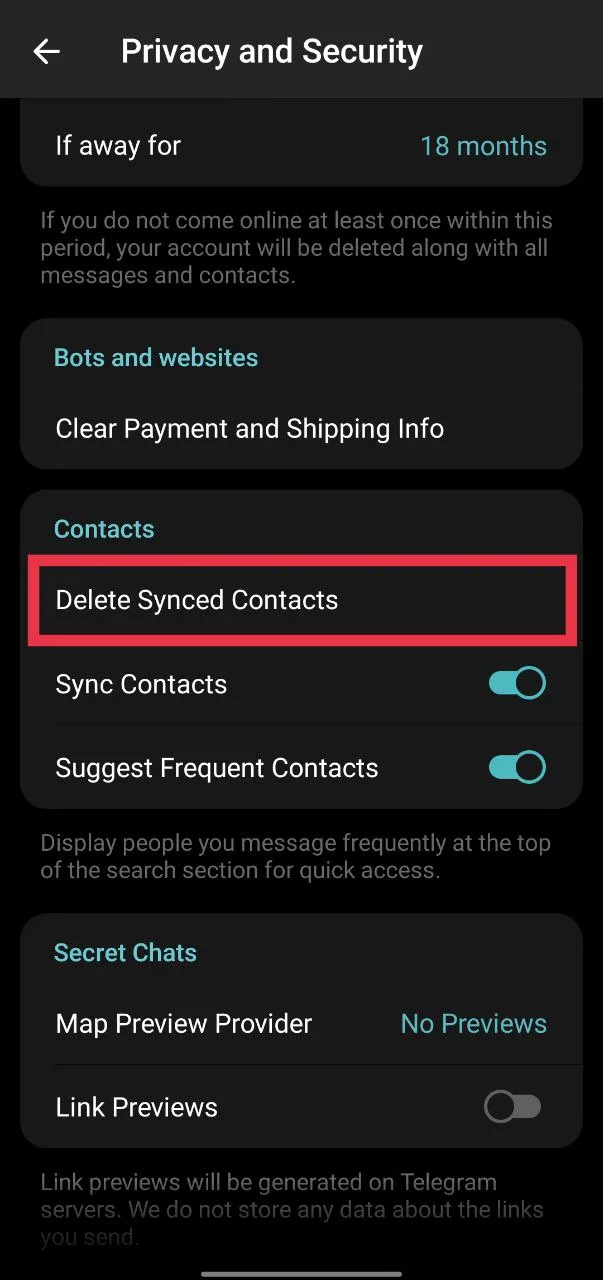
- Go to Settings and navigate to Privacy and Security.
- Under the “Contacts” section, tap on Delete Synced Contacts.

- Tap Delete to confirm.
- After deleting, make sure Sync Contacts is turned on again so Telegram can sync your contacts once more.
On iPhone
- Open Telegram and tap the Settings tab at the bottom right.
- Go to Privacy and Security.
- Scroll down and tap on Data Settings.
- Select Delete Synced Contacts.
- Tap Delete to confirm.
Clear Telegram App Cache
As you keep using the app, it collects temporary files in the background to help open chats and media quickly. When this stored data piles up for a long time, it can start affecting how certain features work.
The good thing is that Telegram has a built-in option to clear the cache directly from inside the app. This is very helpful on iPhone since iOS does not normally provide a direct, clear cache button in system settings like Android does.
On Android
- Open your phone’s Settings.
- Go to Apps > Telegram.
- Tap on Storage and cache.
- Choose Clear cache.
Tip: On Android, you can also clear the cache directly from inside the Telegram app > Settings > Data and Storage > Storage Usage > Clear cache.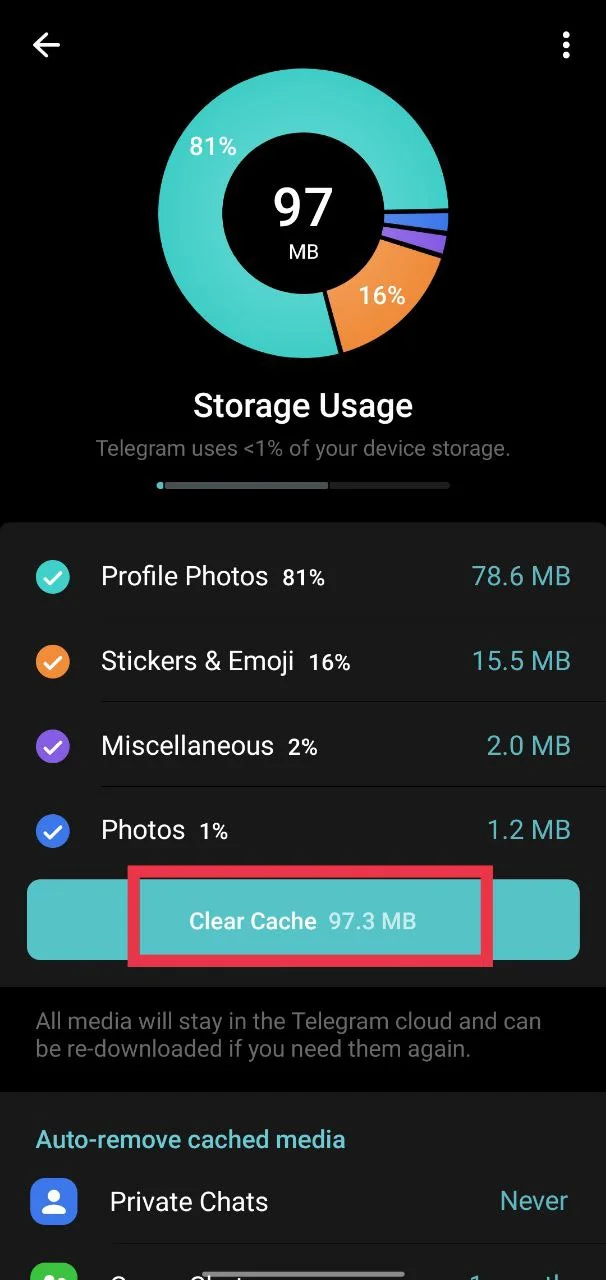
On iPhone
- Open the Telegram app.
- Go to Settings.
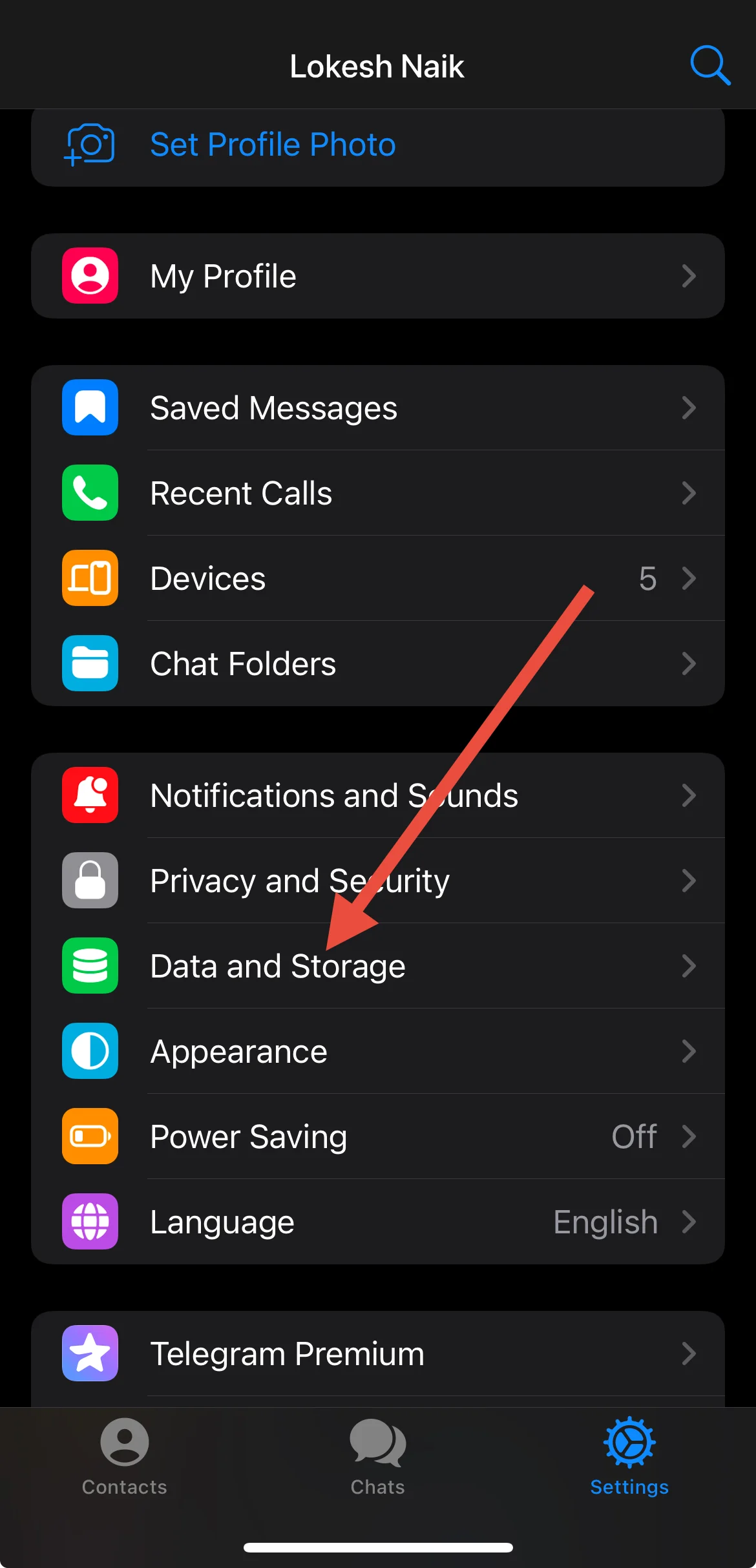
- Tap on Data and Storage.

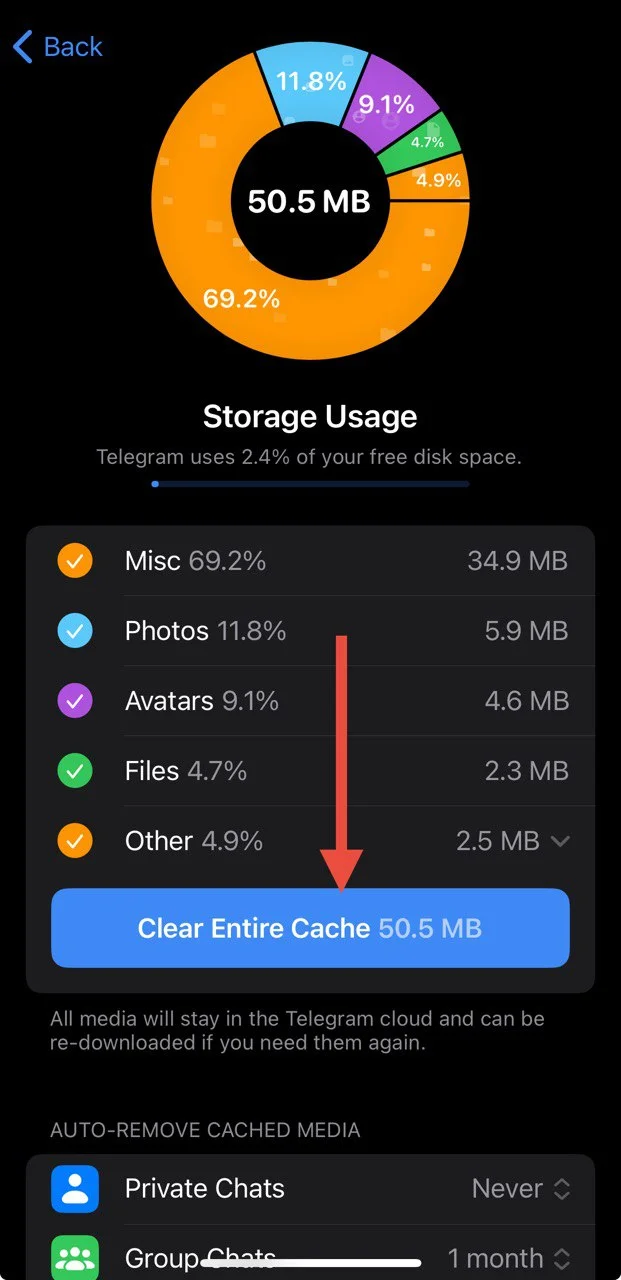
- Select Storage Usage.
- Tap Clear Entire Cache.

Update Telegram
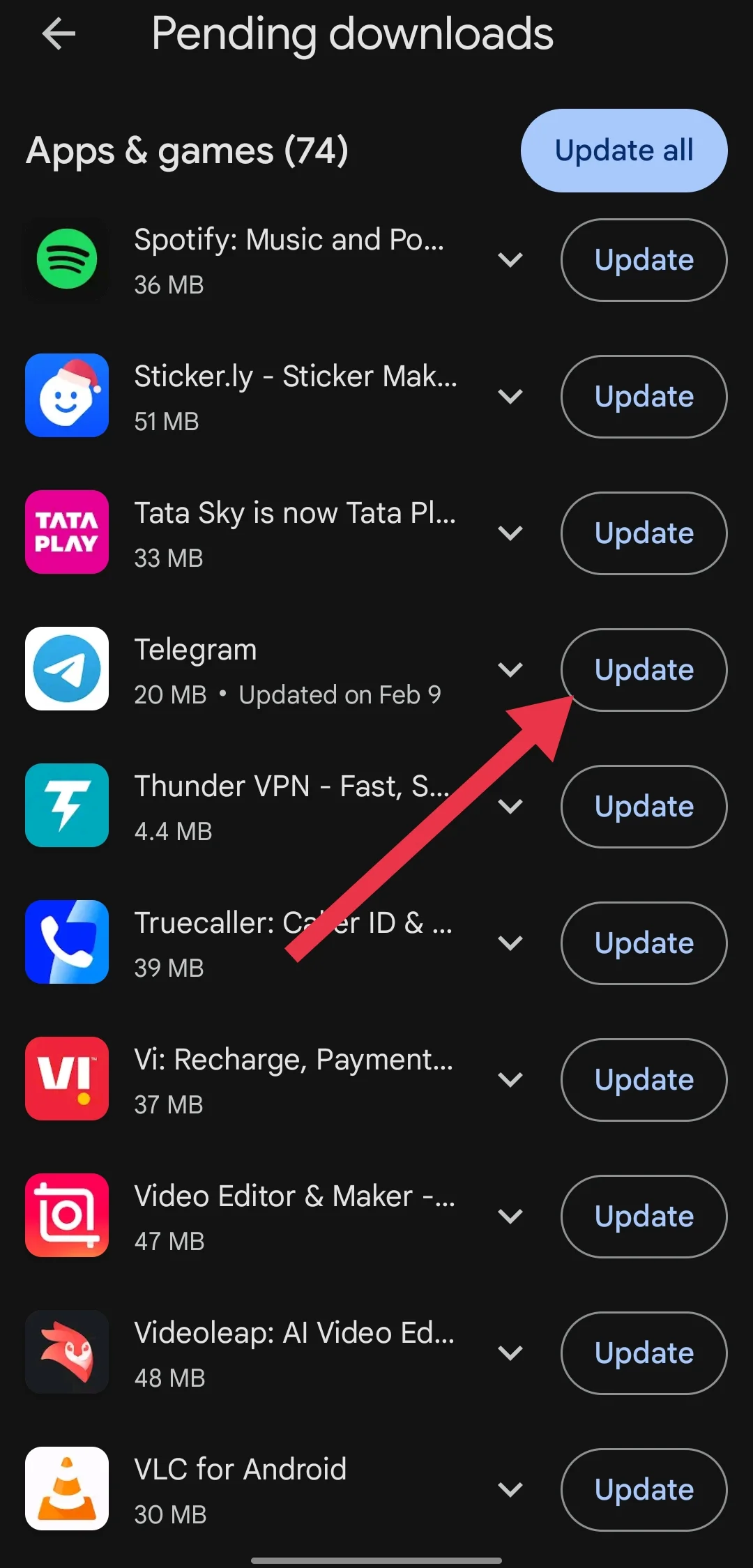
If nothing else fixes the issue, the problem might be related to the version of Telegram installed on your device. Open the Play Store on Android or the App Store on iPhone and check if an update is available for the Telegram app. If you see the update, install it to get the latest version of the app.
RELATED:
- How to Fix Telegram Not Working on Wi-Fi
- How to Fix Telegram Voice Call Not Working
- How to Fix Telegram Video Call Not Working
- How to Fix Telegram Keeps Logging Me Out
Hopefully, one of the solutions shared above has helped you fix the Telegram contacts not syncing issue. If the problem is still there, you can also try installing the beta version of Telegram. In some cases, the issue may be related to the current app version, and the beta release may already include a fix.