Whether we admit it or not, many of us rely on WhatsApp for a big part of our day. From checking messages to staying connected with friends and groups, it is an app we keep open almost all the time. But like any other app, WhatsApp can run into problems, bugs, and unexpected errors. One such error that many users face is the WhatsApp is open in another window message.
This issue usually appears when the desktop app detects another active session or when the previous session did not close the right way. You open the app expecting everything to work, but instead, you are greeted with this message that blocks you from moving forward. It can happen randomly and often without any warning, which makes it even more annoying to deal with.
So, if you are someone who keeps seeing this error on WhatsApp, this article will help you understand what it means and why it happens. I have compiled a list of fixes you can implement to fix this error on your WhatsApp.
9 Quick Ways to Fix WhatsApp is Open in Another Window Error
Check Linked Devices and Close All Active Sessions
Speaking of linked access, there is always a chance that WhatsApp has an active session running somewhere else. This can happen if the desktop app did not close properly, if you recently used WhatsApp Web, or if a previous session is still logged in. Fortunately, it’s easy to check and close all active sessions from your phone.
- Open WhatsApp on your mobile
- Go to the Linked Devices section from the menu

- Now, see if any sessions are currently active. If you notice a device you no longer use or one that stayed connected by mistake, tap on it and log it out.
- After that, check on your PC to see whether WhatsApp is working or not.

Close All WhatsApp Windows Completely
Earlier we mentioned that leftover sessions can cause the WhatsApp is open in another window error, and one common reason is that the desktop app did not fully close. This often happens when users minimize the app, click the close button without exiting, or leave the auto-start option enabled. In such cases, WhatsApp continues running silently in the background.
While one active window is expected, even a single hidden or background instance can trigger this error. Besides causing the app to malfunction, these leftover windows can also prevent the new session from loading. For those reasons and more, I recommend making sure WhatsApp is fully closed before reopening it.
So, check your taskbar and system tray for any WhatsApp icons. If you see one, right-click it and select Exit or Close. After everything is shut down, launch WhatsApp again.
End the WhatsApp Process Using Task Manager
The next best thing you can do to fix the error is to end all active WhatsApp processes from the Task Manager. Many times, especially when the app freezes or does not close properly, WhatsApp keeps running in the background without your knowledge.
- To close the WhatsApp process, press Ctrl + Shift + Esc to open Task Manager. (You can also search for Task Manager or right-click the Windows icon and select it)
- Go to the Processes tab and look for “WhatsApp” or “whatsapp.exe.”
- Select it and click on “End Task.”

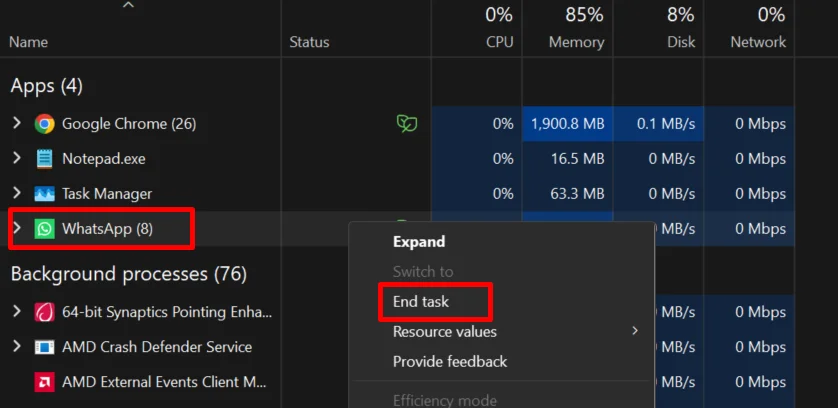
If you notice multiple WhatsApp processes, make sure you end all of them.
Restart Your PC
Another simple thing you can try to fix the WhatsApp is open in another window error is to restart your PC. I don’t mean just putting it to sleep or closing the lid. I mean a full restart that shuts down all running apps and background processes. On Windows, just click the Start menu, choose the “Power” option, and select Restart.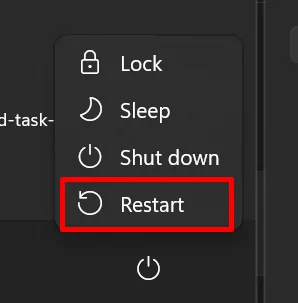
Clear WhatsApp Cache on Windows
You can also try clearing outdated or corrupted WhatsApp cache files on Windows to fix this error. You can clear the cache easily by following these steps:
- Press Win + R on your keyboard to open the Run window.
- Type %appdata%\WhatsApp and press Enter. This will open the WhatsApp data folder.
- Inside this folder, delete the Cache folder completely.
- Once done, relaunch the WhatsApp desktop app to allow it to rebuild fresh cache files.
- This process only removes temporary data, so none of your chats or account information will be affected.
Update WhatsApp Desktop
The error message could also appear because of a small bug affecting the current build of the app. WhatsApp often releases updates that improve stability and fix issues like stuck sessions or background errors.
A lot of times, since WhatsApp Desktop does not have an auto update option, you may end up using an outdated build without even noticing it. To resolve, visit the Microsoft Store and check if a new update is available for WhatsApp Desktop. If you downloaded the app directly from the website, head to the official WhatsApp download page and reinstall the latest version.
Temporarily Disable Firewall/Antivirus
In case you suspect that your firewall or antivirus is interfering with WhatsApp, you can temporarily disable it to check. Sometimes security software can mistakenly block certain app processes, which may lead to errors in certain apps or websites.
To test this, turn off your firewall or antivirus for a short time and then try opening WhatsApp again.
Reinstall WhatsApp Desktop
Doing a fresh install of WhatsApp Desktop is often the most effective way to fix this WhatsApp error.
Windows
- Open Settings > Apps > Installed Apps > WhatsApp > Uninstall
- Delete leftover folders from %appdata%\WhatsApp
- Download and reinstall WhatsApp Desktop from the Microsoft App Store or the WhatsApp official website.
Mac
- Open Finder > Applications > Locate WhatsApp > Move to Bin
- Go to ~/Library/Application Support/ and delete the WhatsApp folder
- Install WhatsApp again from the app store or official site.
Linux (Snap / Debian-based)
- For Snap: run sudo snap remove whatsapp-for-linux
- For DEB/Flatpak: remove it using your package manager
- Download the latest supported build or reinstall the same package.
Contact WhatsApp Support
Usually, the steps mentioned above are enough to fix the WhatsApp is open in another window error. However, if nothing seems to work, reaching out to WhatsApp Support is the final option. It is not the most reliable path since responses are not always quick, but you can still try your luck and report the issue.
- RELATED GUIDE: How to Fix WhatsApp ‘Unexpected Error Please Link Again’