YouTube has grown into a place we use every day. Long videos, music clips, and short videos have all risen so fast that the platform now feels like a daily habit for many people. It has turned into a huge space for learning, entertainment, quick updates, and all kinds of free content that help people in real life.
So when a random message pops up on the screen saying “This video is unavailable. Error Code: 4,” it can throw you off. The video does not load, the page freezes, and you are left staring at a blank screen.
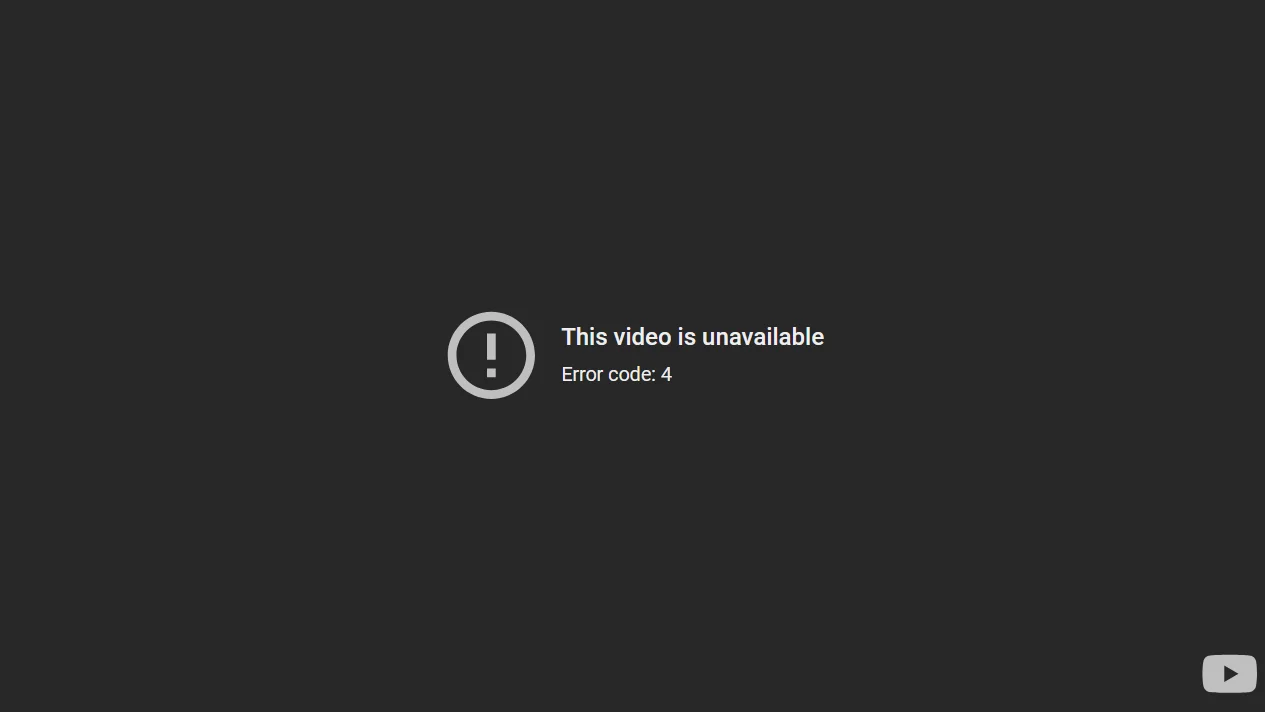
This error may appear suddenly and without any clear reason, but it usually points to a problem with the video loading process. You will learn why this message appears and follow easy steps that help remove YouTube error code 4 in this quick guide.
QUICK ANSWER: Turn off your ad blocker or tools like uBlock Origin or Tampermonkey. If the error stays, remove the extension, clear your cookies, then add it again.
What is Error Code 4 in YouTube
Error code 4 on YouTube often shows up when the video player cannot load the clip or keep the connection it needs to begin playing. It is a network-related issue, so the browser or the app is having trouble reaching YouTube servers in a steady way. The message “This video is unavailable. Error code 4” often appears right before the video begins or when you switch the video quality or move to another clip.
This error usually shows up because something on your device is blocking the video player. Many users run into this when they use ad-blocking tools, script managers like Tampermonkey, or when the browser is clashing with another extension. At times, YouTube may also have a short service issue that causes the same message to appear.
8 Easy Ways to Fix YouTube Error Code 4
Reload the Page A Few Times
Reloading the page forces the browser to pull fresh data from YouTube, which often clears the short session issue that caused the error in the first place.
So, tap the reload page button near the address bar three to five times and see if the video begins to play. You can also close the tab or the app and open it again. 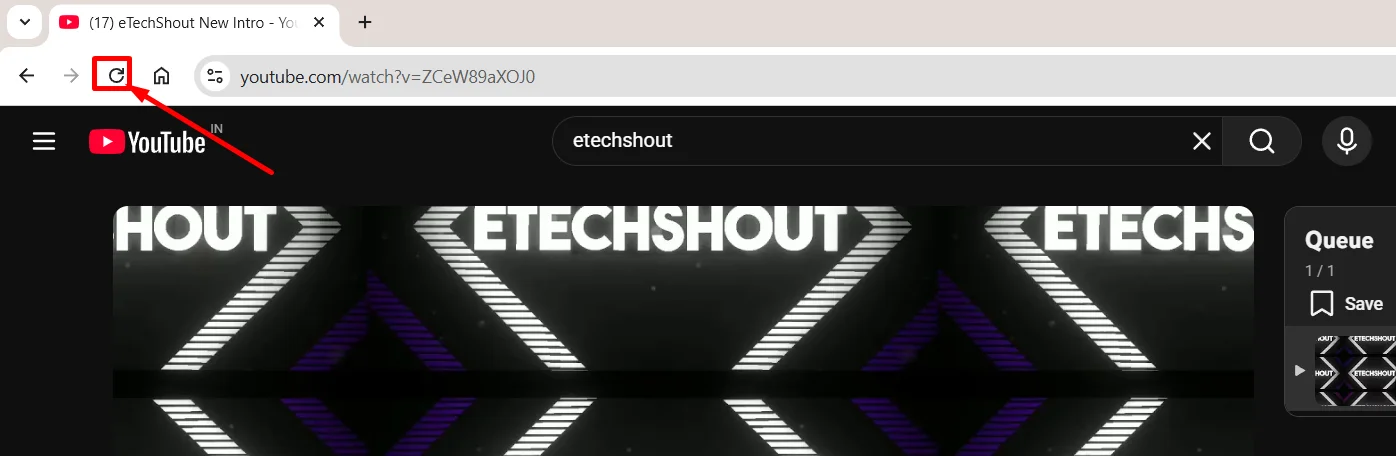
Use the F Key to Switch to Fullscreen
Many users have shared that pressing the F key forces YouTube to redraw the video player, which can clear small issues that stop the clip from starting in the normal view.
To try it, open the video that shows the error and press the F key on your keyboard. This moves the video into full screen and may allow it to play without the error.
Check your Internet Connection
Before trying anything else, make sure your internet is actually working well. See if other sites or apps open without trouble. If you are on WiFi, turn it off for a moment, wait, then turn it on again. If you use mobile data, make sure you still have signal and data left. You can also try another video on YouTube or even another streaming platform to make sure it is not an internet-related issue.
Check YouTube Server Status
It is rare, but YouTube can go down for a while. Recently, Cloudflare had a long outage that caused many large sites to stop working for hours. A similar issue can affect YouTube, too, even if it does not happen often. Because of this, it is smart to check social media and see if others are talking about the same error. You can also look at the YouTube social media account for any update that confirms a platform-wide issue.
Try YouTube in Incognito mode
Incognito mode turns off most extensions and ignores old cookies, which makes it a useful way to test if an add-on or script is causing the error code. Many users see the error only in their normal browser window, and it disappears once they switch to Incognito.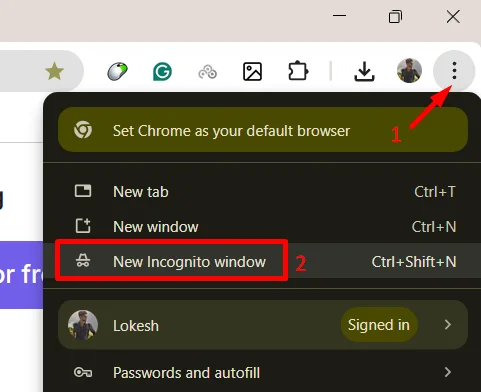
So, open a new Incognito window in your browser. Type YouTube in the address bar and open any video. If the clip plays without the error, the issue is likely coming from an extension or saved data in your regular browsing setup.
Turn Off Your Browser Extensions
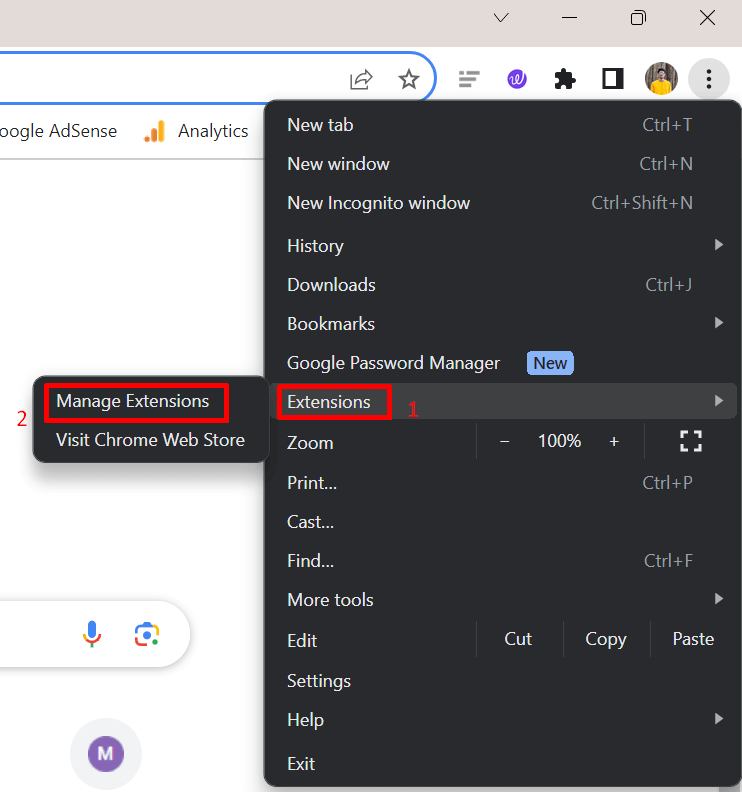
If YouTube works fine in Incognito mode, then one of your extensions is likely blocking the video player. Tools like ad blockers and script managers can stop important parts of the page from loading, triggering random error codes.
- Open your browser menu, go to the Extensions > Manage Extensions section

- Now, turn off tools like uBlock Origin, Tampermonkey, or any ad blocker you use.
- After that, close the browser and open it again.
Clear Browser Cache and Cookies
Old saved files in the browser can block parts of the YouTube player. Clearing this stored data gives the browser a fresh start, which often helps the video load without the error.
You can do this with one simple shortcut that works on almost every browser:
- Press Ctrl + Shift + Delete on your keyboard
- A delete browsing data window will appear
- Select Cached images and files and Cookies
- Press the Delete data button.

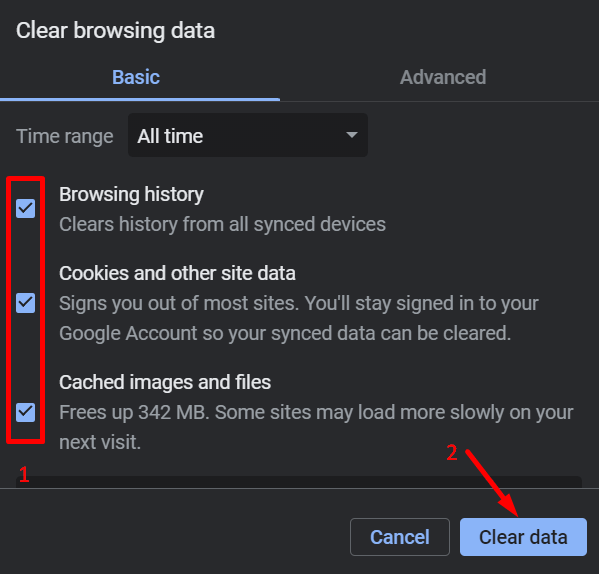
Note: If you are using a mobile browser, the steps are also easy. Open your browser > click the menu button > choose the history section > delete browsing data option or a similar choice. This path is common in Chrome and very close in most other browsers.
Try Another Browser
If the above methods did not help, your current browser might still be the reason for the error. Trying YouTube on a different browser gives you a clean setup and can help you see if the issue is tied to the one you were using before.
You can find hundreds of browsers online, like Firefox, Opera, Edge, Brave, Tor, and many more. Windows users already have Edge installed, and you can use that right away without downloading anything. For mobile or other OS, you can use the default browser that came with your phone or install any of the browsers mentioned above from the app store, and then open YouTube in the new browser and play a video to see if the error disappears.
RELATED: –
- How to Fix YouTube Error Code 282054944
- How to Fix ‘Sorry, YouTube quit unexpectedly last time’ on Android & iPhone