The YouTube Shorts feature has become a popular way for people to share quick videos and connect with their audience. Viewers often rely on the comments to react, ask questions, or check what others think about the video. It works much like the comment section on regular YouTube videos.
However, there are times when you may no longer see comments, likes, or the share option on certain Shorts even though everything looks normal. Whatever the issue is, this guide has you covered with the right fix.
Here, we will walk you through different ways to solve the YouTube Shorts comments not showing. You will also learn the possible reasons why the comments or engagement buttons are missing, so keep reading.
Why Are YouTube Shorts Comments Not Showing?
YouTube Shorts may have no comments because you or the creator chose to limit comments for that specific Short. It can also happen due to issues with the cache or a weak internet connection.
If comments are not restricted, the problem could be linked to the latest YouTube update. Many users in November 2025 noticed that the comments, like button, dislike button, and share option disappeared from Shorts after updating the app. We recently covered the fixes for that full issue. But if only the comments are missing for you, the reasons are mostly simple and easier to understand.
The comment section is an important part of Shorts, so when it does not appear, it feels confusing. It usually points to a setting, an update, or a temporary loading problem. Checking a few basic areas often explains why the comments are not showing.
6 Methods to Fix YouTube Shorts Comments Not Showing on Android and iPhone
Check your Data/Wi-Fi Connection
A weak connection can stop the comments from loading, even if the Short itself plays fine. The video might show, but the comment section may not appear at all. Try switching to a stronger signal or reconnecting to your network, then open the Short and refresh it again.
Update the YouTube App
An old version of the app installed on your phone can cause the comments section to disappear. Newer versions usually fix issues like this for both Android and iPhone users.
- Open the Play Store or App Store
- Search for YouTube and tap on it
- Press the “Update” button
Turn VPN On or Off
A changed region can stop Shorts comments from loading, and this often happens when a VPN is active. Try turning your VPN off and check if the comments appear again.
If you were not using a VPN at all, turning one on and switching to a different region can also help in some cases.
Clear Cache
Clearing the cache on Android can help because the app stores temporary files that sometimes stop features from loading. When these files become old or corrupted, the comment section may fail to appear.
- Open Settings > Apps
- Select YouTube > Storage usage
- Now, click on Clear cache


There is no such option on iPhone iOS, so try offloading or reinstalling the app > Settings > General > iPhone Storage > YouTube > Offload App, then reinstall from the App Store.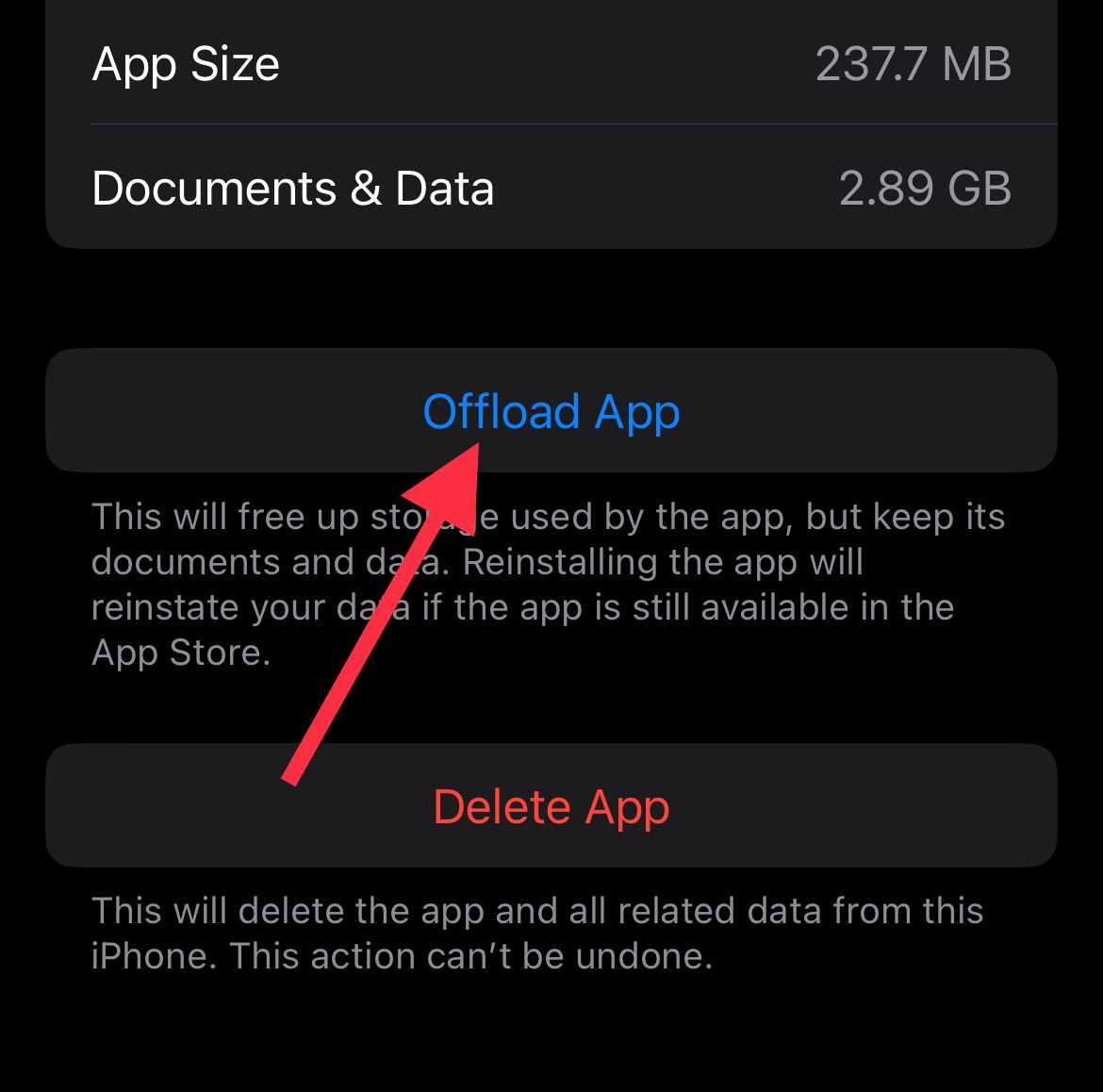
Uninstall and Reinstall YouTube
Reinstalling the app can fix broken files that stop the comment section from loading. On Android, you cannot remove YouTube directly because it comes as a preinstalled system app from Google. If you used a special method like adb or root access to remove system apps, then you may be able to uninstall it.
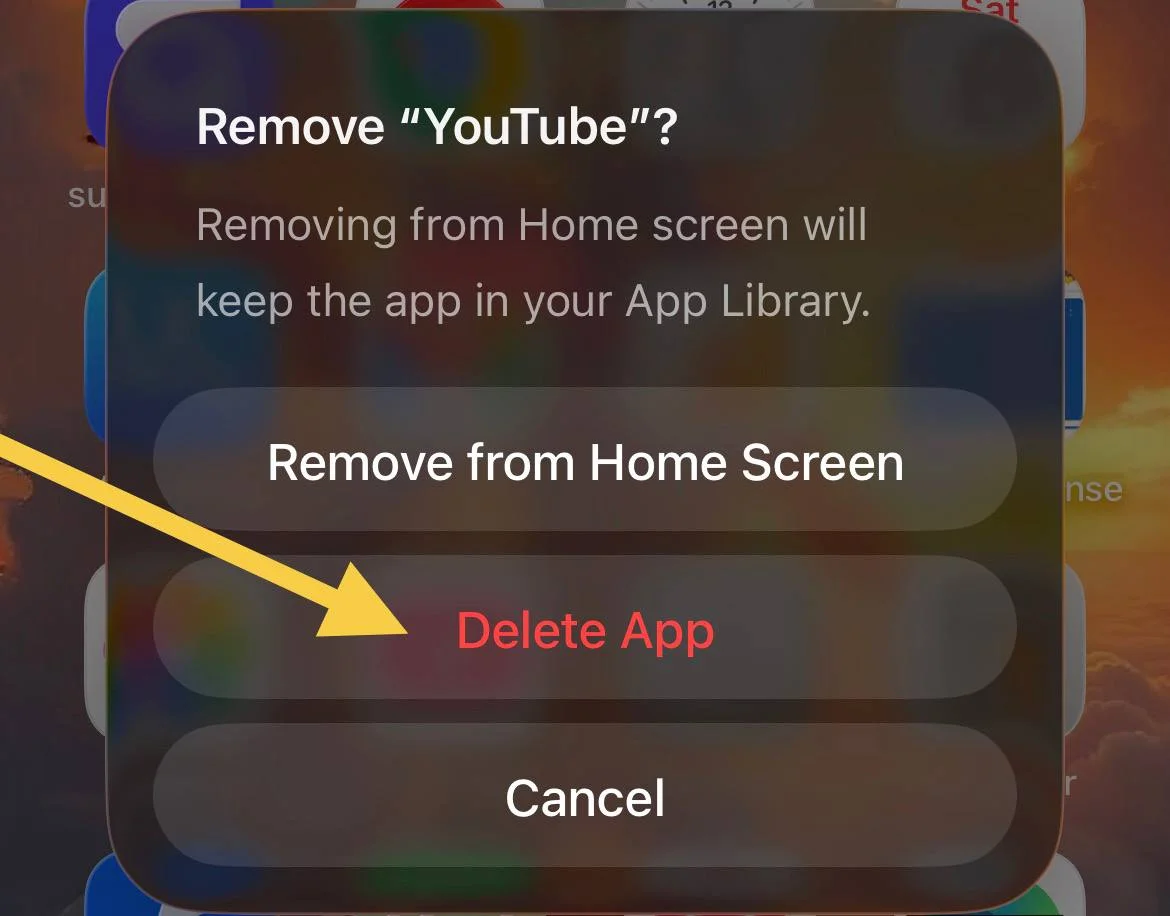
On iPhone iOS, you can delete it without any extra steps.
- Tap and hold YouTube > Remove App > Delete App

- Open the App Store > Search for YouTube > Install it again.
Download an Older Version of YouTube
If you previously removed the YouTube app using adb or root access, then you can install an older version of the app.
- First of all, uninstall the YouTube app from your Android device
- Visit a genuine site to download the latest/earlier versions of any app (like Uptodown)
- Choose an older YouTube version from about one month back and download it
- Once downloaded, click on it to install it
- Upon installation, open YouTube and sign in.