YouTube doesn’t need an introduction as it has become a daily addiction for millions of users this year. This Google product has grown into a global platform with billions of users watching videos for entertainment, learning, and updates. From casual viewers to content creators, YouTube plays a major role in everyday digital life.
One of the most useful features on YouTube is search history. It saves the searches you make so you can quickly find videos or channels again without typing the same keywords. Search history also helps YouTube personalize suggestions based on your interests and viewing habits.
When YouTube search history is not showing, your previous searches may stop appearing in the search bar even when you are signed in to your account. 
Why is YouTube Search History Not Showing?
When YouTube search history does not show, the search bar can suddenly feel empty even after you searched for videos earlier. This can happen on both the app and the website, making it seem like your past activity never existed.
This usually links back to account settings or how YouTube is being used. A very common reason comes from inside the account settings. If Pause watch history is switched on, YouTube quietly stops saving what you search and watch. Many people turn it on once for privacy and forget about it, then wonder later why nothing appears in the search bar anymore.
Other changes often go unnoticed but can directly affect search history visibility, such as using YouTube’s built-in Incognito mode, being signed out of your account, blocked features from extensions, or stored cache data.
How to Fix YouTube Search History Not Showing on Mobile & PC
Check If Watch History is Enabled
If YouTube is not saving what you watch, your search history may also stop showing. This usually happens when the watch history is paused without you realizing it. Once this setting is turned off, YouTube stops tracking video activity, which affects search records as well.
On the YouTube Website
- Open a browser and go to the YouTube website.
- From the left side menu, click on History.
- On the left side bar, if it shows Turn on watch history, click it to enable tracking.


If you see Pause watch history, it means the feature is already active, and you can move to the next fix.
On the YouTube App
- Launch the YouTube app on your phone
- Now, tap your profile icon in the bottom right corner.
- Open Settings, then go to Manage all history.

- Under History, click on Not saving your YouTube history option.

- Click on Turn On and tap again on Turn On to Confirm.


Make Sure You Are Signed In
YouTube only saves search activity when you are logged in with a Google account. If you are using the app or website without signing in, none of your searches will be recorded, which is why the search history may appear empty.
Check the top corner of the YouTube app or website and confirm that your Google account is active. If you do not see your profile icon, first you need to sign in using your Gmail email and password. Then only your search histories are recorded.
Check If Incognito Mode is Turned On
YouTube includes its own Incognito mode that keeps searches and watch activity private. When this mode is active, anything you search for will not be saved, which is why search history does not appear later. This applies to both the mobile app and browser use.
To turn off Incognito in the YouTube app:
- Open the YouTube app on your Android or iPhone.
- At the bottom right corner, tap the You button.

- From there, select Turn off Incognito.

- Once disabled, YouTube will begin saving your searches again.


Update the YouTube App
The YouTube app installed on your phone may have been updated a long time ago, which means it could be missing recent features or fixes.
Open the Play Store or App Store on your device and search for YouTube. If an update is available, install it and let the app refresh with the latest version.
Clear YouTube Cache and Data
This method applies only to Android devices, since iOS does not offer a direct option to clear app cache and data. On Android, stored app files can stop YouTube from saving or showing search and watch history.
Android Users
- Open your phone settings and go to Apps.
- Tap YouTube > Storage.
- Select Clear cache, then Clear data to remove saved files.

- After that, go back to the YouTube app again and sign in to your account.

iOS Users
iOS does not have a cache-clearing option for apps. If you are using an iPhone, you can offload the YouTube app by going to Settings > General > iPhone Storage > YouTube and tapping Offload App. You can also uninstall the app and reinstall it from the App Store.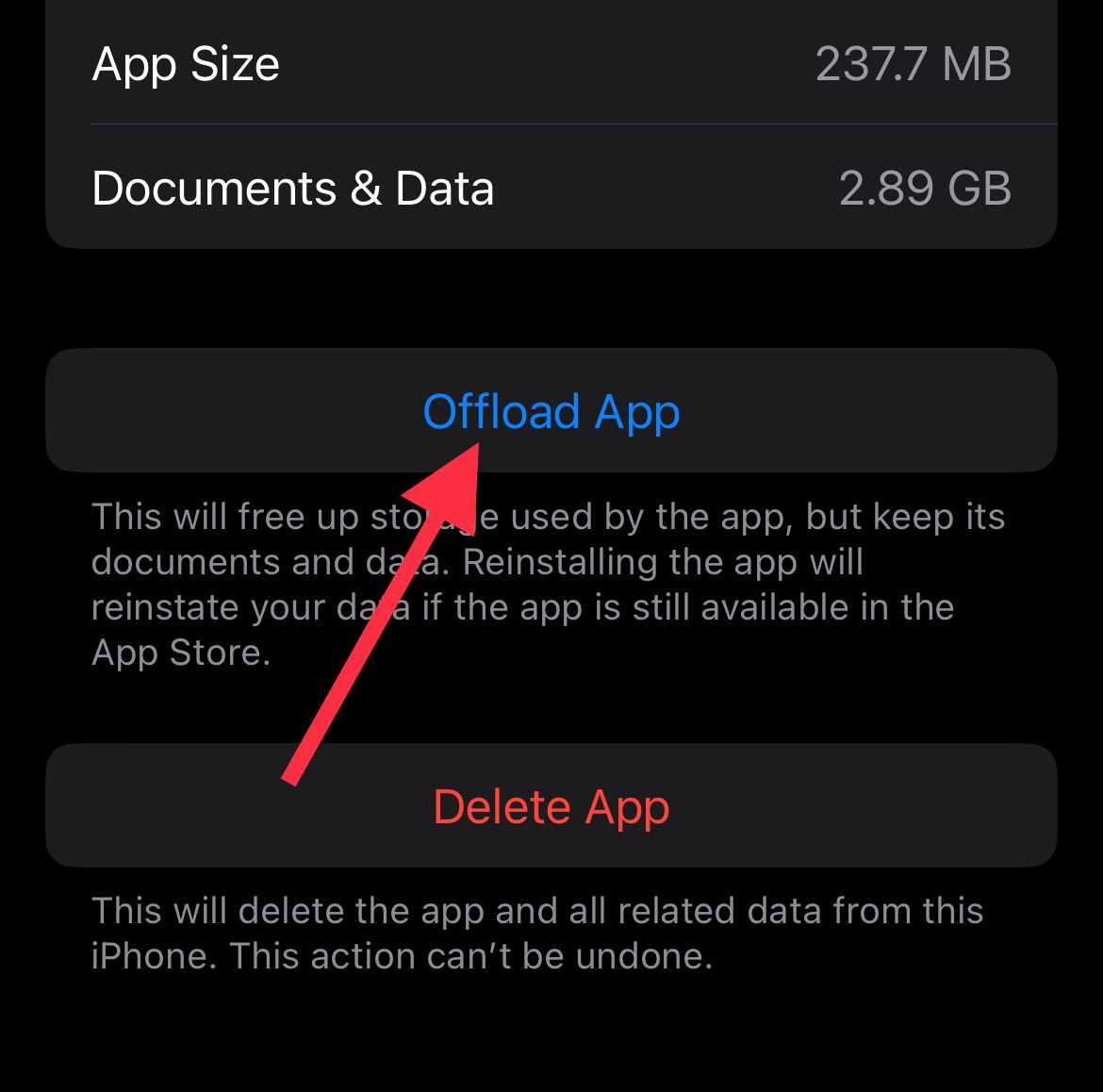
Clear Browser Cache and Cookies
If you are using YouTube on a desktop browser and your account is signed in, but your search history is still missing, stored browser data cache and cookies may be causing the issue.
- On Windows, open your browser and press Ctrl + Shift + Delete.
- On Mac, press Command + Shift + Delete.
This shortcut opens the clear browsing data screen in most browsers. From there, select browsing history, cookies, and cached files, then clear the data. After that, reopen the browser, sign in to YouTube again, and check if your search history is visible.
Disable Ad Blockers or Browser Extensions
If you watch YouTube on a computer and use ad blockers or other browser extensions, they can block parts of YouTube, affecting some functionality.
Open your browser’s extension or add-ons section and temporarily turn off ad blockers or any third-party extensions one by one. After disabling them, reload YouTube and check if your search history starts showing again.
RELATED:
- How to Fix YouTube Keeps Pausing [9 Easy Ways]
- How to Fix YouTube Shorts Like, Comment, Share Buttons Not Showing Issue
Hope this guide helped you fix the YouTube search history not showing issue on both mobile and desktop browsers. Do share it with others and let us know which method worked for you.
Frequently Asked Questions (FAQs)
Why has my YouTube history disappeared?
Your YouTube history may disappear if watch or search history is paused, you are signed out of your Google account, Incognito mode is enabled, or the app or browser is blocking activity from being saved.
How do I turn my search history back on on YouTube?
Open YouTube settings > go to History, and make sure watch and search history are turned on.
How do I make YouTube not show search history?
You can pause watch and search history from YouTube settings or use Incognito mode to stop searches from being saved.