These days, keeping your social media safe really matters. There are scammers everywhere, and Instagram accounts are often a target. Many people use Instagram daily to chat with friends, post updates, or grow their business. That is why many users turn on two-factor authentication. It adds an extra step when logging in and helps protect your account from strangers trying to enter.
Two-factor authentication, aka 2FA, asks for a code after you type your password. The code is sent to your phone number, email, or an authentication app. It really does help with security. But life happens. You change your phone, lose your number, or reset your device.
Your account is still active, but you cannot access it because you do not have the verification code. Inside are your photos, messages, and important data, yet the login process stops you at the last step. Two-factor authentication is meant to protect your account, but losing access to the second verification method can create a serious barrier.
Still, there are real ways people have managed to log in again without using a recovery code. It depends on your situation, but there are options. In the sections below, we’ve given some ways to access your Instagram account even when that recovery code is not with you.
How to Login to Instagram Without a Recovery Code
Use Your Instagram Backup Codes
If you don’t have the Instagram two-factor authenticationcode, your backup codes can help you sign in. These codes are given to you when you first enable two-factor authentication. Many users save them in notes, screenshots, or a password manager for future use.
- Open Instagram on the device where you want to log in and enter your username and password as usual.
- When Instagram asks for the authentication code, and you cannot access it, tap on Having trouble or Need more help.
- Select the option that allows you to use a backup code instead of the usual verification method.
- Enter one of the backup codes that were provided when you set up two-factor authentication. Each code works one time only.
If you still have your backup codes saved, this is the fastest way to access your account. If you cannot find them, move on to the next method to explore other ways to log in.
Try Logging in From a Trusted Device
If you have used Instagram before on a specific phone, tablet, or computer, try signing in from that same device. Instagram can recognize devices that were used in the past. In many cases, it may reduce extra verification steps or give you different login options.
- Open Instagram on the device you previously used to access your account.
- Tap Log in and enter your username and password.
- If Instagram asks for a verification code, select Try another way to see other available options.
- Instagram may allow you to log in directly or send a verification code to your registered email address or phone number instead.
If you are still logged in on another device, go to Settings > Security > Two Factor Authentication, and check your backup codes. You can also generate new codes from there and save them in a safe place for future use.
Request a Login Link From Instagram
If you cannot access your recovery code, you can ask Instagram to send you a login link. This link is sent to your registered email address or phone number and can help you sign in directly without entering a recovery code.
- Open the Instagram login page on your device.
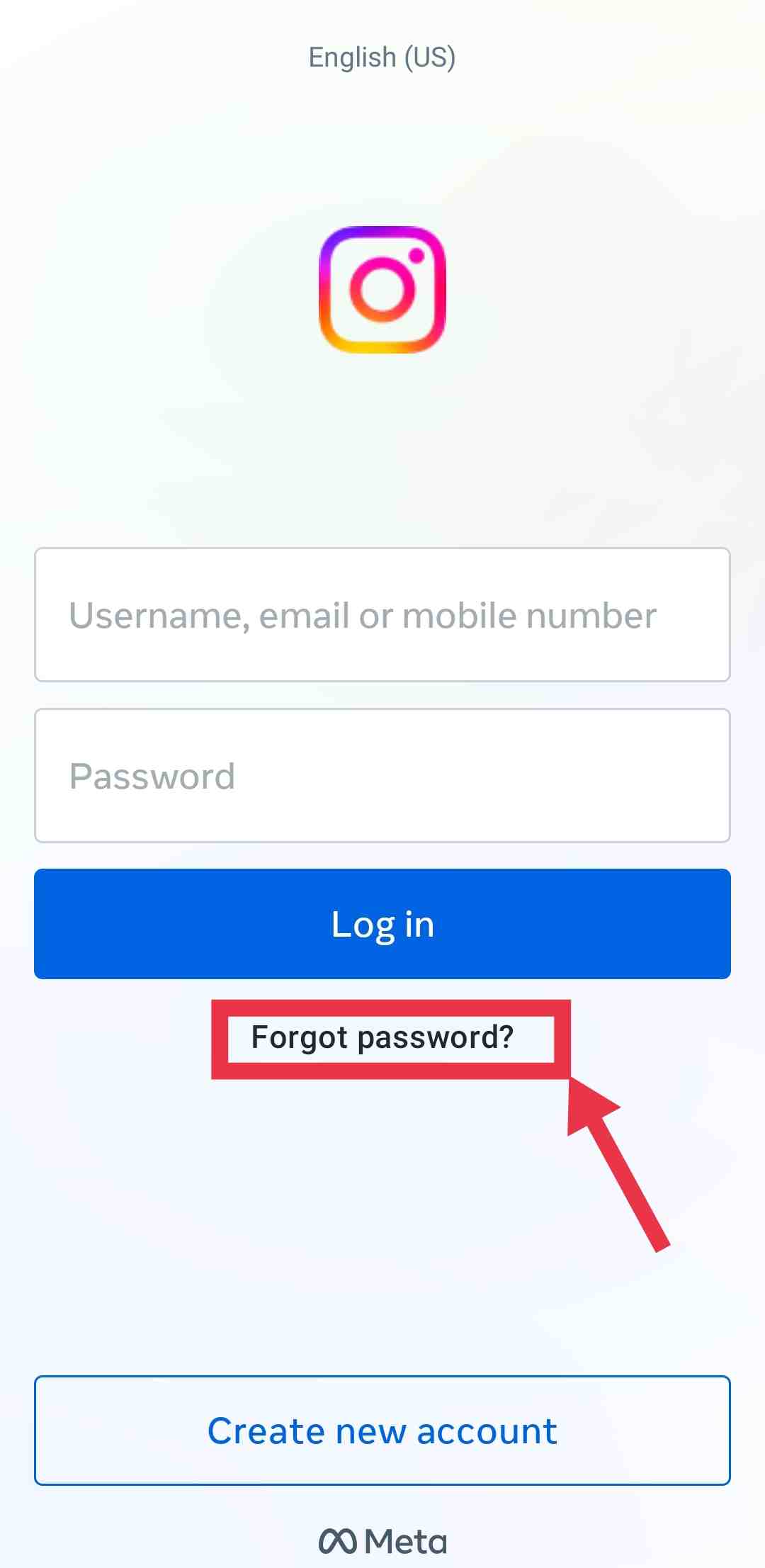
- Tap on Forgot password or Trouble logging in.

- Enter your username, email address, or phone number linked to your account.
- Tap Send Login Link.
- Check your email inbox or SMS messages and open the link Instagram sends you. Tap the link to access your account.
Use Your Linked Facebook Account to Log In or Access Backup Codes
If your Instagram account was connected to Facebook before you lost access, you can use that link to sign in or retrieve backup codes. This method only works if both accounts were already linked before the login issue happened.
Option 1: Log in Directly with Facebook
- On the Instagram login screen, tap Log in with Facebook.

- Now, approve the login request through your Facebook account.
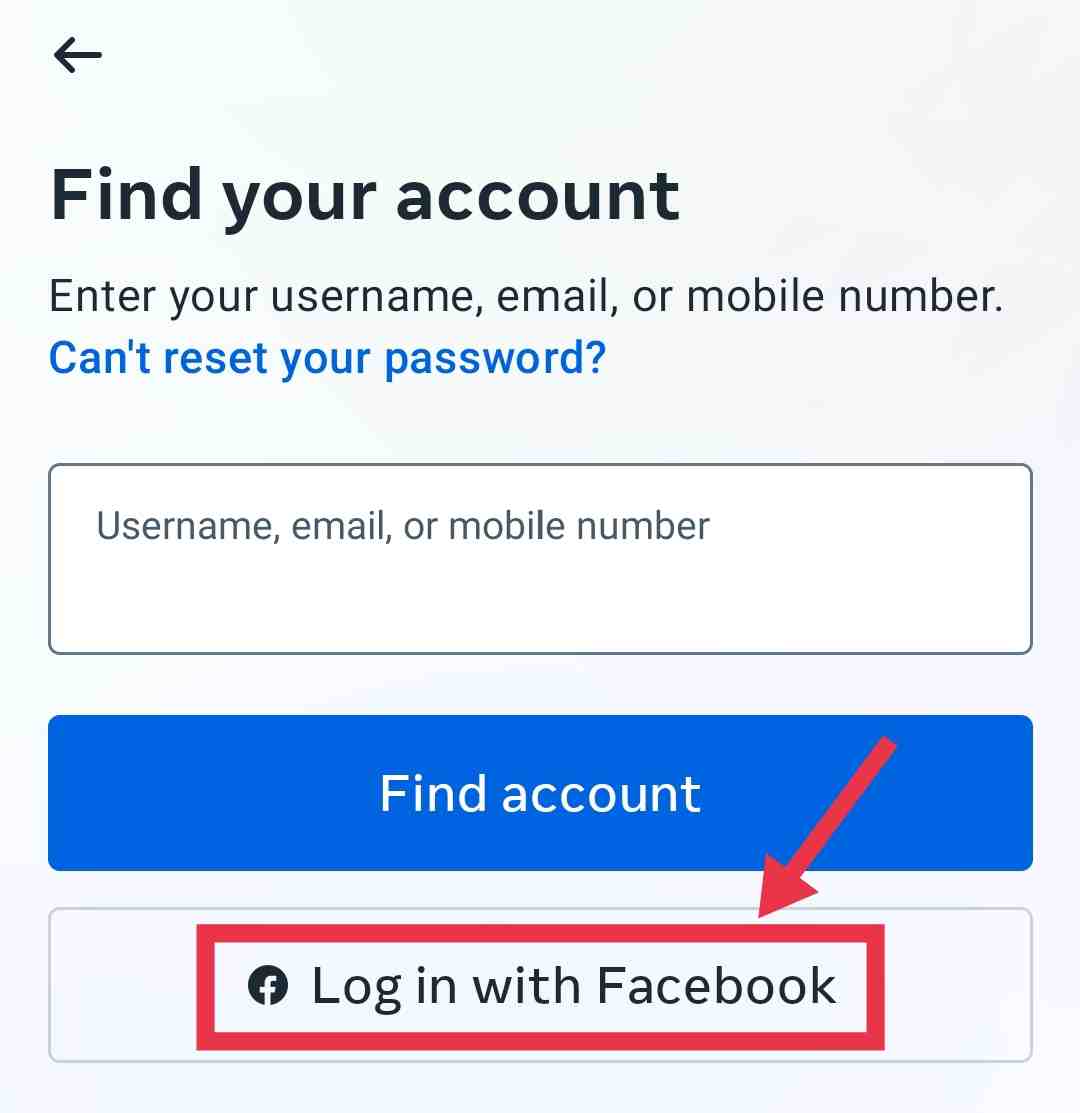
If successful, you will enter your Instagram account without needing a recovery code. After logging in, go to Settings > Security > Two Factor Authentication to update your security settings and generate new backup codes.
Option 2: Get Instagram Backup Codes from Facebook Accounts Center
If direct login does not work but you can still access Facebook, you can retrieve backup codes from Accounts Center.
- Log in to your linked Facebook account.
- Open Accounts Center from Facebook Settings or visit this page.
- Select Password and Security, then choose Two Factor Authentication.
- Select your Instagram account from the list.
- Under Additional Methods, choose Backup Codes.
- Use one of the displayed codes to log in to Instagram. If needed, select Get New Codes to generate more.
Use SMS or WhatsApp for Two Factor Verification
If you had set up SMS or WhatsApp as your two-factor authentication method earlier, you can still use them to sign in. This works only if your phone number is active and linked to your Instagram account.
Option 1: Use SMS Text Code
- Enter your Instagram username and password on the login screen.
- Wait for the verification code to arrive as a text message on your registered phone number.
- Enter the code on Instagram and complete the login process.
Option 2: Use WhatsApp OTP
- After entering your username and password, choose the option to receive the code on WhatsApp if available.
- Open WhatsApp on your phone and check for the new login code message.
- Copy the code and enter it on Instagram to access your account.
Tip: If your phone is lost, get a replacement SIM with the same number from your carrier and use it in a new device to receive your code.
If you used WhatsApp for verification, reinstall it on your new phone and activate it with your old number to receive the login code.
Recover Your Account with Help from Instagram Friends
If other methods are not working, Instagram also allows identity verification through friends. This option is available only in the Instagram mobile app and works best if you regularly message a few close contacts.
- Open this link in your browser
- It will open recovery options inside the Instagram app.
- Select “The login code was sent to a mobile number or email that I do not have access to.”
- Now, enter your Instagram username and confirm your identity using the available email or SMS option.
- After confirmation, choose the option to verify your identity through friends. Instagram will show a list of people you interact with often. Select two friends from the list.
Instagram will send them a notification asking them to confirm your identity. Once both friends approve the request, return to the same recovery link and repeat the steps.
This time, you should see the option to log in using the friend verification. Instagram will then send you an email containing a backup code and instructions.
Open the Instagram app, tap Try another way, select Use backup code, and enter the code from the email. This should allow you to access your account again.
Contact Instagram Support and Use Video Selfie Verification
If nothing else works, you can request help directly from Instagram through the app. This method is useful when your two-factor authentication is not working, and you cannot access any of your verification options.
- Open the Instagram app and tap Get help logging in on the login screen.
- Enter your username and follow the recovery steps provided.
- Choose the option to verify your identity using a selfie video if it appears.
Instagram will ask you to record a short video of your face from different angles. This is used to confirm that you are the real account owner. For this to work, your account should already have clear photos of you in your account that Instagram can compare with the video.
If your profile does not contain enough personal photos, Instagram may ask for additional details such as a previous password or other account information.
Note: This process can take time. Approval is not guaranteed, and the success rate may be lower for private accounts or accounts without clear facial photos. Still, it remains an official recovery option when other methods fail.
I hope this guide helped you understand the different ways you can log in to Instagram without a recovery code. If you know any other working method, feel free to share it so it can help others, too.