WhatsApp these days has become a big part of how we talk to friends, family, and even groups. Most of the time it works fine, but sometimes it has small problems that slow us down. One issue I faced recently was when I cleared WhatsApp data on my secondary phone because of storage problems. After registering my number again and completing the verification step, everything looked normal. But then it got stuck on the profile info page. I typed my name, the one that usually shows up in groups when people have not saved my number, yet the app just kept showing connecting. I waited for minutes, and still nothing changed.
It took me a while to finally fix it after trying many things. Since this can happen to others, too, I decided to share how I solved it along with some tips that can make it easier for you if you ever face the same issue. 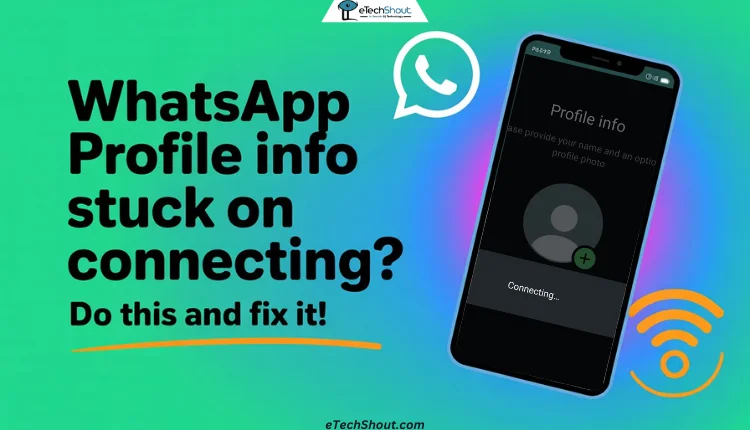
How to Fix WhatsApp Profile Info Connecting on Android & iPhone [7 Ways]
Restart your Phone
The first thing that worked for me was as simple as restarting the device. After WhatsApp got stuck on the profile info page, I just restarted my phone and opened WhatsApp again. This time, it moved past the profile info screen without any problem. It is quick, easy, and worth trying before going into more detailed fixes.
Force Stop WhatsApp
If restarting the phone does not fix the problem, the next thing you can try is closing WhatsApp completely. On both Android and iPhone, you can swipe it away from the recent apps screen or app switcher. This makes sure the app is fully closed and not running in the background.
If that still does not work, Android users can take it one step further by force-stopping the app. To do this, go to your phone settings, open the “Apps” section, select “WhatsApp,” and then tap “Force Stop.” After that, open WhatsApp again and check if it moves past the profile info page.
Check your Internet Connection
Many times, WhatsApp gets stuck on the profile info page because the internet is weak or the speed keeps dropping. Make sure your phone actually has an active connection. Turn on your Wi Fi or mobile data and try loading a webpage or opening another app that uses the internet to see if it is working fine.
If it still feels slow, you can switch between Wi Fi and mobile data to check which one works better at that moment.
Check for WhatsApp Updates
Most often, the issue happens because you are using an older version of the app. Open the Play Store on Android or the App Store on iPhone and check any update available for WhatsApp, tap it, and let the app update to the latest version. After updating, check if WhatsApp goes past the profile info screen without any delay.
Try Using a VPN
At times, WhatsApp may hang on the profile info screen because of internet limits or routing issues. One simple trick is to connect through a VPN. You can use an app like 1.1.1.1 by Cloudflare or pick any other trusted VPN app from the Play Store or App Store. Once the VPN is active, open WhatsApp again. This method has worked for many users, so it is definitely worth trying if none of the above methods did the trick.

Clear App Cache
If you are using an Android phone, clearing the app cache might help. Go to your phone settings > Apps > WhatsApp > Clear Cache. If that does not work, you can also try “Clear Data” and then enter your details again to see if it moves past the connecting screen.
For iPhone users, cache works a bit differently. You cannot clear it directly like Android, but reinstalling the app usually has the same effect.
Reinstall WhatsApp
If the app still stays stuck after trying everything else, removing and reinstalling it can often solve the problem. Uninstall WhatsApp from your phone and then download it again from the Play Store or App Store. Once it is reinstalled, open it, enter your phone number, and complete the verification process to see if that bypasses the profile info connecting issue.
RELATED:
- How to Fix WhatsApp Internal Storage Required Error [EASY]
- 5 Quick Fixes for WhatsApp Read Receipts Not Working Issue
These are 7 handy ways that worked for me and many others to fix WhatsApp getting stuck on the profile info screen. If you have found any other method that worked for you, feel free to share it in the comments below!