Snapchat has been around since 2011, and it is still one of the biggest social media apps today. What makes it stand out is its focus on quick photo and video sharing instead of long posts. Streaks, Stories, AR lenses, and private chats keep people coming back every day.
Snapchat is also competing with apps like Instagram, TikTok, and WhatsApp, which keep adding new camera and messaging features. That is why Snapchat keeps bringing new updates and tools to its users. Since the camera is the heart of the app, people expect it to open as soon as they launch Snapchat.
Seeing the message “Snapchat was unable to open the camera” can stop you from taking photos, recording videos, or using the app the way you normally would. There can be more than one cause behind this error. I spent some time looking into this issue and collected the fixes that have worked for me and other Snapchat users. Give them a try one by one. 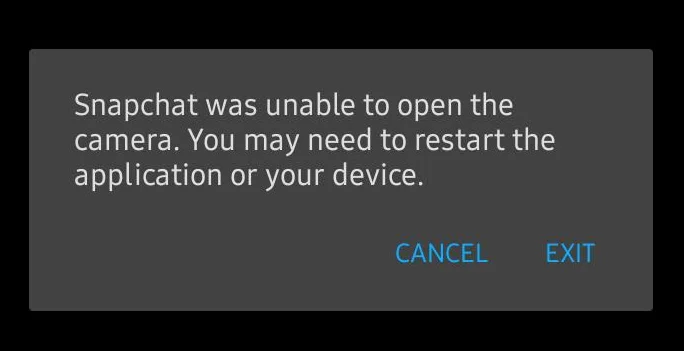
8 Easy Fixes for “Snapchat was unable to open the camera” Error on Android/iOS
Check Snapchat Camera Permission
If Snapchat does not have permission to use your phone’s camera, it will not be able to open it. To check this, open Settings > Apps > Snapchat > Permissions > Camera and set it to Allow only while using the app.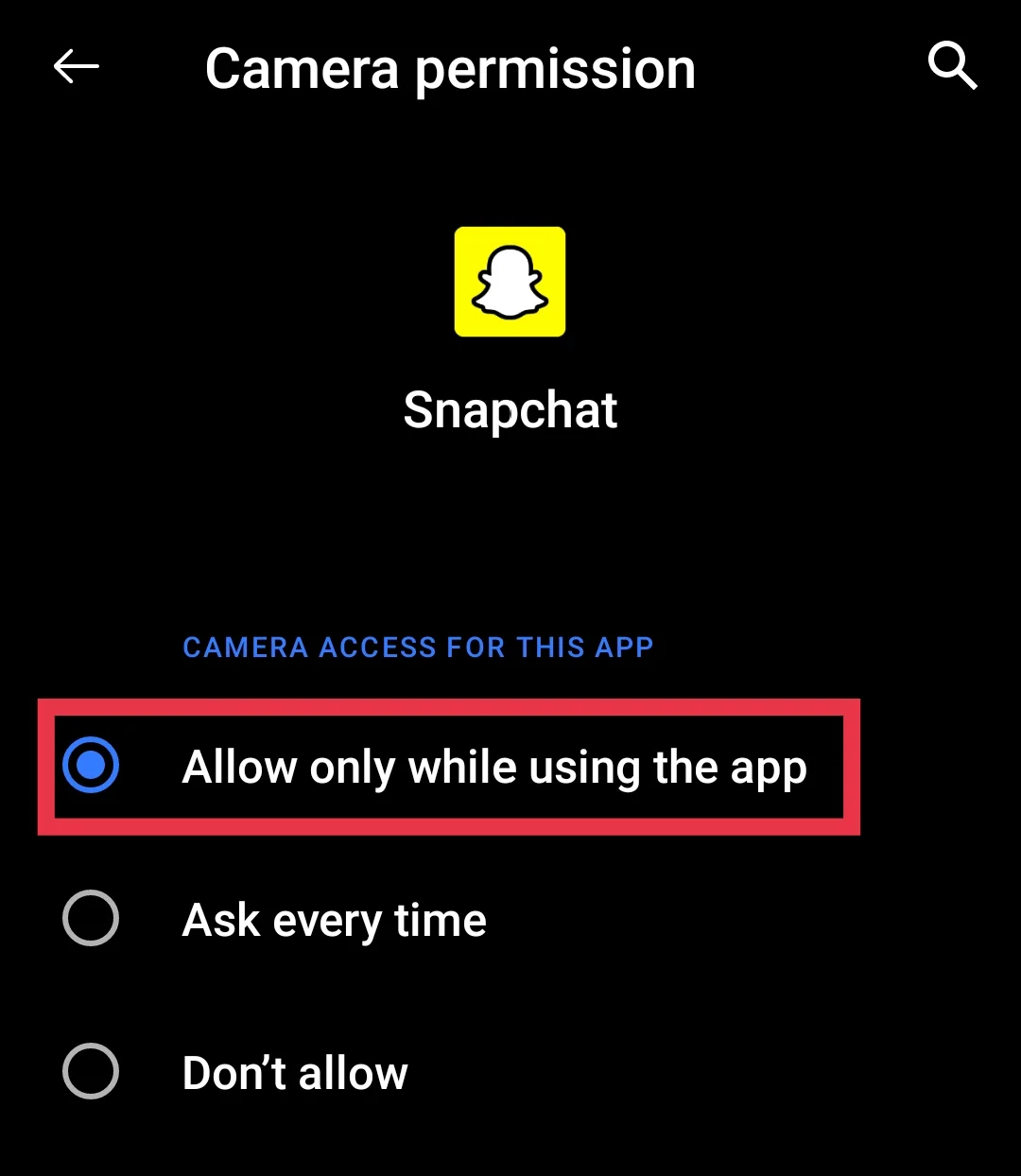
On iPhone, open Settings > Snapchat and make sure the Camera toggle is turned on. (On iOS 18 and later, you can find Snapchat under Settings > Apps.) After that, open Snapchat and check if the camera works. 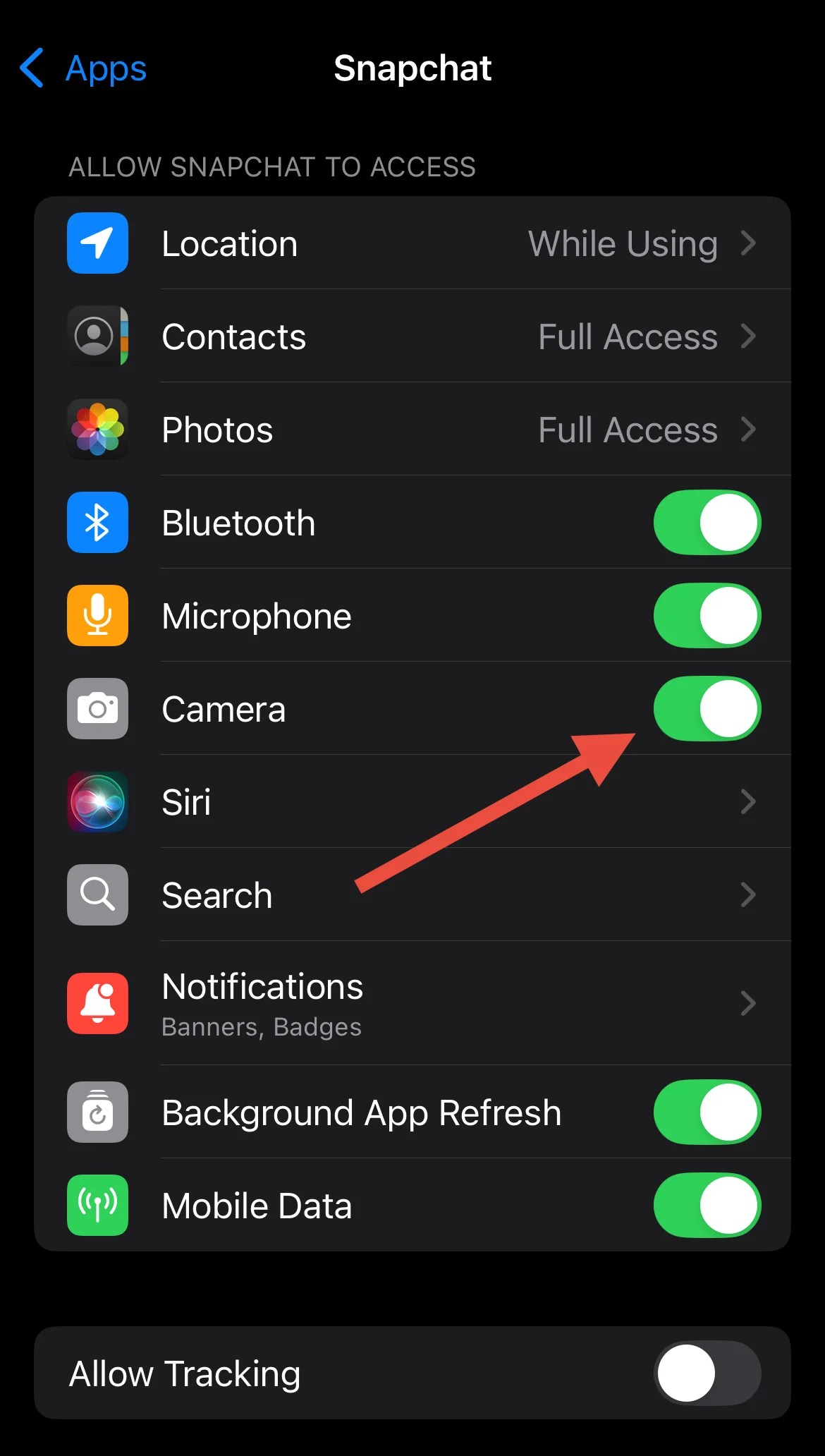
Check Camera Access in Your Phone Settings
- On Android, open Settings > Privacy or Security & Privacy > Permission Manager (or Permission Control) > Camera, then make sure Snapchat is allowed to use it.
- On iPhone, open Settings > Privacy & Security > Camera and check that the switch next to Snapchat is turned on.
Restart Your Phone
I know restarting your phone is one of those fixes people usually ignore, but I have seen it solve camera issues more than once. Turn your phone off, give it about 30 seconds, then power it back on to check if the camera is working.
Install the Latest Snapchat Update
If it has been a long time since you last updated Snapchat, the app version on your phone could be causing the camera error. On Android, open the Google Play Store and check whether update is available for Snapchat app. If you are using an iPhone, open the App Store and install any update that is available for Snapchat.
Clear Snapchat Cache
Fortunately, Snapchat has a built in option to clear its cache, so you can do this on both Android and iPhone. This only removes temporary app data. Your chats, Memories, photos, videos, and other account data will stay safe.
To clear the cache, open Snapchat and tap your profile icon. Next, tap the Settings icon, scroll down then tap Clear Cache. Confirm your choice when asked.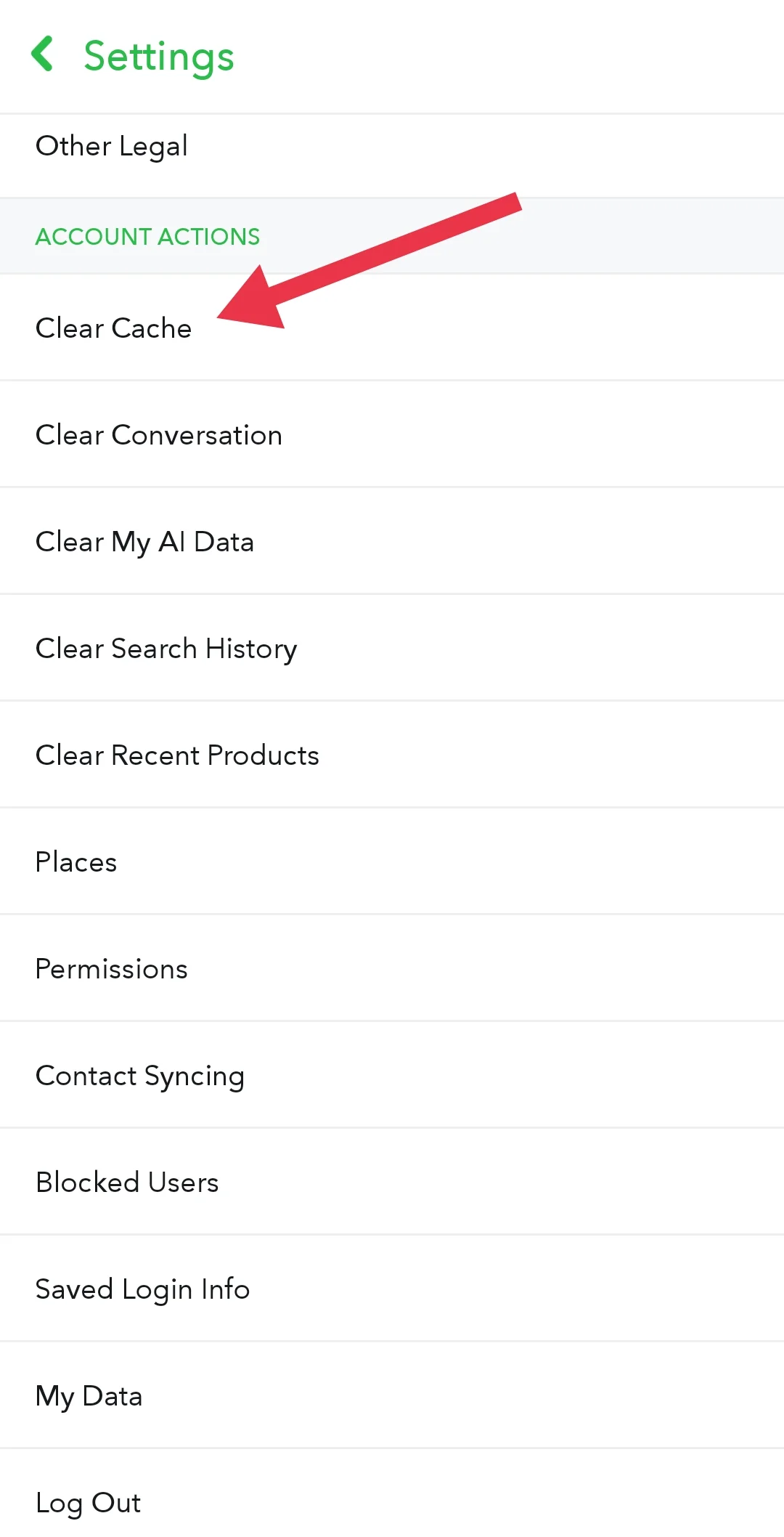
Once the cache has been cleared, close Snapchat completely and open it again to check.
Sign In With Another Snapchat Account
This may sound unusual, but it has worked for some Snapchat users. The idea is to sign in with a different account first, then switch back to your main account.
If you do not have another Snapchat account, create a new one. After that, sign out of your current account and log in with the new account. After that, sign out of the new account and sign back into your original account.
Reinstall Snapchat
If Snapchat is still showing “unable to open the camera” error, reinstalling Snapchat is worth trying.
- On Android, press and hold the Snapchat app icon, tap Uninstall, then install it again from the Google Play Store.
- On iPhone, press and hold the Snapchat app icon, tap Remove App > Delete App, then download it again from the App Store.
Before you uninstall Snapchat, make sure you remember your account password. If you have photos or videos that have not been backed up to Memories or another location, save them first because local data stored in the app may be removed during the process.
Update Your Phone
If Snapchat is up to date but the camera error is still showing, check if your phone has a software update waiting.
- On Android, open Settings > Software Update or System > System Update, then install any available update.
- On iPhone, go to Settings > General > Software Update and install the latest iOS version if one is available.
I spent quite a bit of time looking into this “Snapchat was unable to open the camera” error, and the methods above are the ones that helped the most. If your camera also refuses to work in other apps, it is worth checking if the issue is with your phone itself. If Snapchat is the only app showing this error, submit a report to Snapchat Support and attach a screenshot if you can.