Xbox has changed a lot over the years. It is no longer just a console for playing games. With so much happening on the platform every day, seeing an error code once in a while is fairly common.
Lately, one error that has caught the attention of plenty of Xbox users is 0x87e107df. It usually appears when you try to open a game and Xbox cannot verify its license through Xbox Live. Along with the error code, you may also see the message: “There might be an outage in our online service. Try again in a few minutes, and if you get this error again, check the service status. (0x87e107df).“
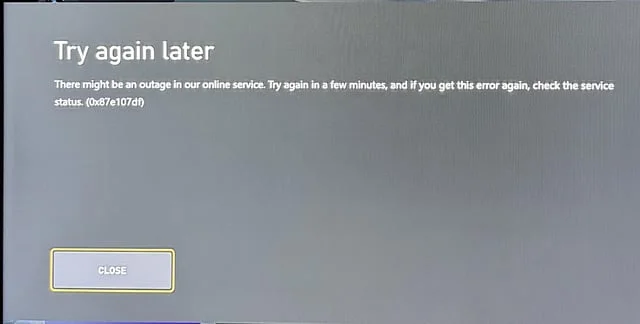
If Xbox error code 0x87e107df has appeared on your console, below, you’ll find simple methods to fix the issue so you can launch your game without seeing the same error again.
How to Fix Xbox Error Code 0x87e107df (Step by Step Guide)
Reset Your Xbox Without Removing Games and Apps
A lot of users have fixed this error code by resetting the console while keeping their installed games and apps. This resets the system files without deleting your installed content.
- Press the Xbox button on your controller to open the guide.
- Open Settings.
- Go to System.
- Select Console info.

- Choose Reset console.
- Select Reset and keep my games and apps.

- Wait for the process to complete.
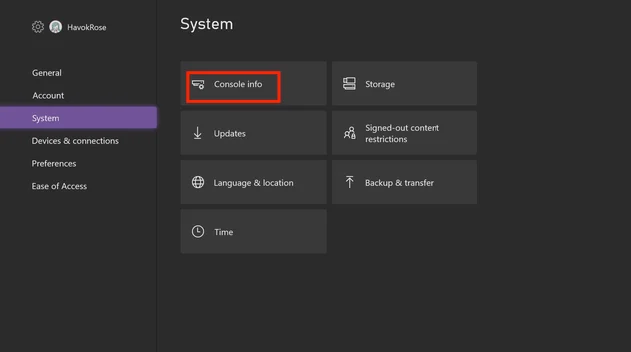
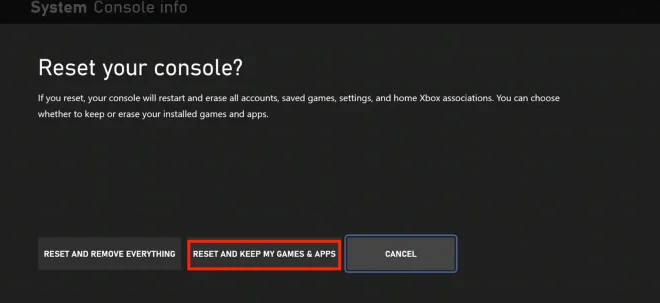
If you see a message saying “It can’t remove Xbox associations,” simply select Continue anyway and let the reset complete.
Update Pending Games and Reinstall the Game
If your Xbox has games waiting for updates, they may interfere with new game installations or license checks. Completing all pending updates and then reinstalling the affected game is a recommended step that may fix the issue.
- Open My games & apps on your Xbox.
- Check if there are any games waiting for an update.
- Install all available game updates and wait for them to finish.
- Uninstall the game that is showing error code 0x87e107df.
- After that, restart your Xbox.
- Now, install the game again from your library.
Check the Xbox Live Server Status
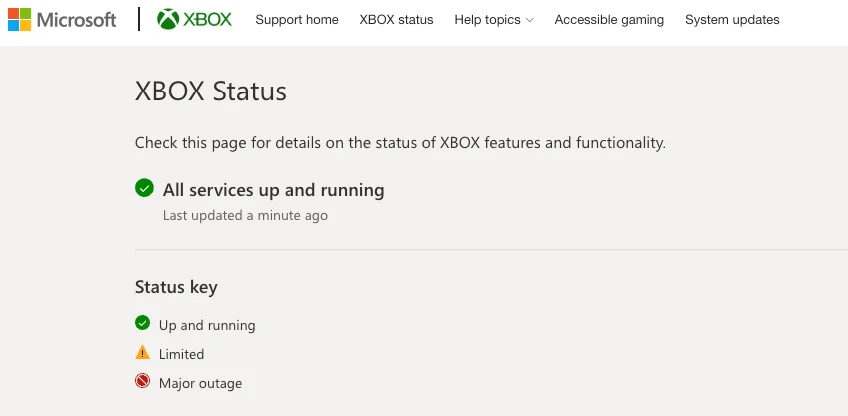
If the first two methods did not fix Xbox error code 0x87e107df, check the Xbox Live server status. This error is often related to temporary licensing or service issues on Microsoft’s end, so the problem may not be with your console.
Visit the official Xbox Status page and check if any Xbox Live services are reporting an outage or limited functionality. A green check mark means everything is working normally, a yellow warning icon indicates limited service, and a red icon means the service is unavailable. If you see a yellow or red status, wait until Microsoft restores the affected services before launching the game again.
If there is an active service issue, wait until Microsoft restores the affected services, then try launching the game again. If you see everything listed as “Up and running“, continue to the next solution.
Restart Your Xbox Console
Turn off your Xbox by pressing and holding the Xbox button on the console for about 10 seconds. After it shuts down completely, wait for 30 to 60 seconds, then turn it back on. Once the console starts, launch the game again and see if the error has disappeared.
Perform a Power Cycle Restart
A normal restart does not always clear every temporary system process. If the error is still showing, perform a power cycle restart to clear any temporary data stored in memory.
- Turn on your Xbox if it is not already running.
- Press and hold the Power button until the console turns off completely.
- Unplug the power cable from the back of the console.
- Leave it unplugged for about 5 minutes.
- Plug the power cable back in.
- Turn on your Xbox to try the game again.
Switch Your Xbox to Offline Mode
If you are trying to play a single player game, switching your Xbox to Offline Mode is worth trying. Since error code 0x87e107df is related to license verification, playing offline may allow the game to launch without contacting Xbox Live.
- Open Settings on your Xbox.
- Select Network.
- Choose Network settings.
- Select Go offline and confirm.

- After that, lunch the game.
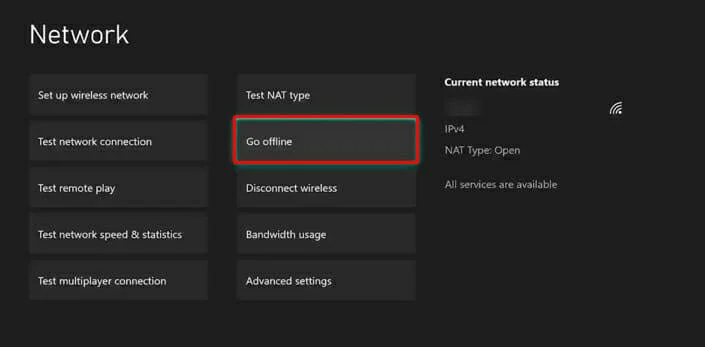
Note: This method is only suitable for games that can be played offline. Online multiplayer games and features will not be available while your console is in Offline Mode.
Launch Another Game First
This trick is surprisingly worth trying. Xbox can occasionally have trouble loading the current game session, and opening another game first can force the console to reset that process.
Open any game from your library and let it load for a few seconds. Close it, return to the Home screen, and then launch the game that was showing error code 0x87e107df.
- RELATED GUIDE: Xbox Error 0x80832003 (How to Fix Easily)