eTechShout
  • TECH
  • HOW TO
    • ANDROID
    • iOS
    • WINDOWS
  • TOP LIST
  • ALTERNATIVES
  • REVIEWS
  • COMPARISON
No Result
View All Result
  • TECH
  • HOW TO
    • ANDROID
    • iOS
    • WINDOWS
  • TOP LIST
  • ALTERNATIVES
  • REVIEWS
  • COMPARISON
No Result
View All Result
eTechShout
Home ANDROID

How To Hide Files Inside Calculator On Android

by eTechShout Editor
January 8, 2021

Android gives freedom to the user with ease of operations and also performance. As you know sometimes we need to hide some Photos or Videos or it may be even full folder because you just don’t want other people to see or use it.
There are thousands of apps available in Playstore which enables you to hide your files. But today in this post we are going to show you how you can hide your files inside Calculator! Yes. You heard it right.
Just follow below steps and Hide your files inside Calculator App.

  • How to Hide Files Inside Calculator?
    • How to Unhide the File?

How to Hide Files Inside Calculator?

  1.  First thing you have to do is Download  Calculator Vault- Gallery LockApp From Playstore
  2.  After installing the App Open it
  3.  Now it will ask you to Create a Password so Enter a Pin code that you want to save as your Password
    hide files in calculator
  4.  In next step Enter Security Question and Write Answer for it
    hide files in calculator
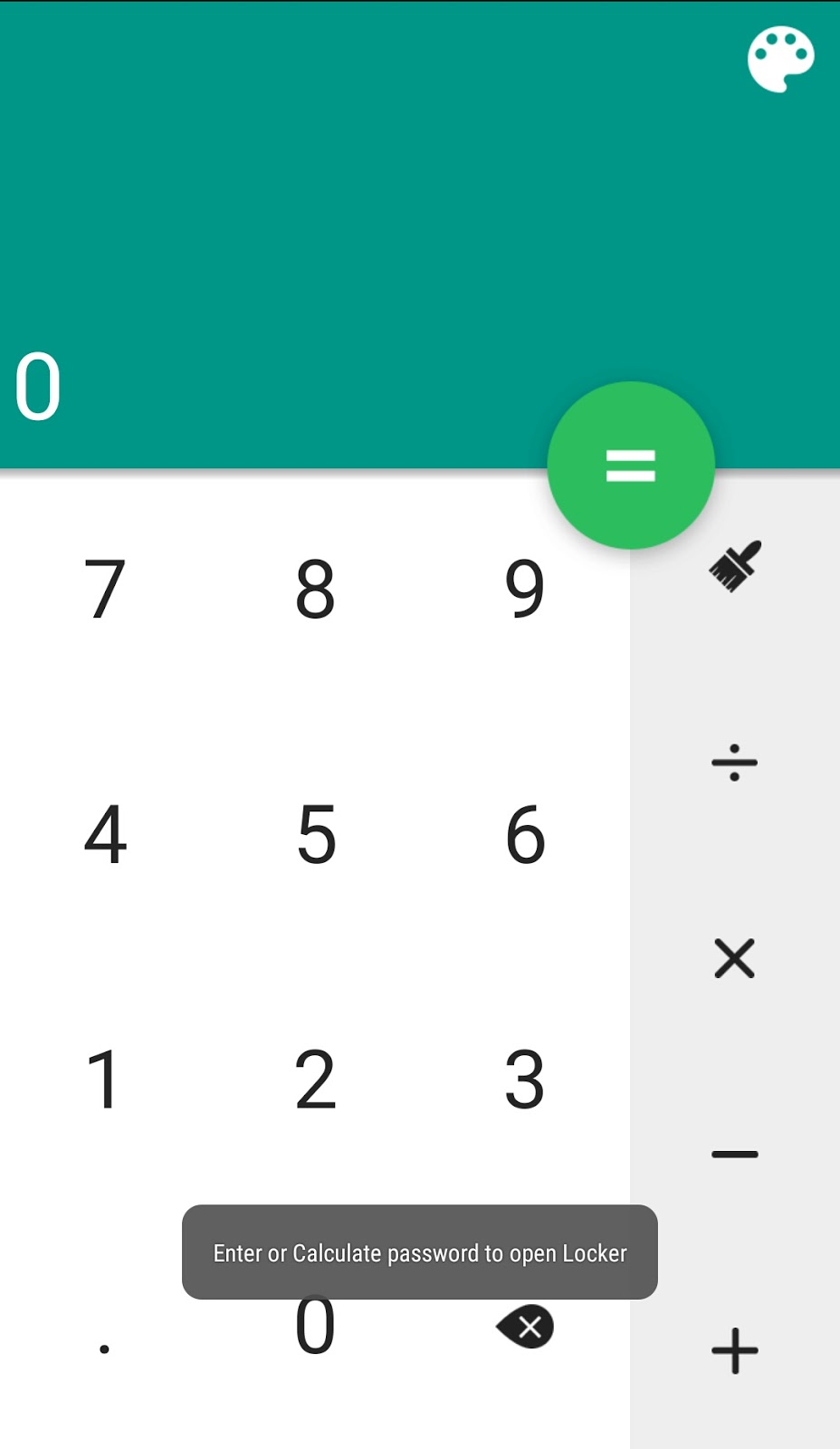
  5.  Now you can see Calculator, Just Enter your Password pin code to Open the Vault
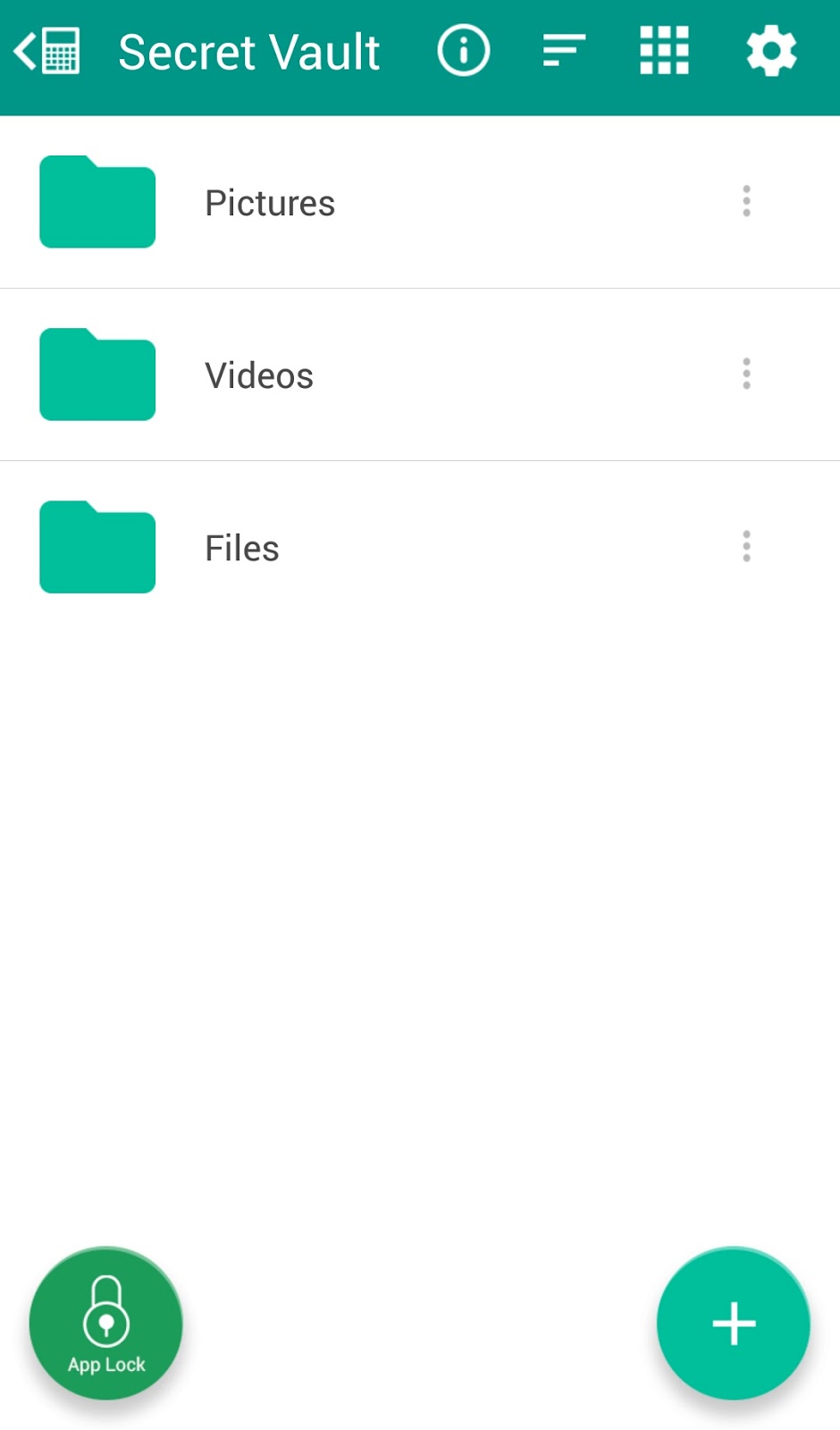
  6.  There you can see options of Pictures, Videos, and Files
  7.  Now Tap on the Pictures if you want to hide Pictures and so on
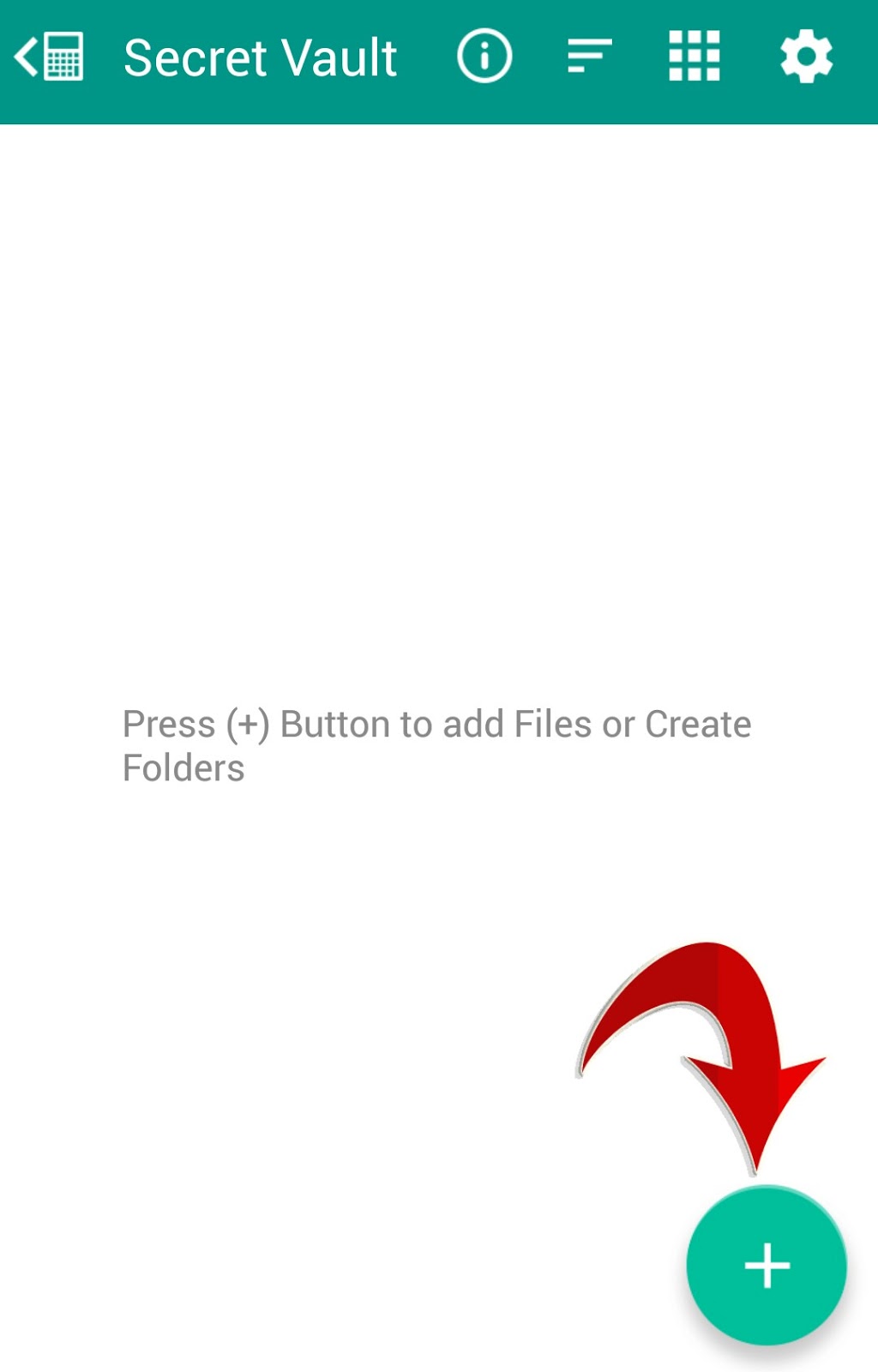
  8.  In next step Tap on the “+” icon and Select the files that you want to hide from gallery
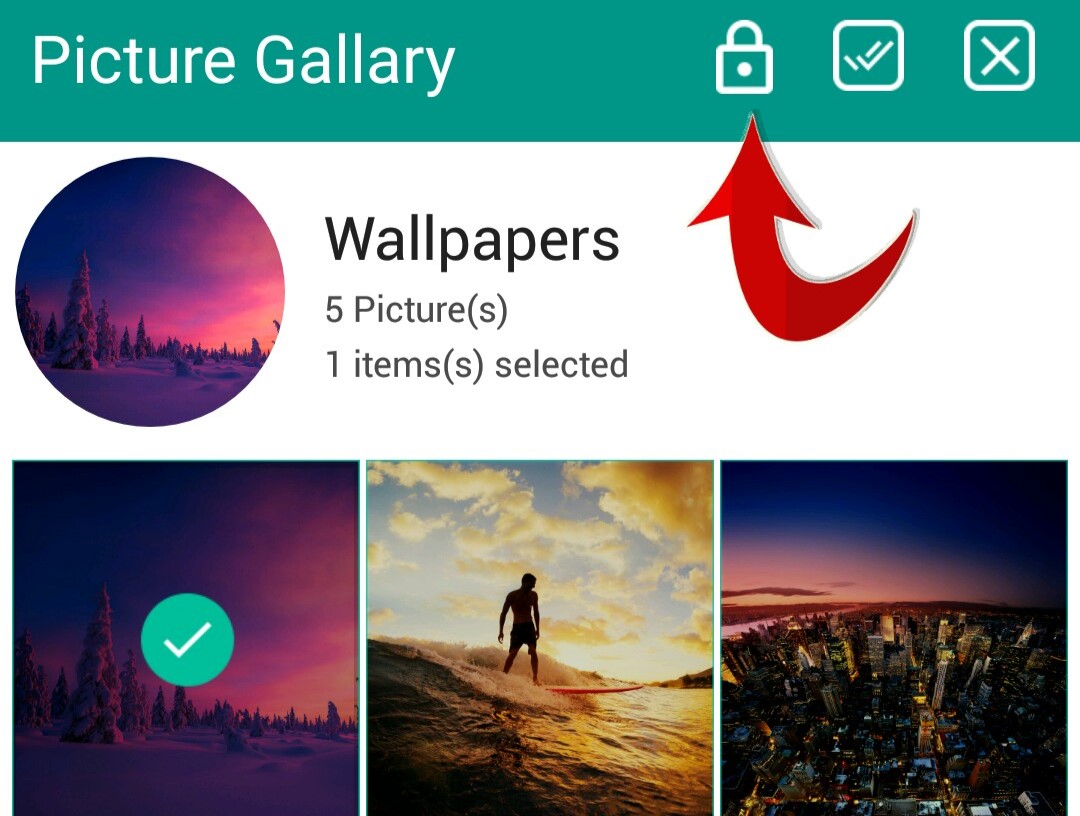
  9.  After selecting it Click on Lock Button as shown below
  10.  You’ve Done! Now that file will not appear in your Gallery.

How to Unhide the File?

  1.  You can Unhide the files at any time. To unhide the hidden files in Vault just follow below simple step
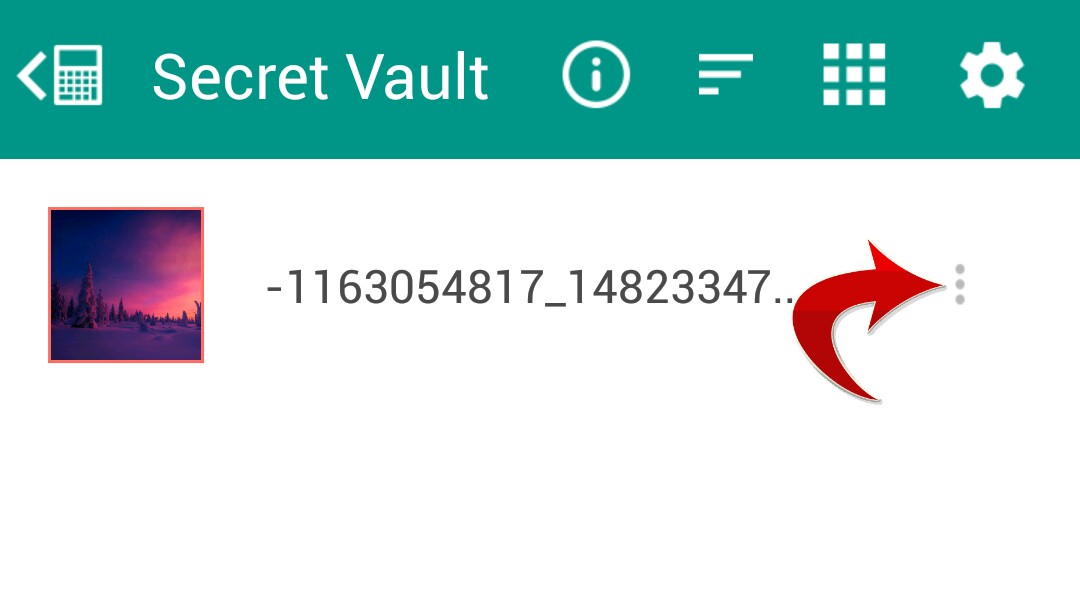
  2.  Select the file that you want to Unhide
  3.  You will see 3 Dots there
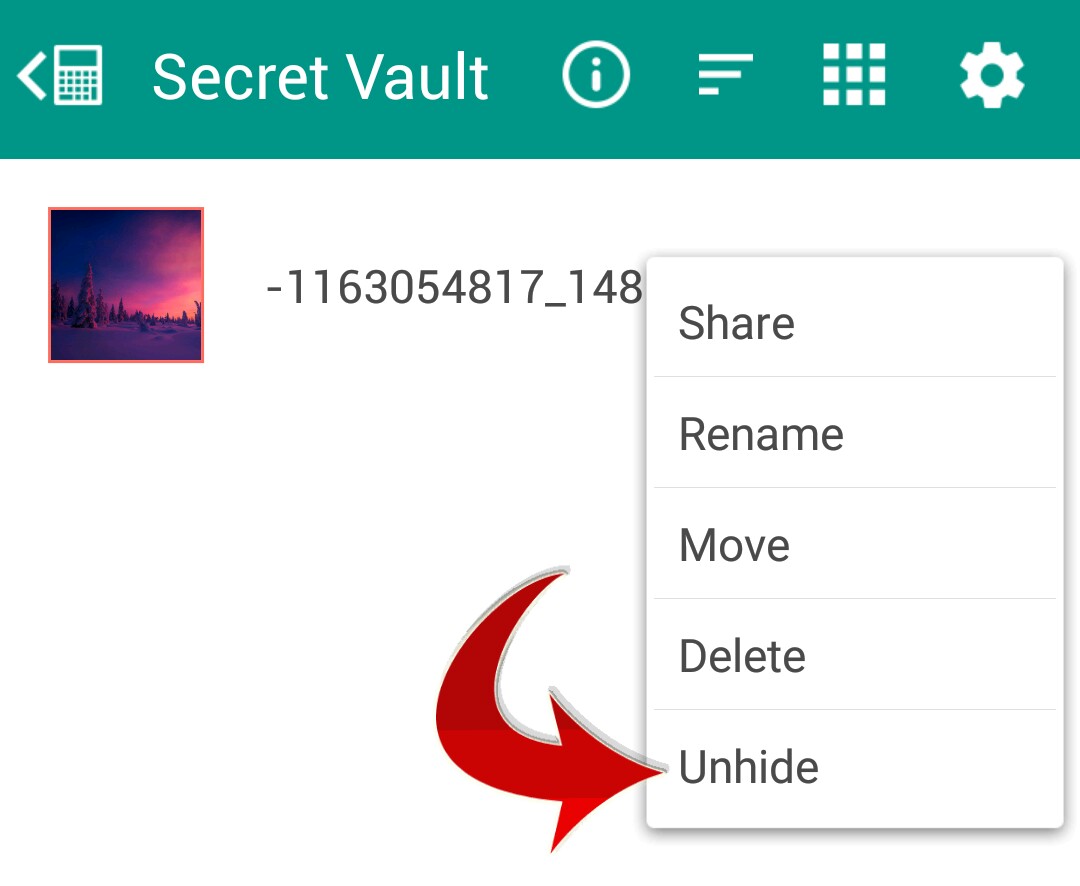
  4.  Click on it to get Unhide Option
  5.  Just Click on it to Unhide!

Note: –

  • Before Deleting App, Export and unlock all files. Deleting/Uninstalling App will erase all locked data and will be lost forever!
  • Do not factory reset your phone, it will remove the application and all its data forever.
  • In case you forget your password you can reset it by entering 11223344 into calculator app and press = EQUAL Button.

This is about How to hide files inside calculator. Hope you like this article. Do share this post with your friends.:)

Speak Your Mind In The Comments. I Would Like To Hear What You Think 🙂

Tags: Android
ShareTweetSendPinPinShareShareSend
eTechShout Editor

eTechShout Editor

Freelancer and writer who keeps a close eye on new technologies. He writes about the best apps/games, how-to tips, tutorials especially on Android, iPhone, computers, Windows, Linux, and Mac.

Related Posts

Troubleshooting guide on how to fix the Android System WebView has stopped error on an Android phone

How to Fix “Android System WebView has stopped”

June 8, 2026
Troubleshooting guide on how to fix the Failed to open camera error on an Android phone

How to Fix “Failed to open camera” Error on Android

June 1, 2026
Steps to fix the "Couldn't capture screenshot" error on Android phones

How to Fix “Couldn’t capture screenshot” on Android [EASY WAY]

May 29, 2026
Follow these steps to turn off Developer options and fix the debug mode error in Poshan Tracker app

How to Fix “This application is not supported on debug mode” Poshan Tracker

March 26, 2026

Recent Posts

Easy and quick guide on fixing Instagram Story "Waiting for Connection" error

How to Fix Instagram Story “Waiting for Connection”

June 16, 2026
Guide to fix the "This user doesn't seem to exist" error on Telegram

How to Fix “This user doesn’t seem to exist” on Telegram

June 15, 2026
Guide to fix the Roblox Encountered an Unexpected Error issue on Windows PC

How to Fix “Roblox Encountered an Unexpected Error” on Windows

June 13, 2026
Easy and working guide on fixing the Virtual Machine Detected error in Roblox

How to Fix Virtual Machine Detected Error in Roblox [Quick Ways]

June 12, 2026
Guide showing all troubleshooting methods to fix Instagram search bar not working issue

How to Fix Instagram Search Bar Not Working on Android & iPhone

June 10, 2026
  • Disclaimer
  • Privacy
  • Contact Us
  • About Us
  • eTechShout Team

Copyright © 2026 All Rights Reserved.

No Result
View All Result
  • TECH
  • HOW TO
    • ANDROID
    • iOS
    • WINDOWS
  • TOP LIST
  • ALTERNATIVES
  • REVIEWS
  • COMPARISON

Copyright © 2026 All Rights Reserved.