Facebook has been around for many years, and it has grown a lot since the early days. What began as a simple place to connect with friends has turned into a huge platform where people share photos, join groups, follow pages, and browse Marketplace.
At the same time, many people have moved to other social apps like Instagram or X. There are still plenty of users who enjoy Facebook, but others feel it is time to step away from the platform. For different personal reasons, many users now want to deactivate their account or delete it forever.
Recently, a lot of readers have been asking the same question. They open Facebook settings and cannot see the Account Ownership and Control option at all. Because this section is needed if you want to deactivate or delete your account, many people are unsure where it went. Below, I will tell you where you can find the Account Ownership and Control option. Don’t worry.
How to Fix Facebook Account Ownership and Control Not Showing
Find Deactivation or Deletion from Accounts Center
If you cannot see Account Ownership and Control in the usual settings area, try accessing it through Accounts Center inside the Facebook app. The option to deactivate or delete your account is now placed there.
- Open the Facebook app on your phone.
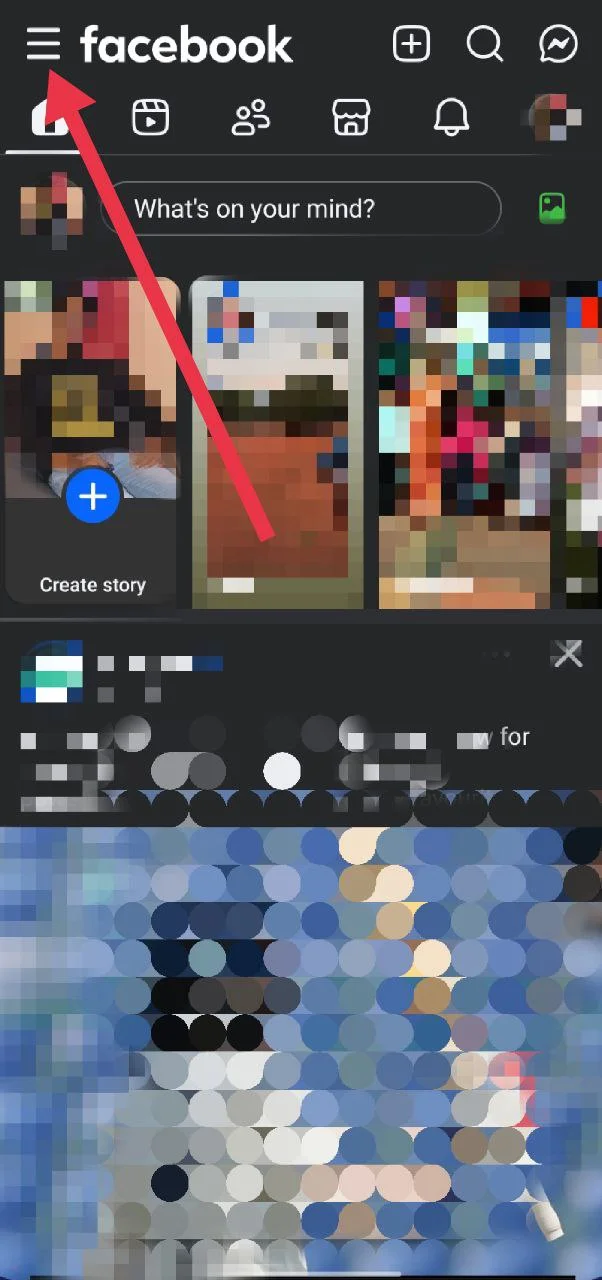
- Tap the Menu button at the top left corner of the screen.

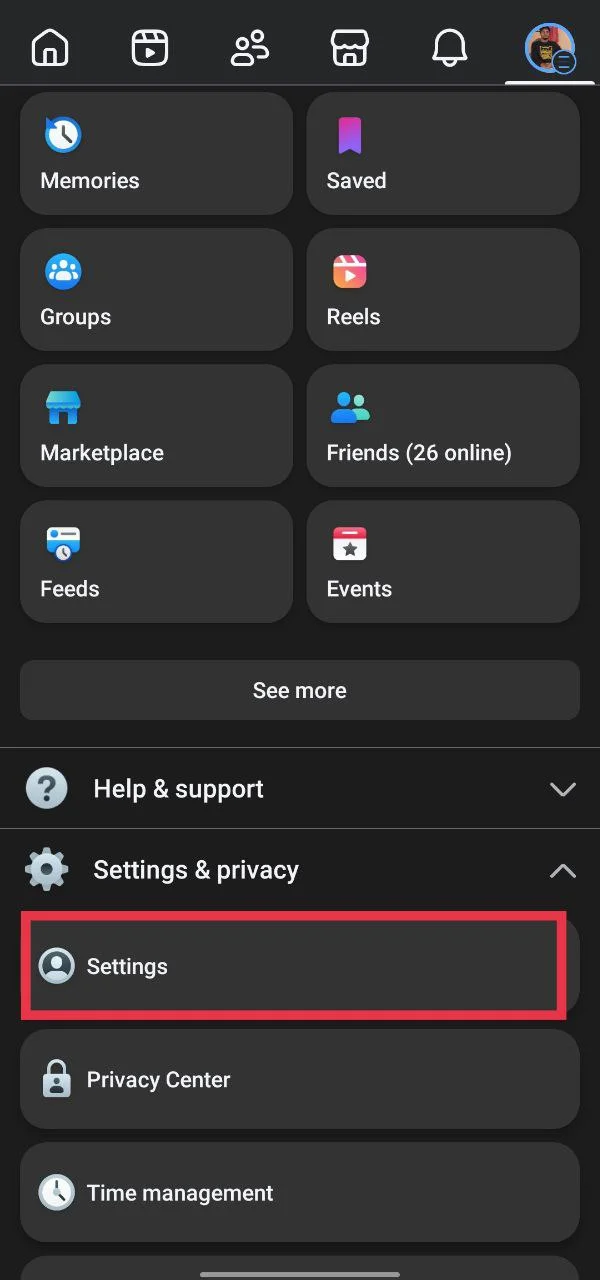
- Scroll down and select Settings and Privacy, then Settings

- Tap Accounts Center.

- Choose Manage accounts.

- Next to your Facebook profile, tap Manage.

- Select Deactivation or Deletion.

- From here, you can choose to deactivate your account or delete it permanently.


Use the Settings Search to Find Manage Accounts
If the previous method does not show the option, you can try using the search bar inside Facebook settings. This helps you jump straight to the section where the account management options are located.
- Open the Facebook app on your phone.
- Tap the Menu button at the top left corner of the screen.
- Scroll down and tap Settings and Privacy.
- Click Settings from the dropdown menu
- At the top of the settings page, tap the search bar at the top.
- Type “Manage accounts” in the search field.
- From the results, tap Manage accounts.
- If more than one account is linked, choose the account you want and tap Manage.
- Select Deactivation or Deletion.

After opening this section, you can choose the option to deactivate your account for a while or delete it permanently.
Use the Direct Link to Open the Deactivation Page
If you still cannot locate the option anywhere in the settings page, you can open the deactivation or deletion section using a direct link. This method takes you straight to the page where you can manage your account status.
- Visit this Facebook Deactivation or Deletion page.
- Make sure you are signed in to your Facebook account.
- Now, choose the Facebook account you want to manage if multiple accounts appear.
- Select Deactivate Account if you want to pause your account for a while.
- Select Delete Account if you want to remove your Facebook account permanently.

- Follow the instructions shown on the screen to confirm your choice.

This direct page opens the account control section even when it does not appear inside the normal settings menu. From there, you can continue with the option you prefer.
We know how it feels. Facebook keeps changing where many options are placed in the settings. A new layout is fine, but moving sections again and again can make it hard for people to find a simple option. The place where you saw a setting today may be moved to another section the next time you check. That is why many users struggle to locate the Account Ownership and Control page.
If you still cannot see the deactivate or delete option under Account Ownership and Control, or the page does not open, the easiest way is to use the direct page. Just visit https://www.facebook.com/deactivate_delete_account. After opening it, sign in if needed and choose the option to deactivate your account or delete it.
Hope this guide helped. Let us know which method worked for you. If you found the Facebook Account Ownership and Control option in a different place, feel free to share it with other readers as well.