Even though Disney+ is widely used around the world, users still come across different error codes while watching content. This is common with many streaming platforms, and we have talked about a few of these issues in our earlier guides as well.
One error that many viewers see is Disney+ Error Code 73. When it shows up, the screen displays this message: “Disney+ is only available in certain regions. Depending on where you are located, you may not be able to access Disney+. If you think you are seeing this message in error, visit the Disney+ Help Centre (Error Code 73).” This usually appears when Disney+ detects that the device location is in a region where the service is not supported. In the sections below, I will share a few easy ways you can try to fix Disney+ Error Code 73.

7 Easy Ways to Fix Disney Plus Error Code 73
Turn off your VPN

One common reason behind this error is using a VPN connection. When a VPN is active, the service may think you are watching from a country where Disney+ is not available. When that happens, the platform blocks the video and shows the error message on the screen.
If you have a VPN enabled on your phone, computer, or browser, try turning it off for a while and then open Disney+ again. This allows the platform to detect your actual internet location.
Try Using Mobile Hotspot Instead of WiFi
In many cases, this Disney Plus Error Code 73 appears only when the device is connected to a wireless WiFi network. Most of the time, the Disney+ app works without any issues when the device uses another internet connection.
If you are watching on a phone, turn off WiFi and open Disney+ using your mobile data to check if the problem is related to the wireless network you were using earlier.
For a computer or smart TV, you can turn on the hotspot on your phone and connect your device to it.
Reset the Network Settings On Your Device
If the error still shows up, one more thing you can try is resetting the network settings on your device. Keep in mind that this step removes saved WiFi networks, so you will need to enter your WiFi password again later.
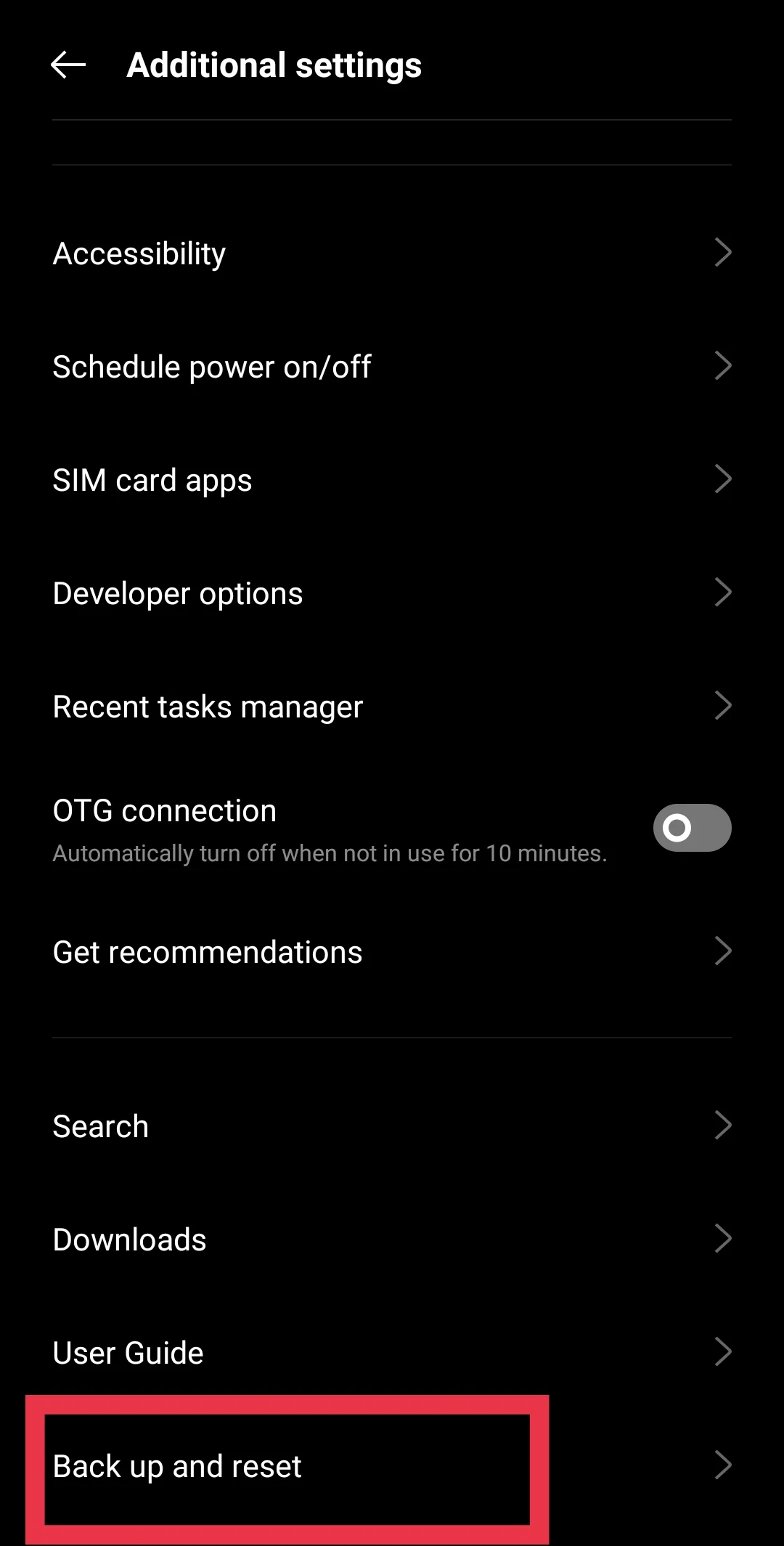
Android phone
- Open Settings on your phone.
- Choose Back up and Reset options.

- Tap Reset Network Settings.

- Confirm the reset on the screen.

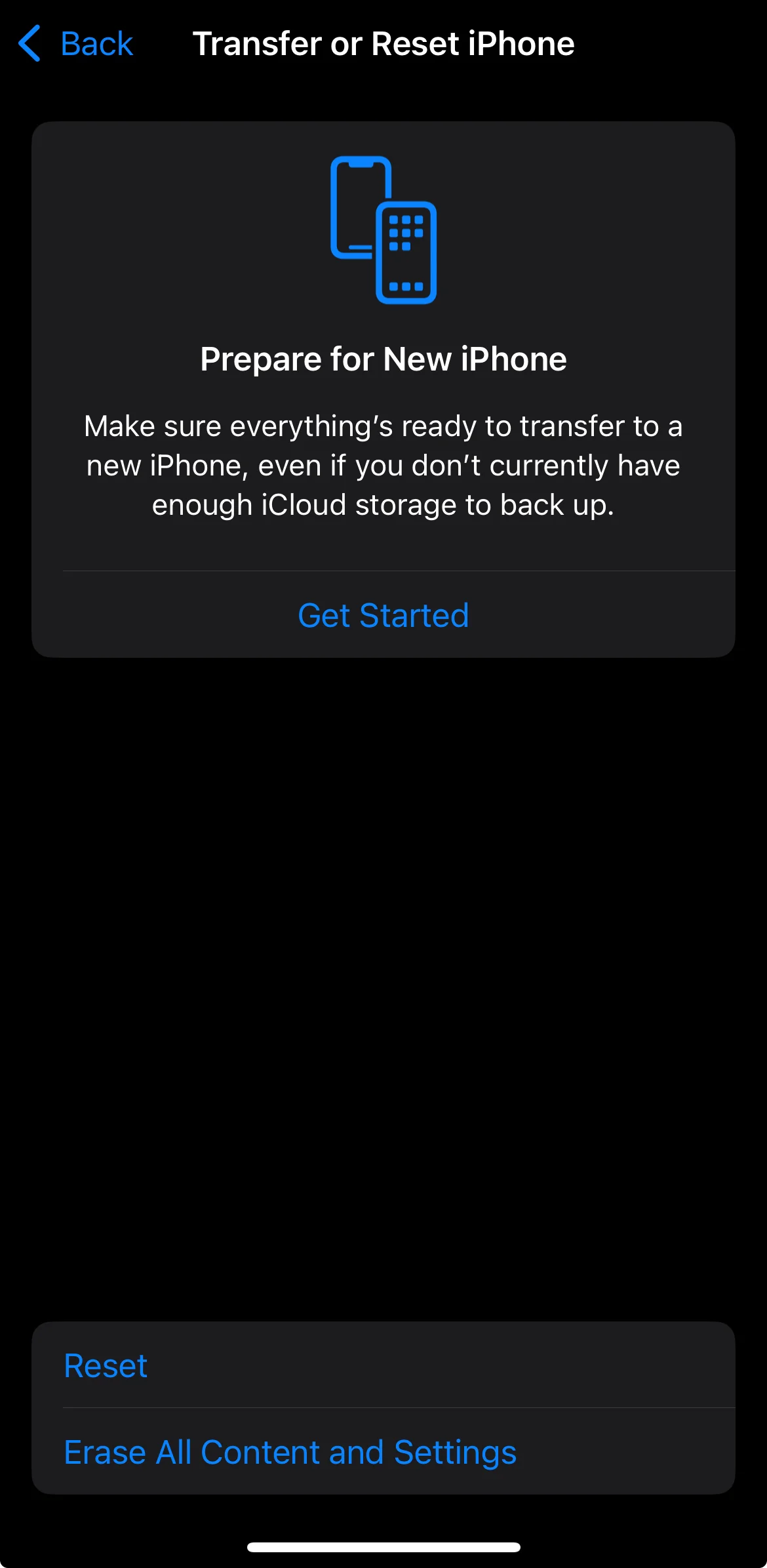
iPhone or iPad
- Open Settings.
- Tap General.
- Scroll down and select Transfer or Reset iPhone.
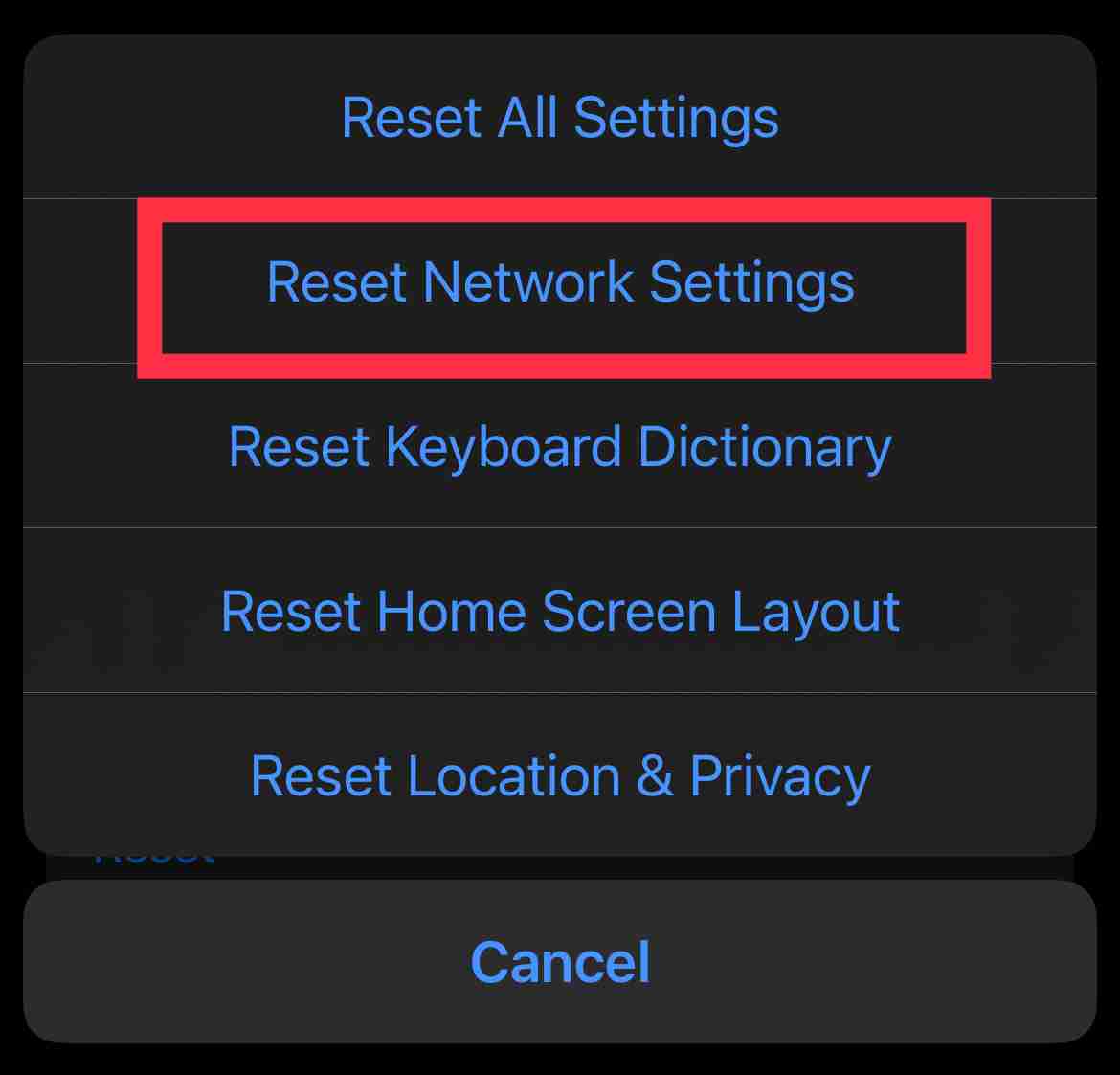
- Tap Reset.

- Choose Reset Network Settings and confirm.

Windows PC
- Open Settings on your computer.
- Click Network and Internet.
- Open Advanced network settings.

- Select Network reset.
- Click Reset now and confirm your choice.

Change the WAN MAC Address on Your Router
Another method that worked for me was changing the WAN MAC address in the router settings. In some cases, Disney+ may read the public IP address linked to your internet connection and mark it as coming from an unsupported region. Changing the WAN MAC address can cause your router to receive a new public IP address from your internet provider.
You can try logging in to your router administration page through a web browser and locating the WAN or Internet settings section. In that area, the WAN MAC address can usually be edited. In my case, I changed the second to last hexadecimal character in the MAC address to a different value and saved the new setting.
After that, restart the router so the new settings take effect. Once the router reconnects to the internet, it may receive a new public IP address.
Turn Off IPv6 on your Device or Router
Another method you can try is turning off IPv6 on your device or router. In certain cases, Disney+ reads network information through IPv6, and this may cause the service to detect the wrong region.
Turning off IPv6 makes your network rely only on IPv4 for the internet connection. When this change is made, Disney Plus reads the IPv4 address instead, which may help clear the location error if the service was detecting the wrong region before.
Below are simple steps you can follow on different devices.
On Android
- Open Settings on your phone.
- Go to Connections or navigate to SIM cards and mobile data.
- Tap your mobile network operator.
- Now, in Access Point Names, open your active APN profile.

- Tap on APN protocol and change it to IPv4.

- Then save it.


On iPhone
iOS does not include a direct option to turn off IPv6. Still, a few users reported success with the following method.
- Open Settings.
- Tap WiFi.
- Press the i icon next to your connected network.
- Select Configure DNS.
- Choose Manual.
- Remove IPv6 DNS addresses if they appear.
Keep in mind that this method is not an official option from Apple, so results can vary.
On Windows
- Open the Start menu, type Control Panel, then press Enter.
- Click Network and Internet, then Network and Sharing Center
- Right-click your active connection, such as WiFi or Ethernet, and choose Properties.

- In the list of network items, remove the check mark next to Internet Protocol Version 6 (TCP IPv6).
- Click OK to save the change.


On macOS
- Click the Apple menu and open System Preferences.
- Select Network.
- Choose the network connection you are using.
- Click Advanced.
- Open the TCP IP tab.
- From Configure IPv6, choose Off.
- Click OK, then select Apply.
Check your IP Address Location
Another thing worth checking is your public IP address. In some cases, the internet provider may assign an IP that shows a different location than where you actually live. When Disney Plus reads that location, it may think the connection is coming from a region where the service is not available, which can lead to Error Code 73.
You can search online for “What is my IP address” and open one of the tools that shows the location linked to your connection. If the location looks incorrect and you are not using a VPN, contact your internet provider and let them know about it. They may update the location details or assign a new IP address to your connection.
Contact Disney+ Support
If you have tried the methods above and the error still appears, the next step is to reach out to the Disney+ support team. There are cases where the service may block an IP address after detecting it as coming from a different region.
You can visit the Disney+ Help Center and contact their support team through chat or use the customer support options available on the site.
They may review your account and connection details and check if your IP address has been restricted. If that is the reason, they may be able to remove the block so you can open Disney+ and watch your content again.
- ALSO READ: How to Fix Disney+ Error Code 142