Over the years, YouTube has grown a lot and has become a daily part of how many people spend time online. Many people do not sit and stare at the screen the whole time while a video plays. A lot of users play music playlists while working, studying, or doing other tasks on their computer. In these cases, the video is playing in the background while the person is busy with something else. This is very common for people who use YouTube to listen to songs or long playlists.
After a while, YouTube may stop the video and show a message that says “Video paused. Continue watching.” This happens when the site thinks the page has not been touched for some time. When this message appears, the video stops until the user clicks to continue. For people who like to keep music or videos playing in the background, this can interrupt the listening experience.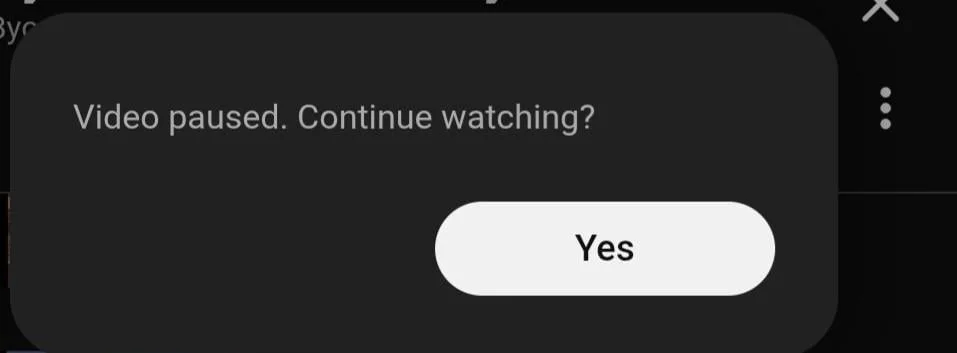
Why Does YouTube Pauses After a While?
YouTube added the “Video paused. Continue watching” message a few years ago, and the message appears after a video plays for a long time without any activity on the page. It simply asks if you are still watching. If you click “Yes,” the video continues playing.
YouTube added this feature mainly for business reasons. When videos keep playing without viewers paying attention, advertisements do not bring value. The platform pauses the video to check if someone is still watching. It also helps reduce extra data use and battery drain when a video keeps playing for a long time.
How to Remove “Video Paused. Continue Watching” on YouTube
Use a YouTube NonStop Extension
One simple way to stop the “Video paused. Continue watching” message is by using a browser extension called YouTube NonStop. This extension keeps YouTube videos playing without asking if you are still watching. Once it is installed, the video will continue playing even if you do not touch the page for a long time.
YouTube NonStop works on many browsers, such as Google Chrome, Mozilla Firefox, Opera, and Microsoft Edge. It also works on other Chromium-based browsers like Opera and Brave. The extension works on both youtube.com and music.youtube.com, so it is useful if you listen to music playlists or watch long videos.
- Open the extension page for YouTube NonStop in your browser (Chrome/Firefox)

- Click the Add to Chrome or Add to Firefox button on the page.
- When a small confirmation box appears, click Add extension.

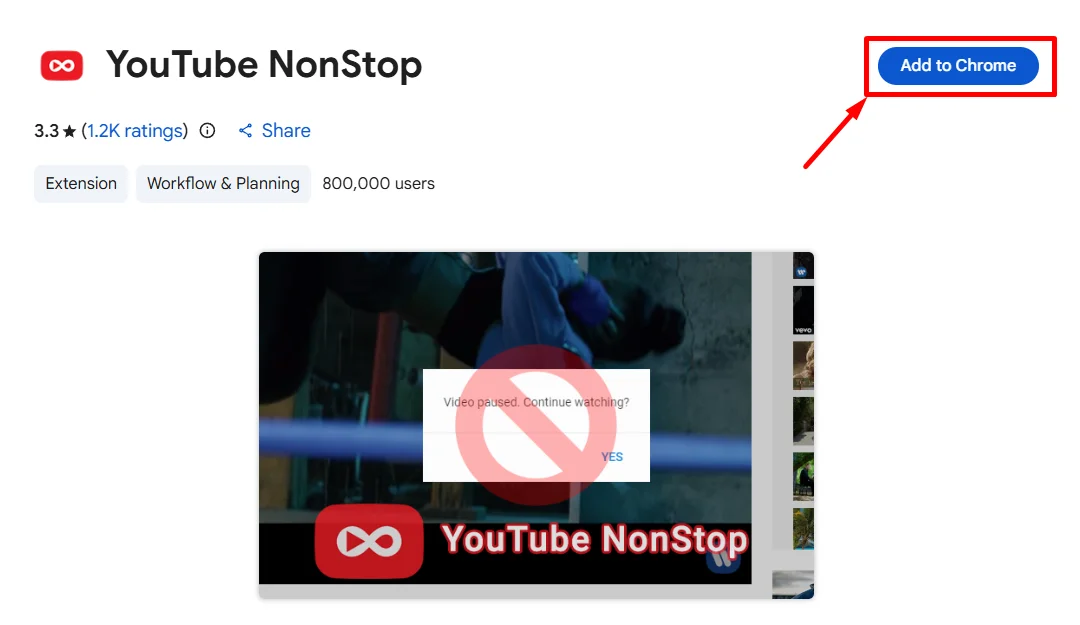
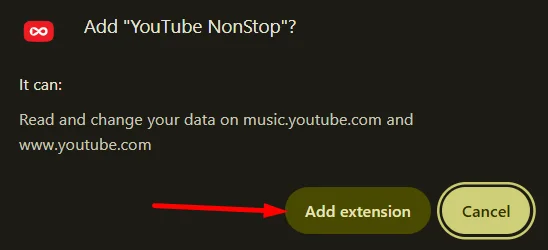
If you use Microsoft Edge, visit the YouTube NonStop extension page and click on the Get button, then confirm by clicking Add extension.
If you use Opera, click on this link to open the YouTube NonStop extension page and click Add to Opera, then confirm the installation.
Once the extension is active, YouTube videos will continue playing without showing the pause message.
If you use Safari, stopping this message can be a bit harder. Right now, there is no extension in Safari that works like the YouTube NonStop extension available for Chrome or Firefox. This does not mean Safari is a bad browser. The main reason is that Safari has a smaller collection of extensions, so this specific tool is not available there yet.
Other Extensions You Can Try
If the first extension does not work for you, there are a couple of other browser add-ons you can try.
YouTube Auto Pause Blocker is one option. As the name suggests, this extension stops YouTube from pausing the video on its own. Once you install it, the “Video paused. Continue watching” message will not appear while a video is playing. This extension works with Google Chrome and Microsoft Edge. You can download it from the Chrome Web Store.
Another option is AutoTube YouTube nonstop. This Chrome/Firefox extension also keeps videos playing without showing the pause message. It works on youtube.com and music.youtube.com, which is useful if you play long music playlists. AutoTube works with Google Chrome, Microsoft Edge, and Mozilla Firefox. After installing it, you do not need to change any settings. Just play your video, and it will continue without stopping. You can download it from the Chrome Web Store for Chrome and from addons.mozilla.org for Firefox.
To stop the “Video paused. Continue watching” message on YouTube, you can install one of the extensions mentioned above in your browser. These extensions work with browsers like Google Chrome, Mozilla Firefox, Opera, Brave, and Microsoft Edge. One of the most useful options is YouTube NonStop, since it works on many of these browsers and keeps videos playing without showing the pause message.
Hope this guide helped you. If you know another way to stop this message on YouTube, feel free to share it. Also, let us know if this method was useful for you.