Spotify has had its share of ups and downs over the years, yet it still holds a strong place in the music streaming world. Even with many other platforms around, people continue to stick with Spotify. A big reason for that is the huge collection of songs, podcasts, and playlists, along with features that make listening easy across many devices.
One feature many listeners enjoy is Spotify Connect. It lets you control music from one device and play it on another through the internet. For example, you can choose a song on your phone and have it play on a speaker, soundbar, gaming console, or another supported device. If you have used Spotify Connect before, you already know how handy it is. It allows you to switch between devices and enjoy music without needing cables or Bluetooth.
However, many users have recently reported problems with Spotify Connect. Sometimes devices do not appear in the device list, even when they are on the same network. In other cases, the app fails to recognize speakers or switches to options like Bluetooth or Google Cast instead. Some users have also noticed that the feature stops working randomly or disappears completely. In the sections below, we will go through several fixes that can help you solve the Spotify Connect not working issue.
How to Fix Spotify Connect Not Working
Reconnect by Turning WiFi Off and On
A quick way to deal with this issue is by reconnecting your network. First of all, turn off WiFi on your phone or device. Open Spotify and try selecting your device through Spotify Connect while WiFi is off. After that, turn WiFi back on and let your phone reconnect to the same network.
Use Mobile Data Instead of WiFi
Here is another trick you can try. Turn off WiFi on your phone and switch to mobile data. After that, open Spotify and check the Spotify Connect device list again.
Many people have noticed that their speaker or device shows up once mobile data is on. When the device appears and connects, you can turn WiFi on again if you want and continue listening.
Turn Off Chromecast on Your Device
Many users have found that their speakers or audio devices appear once Chromecast is turned off. In some cases, Chromecast can interfere with Spotify Connect and prevent your devices from appearing in the list.
Go to your device settings and disable the Chromecast option. Once you do that, open Spotify again and check the available devices under Spotify Connect.
Update the Spotify App
Since this issue has been reported by many users for a long time, Spotify may have already released an app update that addresses it. If you are using an older version of the app, it is a good idea to install the latest update.
Open the app store on your device, such as the Play Store, App Store, or Microsoft Store. If an update is available for the Spotify app, you will see an Update button. Tap or click on it and allow the app to install the latest version.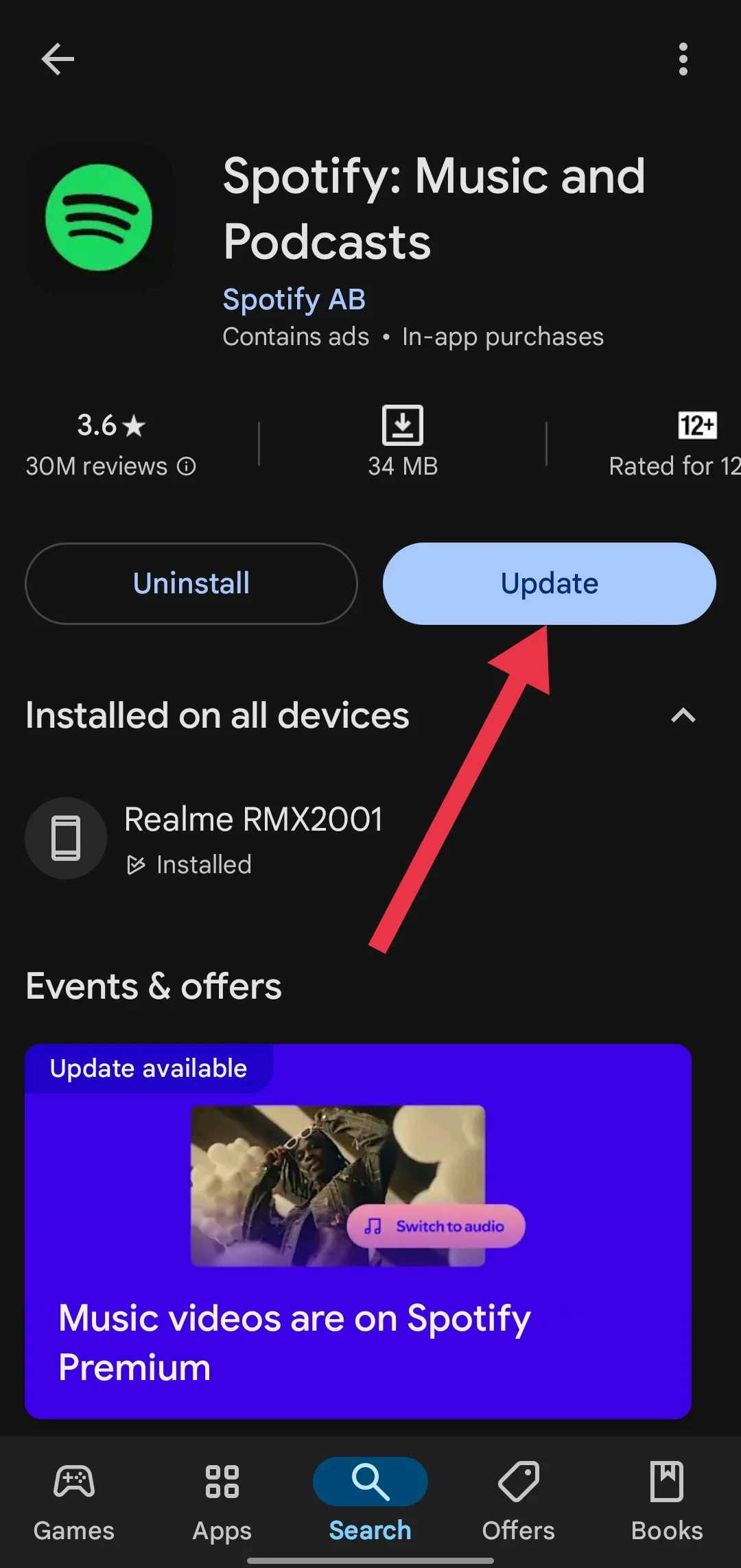
Restart the Spotify App and Your Devices
If Spotify Connect is not showing your devices, try closing the Spotify app first. Exit the app completely and remove it from the recent apps or background list.
If the issue continues, restart the devices you are using. Turn off your phone, speaker, or any other device connected to Spotify and turn them back on after a moment to check if your devices appear in Spotify Connect.
Log Out and Sign In to Your Spotify Account
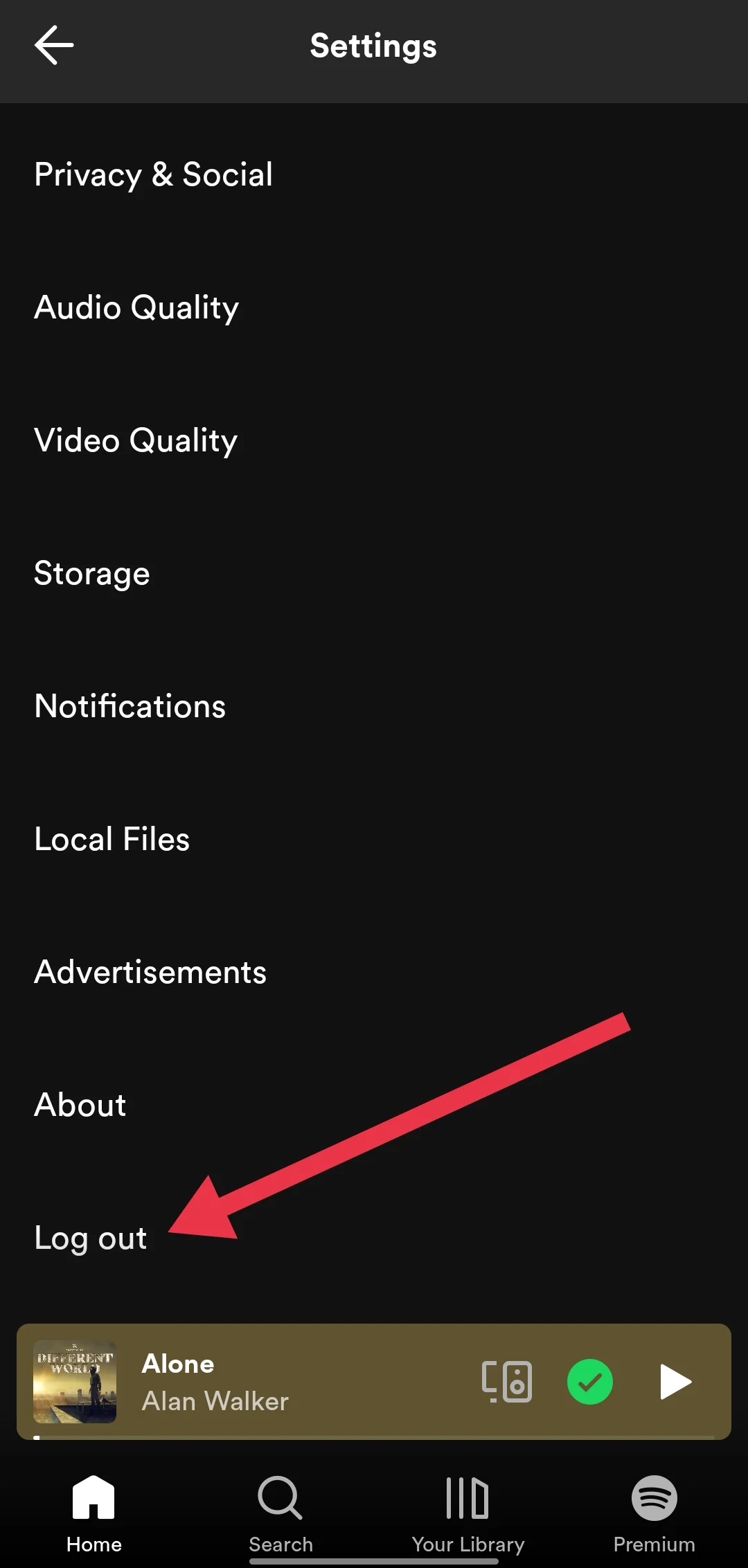
- Open the Spotify app and tap the Settings icon in the top right corner.
- Scroll down until you see the Log Out option and tap on it.

- After that, open the Spotify app again.
- Now, you will see the sign-in screen. Log in using your preferred method.
- Make sure you do this on the devices you want to use with Spotify Connect.
Clear Spotify Cache on Android
If you are using an Android phone, try clearing the cache of the app too.
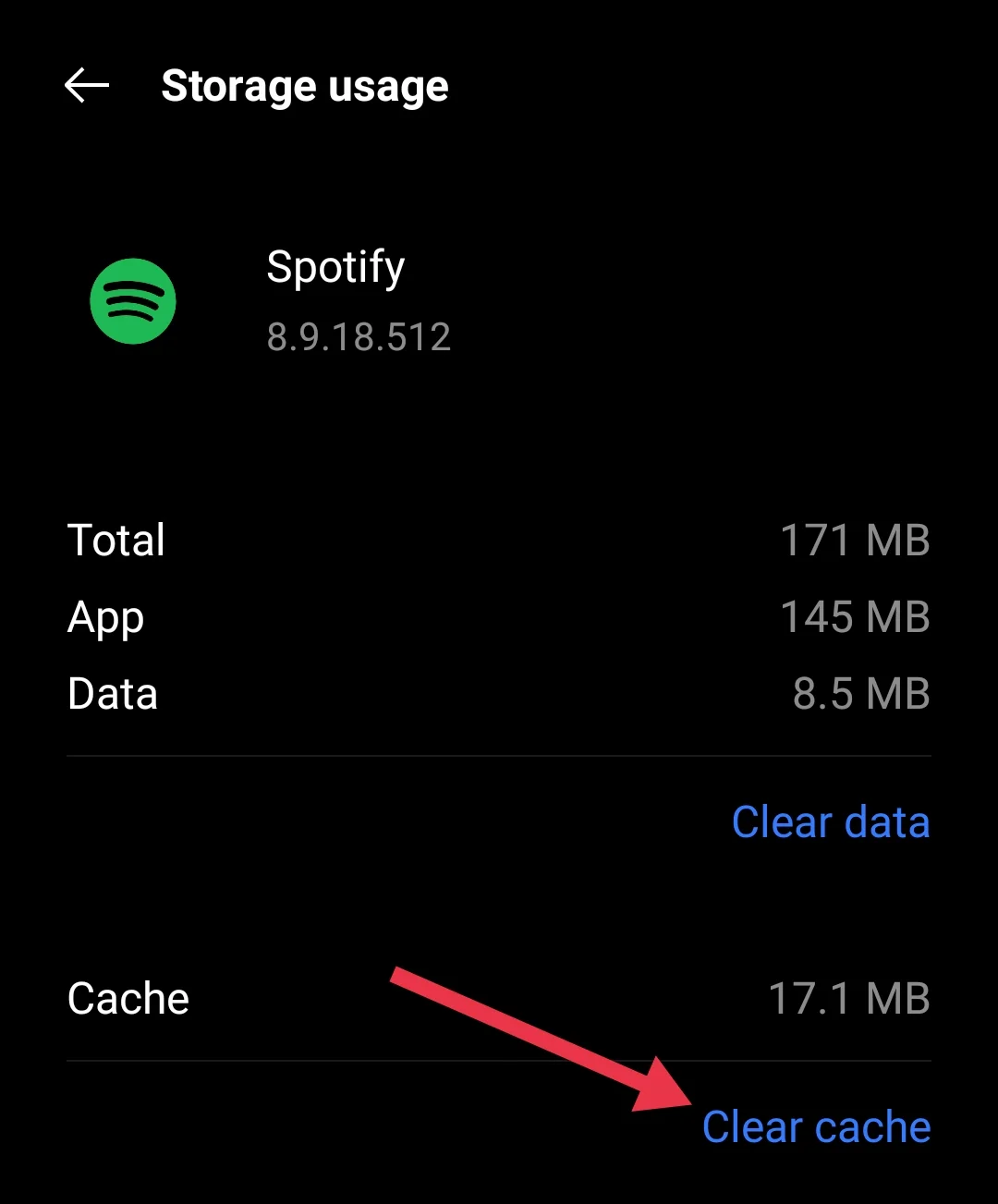
- Open the Settings app on your Android phone
- Navigated to App Management or Installed Apps.
- Select Spotify from the list of apps and tap on Storage
- Lastly, choose Clear Cache.

That is all the methods you can try when Spotify Connect does not show your devices or refuses to connect. If you cannot play music from one device to another using Spotify Connect, go through each step above and see which one helps in your case.
Try these methods and check which one solves it for you. If you discover another method that fixed the issue, feel free to share it in the comments. Your tip might help another reader who is dealing with the same situation.