Microsoft apps play a big part in how many of us work and talk to each other every day. Microsoft Teams has grown fast because it lets people meet, chat, and share files from almost anywhere. As more people depend on it for work and school, the overall experience with the app has become more important than ever.
With remote work and online meetings becoming common, apps like Zoom and Teams have turned into everyday tools. They make it easy for people to connect, but when they act up, it can throw off your whole day. A small issue at the wrong moment can feel much bigger when you are trying to join a meeting or reply to someone quickly.
One issue many users have mentioned recently is the Microsoft Teams 9hehw error. It often appears when you try to sign in, and it tends to show up on phones, tablets, and even computers. The message usually points to connection or login trouble and can stop the app from opening as it should. It can interrupt your workflow and create stress, especially if you depend on Teams for important communication. Here, we will share simple ways to fix it on Android, iPhone, Mac, and Windows.
How to Fix Microsoft Teams 9hehw Error on Android/iPhone/Mac/Windows
Check Your Internet Connection
Make sure your internet is working fine before you try anything else. A weak internet connection can cause all kinds of errors, including this one. You can test your internet speed on your phone or computer to see how it is doing.
If the speed is very low or the internet is not working at all, try restarting your router. You can also switch to another WiFi network if you have one nearby.
Verify Account Details
This error can also show up when your account details do not match, so it is worth checking your login info again. Make sure you are typing the right email and password, since even a small typo can stop the sign-in process.
If you use two-factor authentication, you may need to create an app password from your email provider’s security page. Use that special password for Teams instead of your usual one.
Check Microsoft 365 Service Status
There are times when the issue has nothing to do with your phone or computer. If Microsoft servers are facing trouble or going through maintenance, error 9hehw can appear for many users at once. Checking the service status helps you know if the problem is on their side.
- Visit the Microsoft 365 Service Health page

- If the page shows that Microsoft 365 services are down, you will need to wait until they are working again.

If everything looks normal on the status page, then you can continue trying the other troubleshooting methods to fix the issue.
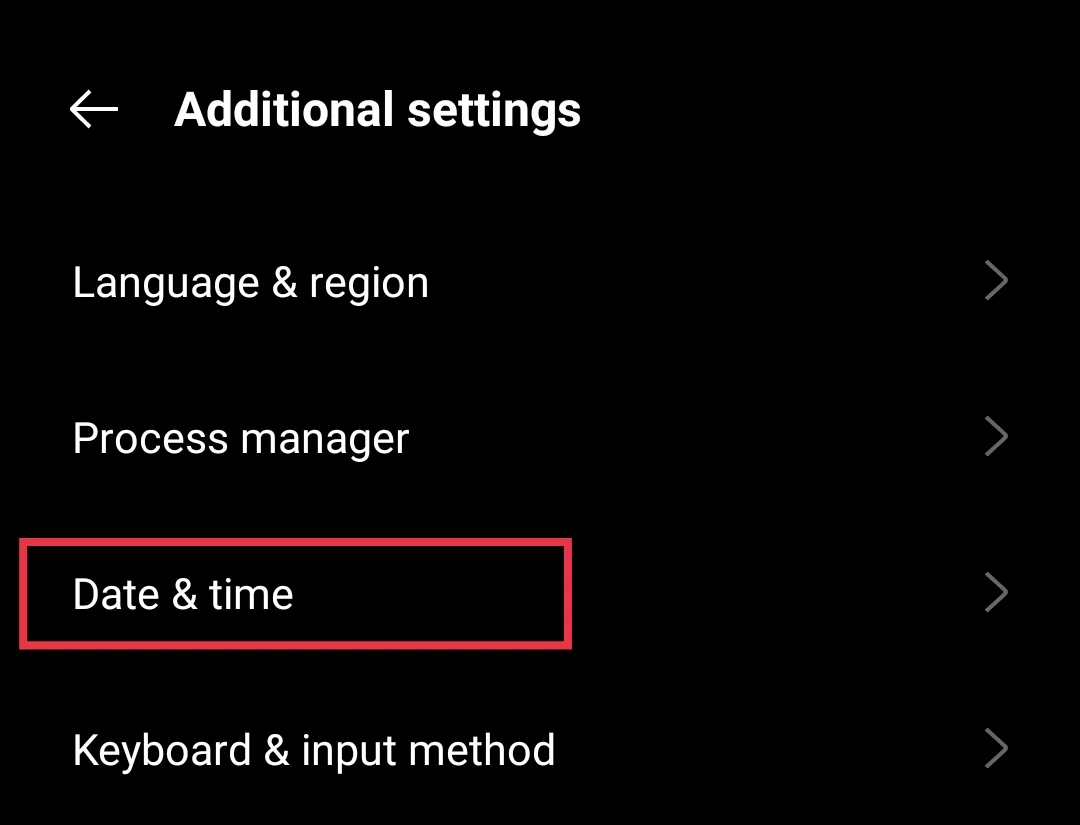
Check Time and Date Settings
Make sure your device is using the right time and date, as this can affect how the app connects to your account.
- Open the Settings app on your device.
- On Android, go to the Date and time section.

- On iOS, go to General, then Date and Time.
- Turn on the option that lets your device set the time on its own. If it is already on, turn it off for a moment and then turn it back on.l
Update the Teams App
Make sure you are using the newest version of the Teams app, since older versions are often prone to issues. So, you need to check for the latest version of the Teams app in the Play Store, App Store, Microsoft Store, or Mac App Store.
Clear Cache
If you are on Android, you can clear the app cache to remove old temporary files that may be causing trouble. Go to Settings > Apps > Teams > Storage > Clear cache.
For Windows users, press the Windows key and R together to open the Run box. For the older Teams version, enter %appdata%\Microsoft\Teams. For the new Teams version, enter C:\Users\%username%\AppData\Local\Packages\MSTeams_8wekyb3d8bbw. 
After the folder opens, delete every file and folder you see. Once you have cleared everything, restart Teams, and you will be asked to sign in again.
There is no direct option for this on iOS, but you can try the method below as an alternative.
Reinstall the Teams App
If the error keeps showing up, the next method you should try is uninstalling and reinstalling the app from your OS.
- Android: Settings > Apps > Teams > Uninstall
- iPhone: Hold the Teams icon and choose Delete App
- Windows: Settings > Apps > Microsoft Teams > Uninstall
- Mac: Finder > Applications > Move Teams to Trash.
After removing it, install Teams again from the official store and sign in.
Sign Out and Sign Back In
If Teams has trouble loading your account, sign out through your profile, close the app, open it again, and sign in once more.
Repair Microsoft Teams on Windows
If you use Teams on a Windows device, you can try the built-in repair feature, and it will not touch your data.
- Press Windows + I to open Settings
- Go to Apps, then Installed Apps
- Click the three dots beside the Teams app, then pick Advanced options
- Choose the Repair button.
Use the Web Version of Teams
If Microsoft Teams keeps showing the 9hehw error even after trying the other fixes, you can switch to the web version for now. Open any browser you use often, go to teams.microsoft.com, and sign in to your account. It is an alternative way to keep using Teams while the app issue continues.
- RELATED GUIDE: Fix Microsoft Teams Error CAA20003, CAA2000C, or CAA20004