Are you tired of scrolling through countless job postings on Monster and ready to move on to other job search platforms? Or perhaps you’ve found your dream job and no longer need your Monster account. Whatever the reason may be, deleting your Monster account is a quick and easy process. In this article, we will guide you through the steps to delete your Monster account. Whether you are a job seeker or an employer, you will find everything you need to delete your Monster account.
Monster Jobs is a popular job search platform in the world, providing a variety of employment opportunities and career-related services. The platform is trusted by both job seekers and employers alike and has assisted millions of people in finding the job of their dreams. Nevertheless, there may be times when you’ll want to delete your Monster account.
In some cases, you may wish to delete your Monster account. There is a chance that you have found your dream job and have stopped using the website, or you might want to clear out your online profile. In any case, deleting your Monster account does not require a whole lot of time or effort if you know how to do it.
By deleting your Monster account, you will remove all of your personal information from the website, including your resume, job preferences, and contact information. In this manner, you will be able to safeguard your private information and prevent misuse.
Furthermore, once your Monster account is deleted, the company will no longer send emails or notifications to you, and your saved jobs and job applications will no longer be accessible to you.
How to Delete Monster Account from Website
- Log in to your Monster account
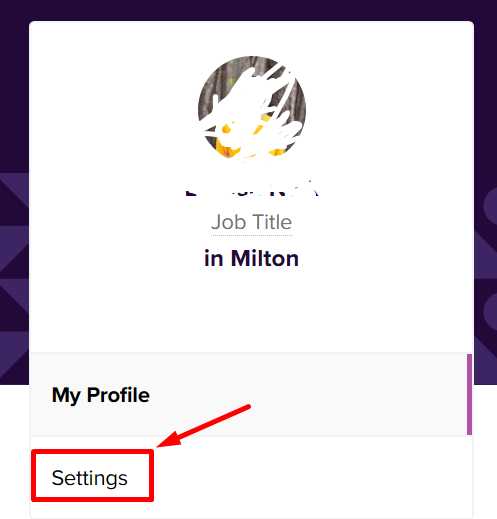
- In the top left corner, click the Profile icon.

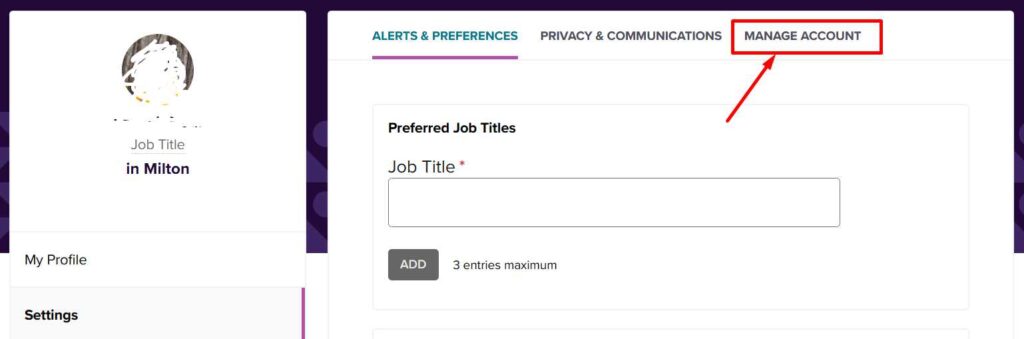
- From the left menu, select Settings

- After that, go to the Manage Account tab.

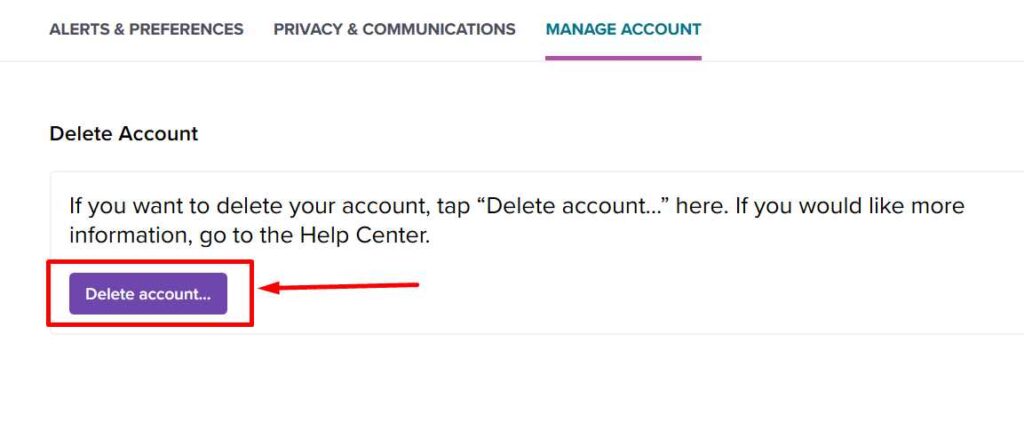
- Then click the Delete Account button and confirm the deletion.

- That’s it! Your Monster account will be deleted instantly.

How to Delete Monster Account From Phone
You can delete your Monster account by following these steps:
- Open the Monster app (Android/iOS) on your phone.
- Log in to your account.
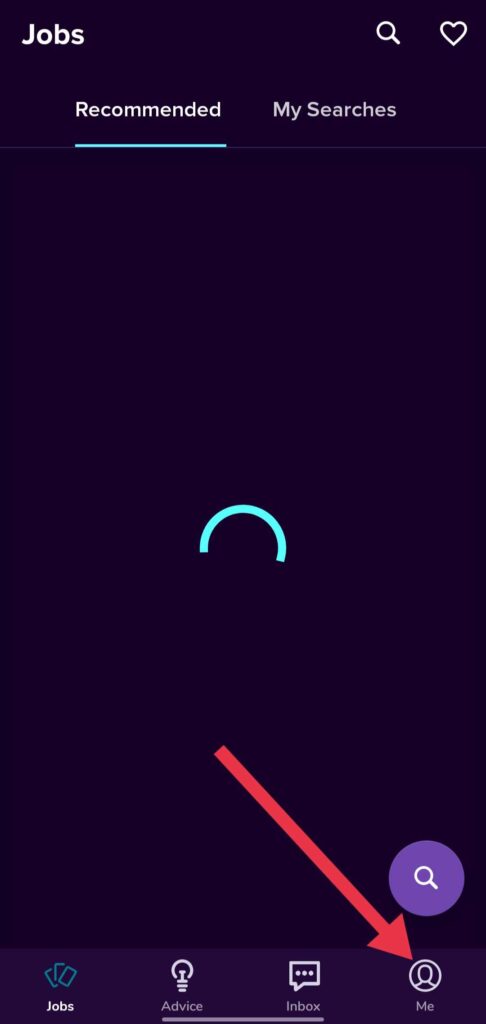
- Click the “Me” option located at the bottom right corner.

- Select the “Settings” icon at the top right corner

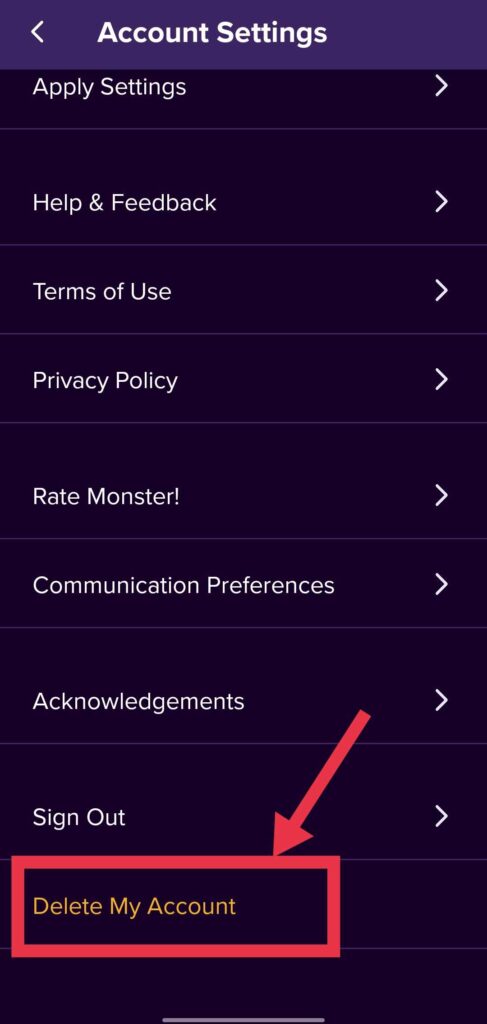
- Now, scroll down and find tap on the “Delete Account” option.

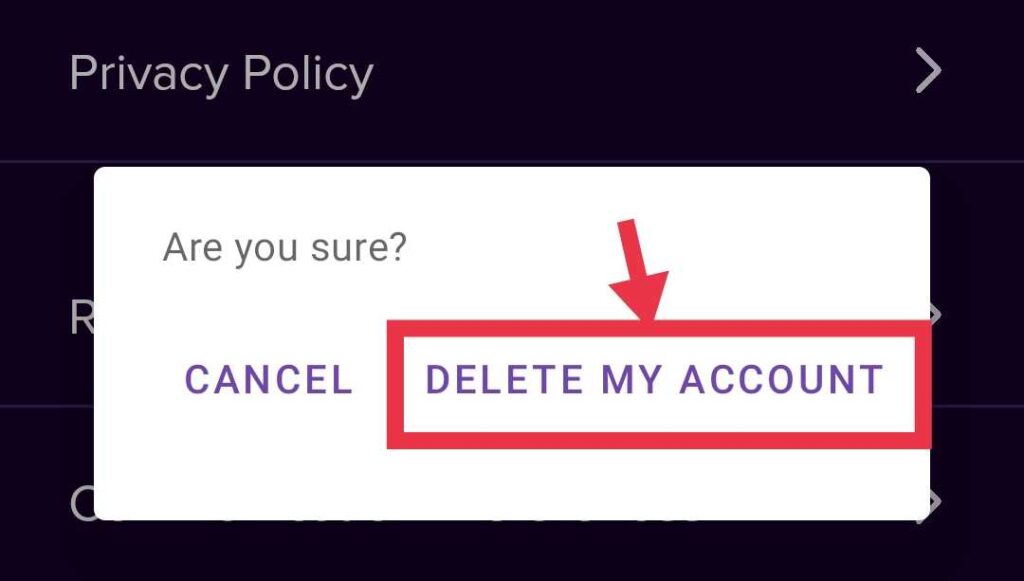
- Confirm the account deletion by hitting the “DELETE MY ACCOUNT” button.


Frequently Asked Questions (FAQs)
Can I recover deleted Monster account?
Once your account is deleted, it cannot be recovered. All the information associated with the account as well as your resume will be permanently deleted. You’ll need to create a new account if you want to use Monster again.
How do I delete Monster account?
Monster account can be deleted in two methods. Either by the website or by mobile app. Users have to follow the simple steps mentioned above to complete the account deletion process.
Say goodbye to the endless scrolling and start anew in your job search journey with confidence. Don’t let your old Monster account hold you back from finding your dream job. Follow these steps and delete your Monster account today.
Monster.com has rebranded as Foundit in India. So, if you are from India, here is how you can delete your FoundIt account permanently.