PlayStation has built a loyal fan base over the years. Plenty of gamers have spent countless hours with PlayStation consoles and continue to choose them today. When the PS5 arrived, it brought faster hardware, impressive graphics, and new features that caught the attention of players across the world.
A good internet connection plays a big role in daily PS5 use. Online multiplayer games, digital downloads, updates, cloud saves, and streaming all rely on internet speed. Modern games are larger than ever, which means slow internet can lead to long download times, delays while gaming online, and extra waiting when updates are released.
If your PS5 internet speed feels lower than what your internet plan should provide, there are quite a few factors worth checking. Before thinking about changing your internet provider or upgrading your plan, it is worth taking a closer look at the options available. This guide covers different methods that may help increase internet speed on your PS5.
QUICK ANSWER: Switching your PS5 to the 5GHz WiFi band can improve internet performance for a lot of users.
This guide covers these fixes along with other ways to improve PS5 internet speed.
How to Increase Internet Speed on PS5
Before trying the fixes below, keep in mind that the PS5 is not always the source of slow internet speeds. In quite a few cases, the connection itself, router settings, WiFi signal quality, or heavy network traffic can affect the speed available to your console.
That is why it makes sense to check a few basic areas first before contacting your internet provider or upgrading your plan. The methods below focus on the most common causes and can help your PS5 use more of the internet speed already available on your network.
Switch Your PS5 to the 5GHz WiFi Band
A lot of routers today support both 2.4GHz and 5GHz connections, but the PS5 often leaves the frequency setting on Automatic. In some cases, manually choosing 5GHz can lead to faster downloads, quicker uploads, and a stronger connection to your network.
- Open Settings on your PS5.
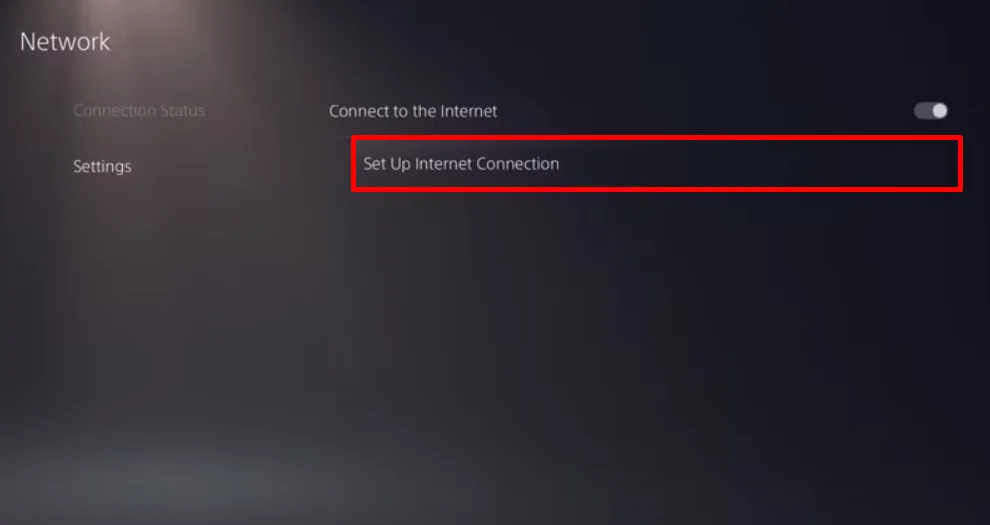
- Select Network and then choose Settings.
- Go to Set Up Internet Connection.

- Highlight the WiFi network you are using.
- Press the Options button on your controller.
- Select WiFi Frequency Bands.
- Now, change the setting from “Automatic” to 5GHz.

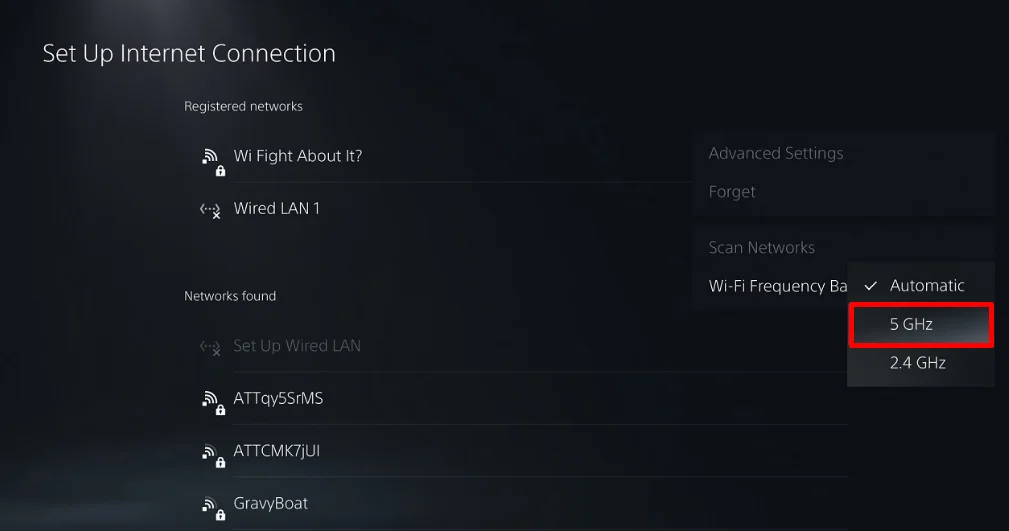
If your router supports 5GHz, you may notice a clear improvement in download and upload speeds when you run an internet speed test on the console.
Reduce the Number of Devices Using Your Network
Your PS5 shares internet bandwidth with every device connected to the same network. Phones, laptops, smart TVs, tablets, streaming devices, and security cameras can all use part of the available speed. The more devices sharing the connection, the less speed may be available for your console.
You can check this by signing in to your router’s admin page. The connected devices section will show all devices currently using your WiFi. If you find devices that are not being used, then switch off their WiFi connection for a while. Then test the internet speed on your PS5.
Restart Your Router
Disconnect the router from the power outlet and leave it off for about 30 seconds. Then connect it back to power and wait until the internet connection returns.
Restart Your PS5
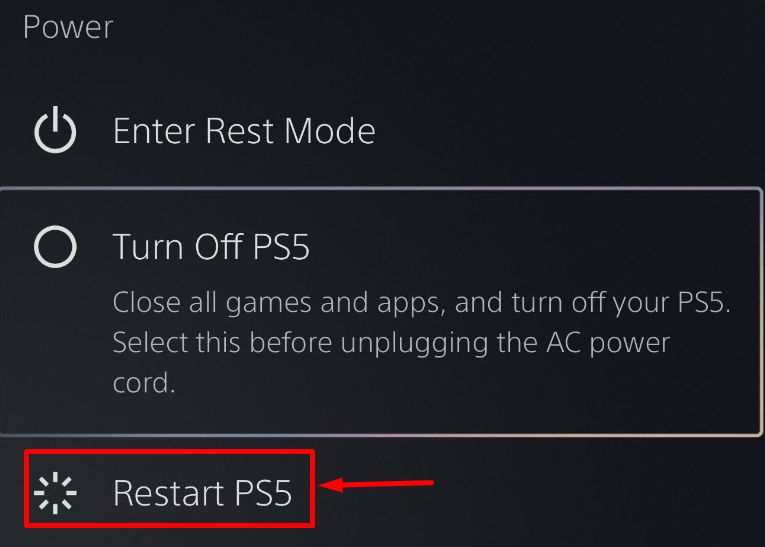
If your router is working fine and the internet speed still feels low on the PS5, restart the PlayStation as well.
- Press the PS button on your DualSense controller.
- Open the Control Center.
- Select the Power icon.
- Choose Restart PS5.

- Wait for the console to turn off and power back on.
Pause Other Downloads and Background Activity
If your PS5 is downloading multiple games, updates, or content at the same time, the available bandwidth gets divided between those tasks. It is also a good idea to avoid online multiplayer gaming while downloading large files. Both activities use network resources, which can affect download speeds.
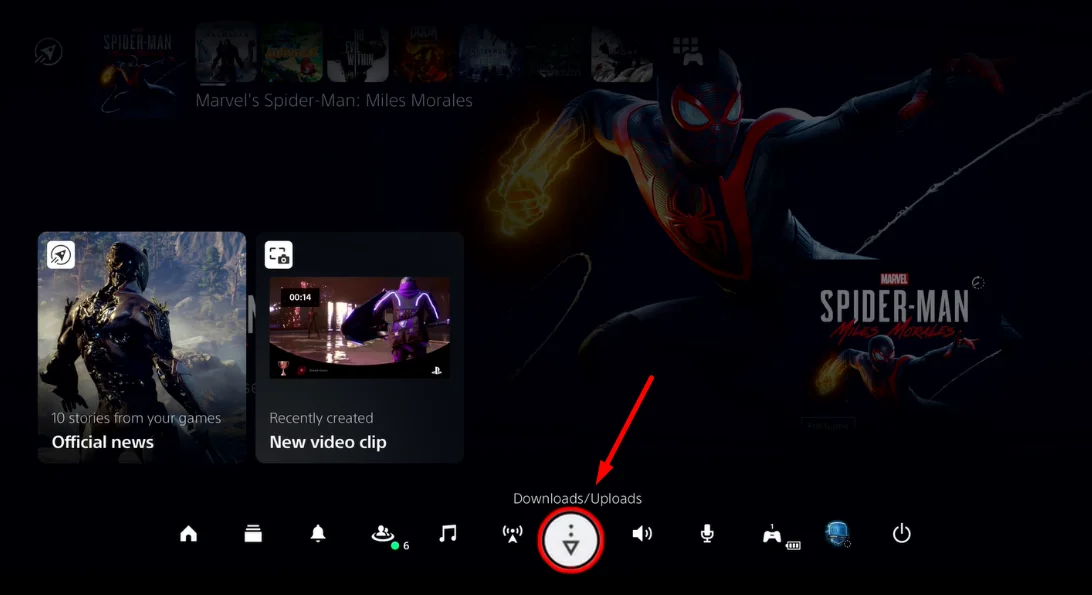
- Press the PS button on your DualSense controller to open the Control Center.
- If you do not see the Downloads/Uploads icon represented by a downward arrow, there are currently no active downloads on your PS5.
- If the Downloads/Uploads icon is visible in the Control Center, select it to view all current downloads.
- Highlight any game or update that is downloading.

- Press the Options button on your controller.
- Select Pause All.
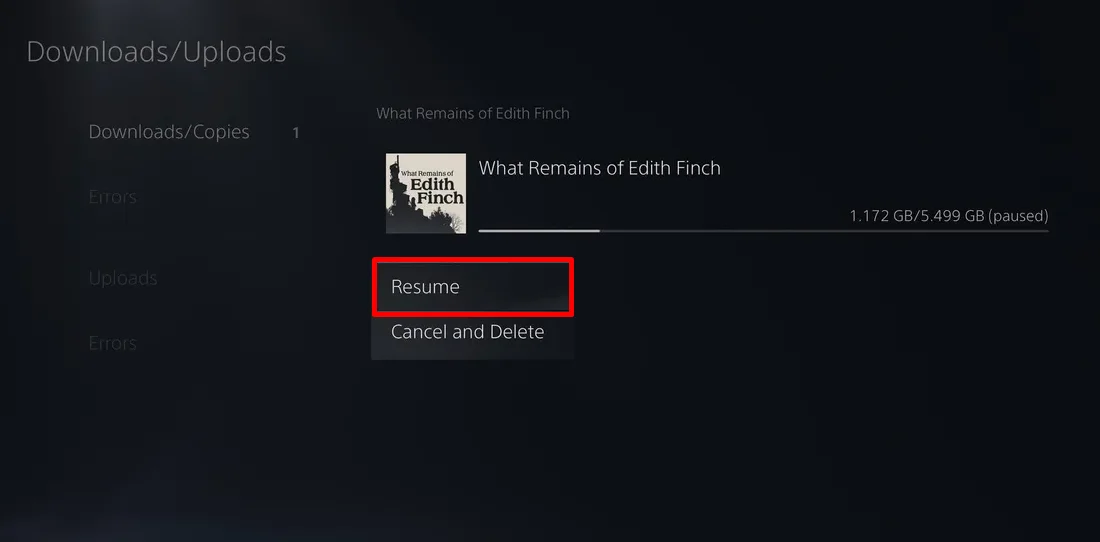
When you are ready to continue a download:
- Press the PS button to open the Control Center.
- Select Downloads/Uploads.
- Highlight the game or update you want to continue.
- Press X on your controller.
- Select Resume.

Download Games in Rest Mode
Waiting for a large game to finish downloading can feel like it takes forever. If you usually leave your PS5 powered on while downloading, it may be worth trying Rest Mode instead. Quite a few players prefer this approach because it allows the console to focus on downloads while it is not actively being used.
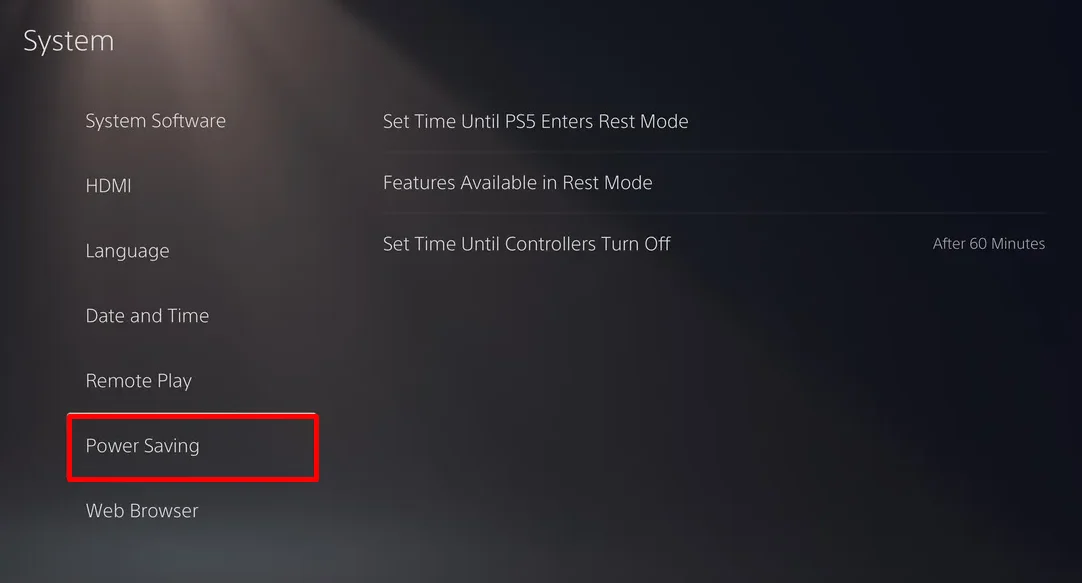
Before putting your PS5 into Rest Mode, make sure it can maintain an internet connection:
- Open Settings.
- Select System.
- Choose Power Saving.

- Select Features Available in Rest Mode.
- Turn on Stay Connected to the Internet.

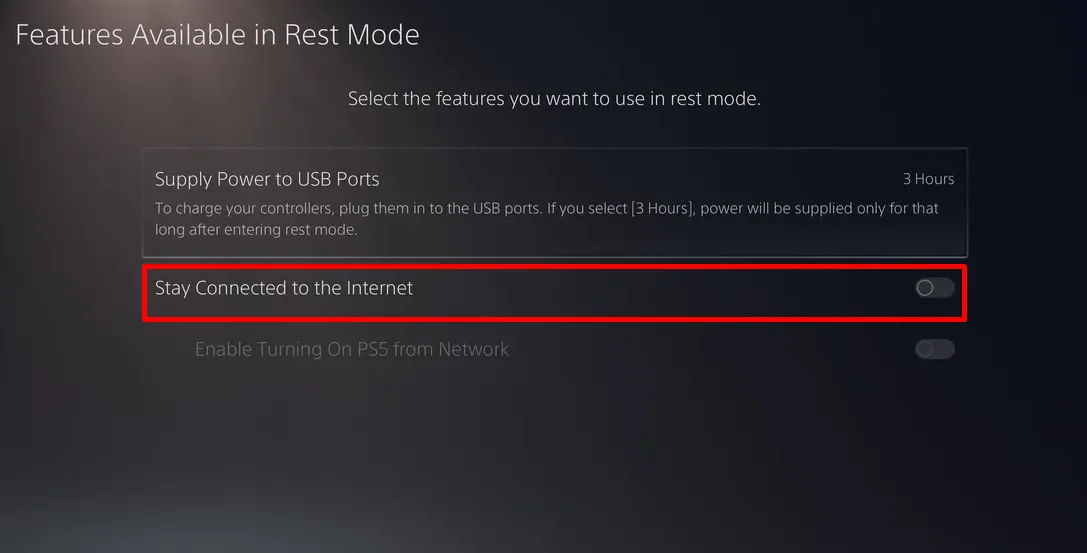
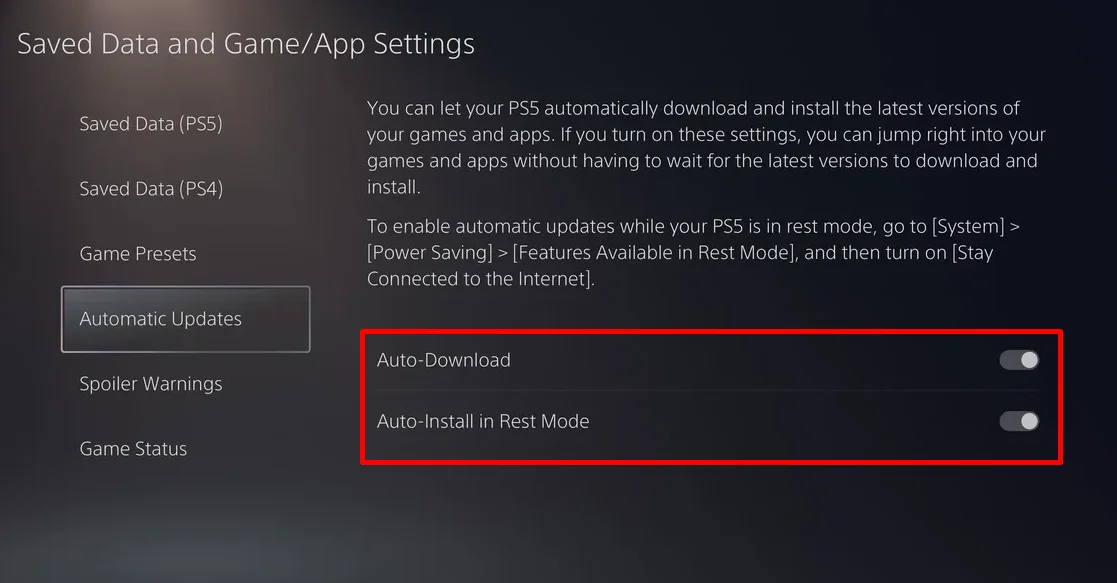
You can also allow the PS5 to handle game updates automatically:
- Open Settings.
- Select Saved Data and Game/App Settings.
- Choose Automatic Updates.
- Turn on Auto Download.
- Also, turn on Auto Install in Rest Mode.

Check the PlayStation Network Status
Sony occasionally performs maintenance on its servers, and service outages can happen from time to time. During these periods, game downloads may crawl, online matches may not connect, and certain PSN features may become unavailable.
Rather than guessing, head over to the PlayStation Network status page using your phone or computer. The page shows the current condition of PSN services and highlights any ongoing outages.

If Sony reports a service issue, there is nothing to change on your PS5. You’ll simply need to wait until the affected services return to normal, then test your connection again.
Change Your PS5 Network Configuration
If you are still seeing low download or upload speeds, then it may be time to tweak a few network settings on the console itself.
- Open Settings on your PS5.
- Select Network > Settings.
- Choose Set Up Internet Connection.
- Highlight the network currently connected to your console.
- Press the Options button on your controller.
- Select Advanced Settings.
Now enter the below values:
- IP Address Settings: Automatic
- DHCP Host Name: Do Not Specify
- DNS Settings: Manual
- Primary DNS: 8.8.8.8
- Secondary DNS: 8.8.4.4
- Proxy Server: Do Not Use
- MTU Settings: Automatic
After saving the changes, reconnect to the network and run a speed test.
Reset Your PS5
If you’ve reached this point and the internet speed is still unusually low, then a full console reset may be worth considering. This should be treated as a last resort because it removes user accounts, installed games, saved settings, and other data stored on the console.
Before continuing, make sure any important save data is backed up.
- Open Settings.
- Select System.
- Choose System Software.
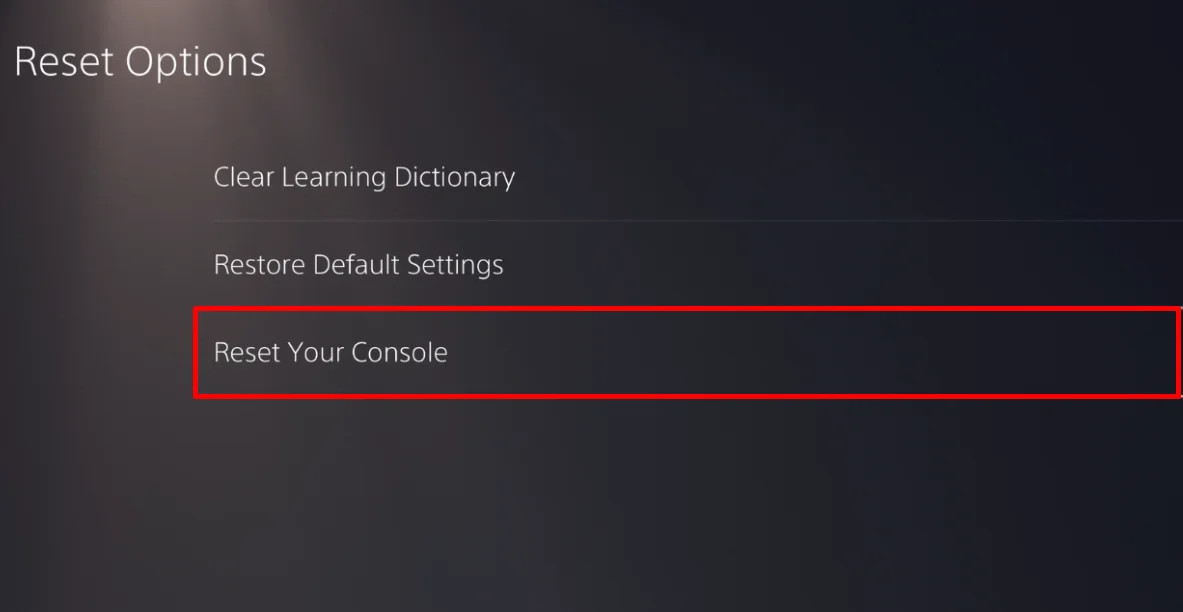
- Open Reset Options.
- Select Reset Your Console.

- Confirm to start the reset process, and your PS5 will return to its factory default state.
Use a Wired Connection or Upgrade Your Internet Plan
There is only so much you can do with settings if the internet connection itself is the limiting factor. If your PS5 continues to show low download or upload speeds, it may be worth looking at your internet plan and connection type.
For the strongest connection, connect your PS5 directly to the router or modem using an Ethernet cable. A wired connection removes WiFi-related signal loss and can provide more consistent speeds for game downloads, updates, and online gaming.
If your current internet package struggles to keep up with large downloads or multiple connected devices, upgrading to a faster plan. Fiber internet plans often provide higher download and upload speeds than older broadband connections.
Before making a switch, run speed tests on multiple devices connected to your network. If all of them show lower than expected results, the issue may be related to your internet service rather than the PS5 itself.