StoryGraph is a book tracking app made for people who love reading. If you are here, you already know why people like using it. If this is your first time trying it, StoryGraph helps you keep a list of books, track your reading, find new books based on your taste, join reading challenges, write notes, and connect with other readers. It has grown into a favorite choice for readers who want an independent alternative to Goodreads. You can use plenty of useful features for free, and there is also a paid version with extra tools.
It can be a real letdown when StoryGraph opens to a blank screen or not working at all. You might not see your library, your reading progress may not appear, or the app may keep loading without opening. When that happens, it is hard to continue reading or keep track of your books.
If StoryGraph is not working, this guide is here to help. Below, you will find simple ways to find the cause and fix the problem. Try each method one at a time, and there is a good chance the app will be working as expected before long.
8 Easy Ways to Fix Storygraph App Not Working on Android/iOS/PC
Check StoryGraph Server Status
Before trying anything on your phone or computer, check the StoryGraph’s official status page. That is the easiest way to see if the service is up and running. If the page says everything is online but the app still will not open or load, do not assume the app is fine just yet.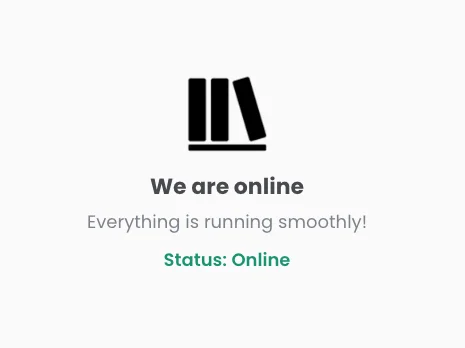
Next, have a look at DownDetector. If other users are reporting the same issue, there is a good chance the problem is coming from StoryGraph’s side. You can also check StoryGraph’s social media pages. They may have shared an update about an outage or maintenance. There are times when the status page has not been updated yet, so these places can give you more details.
If StoryGraph is having server trouble, there is nothing you need to change on your device. All you can do is wait until the service is available again. If you do not find any outage reports and the status page looks fine, move on to the next solution.
Update StoryGraph
If you have not updated StoryGraph in a while, keep in mind that an older app version can cause loading issues. The developers may have already fixed the problem in a newer update.
Open the Google Play Store or App Store and search StoryGraph using the search bar. Tap on the app page from results, and if you see an Update button, install the latest version. Once the update is finished, open StoryGraph and check if it is working.
Check Your Internet Connection
StoryGraph needs an active internet connection to load your library, reading progress, and other content. If your connection is weak or keeps dropping, the app may stay on a loading screen or show an error saying your device is offline.
Check that your phone is connected to the internet and make sure the connection is working. Open a website or another app like YouTube to confirm everything is loading. If you are using mobile data, try changing your mobile data to a WiFi connection if one is available. If you are already using WiFi, try mobile data instead.
Turn On and Off Airplane Mode
If StoryGraph is still not loading, try toggling Airplane Mode. This forces your phone to reconnect to the mobile network, which can fix temporary connection issues.
Open the Control Center or Quick Settings, turn Airplane Mode on, wait about 30 seconds, then turn it off. Once your phone reconnects to the network, check the StoryGraph app.
Restart Your Device
On Android
- Press and hold the Power button.
- Tap Restart or Reboot.


On iPhone
- Press and hold the Power button.
- Drag the Slide to Power Off slider.
- After the phone turns off, press and hold the Power button again until the Apple logo appears.
Close and Reopen the StoryGraph App
First, close StoryGraph from the recent apps or App Switcher on your phone. Wait a few seconds, then open the app again. This clears the current app session and can fix loading issues.
If you are using an Android phone and the app still is not working, you can force stop it completely by navigating to Settings > Apps > StoryGraph > Force Stop > OK.
Clear the StoryGraph Cache
If you are using an Android phone, you can also try clearing the app cache from device Settings > Apps > StoryGraph > Storage and cache > Clear Cache.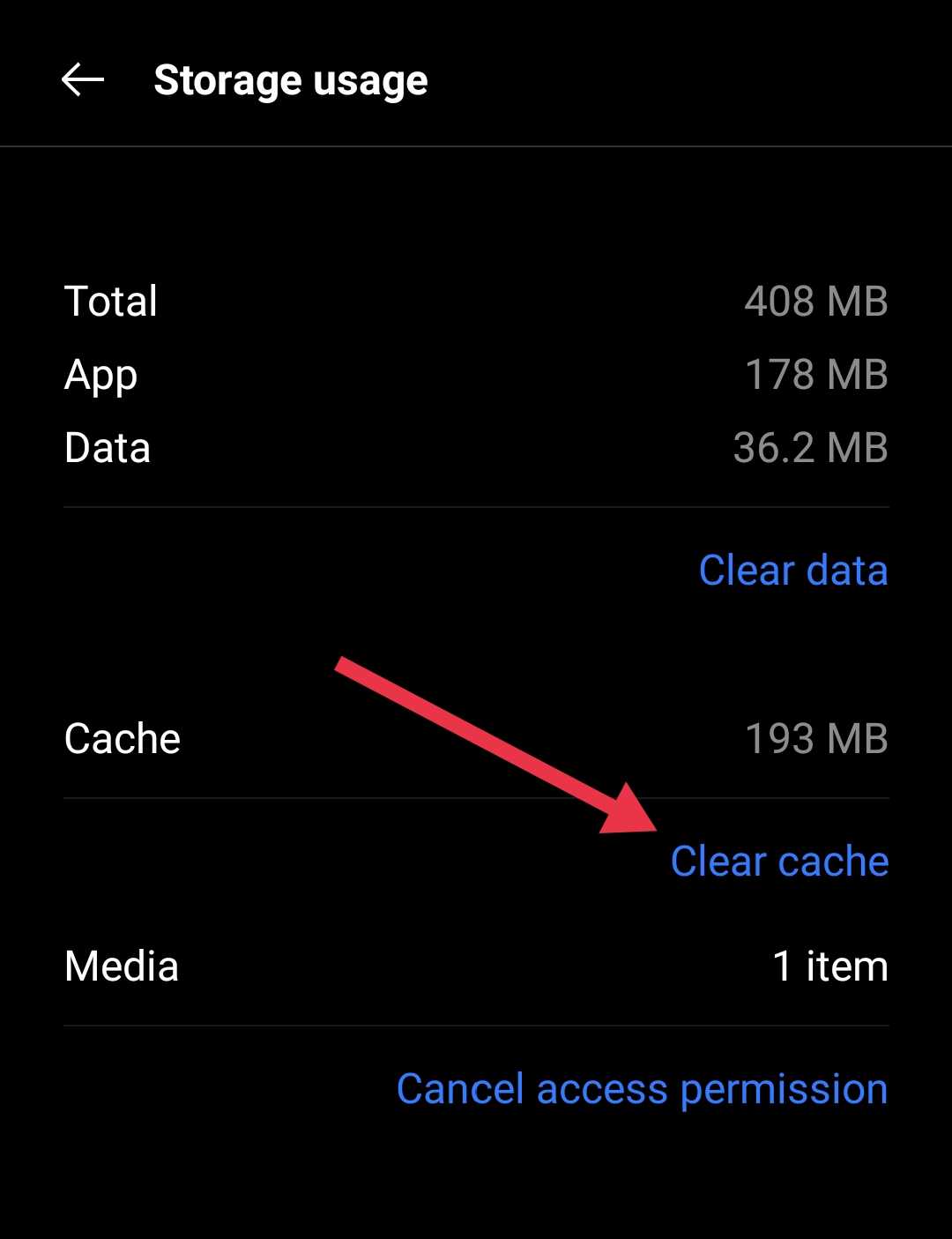
If that does not fix the issue, go back to the same screen and tap Clear Data. Keep in mind that you will need to sign in to your StoryGraph account again after clearing the app data.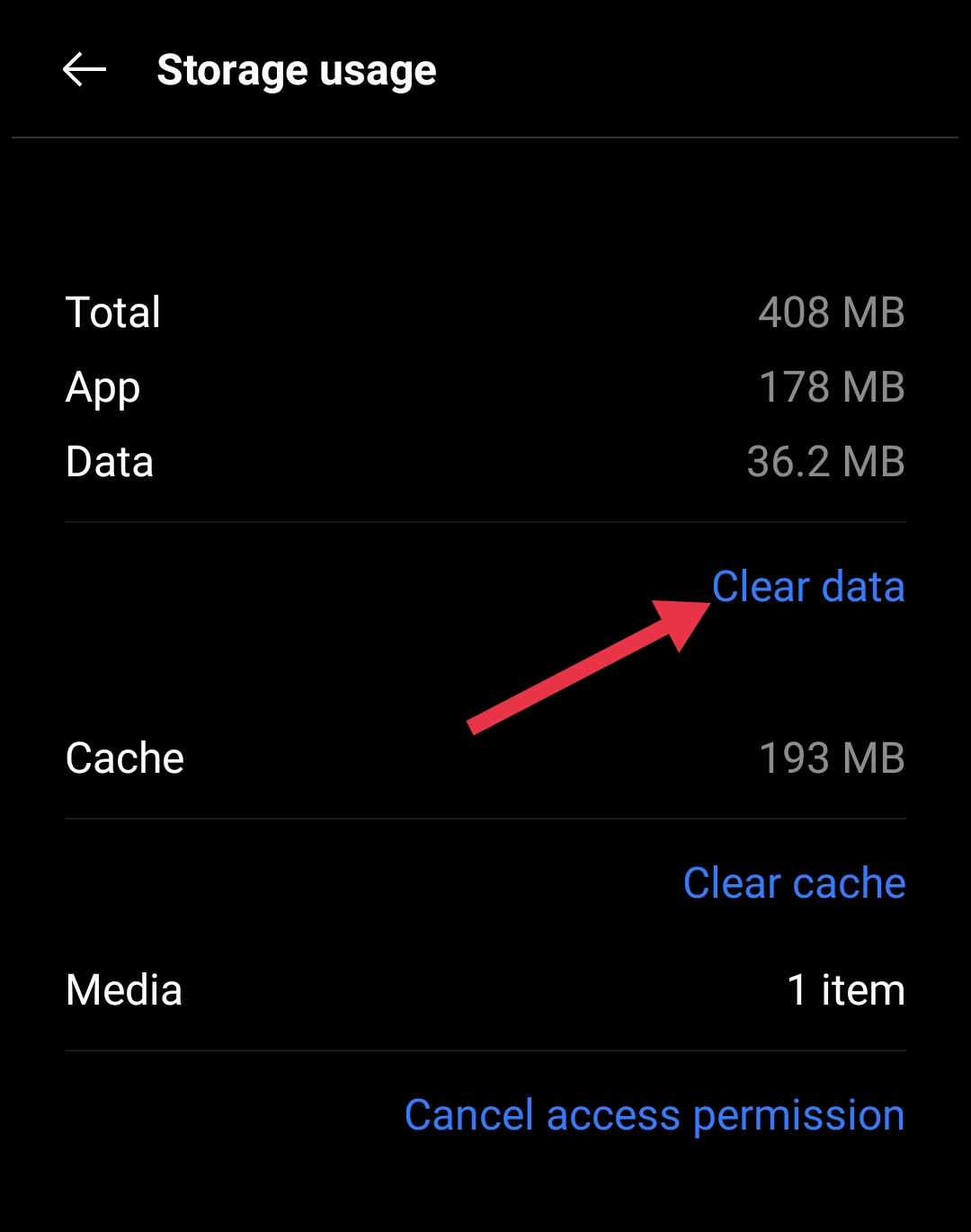
Reinstall StoryGraph
If nothing has worked so far, try reinstalling StoryGraph. Firstly, uninstall the StoryGraph from your phone, then restart your device. After that, head to the Google Play Store or App Store, download the official StoryGraph app, and sign back into your account.
Hopefully, this guide helped you fix the StoryGraph app not working issue on your Android phone, iPhone, or PC. If the app still is not working after trying every method above, the issue is likely on StoryGraph’s side. In that case, give it a little time, as server related issues are often fixed within a day or two. If the problem continues, reach out to the StoryGraph support team by emailing support@thestorygraph.com or by submitting a request through their Contact Us page.