With its useful features, the Kwik Rewards app has become an essential part of the shopping experience for many Kwik Trip and Kwik Star customers. I personally depend on it to track my visits, check my points, and keep an eye on my punchcards. So I understand how frustrating it can be when the app suddenly stops working or fails to update your rewards correctly. If you are dealing with the same issue, you are in the right place. This guide covers all the possible reasons the Kwik Rewards app may not work as expected.
The Kwik Rewards system is a great way to earn free food, merchandise, and fuel discounts, and it is impressive that all of this is available through a simple app. Most of us use it without thinking twice, and it has become a regular part of our visits. That is why any disruption, no matter how small, can make the experience feel incomplete or confusing.
The app itself is generally stable, and when it fails to load rewards or track visits, it is rarely due to issues on the Kwik Trip servers. Most of the time, the problem comes from incorrect settings, account glitches, or minor issues on the phone. If your Kwik Rewards app stops working, here are the common fixes you should try before getting annoyed or tense.
7 Ways to Fix Kwik Rewards App Not Working Issue on Android and iOS
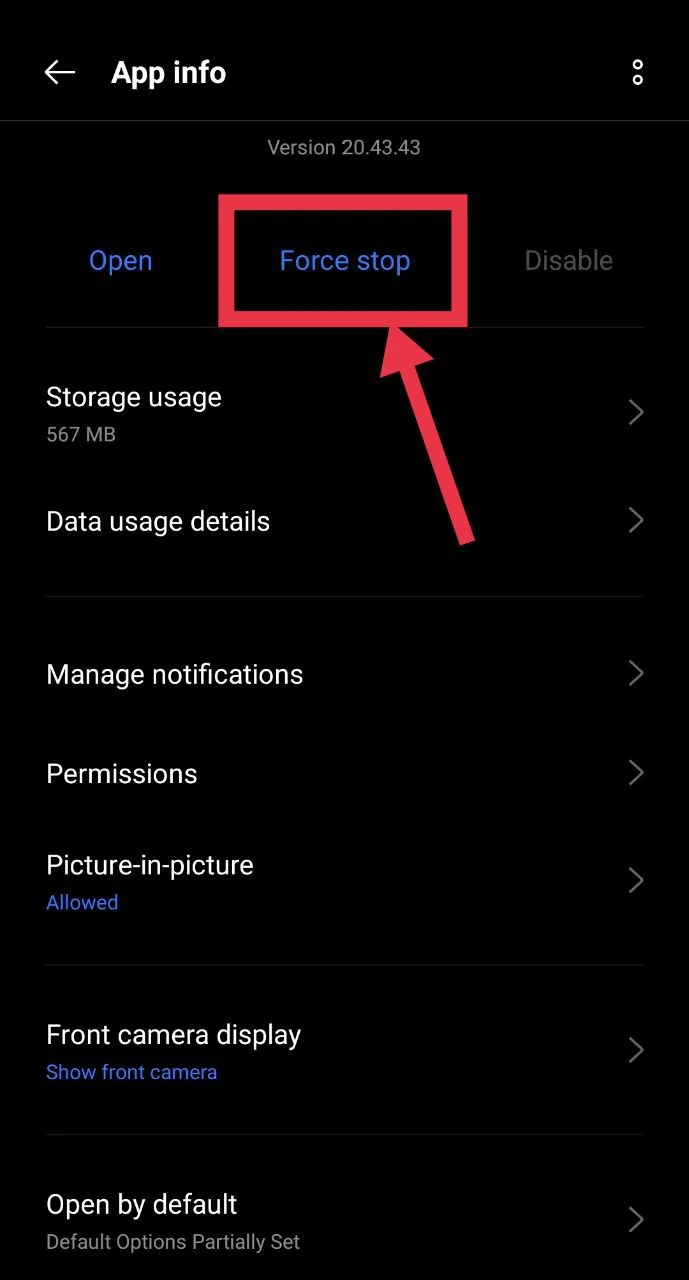
Restart the App
Just like many other app issues, the easiest fix for many app/device-related issues is simply restarting the app or device.
- On Android, you can force close the app by going to Settings > Apps > Kwik Rewards > Force stop (you can also simply close the app from the app switcher).

- On iPhone, swipe up from the bottom of the screen and hold to open the App Switcher, and swipe the Kwik Rewards app up to close it completely.
Restart your phone
If restarting the app didn’t help, try restarting the phone.
- On Android, you can restart your phone by holding the side and volume up buttons and choosing Restart (on many phones, simply holding the power button and selecting Restart also works).

- On iPhone, press and hold the power and either volume button until the power slider appears, then slide to turn the device off and turn it back on.


If this does not solve the problem, you can move on to the next method.
Check your Internet Connection
If the Kwik Rewards app is not loading your visits, points, or punchcards, the issue might be your internet connection. An easy method to confirm this is by testing any other app that needs internet, or opening your browser and trying to load a simple site like Google.com. You can also check another device if available. If nothing else connects, your internet is most likely the problem.
If you are on mobile data, try switching to WiFi, and if you are on WiFi, try using mobile data instead. Moving closer to your router or restarting the router can help as well, even if the internet seems to work on other devices. If you are using a VPN, try turning it off because some apps, including Kwik Rewards, may not work correctly when a VPN is active. In some cases, certain public or shared WiFi networks block specific services, so using mobile data might be the only option there.
Check for Kwik Rewards App Updates
Using an older version of an app usually works fine, but sometimes services change things on their end, which can cause features to stop working. To make sure the Kwik Rewards app runs correctly, you should check that you are using the latest version.
- On Android, open the Google Play Store, tap your profile icon in the top right corner, select Manage apps and device, and then open Updates available. From there, tap “Update all” or look for Kwik Rewards and update it individually.
- On iPhone, open the Apple App Store, tap your profile icon in the top right corner, then scroll to see your available updates. Tap “Update” next to Kwik Rewards or choose Update All to update every app at once.
While you’re at it, it might also help to have your device software on its latest available update.
Clear Cache
Cache is the best way to keep your phone snappy, but old or corrupted data can be the reason for Kwik Rewards not working. It doesn’t hurt to clear it from time to time, especially if the app isn’t working.
On Android, you can clear the cache from Settings > Apps > Kwik Rewards > Storage and cache > Clear cache. You can also use “Clear data” if you want a completely clean reset of the app. 
On iPhone, you cannot directly clear app cache, so the only effective method is to offload and reinstall the app, or delete it and reinstall it again.
Reinstall the Kwik Rewards App
You could also try reinstalling the app if updating the app did not fix the problem. Reinstalling removes any broken files and installs a clean version of the app, which often solves issues that updates or cache clearing cannot.
- On Android, you can uninstall the app by holding the Kwik Rewards icon and tapping Uninstall, then reinstalling it from the Google Play Store.
- On iPhone, simply press and hold the app icon, choose Remove App and Delete App, and download it again from the App Store.
Check if Kwik Rewards is down
We often assume our phone or app is at fault when something stops working, but sometimes the issue is not on your end. The reason the Kwik Rewards app is not working could be that the service itself is facing an outage.
One quick way to check this is to open any other app or website. If everything else loads fine, there is a chance the problem is with Kwik Rewards and not your device. Since there is no dedicated status page or Downdetector listing for Kwik Rewards, the best and simplest way to confirm an outage is by searching social media. Look for the latest posts on platforms like X, Facebook, or Reddit to see if other users are reporting the same issue. If the service is down, there is nothing you can do except wait for Kwik Trip to fix the problem.
So these are some simple ways to fix the Kwik Rewards app if it has stopped working on your iPhone or Android device. In many cases, just waiting a few hours, restarting your phone, or updating the app can resolve the issue. If nothing works, you can also contact Kwik Trip support for further help.
Did any of these fixes help you solve the Kwik Rewards app not working issue? And if you found an alternate method that worked for you, feel free to share it in the comments.