Instagram keeps adding new features to improve the app and give people more ways to chat and share. Over time, many tools have been added to make conversations easier and more flexible. These updates are meant to help users enjoy messaging and social interaction without worrying too much about small mistakes.
One feature that many people really like is the Unsend message option. Instagram added this feature so users can remove a message after sending it in a chat. Many people love this option because it helps fix typing mistakes, remove messages sent by accident, or delete something that was sent to the wrong person.
In the last few days, many users on different phones noticed that the Unsend button has disappeared from their chats. The option that was once easy to see is now missing for many people.
I noticed the same issue while chatting with close friends. When I tried to remove the message I sent, the option was not there anymore. After spending some time checking a few options, I found a way that fixed it. You can check the sections below to see what worked for me.
How to Fix Instagram Unsend Message Not Working Issue
Unsend the Message Using the Instagram Website
It is still not clear if Instagram removed the unsend option from the app on purpose or if this is just a bug affecting some users. The unsend feature is very useful, and many people rely on it to remove messages sent by mistake. Because of that, it is hard to believe Instagram would remove it completely.
While checking different options, I found a simple way that allowed me to unsend the message. I logged into Instagram on my computer and removed the message from there. The option was visible on the website even though it was missing in the app.
Yes, it is not as quick as doing it directly inside the app, especially if you use the unsend option often. But if you rarely need it and only want to remove a message that was sent by mistake or by accident, using the Instagram website can still help you delete it.
- Open your browser and go to the Instagram website.
- Log in to your Instagram account.
- Click on Messages to open your chats.

- Open the conversation that contains the message you want to unsend.
- Hover your cursor over the message.
- Click the three dots next to the message.
- Select Unsend and confirm the action.


Tip: If you do not have access to a computer, you can also try opening Instagram in your mobile browser and switching the browser to desktop mode.
Update Your Instagram App
As mentioned earlier, there is still no clear confirmation on why the unsend option disappeared. It is not known if Instagram removed the feature or if it is just a temporary bug affecting some users.
When issues like this appear, Instagram often fixes them through a new app update. If you are using an older version of the Instagram app, head over to the Google Play Store or iOS App Store to check for updates for the Instagram app.
Install an Older Version of Instagram on Android
If you are using an Android phone, another option you can try is installing an older version of the Instagram app. Many users noticed that the unsend option disappeared after updating to the newest version of the app. At the same time, people who have not updated Instagram for a while still seem to have the unsend feature available in their chats.
Because of this, trying an earlier version of the app may help bring the option back. Android allows users to install app files from third-party websites like UptoDown, so you can download an older Instagram APK from a trusted source and install it on your device.
This method mainly works on Android devices because the system allows manual app installation from outside the Play Store. On iPhone, the situation is different. iOS does not allow direct installation of apps from third-party sites, so installing an older version of Instagram is generally not possible there.
Clear Instagram Cache on Android
If you are using Instagram on an Android phone, try clearing the cache of the Instagram app. Over time, the temporary files that the app stores to load content faster the next time you open it can build up. Because of this, certain features inside the app may stop appearing as expected.
So, navigate to Settings > Apps > Instagram > Storage > Clear Cache. This will not delete any of your data or messages, so there is nothing to worry about.
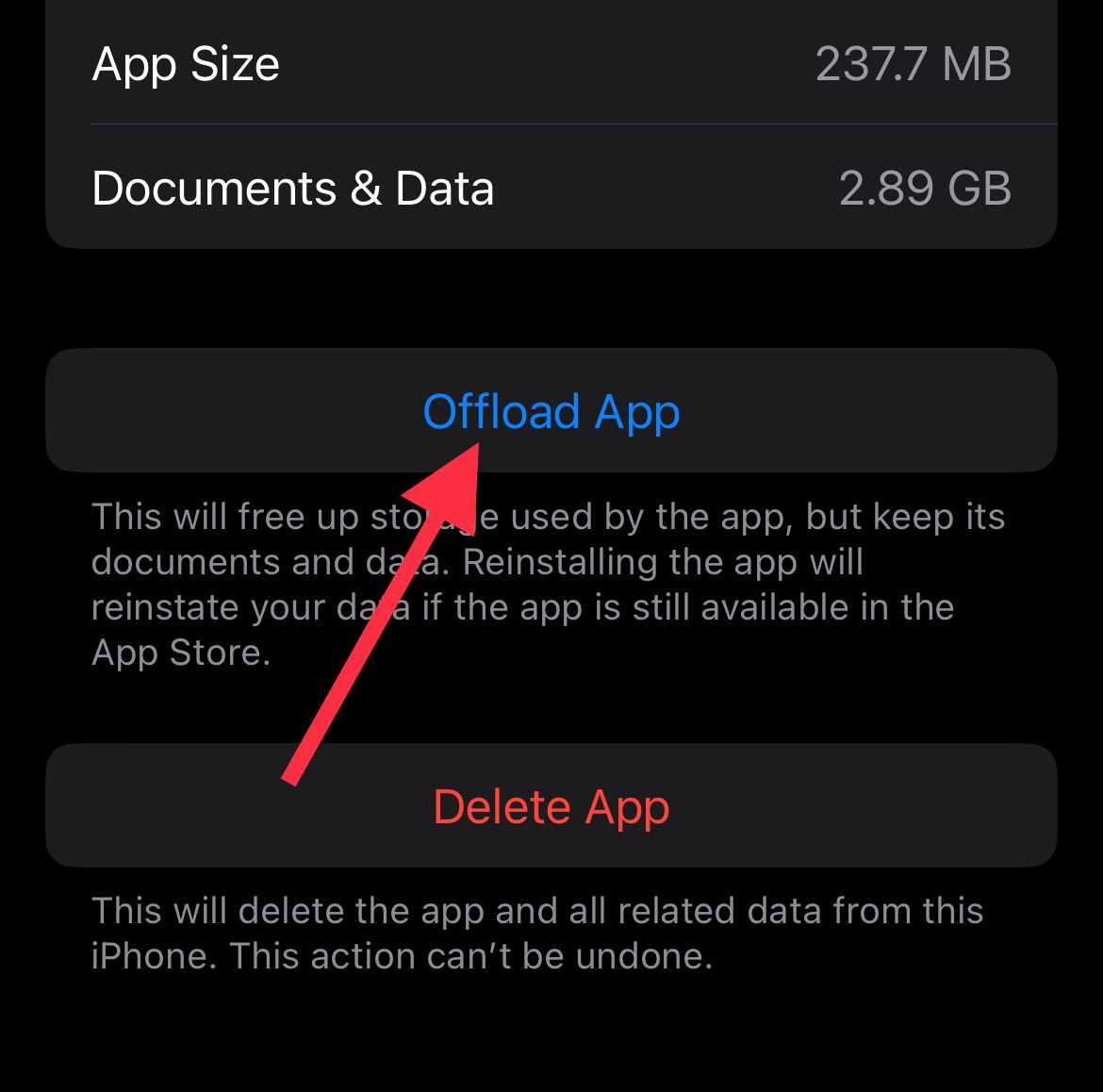
Since iOS does not have a clear cache option like Android, you can try offloading the Instagram app and installing it again. To do this, go to Settings > General > iPhone Storage > Instagram > Offload App. Then reinstall the app from app store.
Log Out and Log In Again
You can also try logging out of your Instagram account and signing in again. Before logging out, make sure you remember your Instagram login details, such as your username and password. If you forget them, you will need to use the “Forgot password” option to reset them. However, it usually requires access to your registered email or phone number.
If you no longer have access to your email or phone, resetting the password may become difficult. So it is a good idea to double-check your login details before logging out of the app.
Reinstall the Instagram App
If updating the app did not bring the unsend option back, reinstalling Instagram is another step you can try.
To do this, simply delete the Instagram app from your device and install it again from the Play Store or the App Store. After that, open > sign in, then check your messages to see if the unsend option appears.
RELATED GUIDES:
- Instagram Vanish Mode Not Working? Try This 100% Working Fix
- How to Turn On Vanish Mode on Instagram
- How to Turn Off Vanish Mode on Instagram
I hope this guide helped you fix the Instagram unsend message not working or unsend button suddenly vanished issue. Let me know which method worked for you. If you discovered another way that helped bring the unsend option back, feel free to share it as well. Your experience can help other readers who are trying to fix the same issue.