It’s a common scenario – you’ve enabled Instagram’s Vanish Mode, perhaps by accident, and now you’re unsure how to turn it off. This feature can be a useful tool for certain conversations, but it may not always align with your preferences. If you find yourself in this situation, don’t worry. This article is here to show you how to turn off Vanish Mode on Instagram.
Instagram, the popular social media platform, has become a major player in the digital landscape. With its visually-driven interface and a wide array of features, the app has captivated users worldwide. From sharing stunning photos and videos to engaging with friends and influencers, Instagram offers a dynamic and immersive experience.
One such feature that has sparked interest among users is the “Vanish Mode” on Instagram. This mode allows you to send messages that disappear once the chat is closed. While this can be a useful tool for certain conversations, you may not always want it enabled.
In this article, we’ll guide you through the simple steps to disable Vanish Mode on Instagram, giving you more control over your chat history.
What is Vanish Mode on Instagram
Vanish Mode is a feature on Instagram that allows users to send messages, photos, and videos that automatically disappear once the chat is closed. It was introduced in 2020, following a similar concept to Snapchat’s self-destructing messaging.
When Vanish Mode is enabled, any messages, images, or videos shared within that conversation will not be saved or stored. As soon as you exit the chat, all the content you exchanged will be permanently deleted. It provides extra privacy and ephemerality to Instagram conversations.
As we mentioned, Instagram’s Vanish Mode allows you to send messages that disappear once the chat is closed, offering more privacy for your conversations. However, if you’re not looking to make use of this feature or enabled it accidently, it’s important to know how to turn it off. Here is how to do it:
How to Turn Off Vanish Mode On Instagram
Method 1
- Open the Instagram app
- Go to the Instagram chat where you have Vanish Mode enabled.
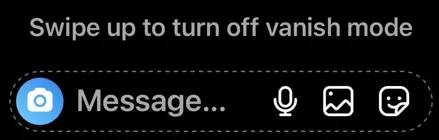
- Swipe up from the bottom of the screen and release your finger. This will disable Vanish Mode for that specific conversation.

- Once Vanish Mode is turned off, you’ll notice the Instagram DM background will return to white if you have the light theme enabled.
Additionally, any messages that were viewed while Vanish Mode was active will disappear once you deactivate the feature.
The process is quite easy to follow – simply swipe up from the bottom of the chat screen to toggle Vanish Mode off. This will go back to the normal messaging experience and restore your old chat history if you chatted normally.
Method 2
Here’s another way to turn off Vanish Mode on Instagram:
- Open the Instagram app and go to the Messages section.
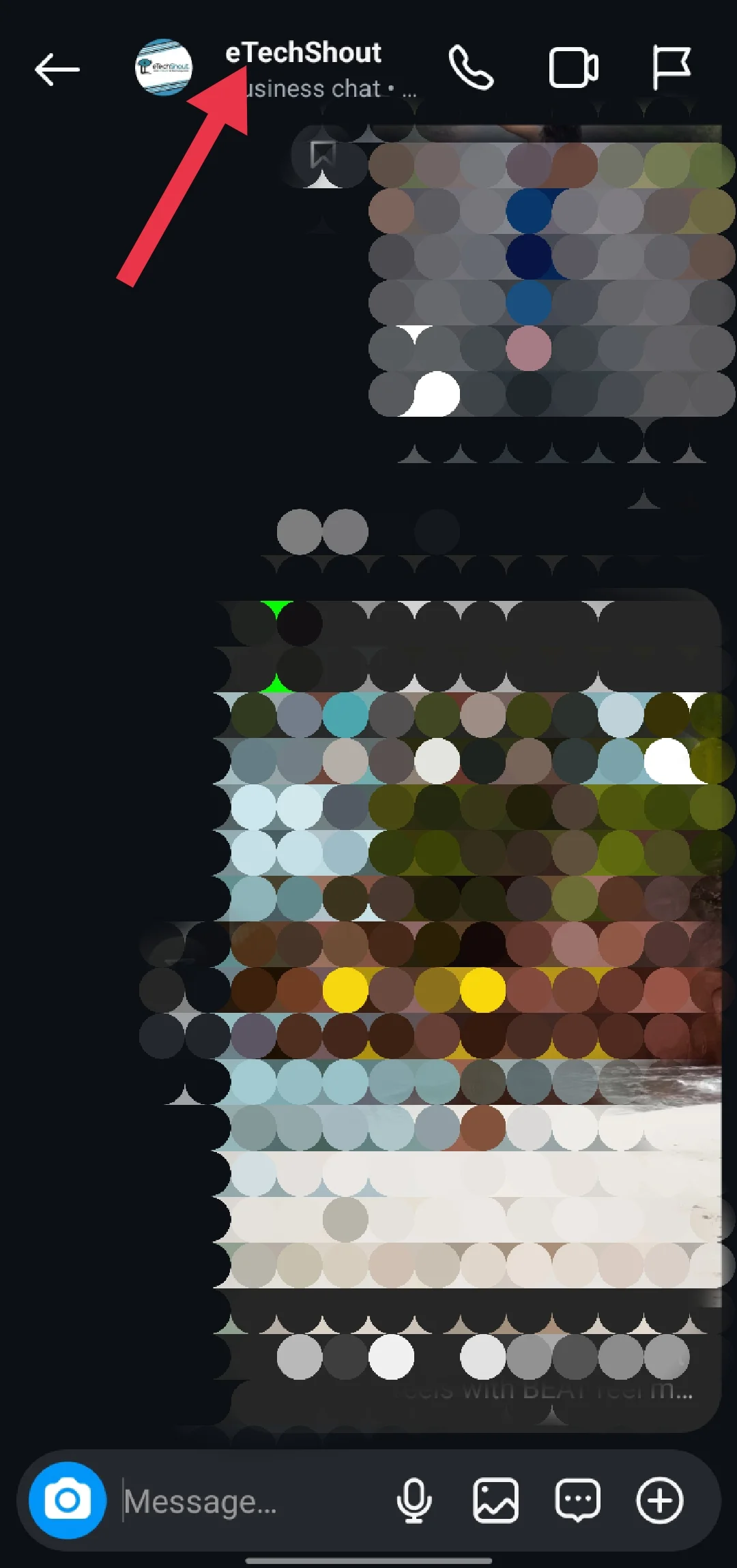
- Locate the conversation where Vanish Mode is enabled and tap on the person’s name.

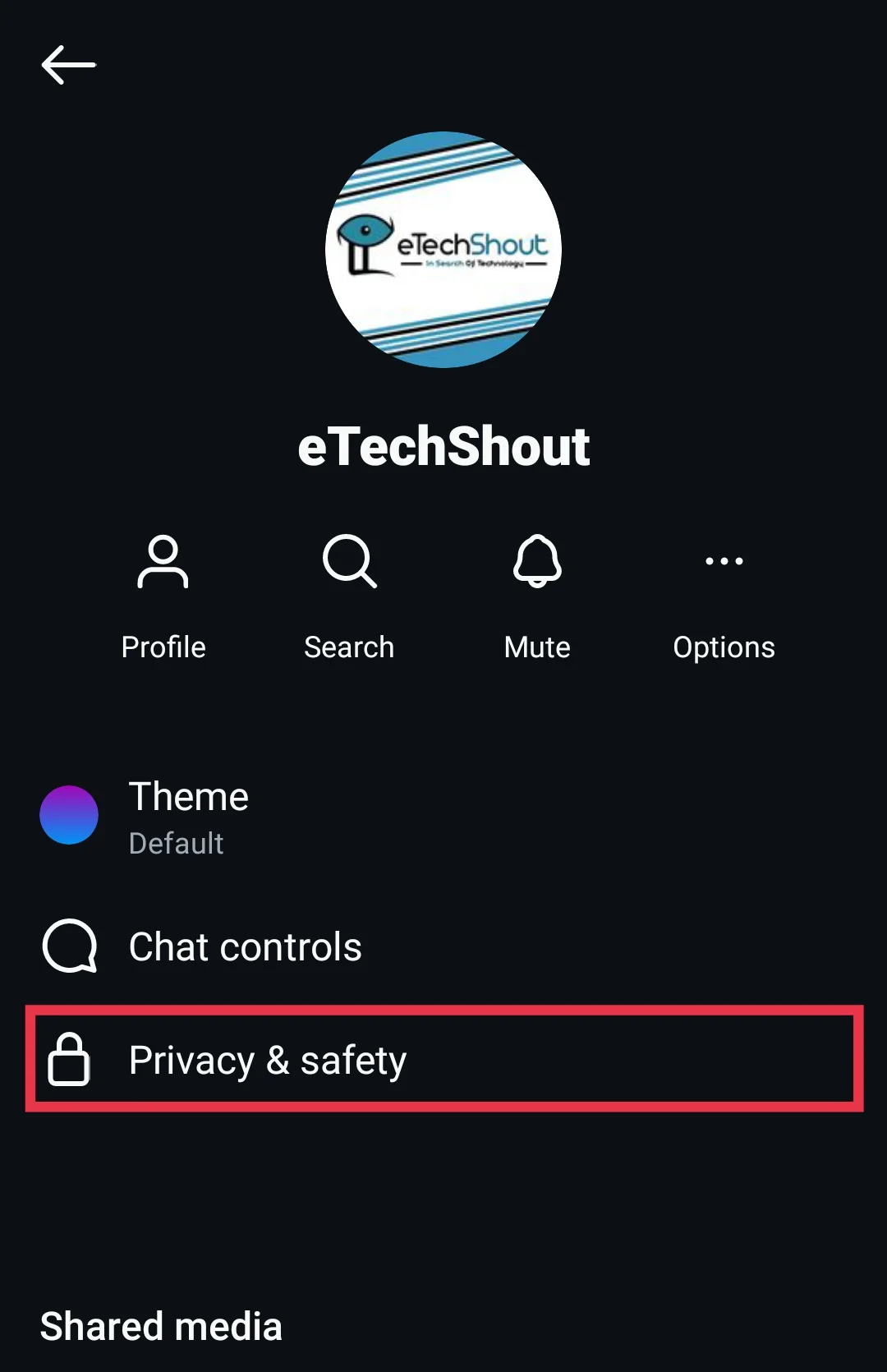
- In the chat settings, look for the “Privacy & Safety” option and tap on it.

- Within the Privacy & Safety menu, you should see the “Vanish Mode” toggle. Simply switch it to the off position to deactivate the feature for that conversation.

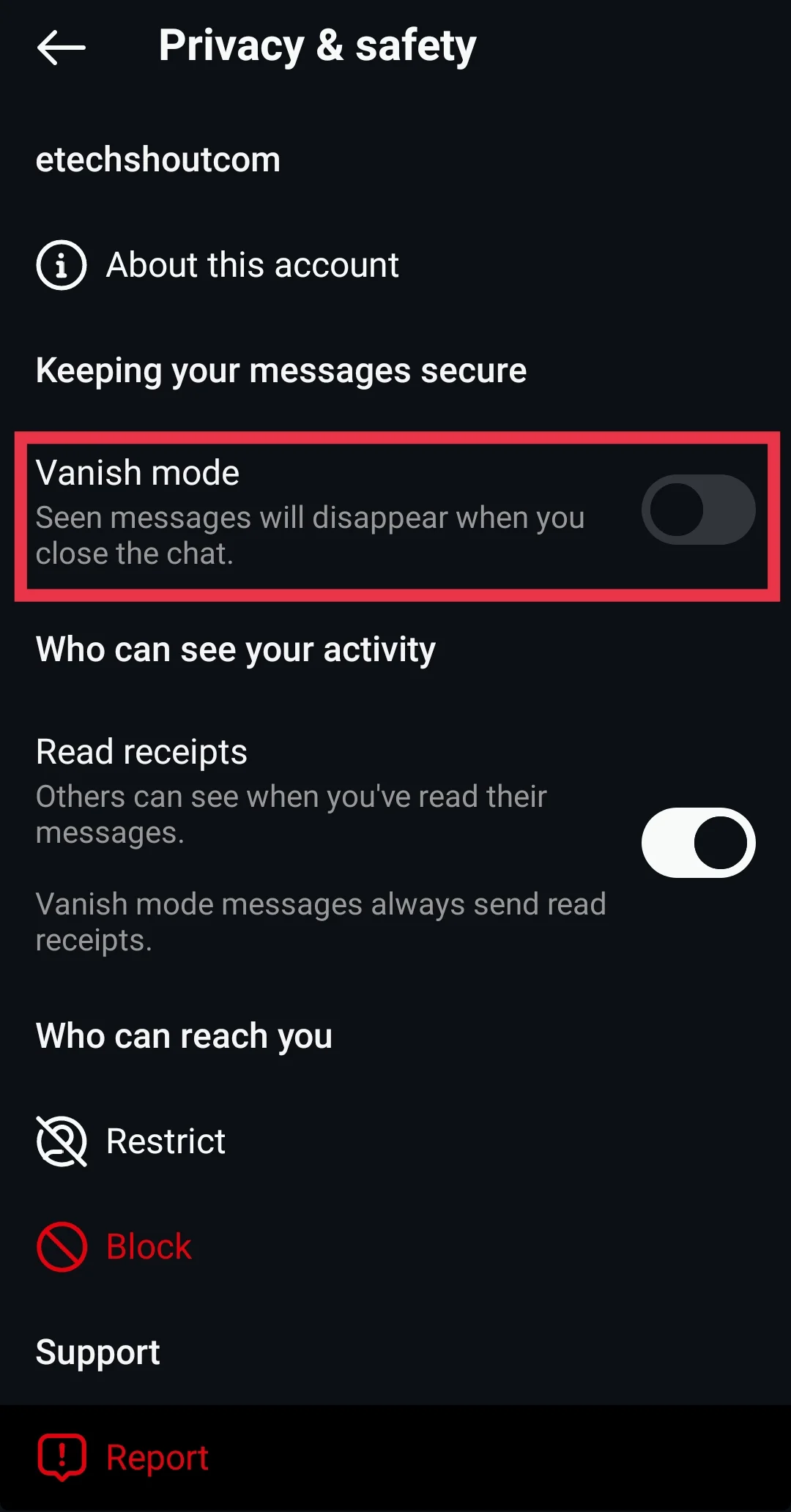
Remember, Vanish Mode creates a dark background in the chat, regardless of your overall Instagram theme settings. When you turn it off, the chat will revert to the standard light or dark appearance based on your app preferences.
RELATED ARTICLES: –
Frequently Asked Questions (FAQs)
Why is my Instagram in vanish mode?
If your Instagram is in vanish mode, it’s likely that your swipe up in the chat accidentally activated it. Vanish mode is designed for privacy and security reasons. You can can use steps outlined in this article to turn off.
How do I get rid of vanishing mode on Instagram?
To disable vanishing mode on Instagram, you can either swipe up from the bottom of the chat screen where it’s enabled, or navigate to the chat settings in the Messages section, find “Privacy & Safety,” and toggle off vanishing mode.
Does turning on vanish mode send a notification?
No, turning on vanish mode in a chat on Instagram does not send a notification to the other person. However, they will see that you have entered vanish mode in the chat section.
How do I get my messages back from vanish mode?
Unfortunately, messages sent in Vanish Mode on Instagram cannot be recovered once they’re deleted. Vanish Mode lets you send disappearing messages that are automatically removed after the recipient has seen them.
Why is vanish mode not turning off?
If vanish mode isn’t turning off on Instagram there may be a temporary glitch in the app. You can try these quick fixes: clear the app cache, update Instagram, check your internet connection, and if all else fails, uninstall and reinstall the app.