Tired of Instagram’s auto-scroll feature interrupting your browsing experience? Learn how to turn off auto swipe on Instagram. Our guide shows you the simple steps to turn off the turn off auto scroll feature on Instagram to browse the app on your way.

Instagram has become one of the most popular social media platforms, boasting billions of active users worldwide. Its visual-centric design and intuitive user experience have made it a favorite for sharing moments, connecting with friends, and discovering new content. However, not every Instagram feature may be a perfect fit for all users.
Many Instagram users love the platform’s auto-scroll feature, which automatically moves to the next post or reel after a few seconds. However, some find this function frustrating, as it prevents them from fully engaging with the content. If you prefer to control your scrolling manually, this article will guide you through the simple steps to turn off the auto swipe on Instagram.
Instagram is constantly updating with new content, and the auto-scroll feature is designed to help users keep up with the latest reels or posts. But for those who want more control over their browsing experience, disabling this function can be a lifesaver.
How to Turn Off Auto Swipe on Instagram
- Open the Instagram app and tap on your profile picture.

- Tap the three-line “hamburger” menu icon in the top right.

- Select “Settings and privacy” from the menu.

- On Android, choose “Cellular data settings.” On iOS, tap “Media quality.”

- Locate the “Data saver” option (on iOS, it’s called “Use less mobile data“).
- Turn on the “Use less mobile data” or “Data saver” setting.
- That’s it!


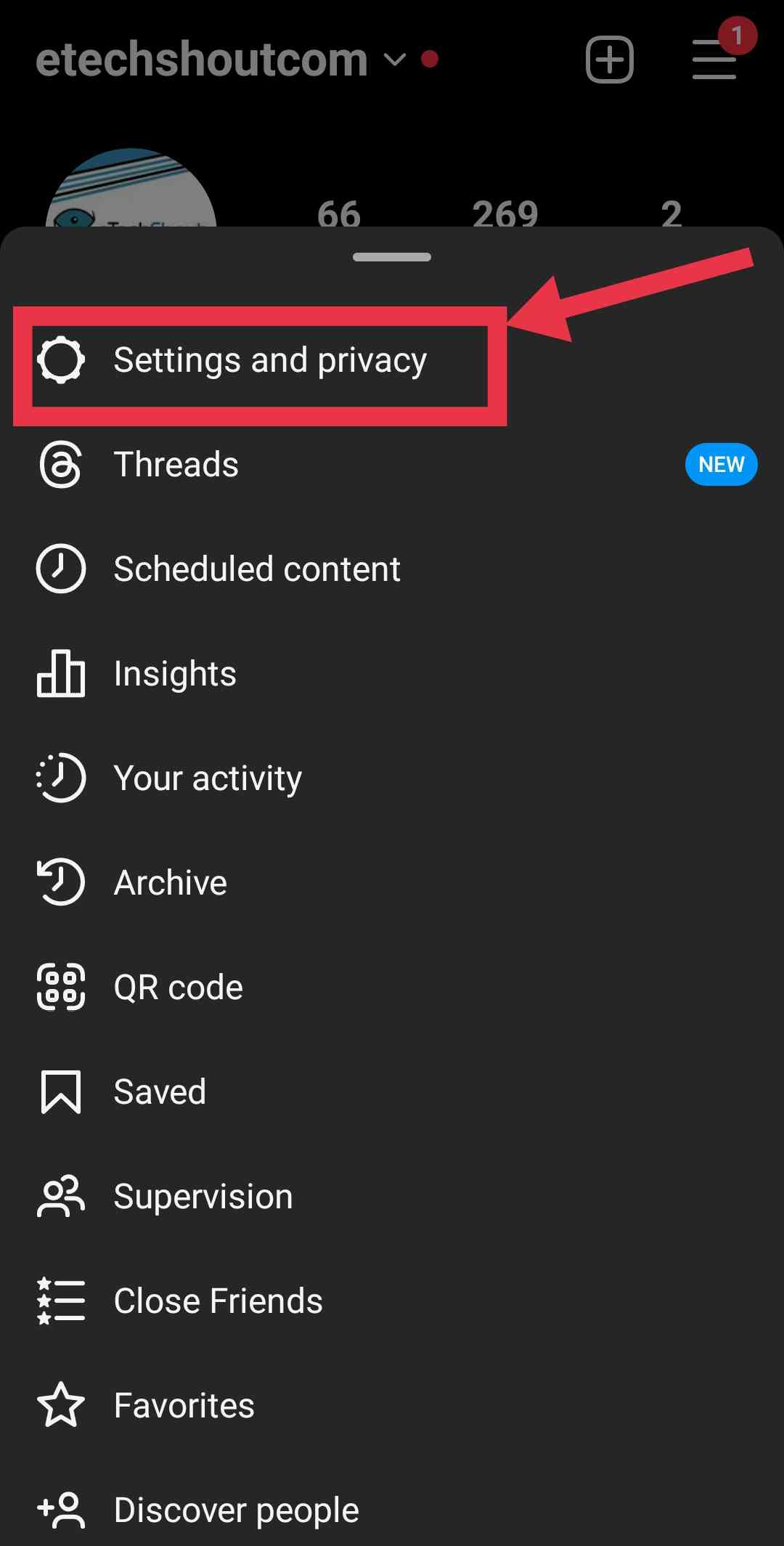

Once you’ve enabled this feature, videos on your Instagram feed will no longer preload automatically, which should effectively reduce the auto-scrolling effect. This gives you more control over your scrolling experience, allowing you to browse your feed as you wish.
While the auto-scroll feature on Instagram can be a convenient time-saver, it may not suit the preferences of all users. Some find the automatic navigation distracting, especially when they’re focused on creating content or carefully curating their feed.
Ultimately, the decision to use the auto-swipe function comes down to personal preference. For those who prefer to have greater control over their scrolling experience, turning off auto scroll on Instagram feature is a easy and simple process that can significantly enhance their enjoyment of the Instagram platform.
- RELATED ARTICLES: – 9 Ways to Fix Keep Instagram Open to Finish Posting
Frequently Asked Questions (FAQs)
Why does Instagram automatically go to the second slide?
Instagram automatically goes to the second slide of a carousel post if a follower has previously skipped it without swiping through. A carousel post is a type of Instagram post that allows users to share multiple images or videos in a single post. When someone skips through a carousel without viewing all the content, Instagram’s algorithm shows the post again later, starting from the second slide, to give the content another chance to be seen.
How do I change my auto swipe on Instagram?
To change your auto swipe settings on Instagram, simply tap your profile picture, select “Settings and privacy” from the menu, and then choose “Cellular data settings” for Android or “Media quality” for iOS. Next, turn on the “Data saver” or “Use less mobile data” option.