Facebook has seen its rise and fall over the years, yet many people still use it every day to connect, chat, and even browse items on Marketplace, which is a great addition for quick buying and selling. Messenger remains the main tool for these conversations, making it an important part of how people stay in touch online.
Sometimes the app shows errors that stop this smooth experience. One common issue is the message that says “Please restart Messenger to rejoin this chat.” When this appears, it prevents you from opening chats, reading messages, or replying, which can be very frustrating, especially when the conversation is important.
While I use this app only once in a while, a friend recently sent me a work-related message on Messenger, and when I opened it, I saw this error. After many trials and errors, I finally managed to fix it, and in this article, I will explain the methods that helped me solve the problem.
How to Fix Facebook Messenger “Please restart Messenger to rejoin this chat.” Error on Android and iPhone
Check Your Internet Connection First
Before assuming there is a problem with your device or the Facebook app, always start with the most basic step which is checking your internet connection. Many times, this error shows up simply because the connection is weak, unstable, or dropping in between.
Run a quick internet speed test using any trusted website and see if the speed is normal. If the speed is too low or the network/internet speed keeps dropping/disconnecting, Messenger may fail to load the chat and show the error message.
Update the App
Check if the Messenger app has any updates available in your phone’s app store. While checking for updates, do not update only Messenger. Make sure you also update the main Facebook app. Both apps work closely together, and an old version of either one can create sync problems.
Check If Messenger is Down
Many times, the app goes down, and whatever we try on our side will not work. Recently, when major Cloudflare servers went down, many services, including X, were affected worldwide for hours. In situations like this, the issue is not with your device or your app, and there is nothing we can do except wait for the service to come back online.
To confirm this, you can check server-monitoring sites like Downdetector to see if other users are reporting problems with Messenger. You can also look at recent posts on X, since many users immediately report outages there. If a lot of people are facing the same issue, then the error is likely caused by a temporary server problem.
Clear the App Cache
If you are using an Android phone, try clearing the Messenger app cache. Go to your phone Settings > Apps > Messenger > Storage and select the Clear cache option. This removes temporary data without deleting your chats.
If you are using an iOS device, the system does not offer a direct cache clear option. Instead, you can use the offload app feature from Settings > General > iPhone Storage > Messenger > Offload App. After offloading Messenger, reinstall it from the app store.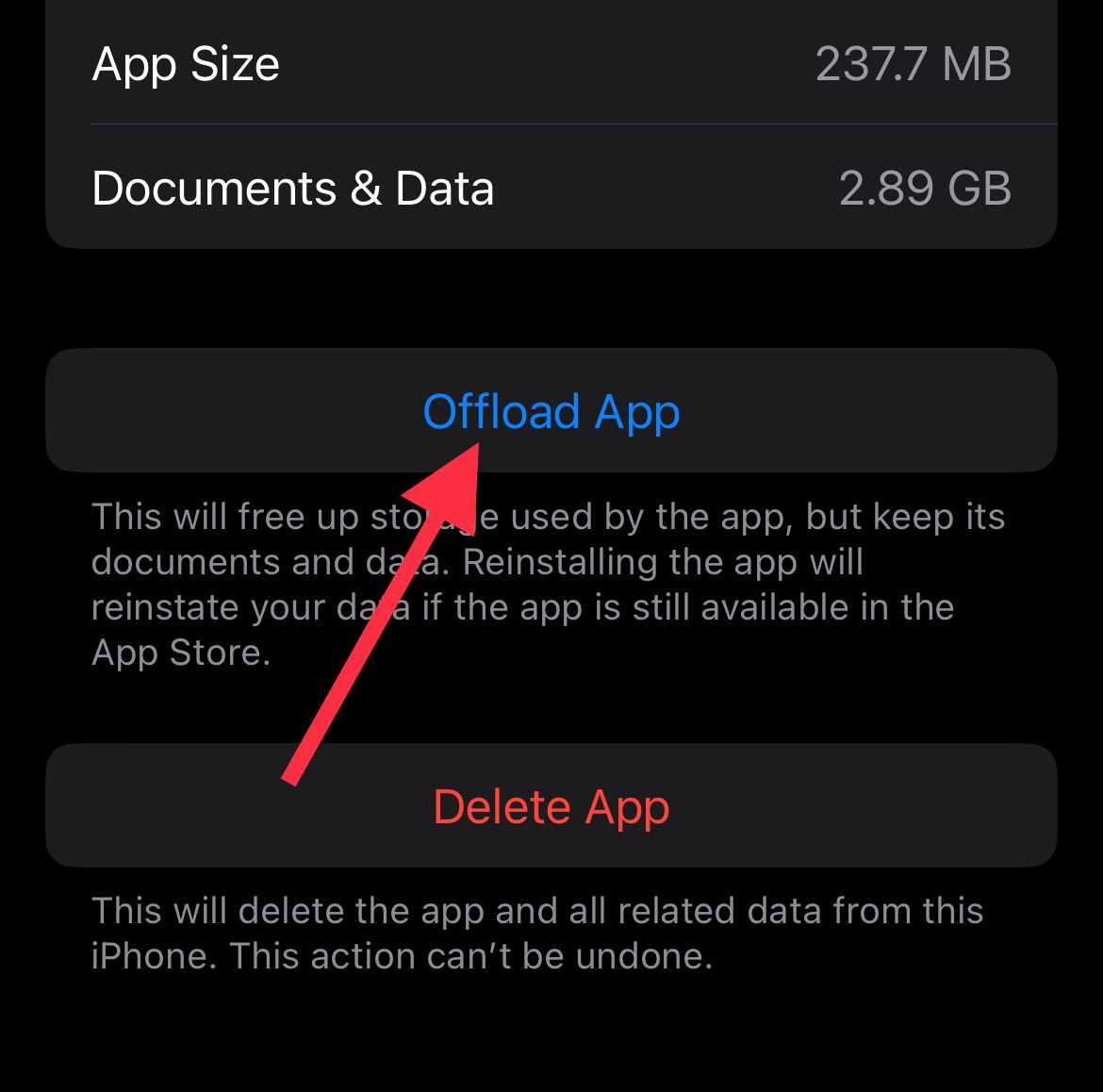
Reinstall the App
If the above steps did not help, try reinstalling the Messenger app. First, uninstall it from your device so all old files are removed. After uninstalling, head over to app store and download Facebook Messenger again. Once the app is installed, sign in wth your login credentials.
Wait For a Few Days If Nothing Works
In my case, after trying all the methods mentioned above, nothing worked at all. I left it sadly because there was nothing more to try. After three days, the issue automatically fixed itself even though I did not do anything extra. This clearly shows that many times the problem is on the Facebook side, not your device or app.
So if none of the above solutions help, you can simply wait for a few days and check the app once or twice each day. When Facebook fixes the issue on their end, the chat usually starts working again on its own. This is often the only option left when the error is caused by server or account-related problems.