Royal Mail has been around for a very long time, and most people in the United Kingdom know it well. Its main base and sorting centers are spread across the country, and the tracking system runs on central servers that handle huge numbers of parcels every single day. People trust the service for letters, online orders, and important deliveries, which is why so many rely on its tracking page to check where their parcel is.
That said, the tracking experience can test your patience. One thing many people dislike is how updates can feel slow or unclear. You enter the tracking number, expect clear details, and instead see the same status sitting there for hours. Compared to private courier companies that show constant movement, this can make people guess about what is happening with their parcel.
Lately, more users have noticed Royal Mail tracking not working. A common issue is an error message that says “Service temporarily unavailable” after entering the tracking or reference number. This feels surprising because large postal services rarely face issues like this. It becomes more noticeable with Royal Mail 24 or 48 tracking, where updates are already limited, making people wonder why the page is not showing any useful information at all.

How to Fix Royal Mail Tracking Not Working
Check the Server Status of Royal Mail
At times, the issue is not on your side at all. When the Royal Mail system faces downtime, tracking pages may show a Service Temporarily Unavailable message. Since this is a government-linked service, there is no clear public alert page that tells users right away what is happening behind the scenes.
Since Royal Mail does not provide a dedicated outage status page like many modern platforms, checking server issues is not straightforward. This is common for government-linked services, so the only option is to rely on third-party outage monitoring sites like DownDetector, where users report problems and view live graphs that show if tracking is facing downtime.
If the graph shows a spike and many people are reporting the same tracking issue, that usually points to a server outage at Royal Mail. In that case, waiting is the only real option. If you do not see many reports from others, then the issue may be limited to your side, and the next method in this guide can help you deal with it.
Make Sure Your Internet Connection is Good
The tracking page needs a steady line to show details. You can open any internet speed test online and check how fast your connection is. If the speed looks very low, the tracking page may not respond the way you expect.
If you are using WiFi, sit closer to the router so the signal feels stronger. Mobile data can also cause loading delays, so trying the tracking page on a PC usually helps. If you only have your phone, switch the browser to “Desktop Mode” and open the tracking page again. Also, turning flight mode on for a few seconds and then turning it off can also help.
If slow speed keeps showing up often, it may be time to speak with your internet provider and ask about a faster plan or issue with the current plan.
Check Website & Tracking Details
There are many fake tracking pages floating around online. These pages are built only to pull clicks and keep sending you from one page to another. When you use those sites, you will never see real tracking details. That is why opening the real Royal Mail site matters a lot.
The official site of Royal Mail is royalmail.com, and the real tracking page lives at royalmail.com slash track your item. Any other page that shows up in search results and looks different should raise a red flag. Once you land on the official tracking page, enter the tracking number exactly as shown on your receipt to view the parcel status.
One more small detail many people overlook is the tracking number format. It begins with two capital letters and ends with two capital letters, with numbers placed in between. So, double-check each character before submitting, as even a small typing slip can stop the tracking page from showing updates.
The Parcel is Not Booked Yet
When a parcel is handed over to Royal Mail, it does not always appear in the system right away. The sender fills out the basic details on a form, but the parcel only shows up online after staff enter those details into their system. Until that step happens, the tracking page has nothing to display.
This delay can be longer when a parcel is heading to a less busy or remote area. In such cases, items are grouped together before being entered and moved ahead. That means the tracking number may stay inactive until several parcels are ready for the same route. Many people are unaware of this step, which is why the tracking page looks empty even though the parcel has already been posted.
So if the parcel was sent today and tracking shows no result, wait for a day or two and check again. Once the parcel is added to the system, tracking details should begin to appear without any action needed from your side.
Clear Browser Cache and Cookies
Your browser stores small files every time you open a website. While these files make the already visited websites/pages load faster the next time you visit, these stored files can turn outdated and stop pages from opening the right way.
- Open Google Chrome and click the three dots in the top right corner
- Click on Delete browsing data.

- Next, check the Cookies and other site data and Cached images and files option.
- After that, tap on Delete Data and wait for the process to finish.


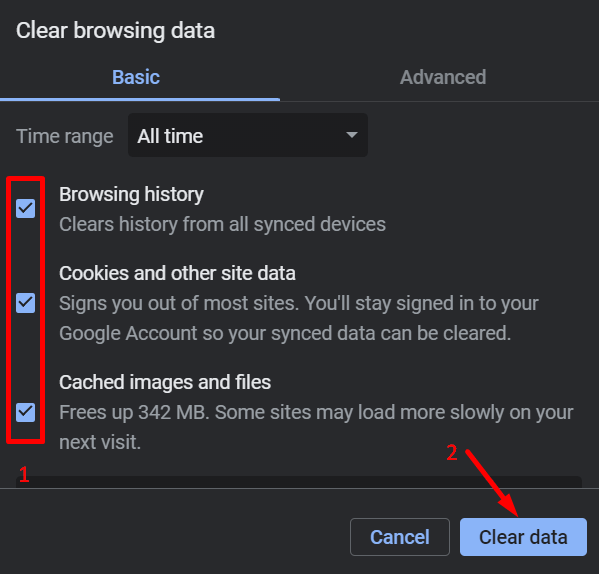
While we shared these steps using Google Chrome on a PC, the steps stay almost the same on most browsers. If you use another browser often, you already know where the privacy or browsing data options usually sit. The layout may look a little different, but the idea stays the same.
If you do not want to dig through menus, you can press Ctrl + Shift + Delete on Windows or Linux, or Cmd + Shift + Delete on Mac. This shortcut opens the clear browsing data screen directly, saving time and effort.
If you are using a mobile browser, tap the menu icon > History, and choose the option to delete browsing data. The steps are almost the same across mobile browsers, so you should not have trouble finding the option.
Turn Off VPNs and Proxies
Royal Mail tracking runs under a government-linked system, and access is tightly controlled. When a VPN or proxy is active, the system may block the request right away. In many cases, the tracking page will not load or may show an error instead of parcel details.
From the system’s point of view, VPNs often raise security flags. Traffic coming from masked locations is treated with caution, which can stop tracking data from showing up.
If you are using any VPN app or proxy setup, turn it off and then open the tracking page again. Once the connection is direct and clear, the Royal Mail tracking page usually responds and shows the parcel information as expected.
Contact the Local Branch Office
If you have tried every step so far and the tracking page still shows nothing, it may be time to reach out directly. In some cases, parcel details are not added to the system at the branch level, which leaves the tracking page empty. Many times, this happens during busy hours when many parcels are being handled at once.
So, it is better to visit your nearest branch. The staff can check the receipt, confirm the tracking number, and see if the parcel details were missed during entry.
You can also explore the help and support section on the Royal Mail website for official guidance.