Spotify is that cute little music bestie we all run to when words are not enough. One minute you are vibing alone, the next you are building the ultimate playlist that screams your mood. Creating a playlist feels personal, almost like sharing a piece of your heart with the world.
After you hit publish and share it with friends or followers, curiosity kicks in. You start wondering who actually liked it. Did your crush see it? Did your friends save it? On Spotify, likes and followers are closely connected, which makes things a little confusing for many users.
A lot of people ask the same question: Can you see who liked your playlist on Spotify? While you can view the number of people who follow or like your playlist, Spotify does not show the names of individual users who liked it. This has left many creators searching for clear answers, and that is exactly what we are going to explore in this post.
How to See Who Liked Your Playlist on Spotify
As we mentioned earlier, there is no way to see exactly who liked your playlist on Spotify. You cannot view the names of users who followed or liked it. The only thing you can check is the total number of likes or followers your playlist has.
If you are curious about your playlist stats, you can easily view the like count on different devices. The steps may look slightly different depending on whether you are using Android, iOS, Mac, or Windows, but the idea is the same. Spotify shows the number of people who liked or followed your playlist right under its name.
Check Your Playlist Stats on Spotify Using Android
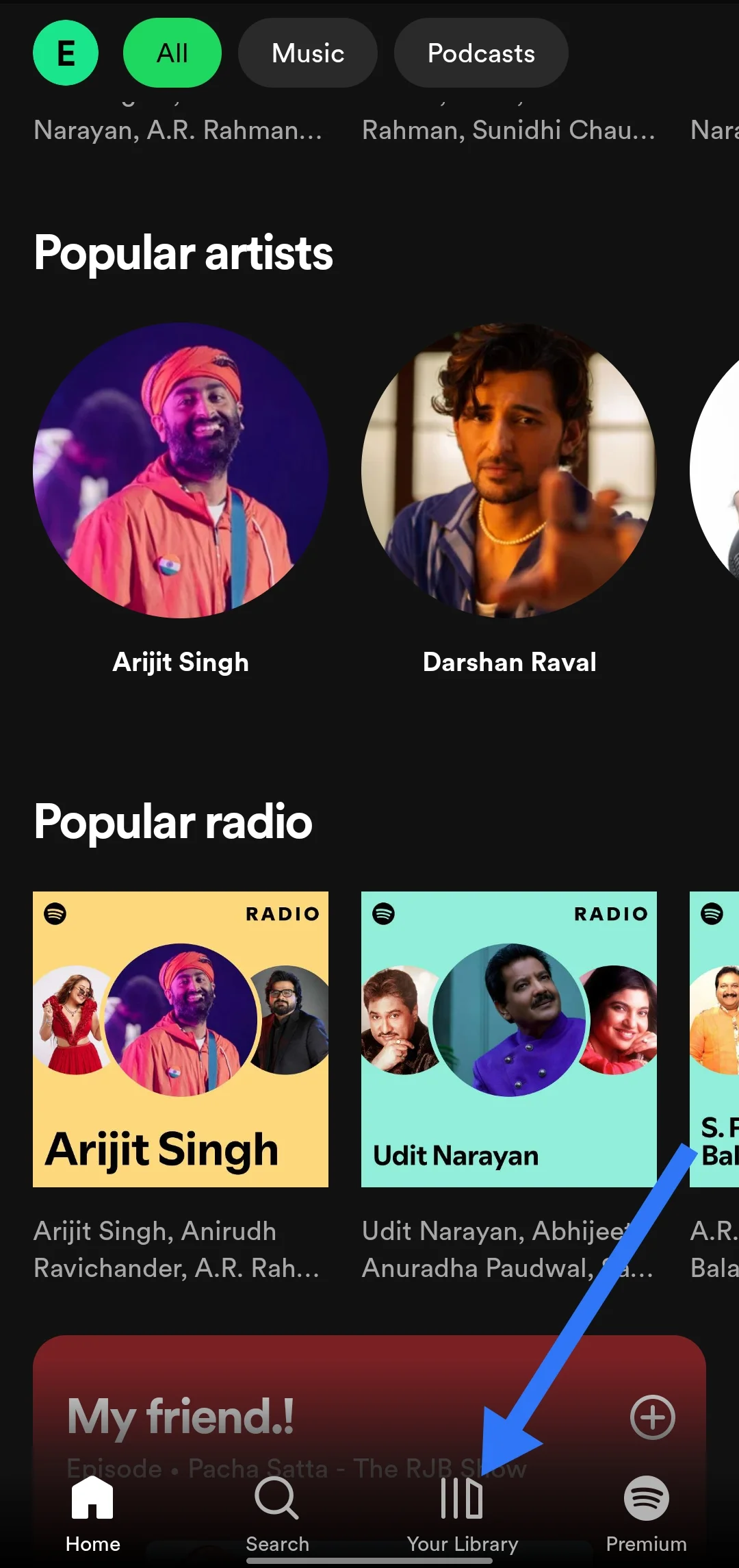
If you are on Android and feeling curious about your playlist numbers, just follow these easy steps:
- Tap on the Spotify app icon on your phone from the app drawer or the homescreen.
- Once the app opens, look at the bottom right corner and tap on Your Library.

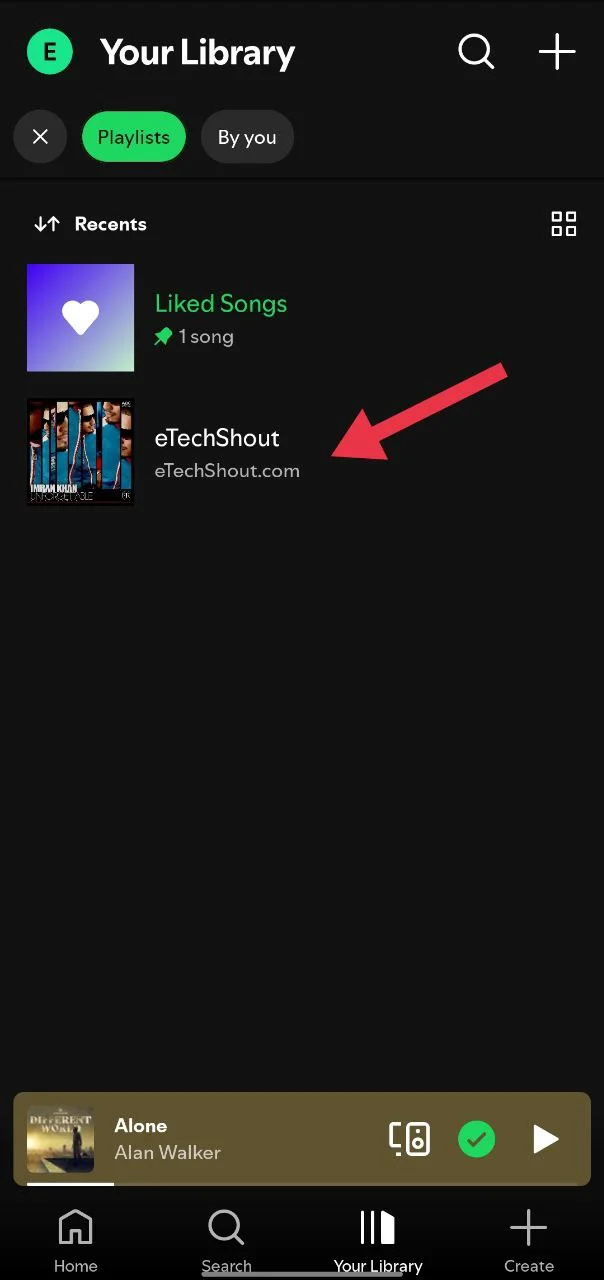
- At the top of the screen, tap on the Playlists tab.
- Choose the playlist you want to check.
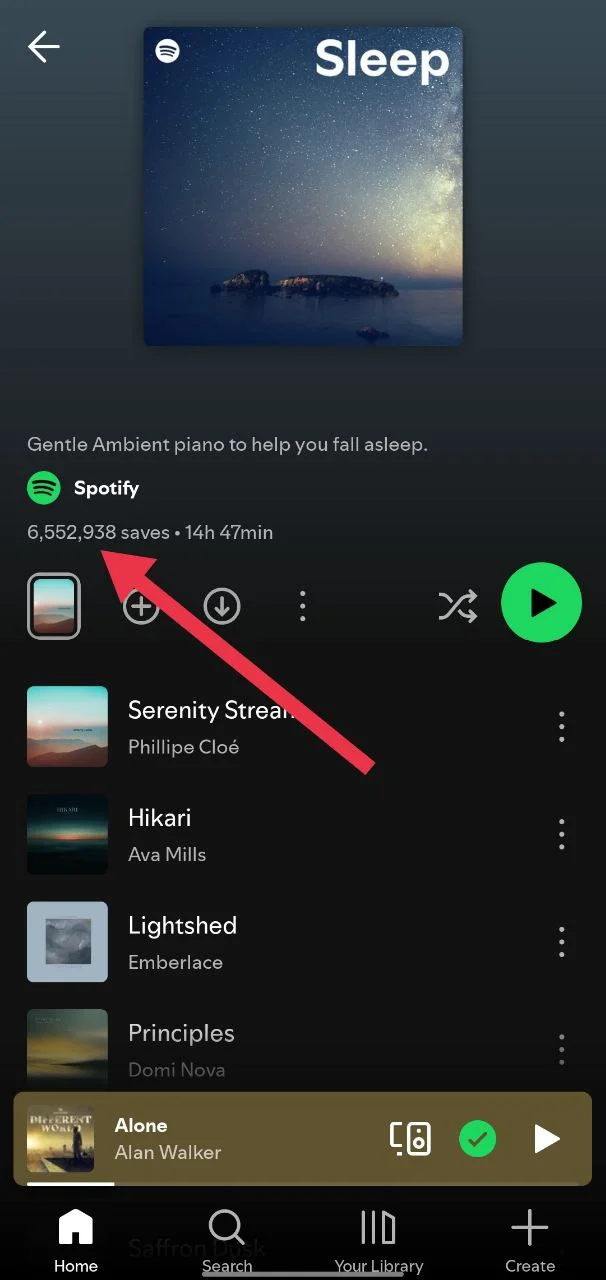
- Right under the playlist name, you will see the total number of likes or followers it has.

Check Your Playlist Stats on Spotify Using iPhone
- Open the Spotify app on your iPhone.
- Tap on Your Library at the bottom right of the screen.
- Go to the Playlists tab and pick the playlist you want to check.
- Right below the playlist title, you will see the total number of likes or followers.
Check Your Playlist Stats on Spotify Using Windows OS
- Press the Windows key on your keyboard and type Spotify in the Start menu search bar.
- Click on the Spotify app from the results to open it (make sure its logged in)
- Once the app opens, go to the left sidebar and tap the Playlists section.
- Click on the playlist you want to check.
- On the right side of the screen, under your name and playlist title, you will see the total number of likes.
See Your Playlist Likes on Spotify Using Mac OS
- Open the Spotify app on your Mac.
- Click on the Playlists option from the left sidebar
- Choose the playlist you want to check.
- Once it opens, you will see the number of likes displayed near the playlist name.
Check Your Playlist Likes on the Spotify Website
- Open your browser and go to the official Spotify website by clicking here.
- Log in to your account if you are not already signed in.
- From the left sidebar, click on the playlist you want to check.
- Once the playlist opens, look under your username. You will see the total number of likes or followers there.

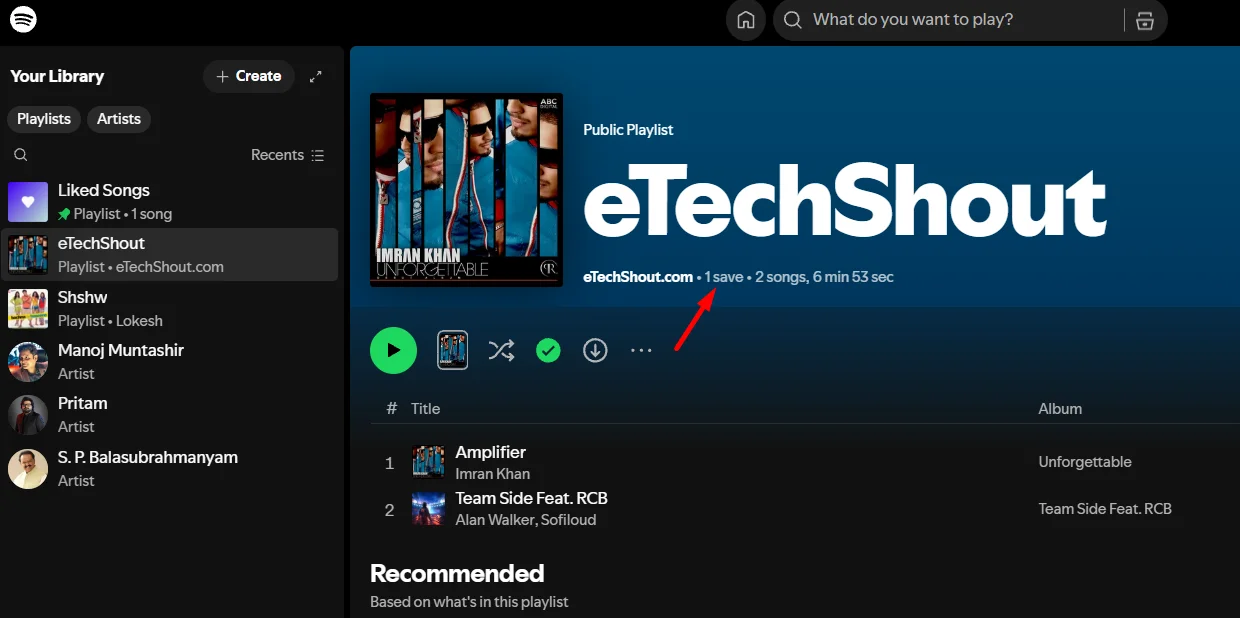
Note: Spotify has replaced the old heart-shaped Like button with a universal plus button. This change combines saving songs and adding them to playlists into one simple option. Because of this update, you no longer see a total likes count. Instead, you will see the total number of saves on your playlist.
- ALSO READ: 12 Ways to Fix Spotify Playlist Empty Error
So yeah, there is no secret button that lets you see exactly who liked your Spotify playlist. Spotify does not show the names of users who liked your playlist. You can only see the total number of likes or followers your playlist has.
If you are curious about how your playlist is performing, you can easily check the stats. Just follow the steps shared in this article for your device, and you will be able to see your like count in seconds.