Starbucks is known for its coffee, snacks, and the cozy feeling people enjoy when they visit the store. Many customers also use the Starbucks mobile app on their iPhone or Android phone to order drinks, pay from their phone, and collect reward stars. It makes ordering coffee quick and convenient without waiting in line.
There are days when the Starbucks app does not work the way people expect. The app may not allow you to log in, fail to open, or show an error while trying to pay. At times, the screen may stop responding, or the app may close on its own.
If you depend on the Starbucks app to order your daily coffee or check your reward points, I know how it feels when app glitches make it impossible to place an order. Many users face this issue on both Android phones and iPhones. In the sections below, I will share some simple ways you can try to fix the Starbucks app when it stops working.
How to Fix Starbucks App Not Working on Android & iPhone
Close and Restart the Starbucks App
The first thing I usually try whenever the app glitches is closing it and opening it again. If the Starbucks app is not opening, not logging in, or not letting you place an order, closing the app and launching it again is a good place to begin.
Many times, an app keeps small temporary data in the background while it is open. When you close the app fully and reopen it, the phone loads it again from the beginning dlearing the inside hiccups.
On Android
- Press the Recents or App Switcher button on your phone to view the apps that are currently open.
- Swipe the Starbucks app upward to close it.
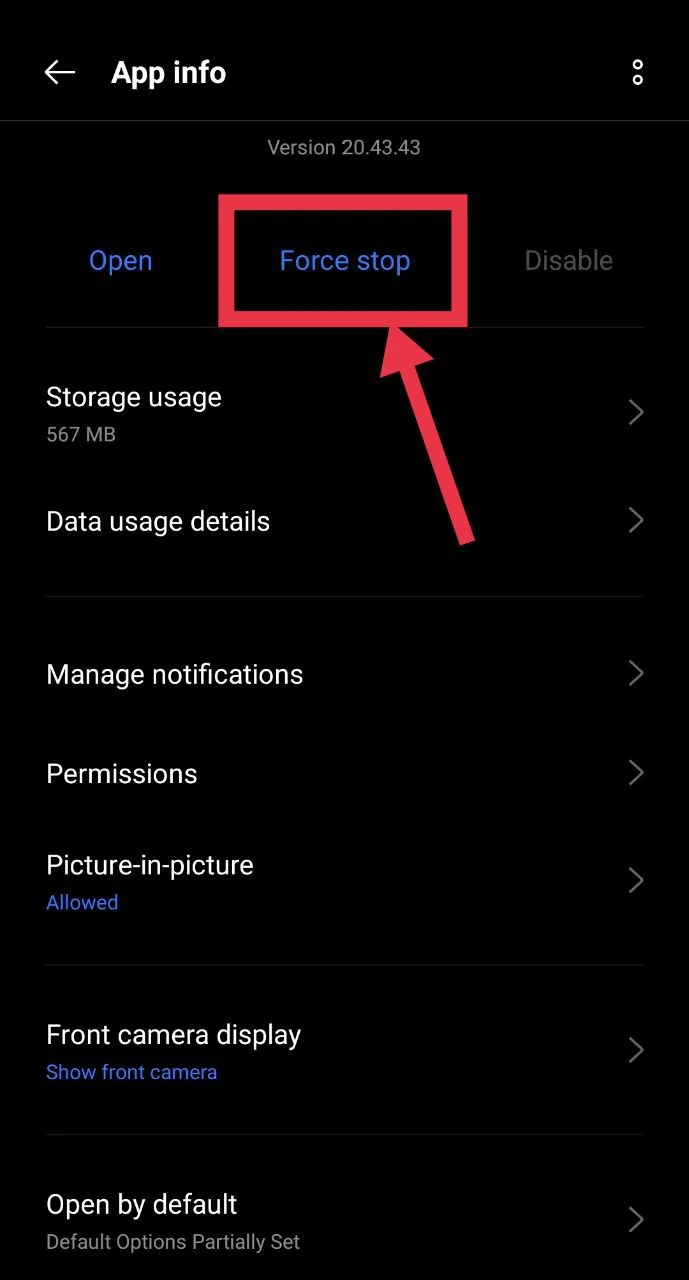
If the app still refuses to open or respond, you can force close it.
- Press and hold the Starbucks app icon from the app drawer or the home screen.
- Now, tap App info.
- Select Force stop.

- Confirm by tapping Force stop again.
- After that, open the app drawer and tap Starbucks to launch the app again.
On iPhone
- Swipe up from the bottom of the screen and pause in the middle to open the app switcher.
- Swipe the Starbucks app upward to close it.
Check Your Internet Connection
The Starbucks app needs internet access to show your reward points, wallet balance, and menu details. If your phone has a poor connection or no connection at all, the app may open but fail to load information. It may also stop you from placing an order or completing a payment.
So, check the signal bars for WiFi or mobile data. To confirm if the connection is the cause, open another app that needs the internet, like a browser or video app, or run an internet speed test.
If you are using WiFi, try turning off WiFi and switching to mobile data. In some cases, the app connects faster through your cellular network. You can also try turning airplane mode on for a few seconds and then turning it off again.
Update the Starbucks App
When the Starbucks app on your phone is old, it may fail to show store locations, reward stars, menu items, prices, or even your past transactions. These issues can happen when the app has not been updated for a long time.
App updates usually include fixes that help the app load your account details and display information inside the app. Installing the newest version can remove many errors that appear in older versions. If your Starbucks app has not been updated recently, it is a good idea to check for an update.
On an Android phone, check the Google Play Store for updates, and on an iPhone, open the Apple App Store to see if an update is available.
Check if Starbucks Servers Are Down
There are times when the issue is not with your phone or the app. The problem may come from the Starbucks side. When their servers face technical trouble or maintenance work is happening, the app cannot connect to Starbucks servers, which means orders, rewards, and account details may not load.
You can check if other people are reporting the same issue. Visit outage monitoring websites like Downdetector to check Starbucks to see if many users are reporting app problems. Another place to check is the official Starbucks page on X, where the company may share updates about service issues or maintenance.
If the servers are down, there is nothing you need to change on your phone. You just need to wait until Starbucks resolves the issue.
Restart Your Phone
On Android
- Press and hold the Power button on your phone until the power menu appears.
- Tap Restart or Reboot.


On iPhone
- Press Volume Up and the Side button together, or Volume Down and the Side button, until the power screen appears.
- Drag the power slider to the right to turn off the phone.


Turn Off VPN
Many people install a VPN on their phone for other apps or websites and forget that it is still turned on. Then they open the Starbucks app without realizing that the VPN is active. A VPN changes your phone’s IP address, and this can stop the app from loading stores or placing an order. In some cases, the app may show a message like Order ahead unavailable.
If you are using a VPN or a custom DNS on your phone, try turning it off while using the Starbucks app. You can also remove the custom DNS and switch it back to the default network settings.
Clear Starbucks App Cache
The temporary files that your phone saves from apps to load them faster the next time you open them can become damaged and create issues. So, try clearing them on Android devices.
- Open Settings and tap Apps.
- Select Starbucks > Storage and Cache.
- Tap Clear Cache.


iPhone does not include a “clear cache” option. Instead, you can offload the app from Settings > General > iPhone Storage > Starbucks > Offload App. Then re-download the app from the App Store.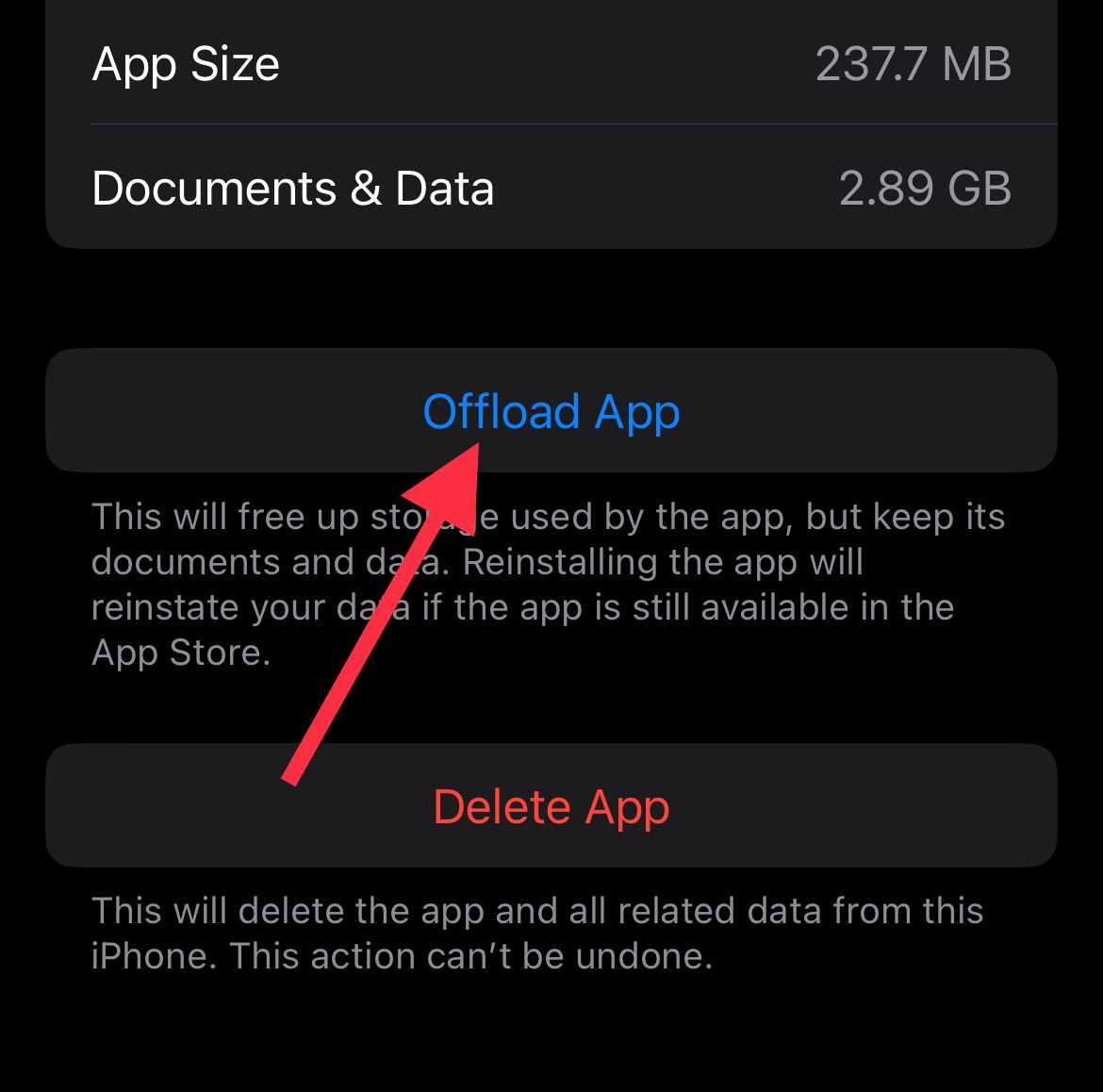
Allow Location Permission for the Starbucks App
The Starbucks app uses your phone’s location to show nearby stores and allow order ahead. So, make sure the location access is not turned off.
On Android
- Open Settings on your phone.
- Tap Apps > Starbucks.
- Tap Permissions.
- Select Location and choose Allow all the time.
On iPhone
- Open Settings.
- Scroll down and tap Starbucks. (In iOS 18 above, check Settings > Apps)
- Tap Location.
- Select While Using the App or Always.
Sign Out and Sign In Again
- Open the Starbucks app and go to your Profile section.
- Tap Sign out to log out of your account.
- After that, sign in again using your valid email and password.
Note: If the password entered is incorrect, the app will display a “Password incorrect” message, and the login will not continue. Make sure the password is entered correctly before signing in.
Reinstall the Starbucks App
- Press and hold the Starbucks app icon on your phone.
- Tap Uninstall on Android or Remove App, then Delete App on iPhone.
- Open the Google Play Store on Android or the Apple App Store on iPhone.
- Search for Starbucks.
- Tap Install to download the app again.
- Open the app and sign in to your Starbucks account.