Roblox is an incredibly popular online gaming platform that has taken the world by storm. The platform lets users explore virtual worlds, participate in exciting games, and even create their own games using the Roblox Studio.
With millions of active users from all over the globe, Roblox has become more than a community that nurtures creativity, imagination, and innovation.
It is necessary to register with an email address in order to use Roblox. Nevertheless, sometimes it is necessary to remove an email address from your Roblox account, whether because it is no longer used or for other reasons.
In this article, we’ll explain how to remove an email from your Roblox account. Whatever your reason is, this guide will help you manage your Roblox account effectively.
How to Remove Email From Roblox Account on Mobile and Website
On Website
- Firstly, visit the Roblox official website from here
- Now, click on the LOGIN button located at the top
- Once you click on it, it will take you to the login page where you have to enter your username and password
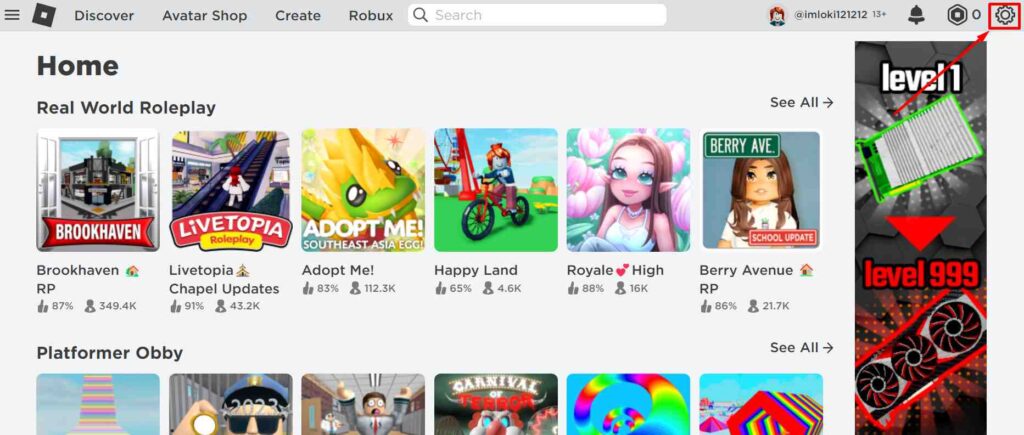
- Now, tap on the Gear icon at the top right corner

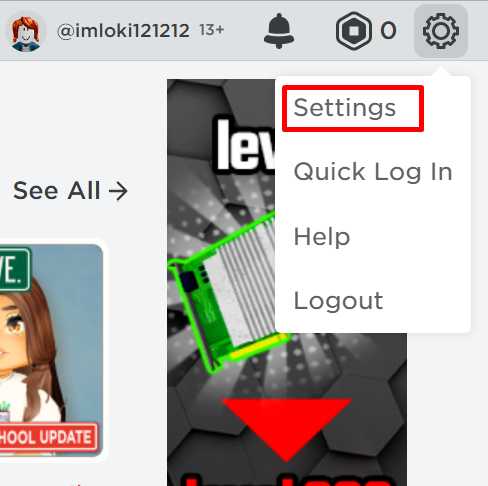
- Select Settings option

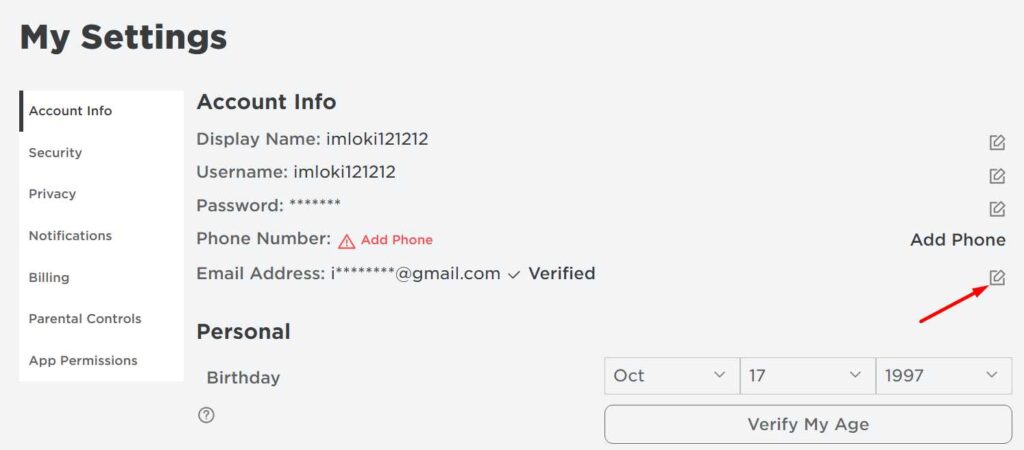
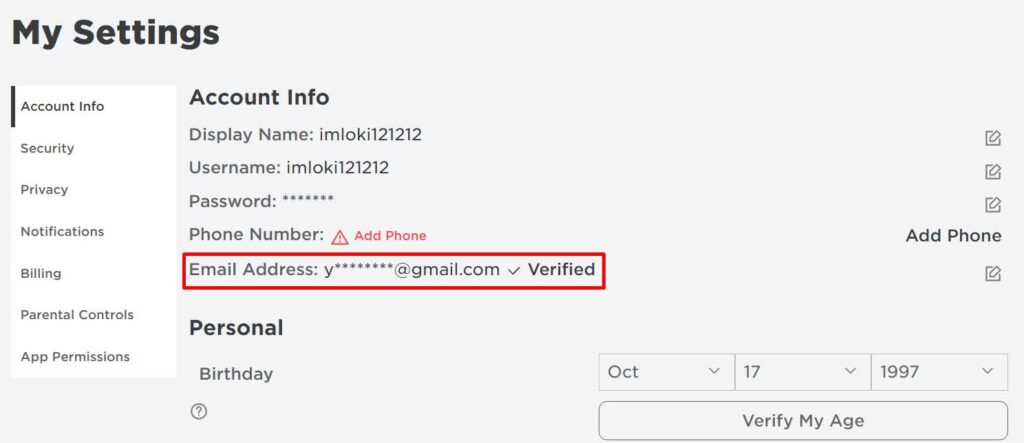
- This will redirect you to the Account Info page where you will find your current email ID that you want to remove from the Roblox platform.
- Now, you have to click on the Edit button beside the email ID.

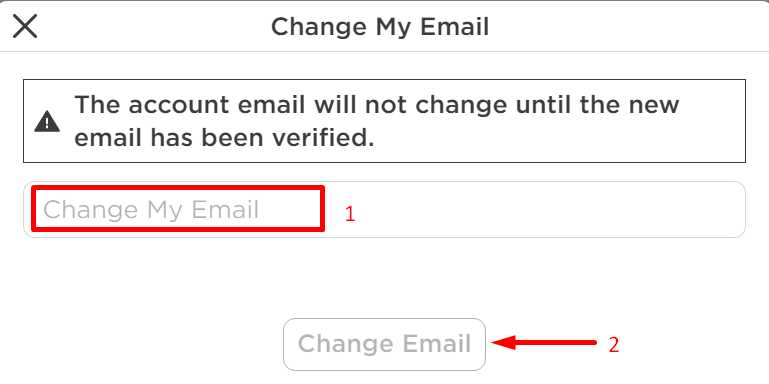
- There you need to enter any other email that you own. The account email will not change until the new email has been verified.
- After entering the email, click on the Change email button.

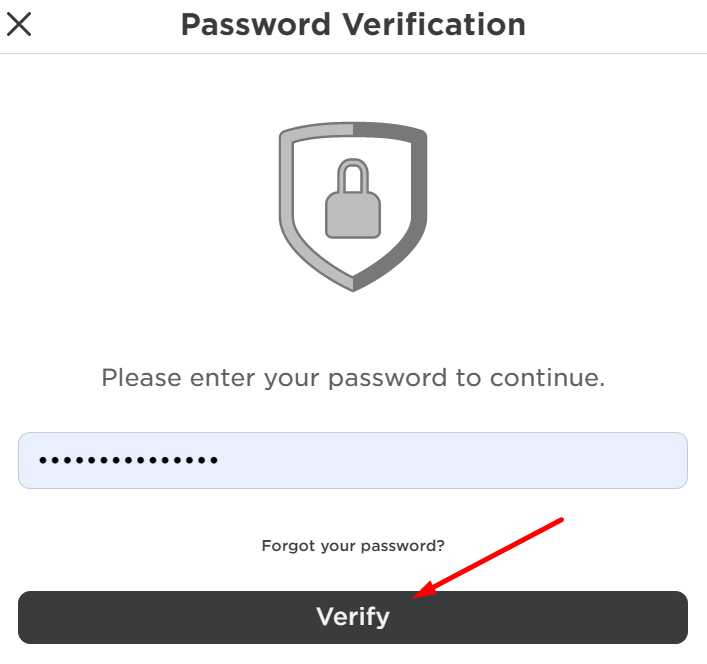
- Then enter the Roblox account password to verify.
- After that, type the verification code received on the newly entered email

- Once you do that, your new email will be verified.

- In this way, your old email will be removed from your Roblox account.
ALSO READ: –
- Roblox Asset Downloader 2023 – Download Assets Free (Working)
- How To Donate Robux To Friends On Roblox (3 Easy Methods in 2023)
- How to Delete a Roblox Group on Mobile & PC (2023)
On Mobile
- First of all, open the Roblox mobile app (Android/iOS)
- Now, login to your account by entering the details
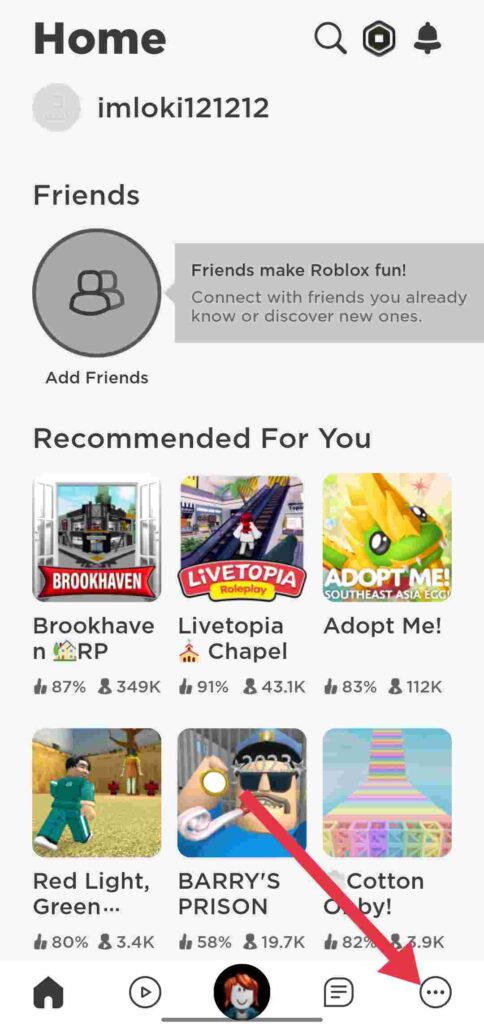
- Tap on the Menu button from the bottom bar

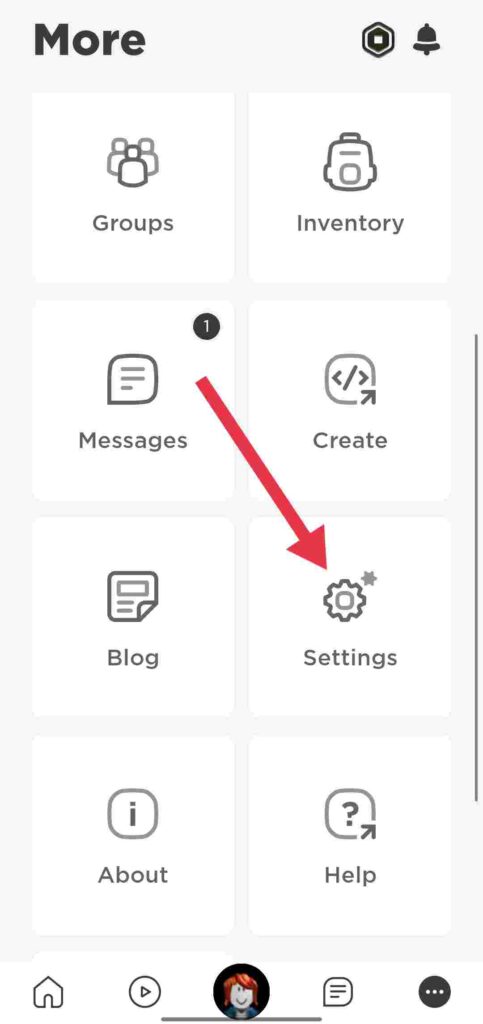
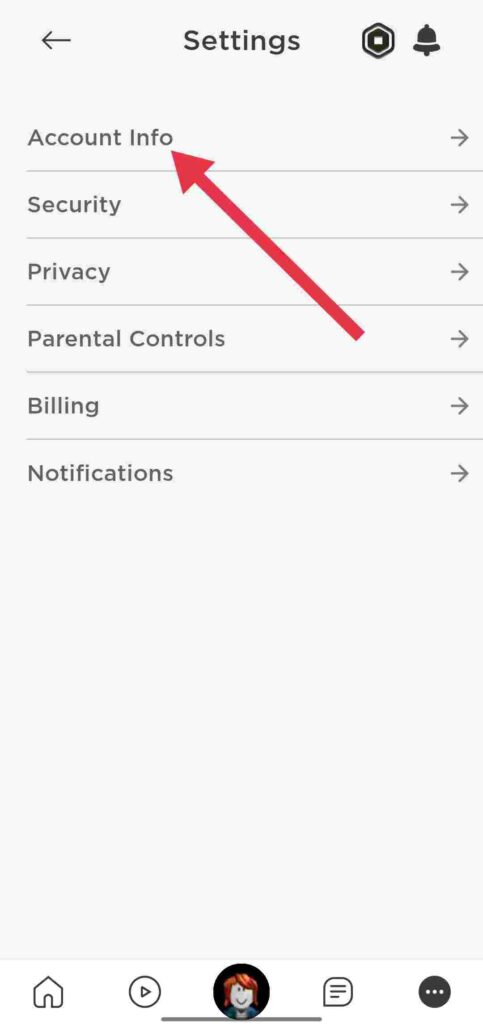
- After that scroll down and click the Settings option

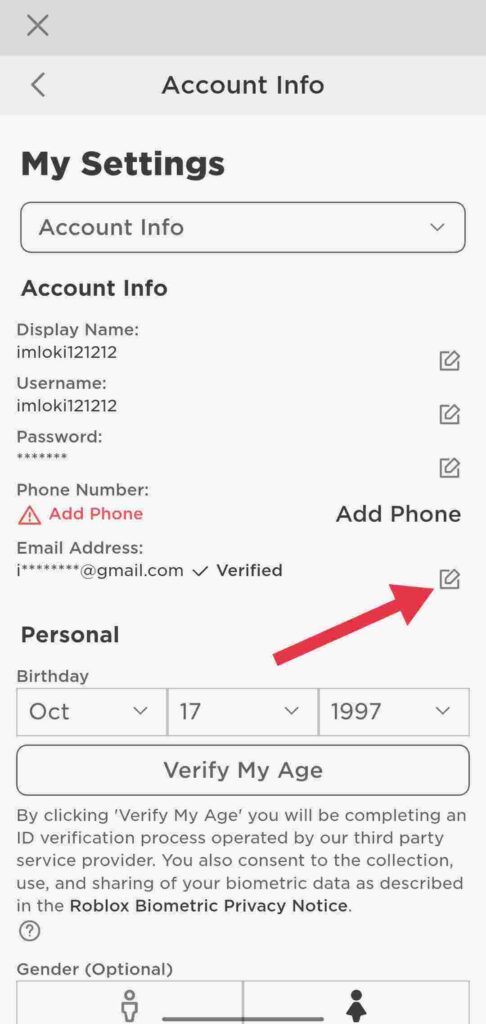
- Then tap on the Account Info option

- The next step is to click on the Edit button beside the email address.

- You will need to enter any other email account that you own there.
- Click on Change email after entering the email address.
- Enter your Roblox account password to verify.
- Once you have entered your email address, type the verification code you received on the newly entered email address
- As soon as you do that, your new email address will be verified.
- This will remove your old Roblox email address.
Regardless of the reason for removing email from your Roblox account, the step-by-step method highlighted in this article will surely help you to remove email from Roblox account.
It is worth noting that once an email has been removed from your Roblox account, you will no longer receive email notifications from the platform.
Therefore, it is highly recommended that you ensure your account has an updated email address to ensure you stay informed about any changes or updates from Roblox.