YouTube is one of those apps we all open without thinking much about it. We use it to chill during free time, listen to podcasts, learn new stuff, or just let videos play in the background. For many of us, it is part of our daily routine, so when it does not behave the way we expect, it quickly grabs our attention.
Recently, many users have noticed that YouTube videos pause by themselves while playing. The video simply stops as if the pause button was pressed. For some people, it happens once every few videos, while for others it happens more often, on Android phones, iPhones, and even on desktop setups.
Here, I am sharing how I managed to fix this issue on my own, along with a few other fixes that are worth trying.
9 Quick Fixes for YouTube Keeps Pausing Issue on Android, iOS & PC
Update the YouTube App
If you are watching YouTube on your phone, this is the first thing you should check. Open your app store and see if an update is available for YouTube. A lot of people noticed this pausing issue in older versions, and later updates quietly fixed it. If you have not updated the app in a while, doing it now can save you a lot of frustration.
Check your Headphones
If you are using earphones or Bluetooth headphones, this is worth looking into. If your wireless earphones have faults or connection issues, they can disconnect for a split second and cause YouTube to pause. This can also happen if wireless headphones are low on charge.
So, try playing a video without any headphones connected and see what happens. If the video keeps playing without stopping, then your headphones are likely the reason.
Check Background Apps
If too many apps are open in the background, YouTube may stop playing on its own. I noticed this on my iPhone as well. When a video is playing, and I open Facebook or some other apps, YouTube pauses right away. The same thing can happen on Android phones, too.
The background running apps use device memory and data, and that can interrupt video playback. So, try closing apps you are not using and then play the video again.
Turn off the Take a Break Reminder
YouTube has a feature that pauses videos on purpose after you watch for a long time. It is meant to remind you to stop watching for a while. When this option is enabled, the video will pause and wait until you tap to continue.
This setting is turned off by default, but it can be switched on without you realizing it. You may have enabled it earlier, or someone else who used your phone could have done it. Once this option is active, YouTube pauses the video after a set time and waits for you to tap continue.
To check this, open YouTube settings > Time Management, and there, make sure that the Remind me to take a break option is toggled off. You will also see time options like 30 minutes, 45 minutes, every hour, or a custom timer. When this stays on, videos will pause automatically after that time limit.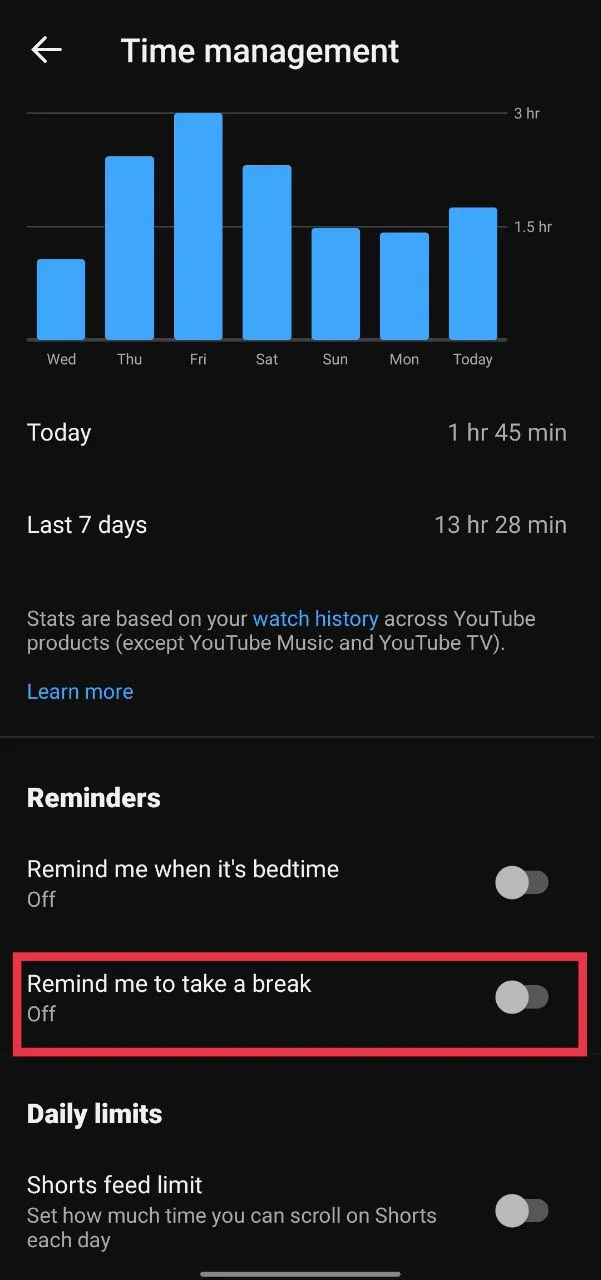
Slow Internet
If your internet connection is slow or the connection keeps dropping, YouTube may pause the video while trying to load more data. This can happen on phones, tablets, or even smart TVs. As higher video quality needs more data, pauses are more likely when the connection cannot keep up.
This often happens if many devices are connected to the same Wi Fi or if downloads are running at the same time. Try using a stronger connection or lowering the video quality and see if the pauses stop while watching.
Check Browser Extensions
If you are someone who watches YouTube on a PC browser, Windows or Mac does not matter, this is worth checking. Browser extensions like Ad blockers or similar tools are usually the main reason behind this. So, try turning off your browser extensions one at a time and then play a video.
Clear Cache and Cookies
If you watch YouTube in a browser, you can clear cache and cookies from the browser settings. On Android, go to device Settings > Apps > YouTube > Force stop > Storage usage > Clear cache.
On iPhone, there is no direct cache option. What works instead is opening Settings > General > iPhone Storage > YouTube > Offload App, and then reinstalling it. 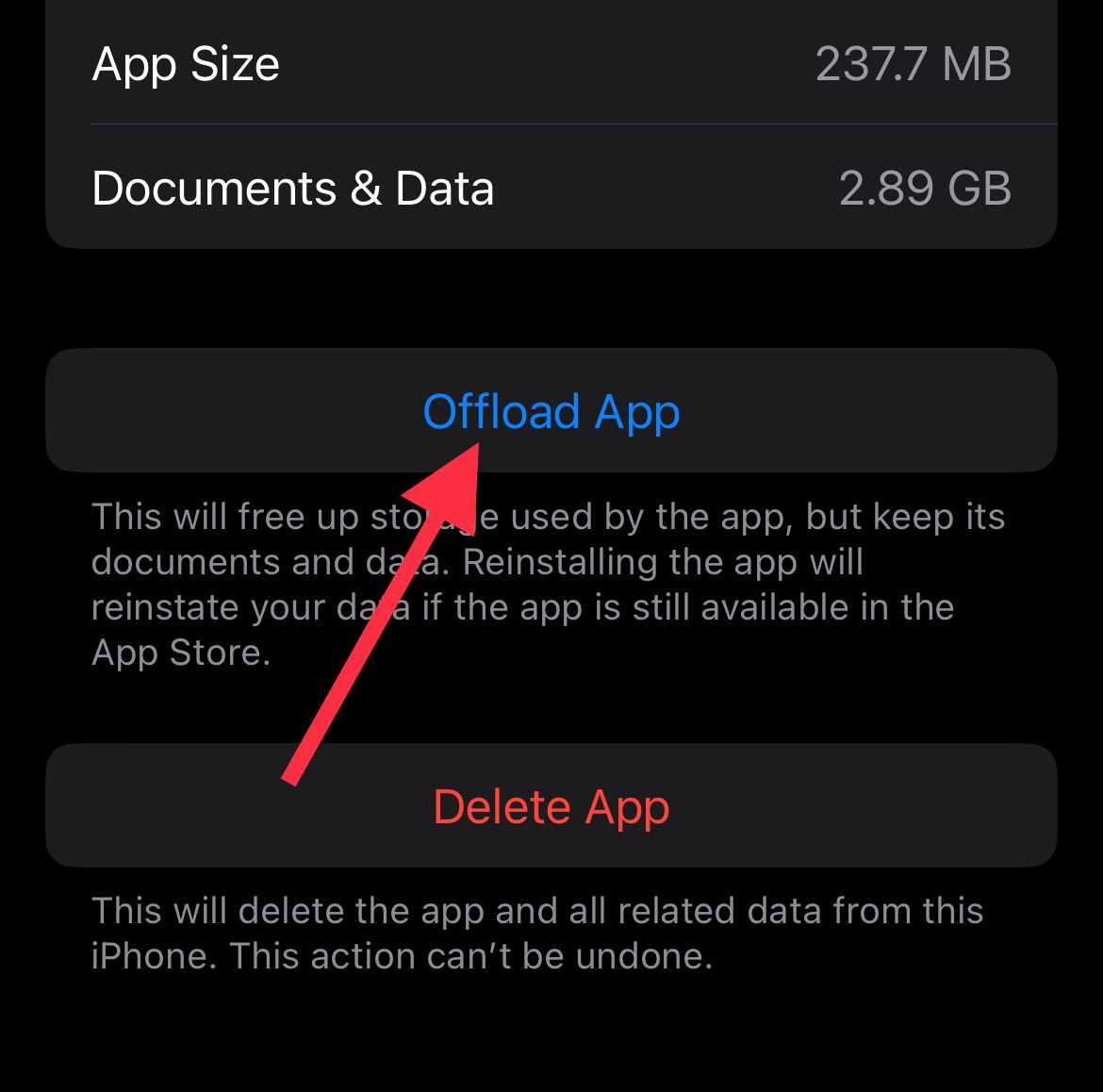
Turn off Battery Saver or YouTube Data Saver
Battery saver can also be the reason YouTube pauses on its own. When this mode is active, the phone limits how apps work to save power, and that can stop videos while they are playing. To turn off battery saver, navigate to your device settings > Battery, and turn off battery saver or power saving mode while watching YouTube.
Also, the data saver option on YouTube can cause the same trouble by limiting how much data YouTube can use. To check this, open YouTube settings > Quality, and set both mobile network and Wi Fi video quality to Auto.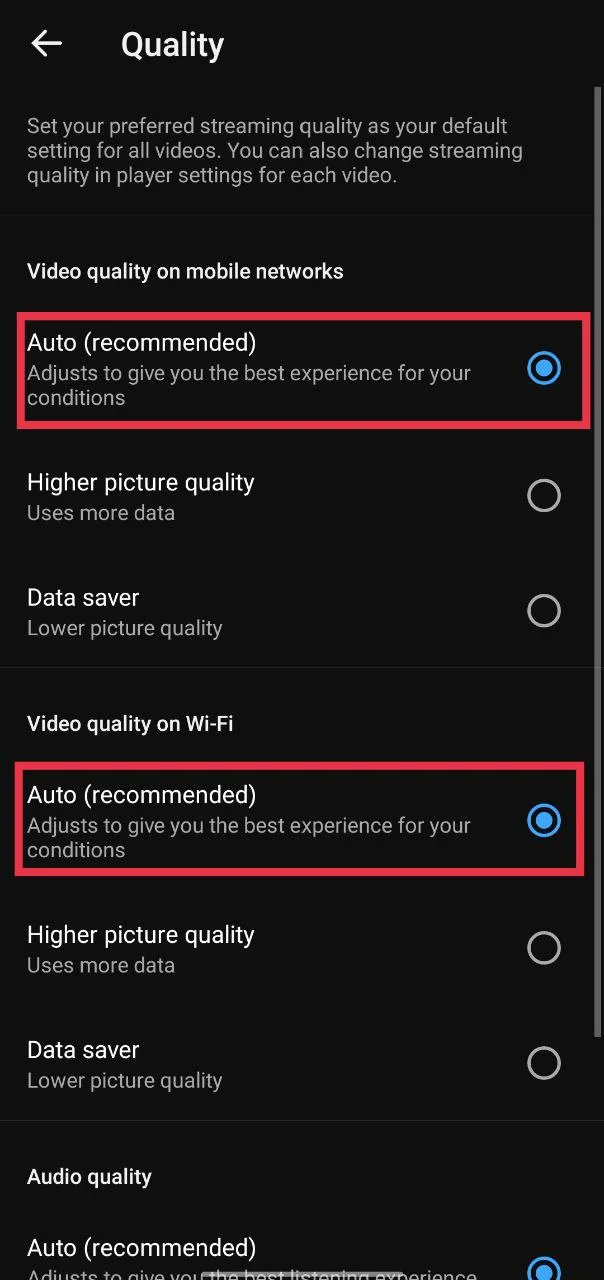
Also, if the YouTube settings section has a separate Data saving mode option, turn it off too. This option is showing on many Android devices.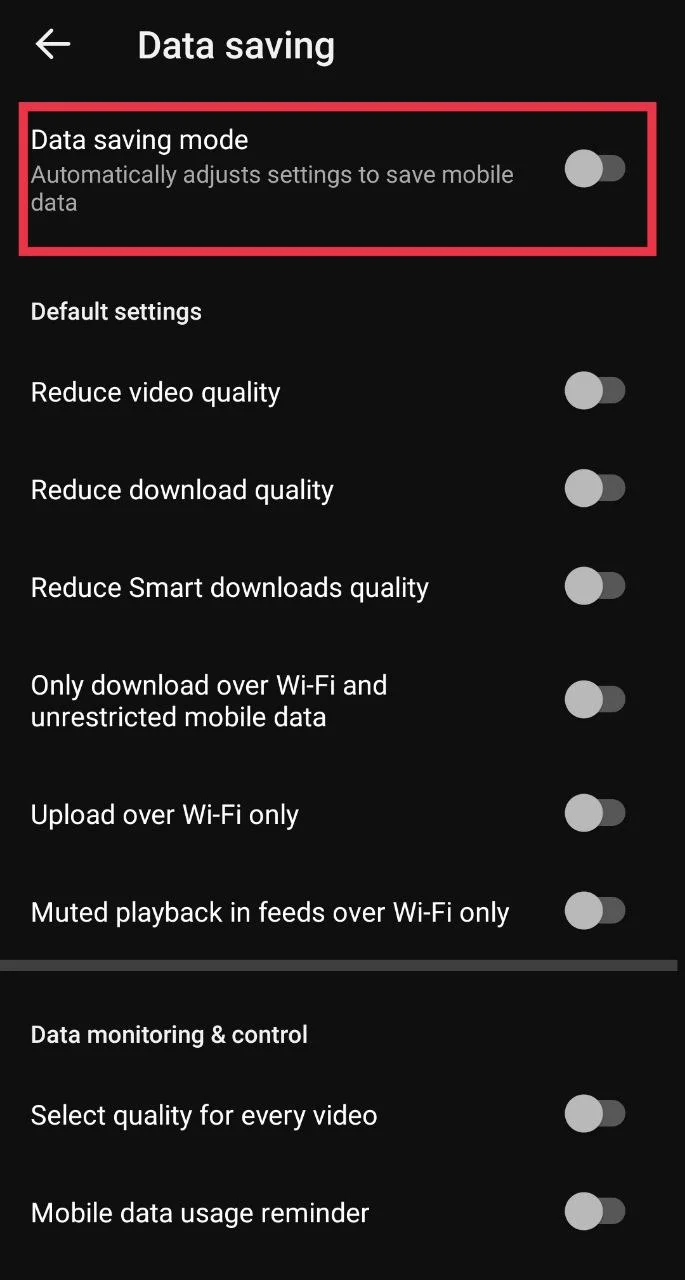
Check Device Storage
Your device needs free space to keep apps working without any issues. So, quickly check your phone storage and clear out files you do not use anymore. You can also delete your old photos, videos, or unused apps, or move them to cloud storage or an SD card.