Clipchamp is Microsoft’s video editor that comes with Windows 11. A lot of people use it to make quick videos because the tools are simple and the layout is easy to understand. To use all the features though, you need to sign in with your Microsoft account.
For most people, signing in only takes a moment. You type your account details, and the editor opens right away. But for a few users, the sign-in page keeps coming back again and again. You enter your details, then the app sends you back to the same page.
Because of this bug, Clipchamp never lets you move past the login screen. You try to sign in, yet the page reloads and asks for the same details again. Because of that, you cannot open your projects or use the editing tools.
If the Clipchamp login page keeps looping, the tips listed below can help you solve.
Quick Checks You Should Try First
These quick checks can save you a lot of time. It is always a good idea to try them before moving on to other fixes.
- First of all, check your internet connection
- Update Clipchamp and Windows
- Restart your computer
How to Fix Clipchamp Keeps Looping on Login
Check Your User Account
First, you need to check the account you are using on your Windows PC. The account signed into Windows should match the one you are trying to use in Clipchamp. If these two accounts are different, Clipchamp may keep sending you back to the login page again and again.
Microsoft also made a change in late 2025. Personal Clipchamp profiles now need to be connected to a Microsoft account. If your Clipchamp profile is linked to a different account than the one active on your computer, the sign-in process may keep repeating.
Another point to check is the type of account you are using. A school or work account can have limited permissions, which may not let you enter the Clipchamp editor.
So here is what I suggest. Open your Windows account settings and check which account is currently signed in. If it does not match your Clipchamp account, sign out of Windows and sign back in using the same Microsoft account you plan to use with Clipchamp. You can also switch accounts inside Clipchamp if needed.
Check the Microsoft Sign In Assistant
Here is another thing I recommend checking. Windows 11 connects many apps and features to your Microsoft account. Because of that, the Microsoft Sign In Assistant service plays an important role in the login process. If this service is not active, apps like Clipchamp may keep sending you back to the sign in screen.
You can quickly check this from the Windows Services panel.
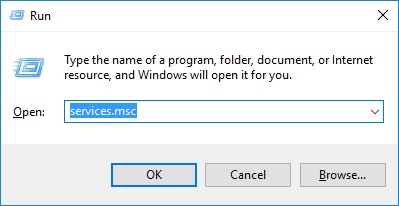
- Press Win + R on your keyboard to open the Run box.
- Now, type services.msc and press Enter.

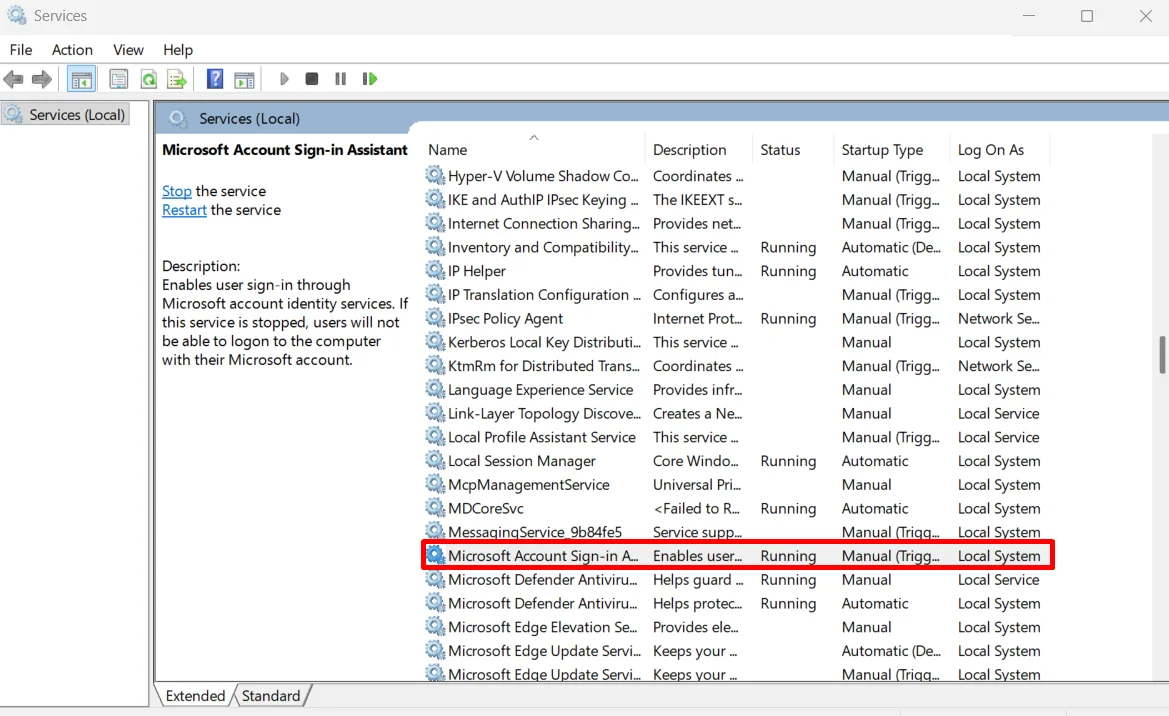
- In the services window, scroll down and double-click on Microsoft Sign In Assistant

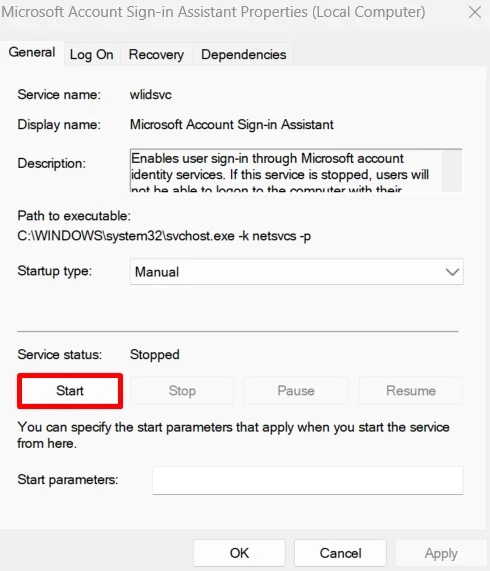
- Under the service status, if it is not running, click Start.
- If it is already active, click Stop, wait a moment, then click Start again.

- After that, close the window. Now try signing in to Clipchamp and see if the login page lets you continue.
Repair and Reset the Clipchamp App
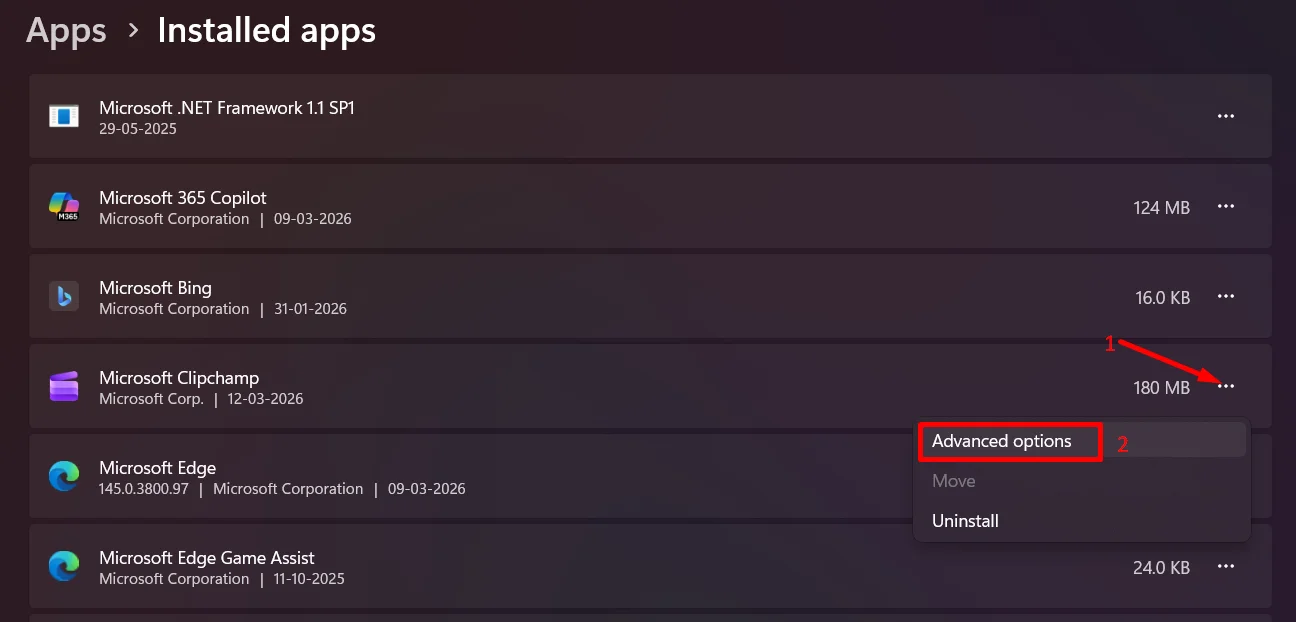
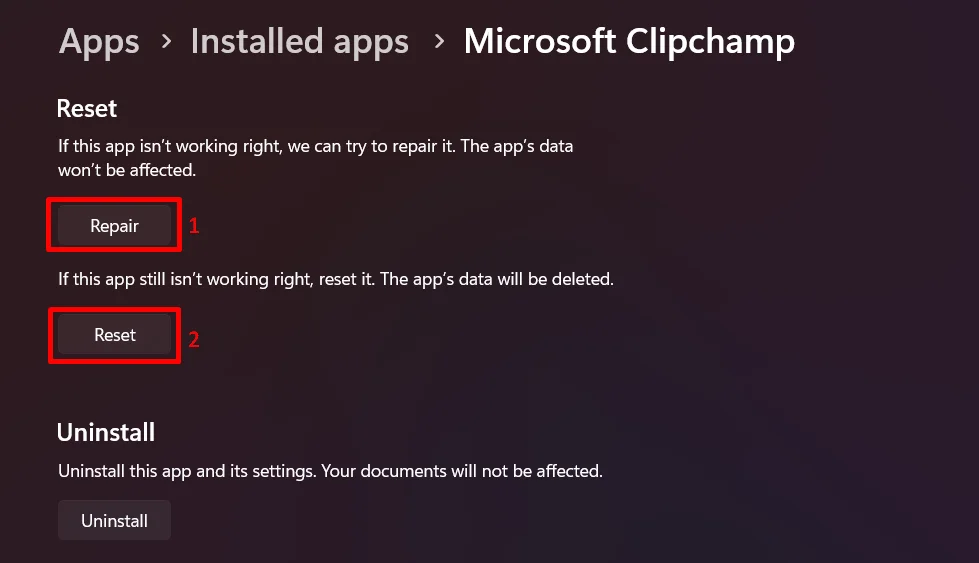
If the login screen still keeps coming back, the Clipchamp app itself may have damaged files. Windows has a built-in option that can fix the app without removing it from your computer. I suggest trying the Repair option first, and if that does not help, use Reset.
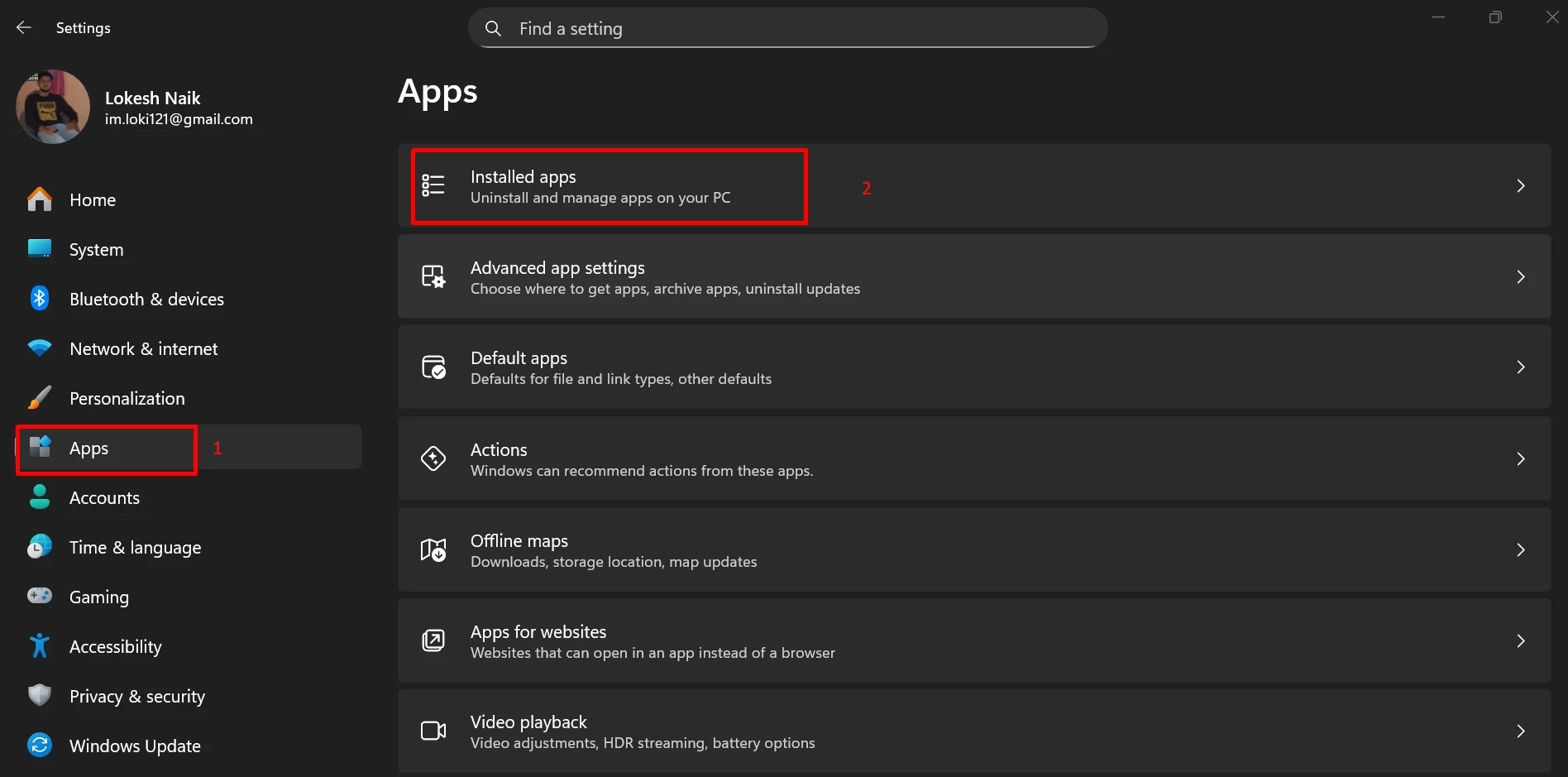
- Open Windows settings, then select Apps.
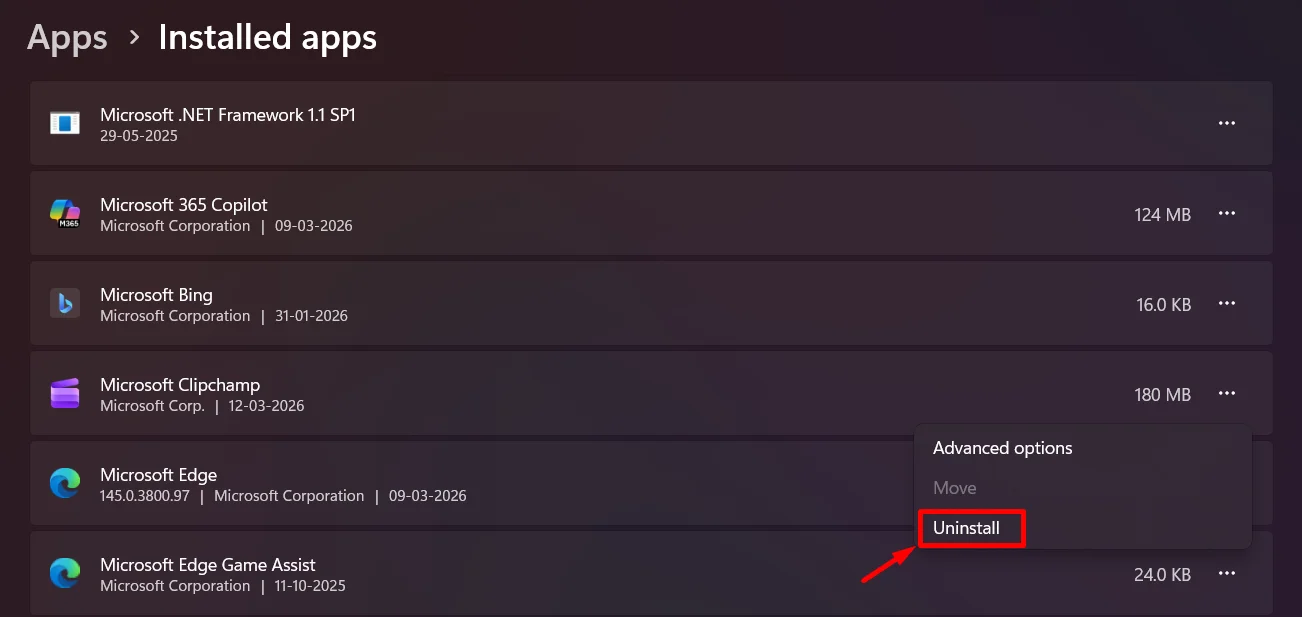
- Navigate to Installed Apps and locate Clipchamp in the list.

- Click the three dots next to Clipchamp and choose Advanced options.

- Scroll down and click Repair. If the login loop still appears, use Reset.

Reinstall Clipchamp
If the earlier fixes did not help, the next step is to remove the app and install it again.
- Open Settings and go to Apps, then select Installed apps.
- Click the three dots next to the Clipchamp, and choose Uninstall.

- After the app is removed, open the Microsoft Store.
- Search for “Clipchamp” and install it again.
- Once the installation finishes, open the app and try signing in with your account.