Roblox is the kind of platform where you can jump into thousands of different games within seconds. As more players join the platform each year and competition in the gaming world keeps growing, Roblox has been paying closer attention to security and account protection. That is one reason some players are now running into the “Virtual Machine detected” message when launching the game.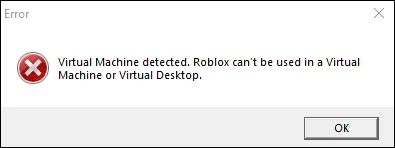
What makes this error surprising is that it often appears on computers that have never been used for advanced technical work. In fact, quite a few Roblox users first heard the term “virtual machine” only after seeing this warning. A virtual machine is basically a way to run another operating system inside your existing computer setup. While it has legitimate uses, most everyday Roblox players never actively install one.
So, if Roblox suddenly shows the “Virtual Machine Detected” error and closes immediately, a program on your computer may be using virtualization features in the background, or a recent system change may have triggered the warning. There is also a chance that Roblox incorrectly identified a feature or application as a virtual machine. Whatever the reason, this error is usually easier to understand than it first appears, and the fixes are fairly straightforward once you know where to look.
6 Easy Fix Virtual Machine Detected Error in Roblox
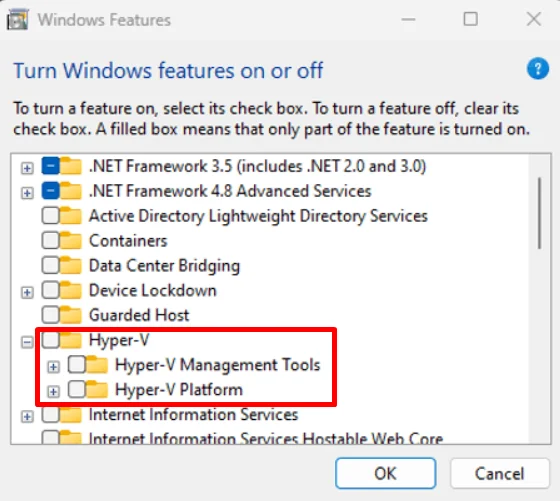
Turn Off Hyper V
A common reason behind this error is Hyper V, a Windows feature designed for creating and managing virtual machines. Even if you have never used a virtual machine, Hyper V can still be enabled on your system and may cause Roblox to detect virtualization features.
- Type Turn Windows features on or off in the Windows search bar and open it. (If you cannot find it, open Control Panel > Programs > Programs and Features > Turn Windows features on or off.)
- Scroll down to Hyper V and remove the check mark next to it. If the category is expanded, clear all related Hyper V options as well.

- Click OK and allow Windows to apply the changes.
- Restart your computer once the process is complete.
Disable Hyper V Using Command Prompt
If the Hyper V option is not available in Windows Features, or the previous method did not work, you can try disabling it through Command Prompt.
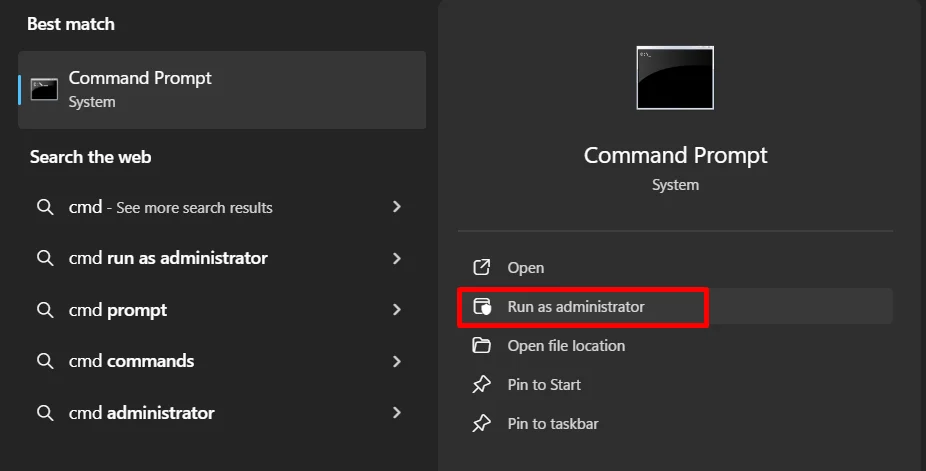
- Type Command Prompt in the Windows search bar.
- Right-click Command Prompt and select Run as administrator.

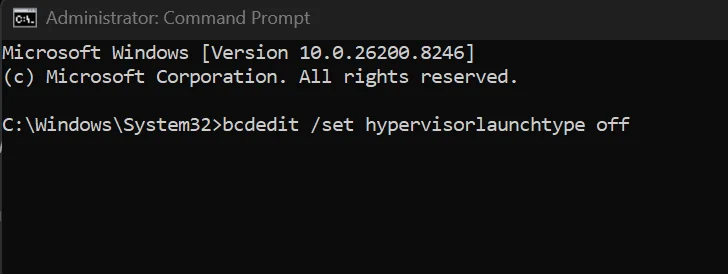
- Enter the command bcdedit /set hypervisorlaunchtype off and press Enter

- Restart your computer.
- If Roblox still shows the same error, you can restore the default Hyper V setting by opening Command Prompt as administrator again and running the command: bcdedit /set hypervisorlaunchtype auto
- Restart your PC once more after running the command.
Disable Windows Virtualization Features
A few Roblox users reported that the error disappeared only after turning off multiple Windows virtualization features. In their case, Roblox started working only after disabling a few Windows virtualization components that were still active in the background.
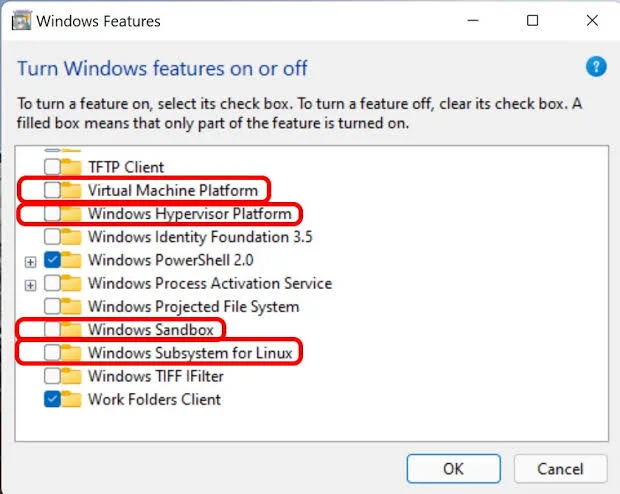
- Press Windows + R, type optionalfeatures, and hit Enter.
- When the Windows Features window opens, remove the checkmark next to the Hyper V, Virtual Machine Platform, Windows Hypervisor Platform, Windows Sandbox

- Click OK to save the changes.
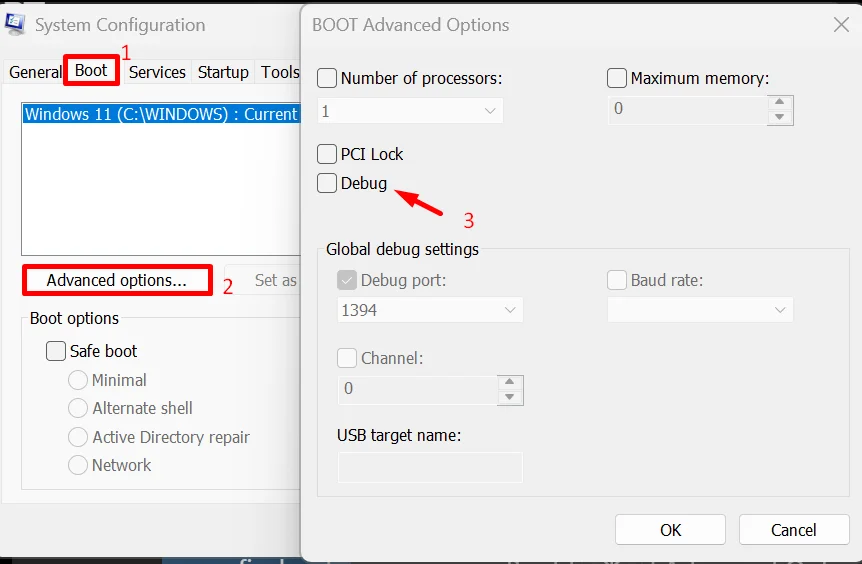
- After that, press Windows + R, type msconfig, and press Enter.
- Open the Boot tab and select Advanced options.
- Check if Debug is enabled. If it is, untick it and click OK.

- Restart your computer.
Disable Memory Integrity
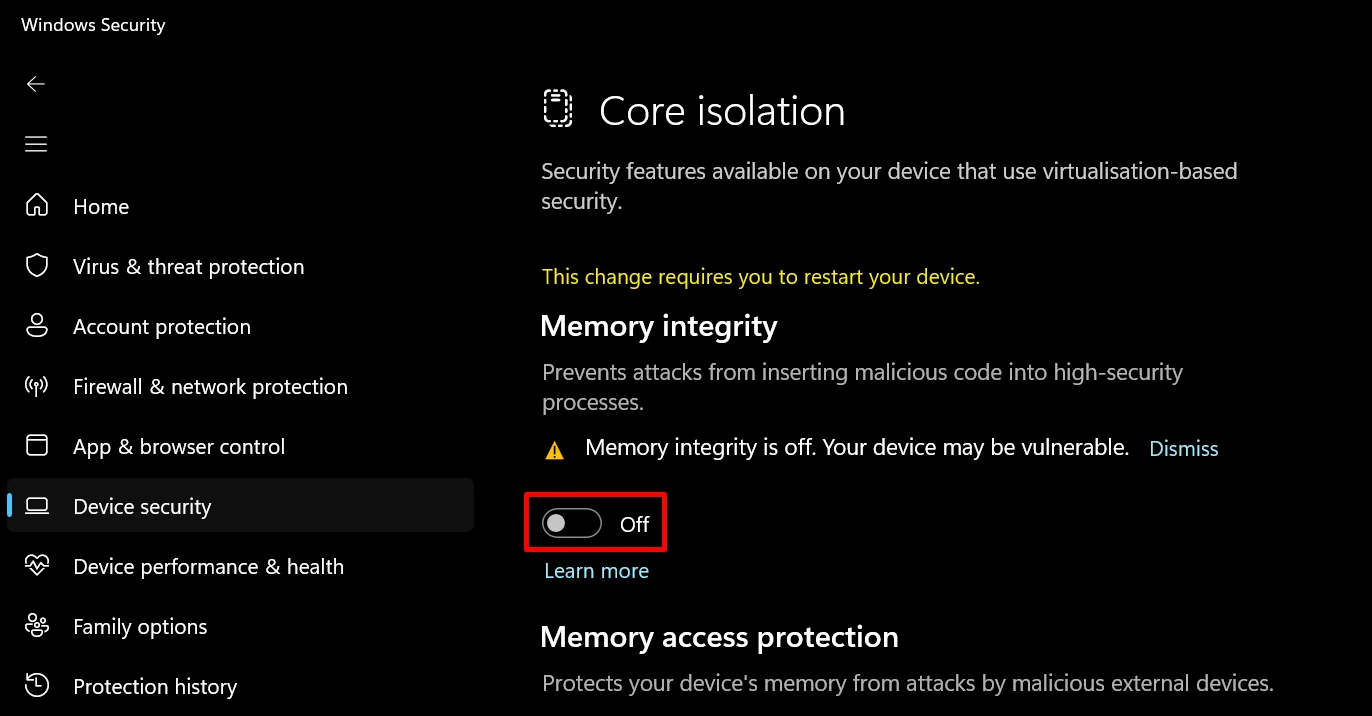
If turning off Hyper V did not help, the next setting worth checking is Memory Integrity. This security feature is part of Windows Core Isolation and is designed to add an extra layer of protection to your system. However, some Roblox players have reported that disabling it removed the Virtual Machine Detected error and allowed the game to launch.
- Type Core Isolation into the Windows search bar and open Core Isolation settings. (You can also go to Windows Security > Device Security > Core Isolation Details.)
- Now, turn off Memory Integrity.

- Once you make the change, restart your computer so Windows can fully apply the new setting.
Close Virtual Machine Processes Running in the Background
Even after uninstalling virtualization software, a few related processes can continue running in the background. Roblox may detect these processes and assume a virtual machine is active, which can trigger the error message.
- Press Ctrl + Shift + Esc to open Task Manager.
- Stay on the Processes tab and look for anything related to virtualization software, such as VMware, VirtualBox, Hyper V, or other virtual machine tools you may have installed before.
- If you find a related process, right-click it and select End Task.
If you removed a virtual machine program in the past, it is also worth checking if any leftover files are still stored on your computer. Open the installation folder of the software, delete any remaining files you find, and then restart your PC.
Clear Roblox Cache Files
- Press Windows + R on your Windows machine
- Type %temp%\Roblox in the Run dialog box and press Enter. This will take you directly to Roblox’s temporary files folder.
- Press Ctrl + A to select everything inside the folder.
- Right-click the selected files and choose the Delete button.
Disable Virtualization in BIOS
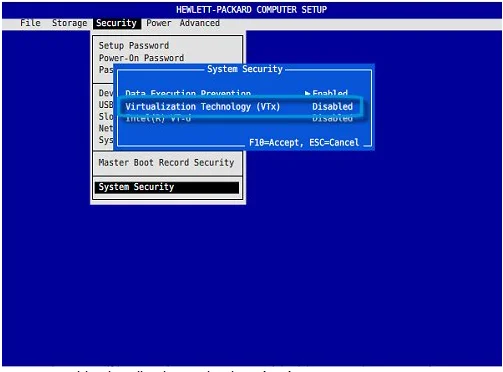
Most modern computers include a virtualization feature that is enabled by default. Roblox can occasionally detect this feature and display the Virtual Machine Detected error, even when no virtual machine software is installed. To turn this off:
- Restart your computer and enter the BIOS or UEFI settings. (This is usually done by pressing F2, Delete, F10, or Esc during startup. The exact key depends on your PC manufacturer.)
- Once inside BIOS, browse through the available menus and look for options such as Intel Virtualization Technology, VT x, VT d, AMD V, or SVM Mode.
- Change the setting to Disabled.

- Save the changes and exit the BIOS.
- Your computer will restart automatically.
Note: Disabling virtualization can affect software that relies on it, including virtual machine programs, Android emulators, Windows Sandbox, and some developer tools. If you use any of these applications, you can turn virtualization back on later through BIOS.
That wraps up this guide. If Roblox is working again, I’d love to know which method did the trick for you. And if you came across a different fix that solved the Roblox “Virtual Machine detected” error, drop it in the comments. Your suggestion could save someone else a lot of time searching for an answer.