Roblox is an amazing platform where you can create and play a ton of games with friends. It’s super popular, especially among kids, but like any online game, it can sometimes throw up errors. One of the frustrating ones is the Roblox Error 304, which says “Roblox has detected missing or corrupted files. Please uninstall and reinstall Roblox from an official app store.” If you’re seeing this, don’t worry – it’s pretty common and usually easy to fix.
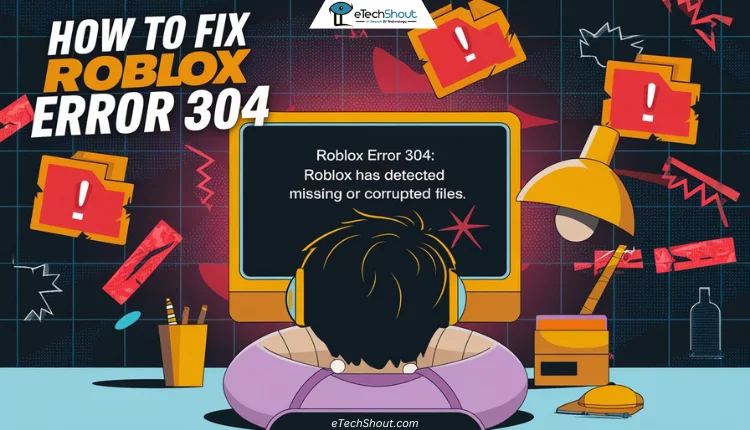
What Does Roblox Error 304 Mean
This error usually pops up when you’re trying to launch Roblox on your phone or tablet. It means something’s gone wrong with the files that Roblox needs to run properly.
So, why does this error happen? Well, here are a few reasons:
- Hacking or Unauthorized Mods: If you’ve tried using hacking tools or unauthorized mods, this could be the culprit. Roblox doesn’t like it when you mess with its files, and it will block you if it detects anything suspicious.
- Virus Infection: Sometimes, a virus on your device can cause problems with apps like Roblox. It’s a good idea to scan your device for viruses if you’re seeing this error.
- Corrupted Cache Files: Cache files are like temporary storage that apps use to remember things. If these files get corrupted, it can cause errors like this one.
- Software Conflicts: If you’ve recently installed or uninstalled other apps, they might be interfering with Roblox.
- Server Issues: Occasionally, there might be problems on Roblox’s end, but this is less common.
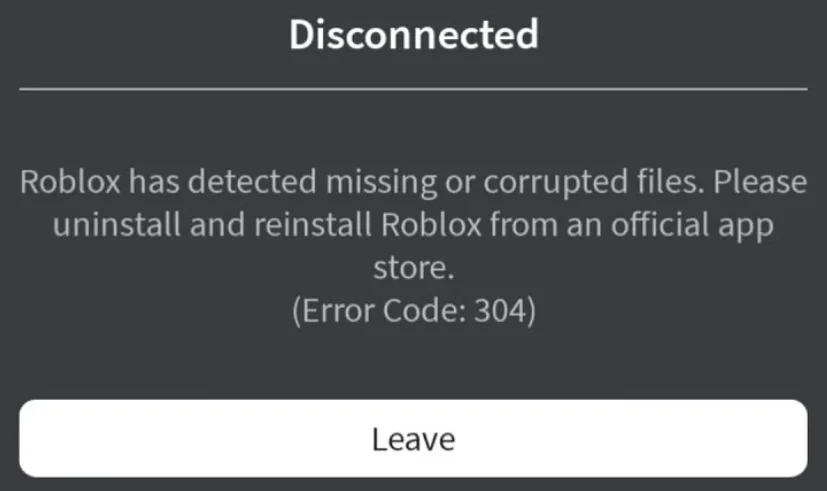
How to Fix Roblox Error 304: Roblox Has Detected Missing Or Corrupted Files
Uninstall and Reinstall Roblox
This is usually the quickest fix:
- Press and hold the Roblox app icon. On Android, tap Uninstall, and on iOS, tap Remove App > Delete App to uninstall it completely
- Now, go to the app store (Google Play Store for Android or Apple App Store for iOS) and reinstall the Roblox app again.
- Log back into your account and see if that resolved the error.
Clear App Cache (Android)
If you’re using an Android device, try clearing the cache:
- Go to your device’s Settings > Apps > Roblox.
- Tap on “Storage.”
- Choose “Clear Cache.”

- Now, re-open the Roblox app again and see if the error is gone.

Since iOS doesn’t have a direct “Clear Cache” option, the only way to delete the cache is by uninstalling and reinstalling the Roblox app.
Hard Reset Your Device
If nothing else works, you might need to do a hard reset.
This may not be the best option since many people have important files on their devices, and it takes time. But if there’s no other way, this is your only choice. So, back up all your important data like photos and contacts, then do a factory reset. After that, reinstall Roblox from the app store.
Once you have a backup of all your important stuff (photos, contacts, etc.), follow the below steps:
- Go to Settings > System > Reset options > Erase all data (factory reset) on Android or Settings > General > Transfer or Reset iPhone > Erase All Content and Settings on iOS.
- After the reset, reinstall Roblox from the app store.
Remember, if you keep using unauthorized mods or hacks, you’ll probably keep seeing the Roblox error 304. You should only play Roblox the official way, and you should be good to go!
RELATED: