There was a time when Instagram was mostly about posting photos and scrolling through what friends were up to. These days, it feels like a lot more than that. People use it to share updates, follow creators, promote their work, and stay connected throughout the day. It has become a regular habit for adults just as much as for younger users.
One feature that really changed how people use Instagram is Stories. Since their arrival in 2016, Stories have slowly become the first thing many users check when they open the app. Sharing a quick update, posting a link, adding music, or running a poll can all be done in seconds, which is probably why Stories now play such a big role on the platform.
Over the past few days, I kept noticing reports from users saying their Stories would refuse to upload whenever a link sticker was added. The Instagram story would sit there showing “Waiting for connection” while other story uploads worked normally.
I ended up dealing with the same problem myself, so I spent some time digging into it and trying different fixes. After seeing how often this issue was being discussed, I decided it was worth putting together the solutions that actually helped. If your Story has been stuck for no clear reason, the fixes below are worth checking out.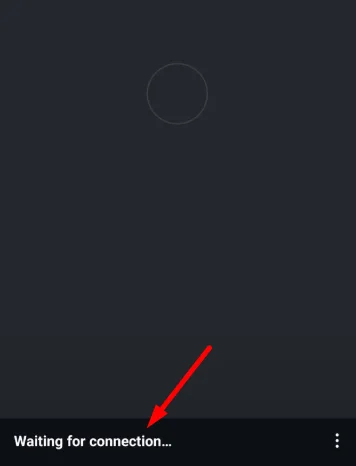
11 Quick & Easy Methods to Fix Instagram Story “Waiting for Connection” Error
Upload the Story Without Music First
One detail stood out while reviewing reports from users dealing with this issue. The upload itself was not failing because of the photo or video. In a lot of cases, the problem appeared only after music was added to the Story.
Users were able to post the same content without any difficulty until a song was attached. A few even tested the Story on different devices and saw the exact same result. The upload remained stuck on the “Waiting for connection” screen, but went through almost immediately once the music sticker was removed.
That makes the music feature one of the first things worth checking. Try uploading the Story without the song and see what happens. If it posts successfully, Instagram’s music integration is likely behind the issue, rather than your device or network.
Since music licensing and Instagram’s media services rely on separate systems, temporary issues can affect Stories that contain songs while leaving regular photo and video uploads unaffected.
Try Posting the Story Without a GIF Sticker
Music is not the only element that can interfere with Story uploads. For some users, GIF stickers appear to trigger the same error.
Since GIFs are pulled from external libraries and integrated into Instagram in real time, problems with those services can occasionally affect Story uploads.
You can try this solution by removing any GIF stickers from the Story and uploading it again.
Switch to a WiFi Connection
A few users found that Instagram Stories uploaded successfully only when connected to WiFi. The same Story would remain stuck on the “Waiting for connection” screen while using mobile data, even with a strong cellular signal.
If you’re currently using mobile data, connect to a WiFi network and try posting the Story again. You can also test with a mobile hotspot if a regular WiFi connection is not available.
Duplicate the Photo or Video Before Uploading
This is one fix that worked for me on iPhone. Instead of uploading the original file, I created a duplicate copy of the photo or video and used that version in the Story. After doing that, the upload went through successfully.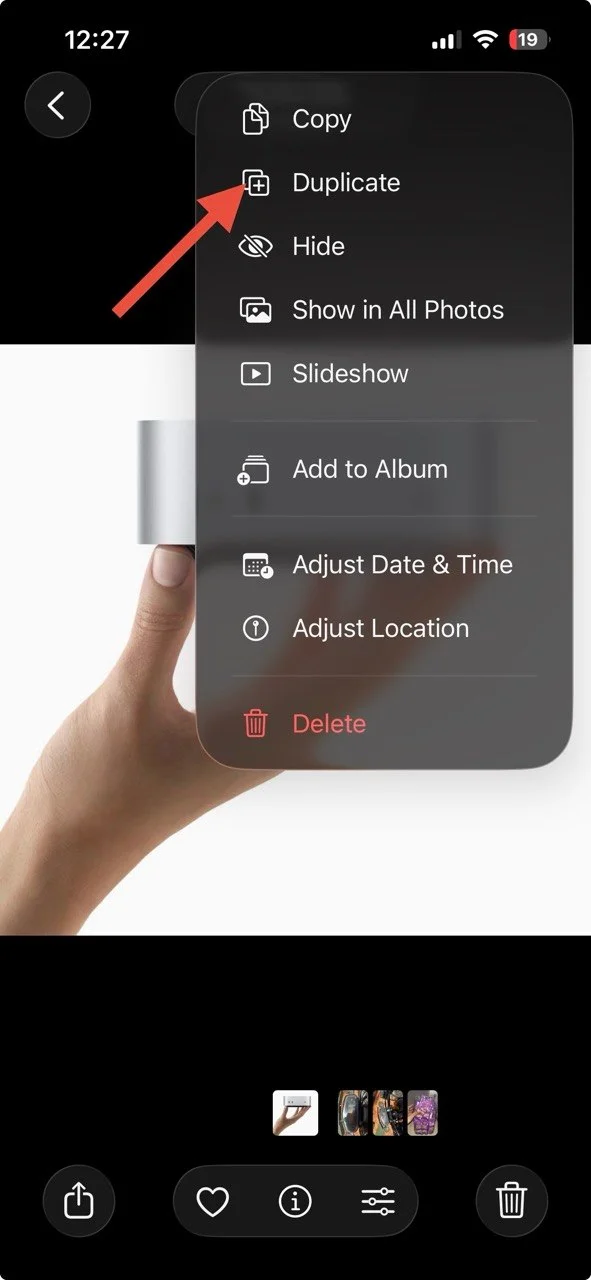
Even if you’re using Android, you can create a copy of the photo or video, then upload the duplicated file instead of the original one. In some cases, Instagram may have trouble processing a specific file, while a newly created copy uploads without any issue.
If duplicating the file does not make a difference, try the solution below.
Re-export the File Using an Editor
Another workaround that has helped users is re-exporting the photo or video through an editing app before uploading it to Instagram. For example, one user was able to post their Story after importing the video into CapCut and exporting it again.
You do not have to use CapCut specifically. Any video editor or image editor that you currently have on your phone should work. Simply open the file in your preferred editing app, make a small change if needed, and save or export it as a new file. Once the export is complete, try uploading the newly created file to your Story.
Update Instagram
A pending Instagram update could be the reason for this upload error. So it’s worth checking for updates before moving on.
- Android: Open the Google Play Store > Tap your profile icon > Select Manage apps & device > Tap Updates available > If Instagram appears in the list, tap “Update.”
- iPhone: Open the App Store > Tap your profile icon > Scroll down to the available updates section > Find Instagram > Tap “Update.”
Log Out of Instagram and Log Back In
If the problem is tied to your current Instagram session, this way works
- Android and iPhone: Open Instagram > Tap your profile picture > Tap the menu icon in the top right corner > Scroll down and tap Log out > Confirm.


Once you have logged out, sign back in using your account credentials.
Clear Instagram’s Cache Data
If Instagram has been holding onto outdated or damaged temporary files, Story uploads may fail. Clearing the app’s cache removes those temporary files and forces Instagram to create new ones the next time you use the app.
- Android: Open Device Settings > Apps > Instagram > Storage > Clear Cache.

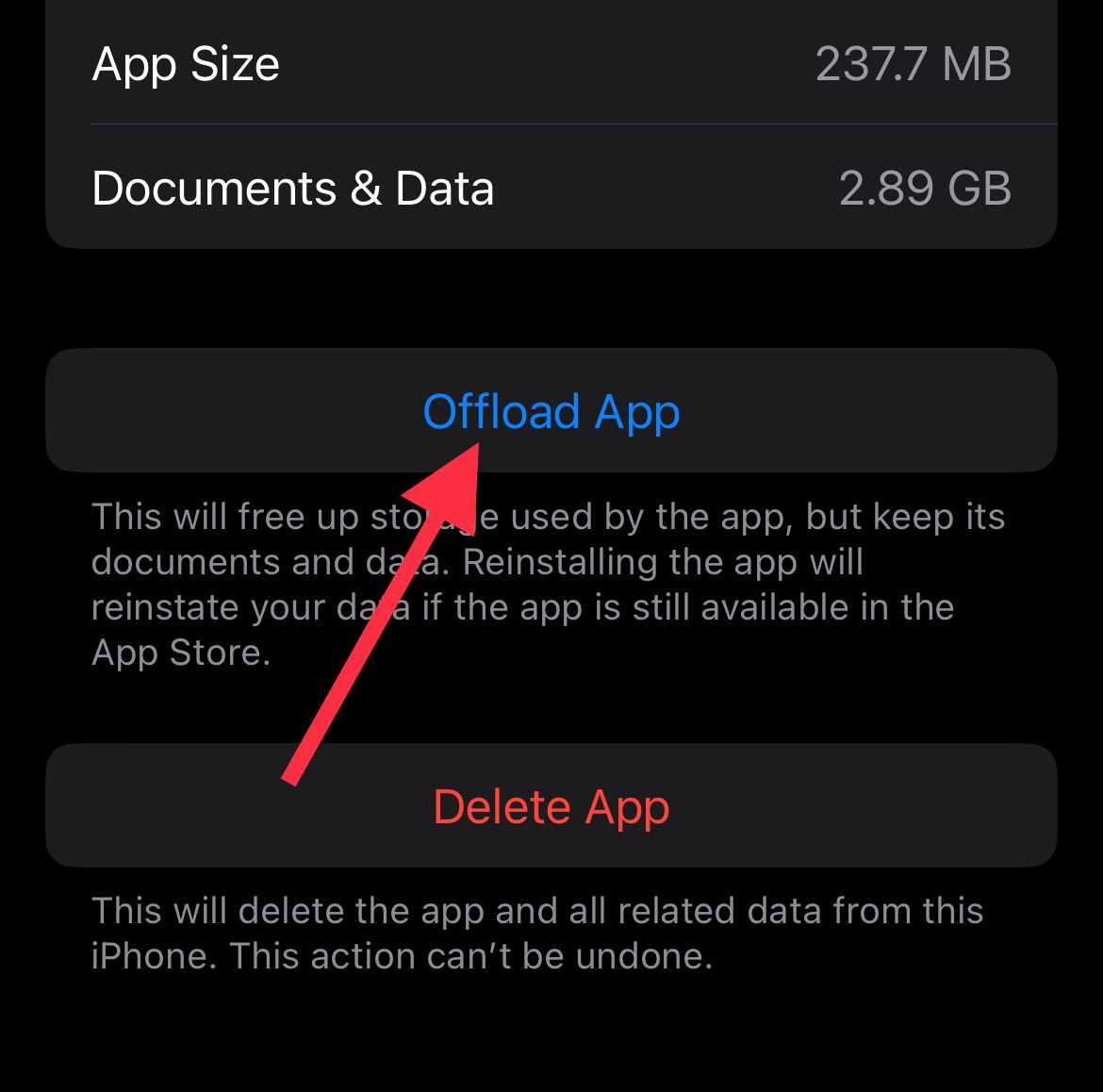
- iPhone: iOS does not include a dedicated cache clearing option for Instagram. Instead, go to Settings > General > iPhone Storage > Instagram > Offload App.


Switch Between the Beta and Stable Version
If the issue started after a recent Instagram update, the version you’re using could be part of the problem. Some bugs appear only in beta releases, while others affect the stable version.
- Android: Open the Google Play Store > Search for Instagram > Scroll down to the Beta Program section. Tap Join to install beta releases or Leave to return to the stable version. Once the change is processed, update the app and test your Story upload again.
Since Instagram’s beta program is only available on Android, iPhone users can skip this step and continue with the next fix.
Reinstall the Instagram App
- Android: Press and hold the Instagram icon > Tap Uninstall > Open the Google Play Store > Search for Instagram > Tap Install.
- iPhone: Press and hold the Instagram icon > Tap Remove App > Choose Delete App > Open the App Store > Search for Instagram > Tap Get to install it again.
Report the Problem to Instagram
At some point, troubleshooting stops being useful if the problem isn’t coming from your device at all. When multiple users run into the same Story upload bug, the fix often has to come directly from Instagram.
- Android and iPhone: Keep Instagram open > Shake your phone > Tap Report a Problem > Explain that your Story is stuck on “Waiting for connection” alongside the screenshot and submit the report.