If you create games on Roblox, chances are you spend a lot of time inside Roblox Studio. It is the place where ideas turn into actual games. You open it to build maps, write scripts, test features, and work on projects that may have taken days, weeks, or even months to create. That is why it can be a real headache when Studio suddenly refuses to open.
Recently, I noticed more and more users asking the same question. Roblox Studio shows the loading screen, sits there for a moment, and then vanishes. In other cases, a blank window appears but closes as soon as it is clicked. There is usually no warning and no clear clue about what went wrong. You try opening it again, hoping for a different result, but the exact same thing happens.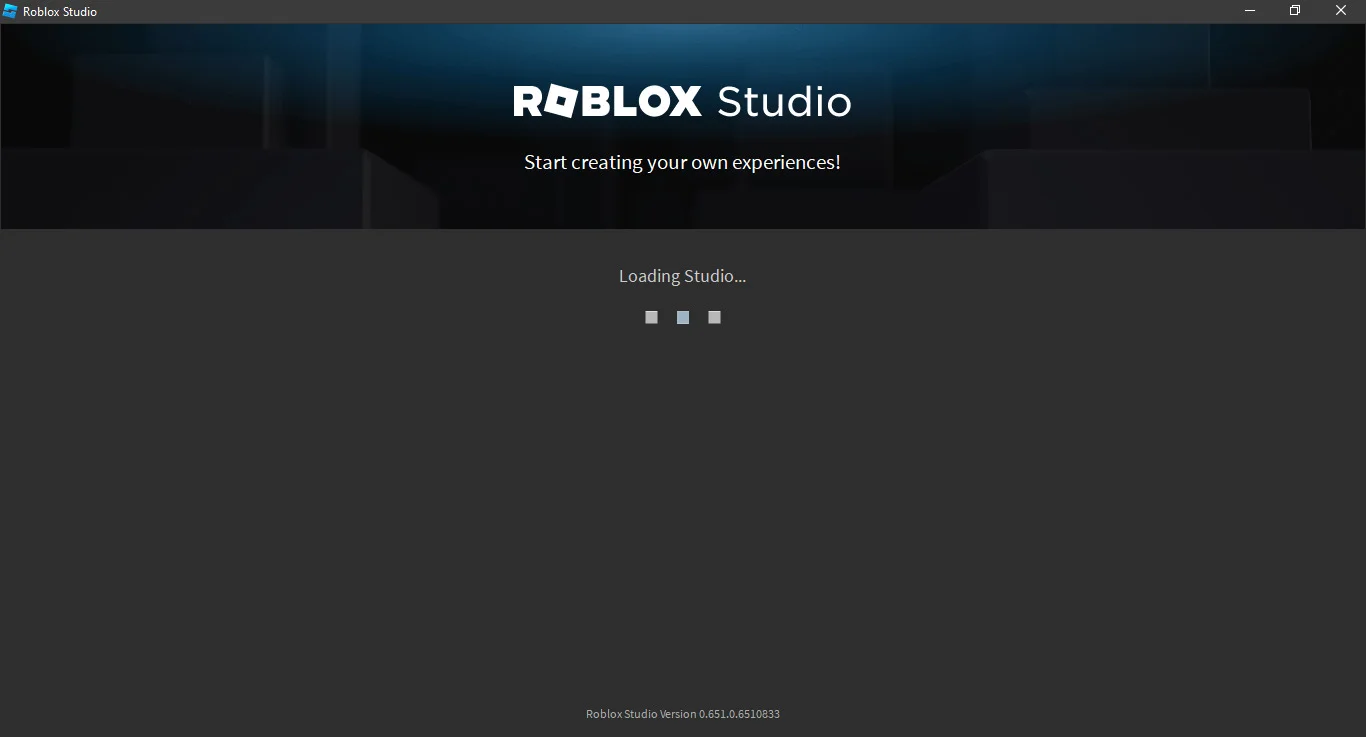
The first thought that comes to mind is often, “Maybe my laptop can’t handle it anymore.” That sounds reasonable, but it is not always the answer. I spent quite a while digging into this issue and tried a bunch of different fixes on my own system. Some did nothing at all. A few actually worked. So before you think about upgrading your hardware, it is worth trying the methods listed below.
How to Fix Roblox Studio Not Opening on Windows
Restart Your Computer
Roblox Studio has a habit of refusing to open for no obvious reason. A simple restart is one of the easiest things to try first. Since it only takes a minute, it makes sense to rule this out before spending time on anything more complicated.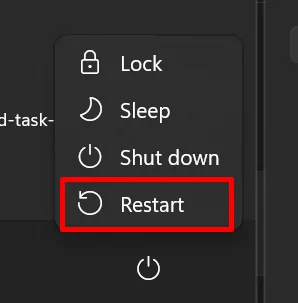
Delete Roblox Studio Files and Install It Again
A normal reinstall does not always remove every Roblox Studio file from your computer. Some files stay behind inside the LocalAppData folder, and if one of them is causing the problem, installing Studio again may not change anything.
That is exactly what happened in this case. Roblox Studio continued to close right after the loading screen until the old Roblox files were completely removed.
- Open Command Prompt.
- In the Command Prompt window, type cd %LocalAppData%\Roblox and press Enter:
- Next, type del /s * and press Enter:
- When Windows asks “Are you sure (Y/N)?“, type Y and press Enter.
- After the files are deleted, restart your computer and install Roblox Studio again.
Out of all the fixes that were tested, this was the one that solved the issue. So, after a restart, this should be the first solution that you should try.
Check for a Roblox Studio Update
It is easy to overlook updates when you are focused on figuring out why Roblox Studio will not open. Yet an outdated version can sometimes lead to startup issues, crashes, or the application closing before it fully loads.
Roblox regularly pushes fixes, compatibility improvements, and bug patches through updates. So, if you are running an older release, install the latest update and then launch Studio again.
Check Your Internet Connection
A lot of people focus on Windows settings, reinstallations, and Roblox files right away. Meanwhile, the internet connection rarely gets a second thought. It is still worth checking, though. Roblox Studio depends on Roblox’s online services during startup, and connection issues can occasionally stop the application from opening.
Check Roblox Server Status
Unlike a lot of platforms, Roblox has an official status page that shows the health of its services in real time. Open the Roblox server status page and look for Studio under the Creator category. That will tell you if the service is operating normally or if Roblox is currently dealing with an outage.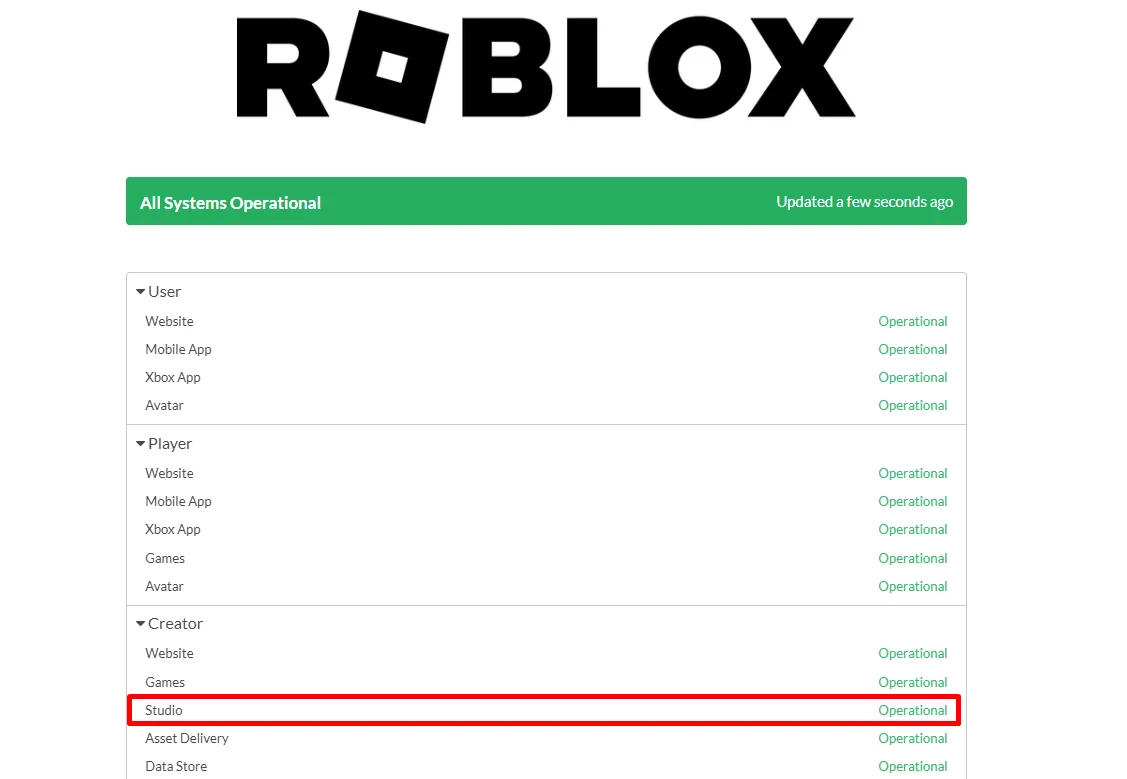
Make sure Studio is marked as Operational. If it shows a service disruption, degraded performance, or an outage, the only real option is to wait until Roblox fixes the issue on their end.
Delete the RobloxStudio Folder & Reinstall
Another fix that helped some users was removing the RobloxStudio folder stored in the AppData directory before reinstalling the application.
- Press the Windows key + R, type appdata, and press Enter.
- From there, open the Local folder and scroll down to find the RobloxStudio folder. (You can also find this folder here: C:\Users\YourUsername\AppData\Local)
- Once you find it, delete the RobloxStudio folder completely.
- After that, uninstall Roblox Studio from your computer completely.
- Then download and install Roblox Studio again.
Hopefully, this guide helped you fix the problem and get Roblox Studio opening again. These are the fixes we came across while researching the issue, along with the ones that successfully worked in different cases.
If one of these methods solved the problem for you, feel free to share which one worked. And if you discovered a different fix that is not listed here, leave a comment and let others know. It might help someone else save a lot of time.