Android changed the phone world after the iPhone became a huge hit. Instead of giving people just one option, it let different phone brands build devices for every budget and style. That is a big part of why Android is now used by millions of people across the world.
Since all of these brands use Android in their own way, small software issues can show up from time to time. One of them is the “System UI keeps stopping” or “System UI isn’t responding” error. When it shows up, your phone may freeze, apps may close without warning, the screen may keep loading again and again, or the whole phone may become hard to use
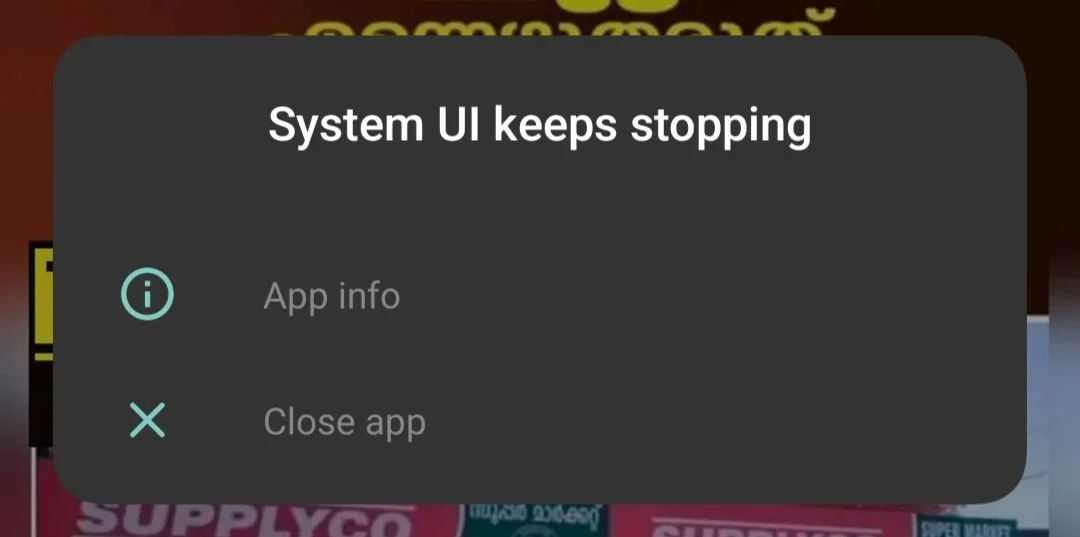
I ran into this issue on one of my own Android phones, so I spent quite a while trying different fixes until I found what actually helped. I also looked through reports from other Android users who had the same error and compared what worked for them. The methods below are the ones that gave me the best results, along with a few other fixes that have helped other people solve this problem.
System UI Keeps Stopping? Try These 6 Proven Fixes
Restart Your Device
Before starting the main solutions, just restart your phone first. Even if you cannot access, unlock, or use your phone, you can still restart it by pressing and holding the Power button, then tapping the Restart option. If your phone is completely frozen, just press and hold the Power button until it restarts. Most of us already know how to restart a phone, but it is still worth trying before moving on to the other fixes.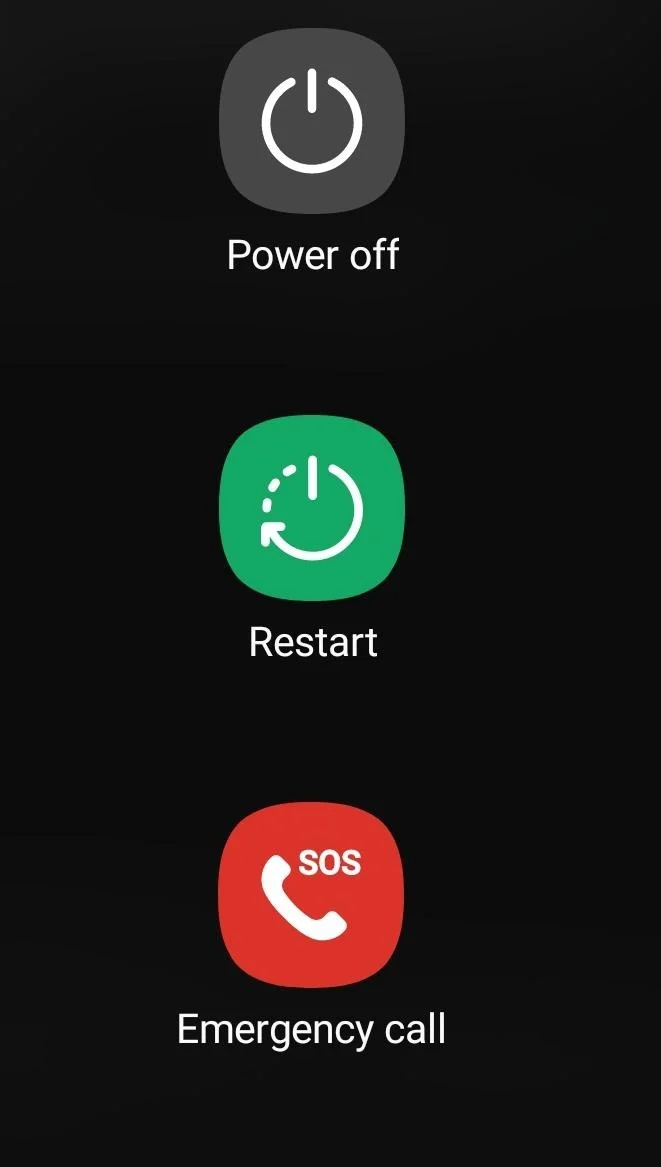
Force Stop System UI and Clear Its Data
If the System UI process has become corrupted or is stuck in a loop, force stopping it and clearing its stored data can often fix the problem. This removes temporary files linked to the System UI process and allows Android to create fresh system files after the phone restarts.
- Open Settings on your phone.
- Tap Apps.
- If you do not see System UI, tap the three dot menu and choose Show system apps.
- Open System UI from the list.
- Tap Force Stop and confirm it.
- Now, go back and open Storage.
- Tap Clear Data, then tap Clear Cache.

- Lastly, restart your phone.

Check if Your SD Card is Damaged
A damaged SD card can cause the System UI keeps stopping error. If Android cannot read files stored on the card, you may see this message at random or when opening apps like the Camera or Gallery.
- Switch off your phone first.
- Remove the SD card.
- Turn the phone back on without inserting the card.
- Use your phone for a little while and see if the error comes back.
If the phone works fine after removing the SD card, the card is likely causing the issue. Copy any files you can still access to another device, then replace the SD card with a new one. If the error still appears, continue with the next solution.
Clear System UI Data Using ADB
If you cannot open the System UI settings on your phone, you can clear its data through ADB from a computer. This removes the existing System UI data and lets Android create a fresh copy the next time it starts.
- First of all, enable Developer Options on your Android phone.
- Turn on USB Debugging.
- Now, download and install Android Platform Tools on your computer.
- Connect your phone to the computer using a USB cable.
- Open Command Prompt or Terminal inside the Platform Tools folder.
- Type the command pm clear com.android.systemui and press Enter:
- If the command above does not work, run this command: adb shell pm clear com.android.systemui
- Wait for the command to finish.
- After that, restart your phone.
After the phone turns back on, Android will create a new set of System UI files automatically. This does not damage your phone, though a few interface settings may return to their default values.
Install the Latest Software Update
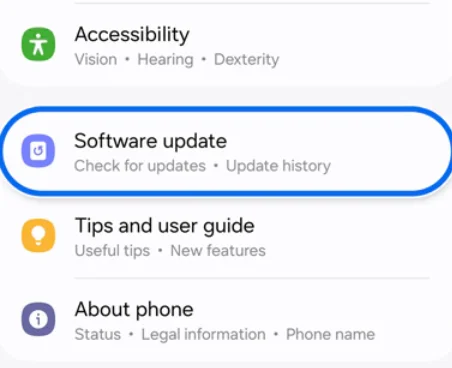
If your phone is running an older version of Android, installing the latest software update may fix the System UI isn’t responding error.
- Open Settings.
- Tap Software Update or Settings > About > System Update

- Tap Check for Updates.
- If an update is available, tap Download and Install.
- Wait for the installation to finish.
- Lastly, restart your phone if it does not restart automatically.
Factory Reset Your Phone
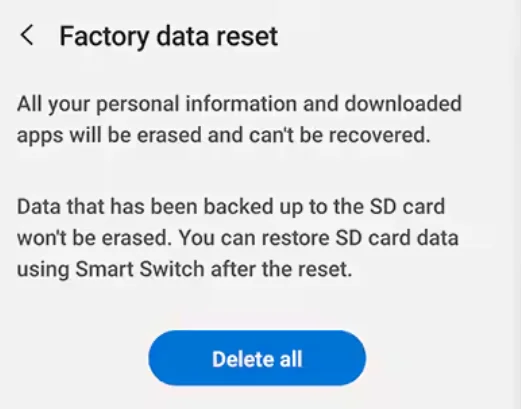
If you have tried every fix and the System UI keeps stopping message still shows up, a factory reset is your last option.
Before you continue, make sure you create a backup of your photos, videos, contacts, documents, and anything else you do not want to lose. Everything saved on the phone will be erased during the reset.
- Open Settings.
- Tap System or General Management, based on your phone model.
- Tap Reset or Factory Reset.

- Select Erase All Data (Factory Reset).
- Tap Reset Phone.
- Enter your PIN, password, or pattern if your phone asks for it.
- Tap Erase Everything or Factory Reset to confirm.
- Wait until the reset is complete, then set up your phone again.
RELATED GUIDES:
- How to Fix Package Installer Keeps Stopping on Android
- How to Fix Settings Keeps Stopping on Android
- How to Fix Settings Suggestions Keeps Stopping Error
- How to Fix “IMS Service keeps stopping” on LG and Samsung Phones