If you have been around online gaming for a while, there is a good chance you have used Discord. The platform first launched in 2015 and quickly found its place among gamers who wanted an easy way to chat while playing. Since then, Discord has grown far beyond gaming. TTS, short for Text to Speech, is one of those Discord features that can be useful in the right situation. Type a message with TTS enabled, and Discord can read it aloud through a computer generated voice in a voice channel. It can save you from having to read every message on screen, and it can also be helpful for people who find reading text difficult.
The trouble begins when you send a TTS message and nothing happens. The message appears in the chat, yet there is no voice reading it aloud. This has happened to Discord users on different devices, and it can leave you wondering why the feature suddenly stopped working. If you are dealing with Discord Text to Speech not working, the sections below cover the settings and other checks that can help you solve the issue.
6 Ways to Fix Discord Text to Speech Not Working on Android. iOS, Windows and Mac OS
Check Text to Speech Settings
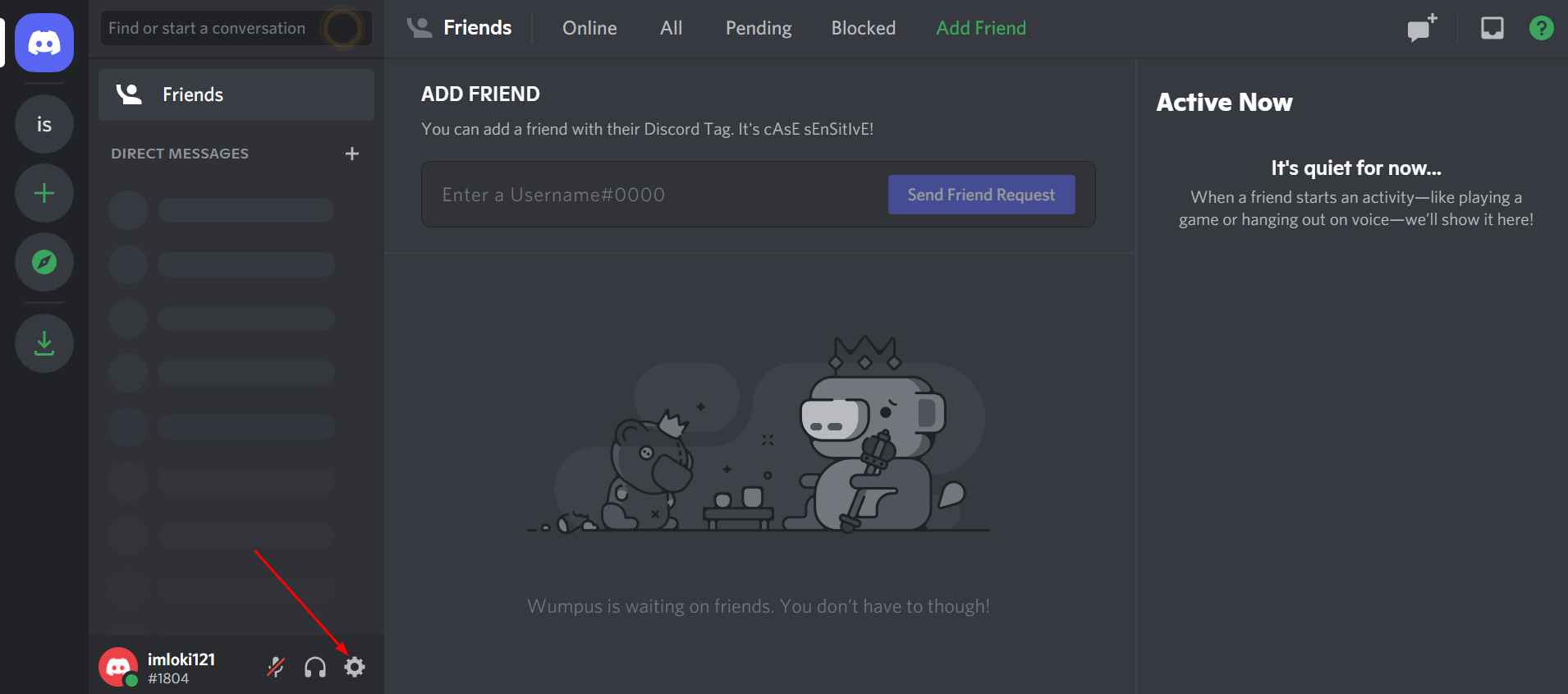
- Open Discord and look near your username for the User Settings gear icon. Click on it.

- On the left side of the settings page, look for Text & Images and select it.
- Scroll down through the page until you see the Text to Speech section.
- Turn the TTS option off, then save the change.
- After that, return to the same section and switch Text to Speech back on.
That is all you need to do here. Send a TTS message in a voice channel and see if Discord reads it aloud. If there is still no voice, move on to the next method.
Check TTS Permissions and Command
Before testing TTS, make sure your account still has permission to use it on the server. Server admins can change these permissions, so the option may not be available in every channel.
Once the permission is available, type /tts followed by your message in the Discord chat. For example, type /tts Hello everyone. The message will be read aloud to users who are currently in the same voice channel as you.
Enable TTS Notifications in Discord
There is another Discord setting that can quietly stop TTS notifications. If Never is selected under the Text to Speech notification options, Discord will not read TTS messages aloud. So, before moving to another method, check this setting once.
- Open Discord and click the User Settings gear icon.
- From the left side menu, select Notifications.
- Under the “Text to Speech Notifications” section, you will see options such as For all channels, For current selected channel, and Never.
- If “Never” is selected, change it to For all channels.
With For all channels, TTS notifications can be played across your Discord channels. The For current selected channel option limits TTS notifications to the channel you are currently using.
After changing this setting, head back to your Discord chat and send a TTS message. If the voice still does not play, you can move on to the next solution.
Try Discord in a Web Browser
If TTS is still silent in the Discord desktop app, try opening Discord in Google Chrome instead. The web version can handle TTS differently and may work when the desktop app does not.
Open Discord in Google Chrome and sign in to your account. The browser version handles some system features differently, so TTS may work there even when the desktop app stays silent.
Once Discord is open in Chrome, head into your usual server and send a message using /tts. Make sure you are in the required voice channel and have permission to use TTS. If the message is read aloud, you can continue using Discord from Chrome for the time being.
Update the Discord App
Make sure you are using the latest version of Discord. An update may already be waiting for you, so check the Play Store or App Store on mobile, and the Discord app on Windows or Mac for any available update. Install it if one is listed, then open Discord and test TTS once more.
There is also a simple way to compare the app with the web version. If you are using Discord in Chrome or another browser and TTS is not working there, try the official Discord app.
Update Your Operating System
It is worth checking if your device has received a recent software update. These updates can include bug fixes and this applies to Windows, macOS, Android, and iOS.
Open the Software/System Update section on your device and see if anything is waiting to be installed.