If you use a phone every day, there is a good chance WhatsApp is one of the first apps you open in the morning. From family groups and personal chats to work messages and calls, a huge number of people rely on it to stay in touch. Even with the rise of spam, unwanted messages, and ads across apps these days, WhatsApp still has a huge user base that keeps coming back to it.
That is why it can be a real surprise when WhatsApp suddenly shows a message saying, “Please wait a moment. App maintenance in progress.” I ran into this myself, and what caught my attention was how long the message stayed there. I could still see notifications coming in, so I knew people were sending me messages, yet I could not open the chats, read what they had sent, or reply to them. The wait could stretch from half an hour to an hour or even longer, and on some days the same message would show up again.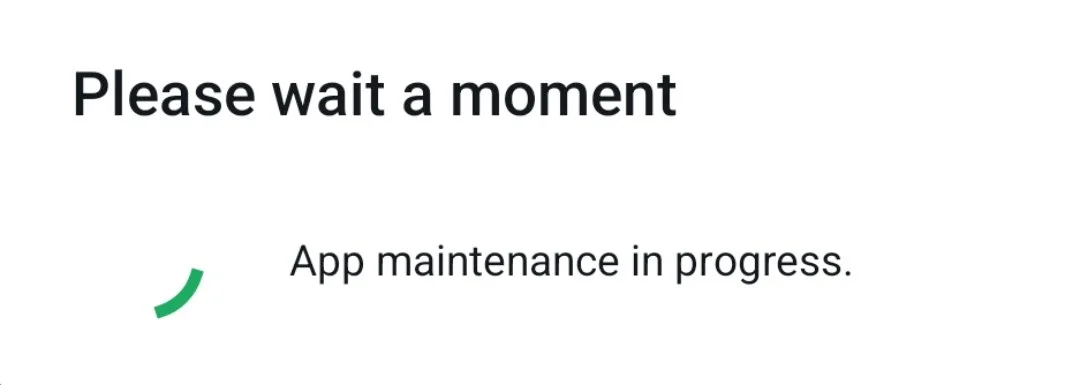
After dealing with this a few times, I tried different ways to figure out what was going on and found a few fixes that helped me use WhatsApp normally again. Since I have gone through this myself, I wanted to share what worked for me along with a few other methods worth trying. If that maintenance screen keeps showing up on your phone, the steps below should give you a few practical options to try.
WhatsApp “Please wait a moment. App maintenance in progress” Error? Try These Fixes
Restart Your Phone
Honestly, this was the first thing I tried, and it worked for me. After restarting my phone, WhatsApp opened normally again, and all my chats and messages were still there. So, if you are stuck on the WhatsApp maintenance screen, a quick restart is worth trying before you spend time on anything else.
On Android
- Press and hold the Power button, then tap “Restart”

- Wait for the phone to turn back on, open WhatsApp, and check if the maintenance message has disappeared.

On iPhone
- Press and hold the Side button and either Volume button until the power off slider appears.

- Drag the slider, wait around 30 seconds, then press and hold the Side button until the Apple logo appears.

Force Stop WhatsApp
If restarting the phone did not help, try force stopping WhatsApp app and opening it again. On Android, you can do this directly from the app settings. You can also press and hold the WhatsApp icon from your app drawer or home screen, tap App info, and then Force stop.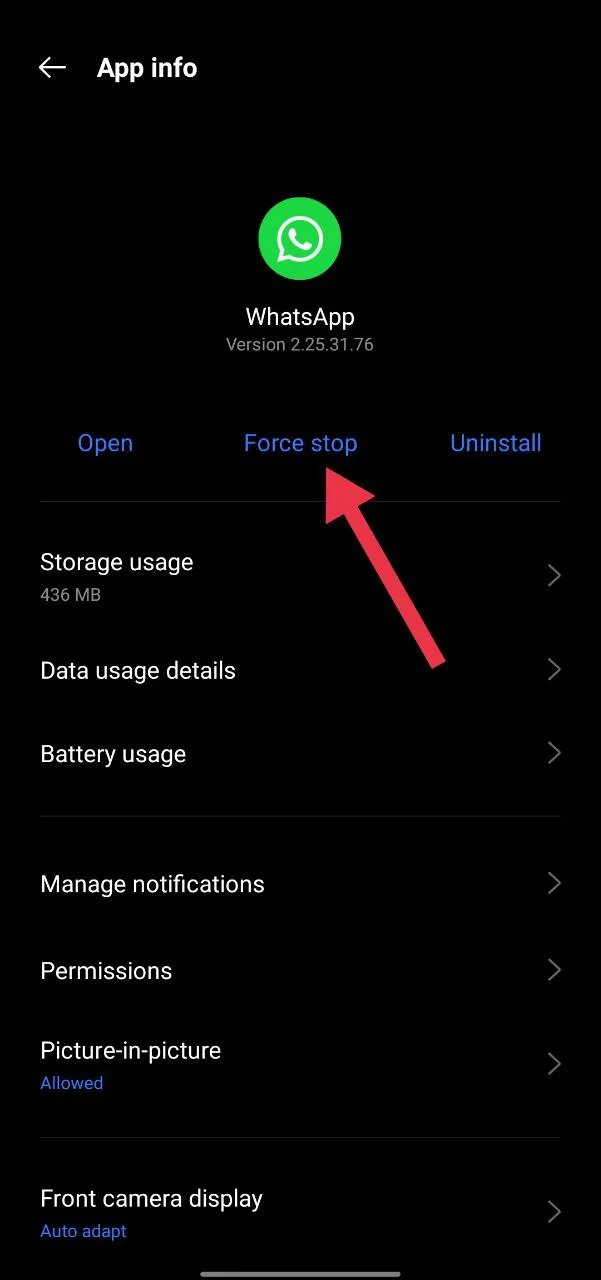
iOS does not have a “Force Stop” option like Android. Instead, open the app switcher and swipe the WhatsApp window upward to close it.
Then open WhatsApp again and see if you can access your chats. If the same maintenance message is still there, move on to the next method.
Clear WhatsApp Cache
If WhatsApp keeps sitting on the maintenance screen, clearing its cached files is another quick option to try.
On Android, press and hold the WhatsApp icon, tap App info > Storage > Clear cache. This only removes temporary cached files, so your chats and personal data should remain untouched.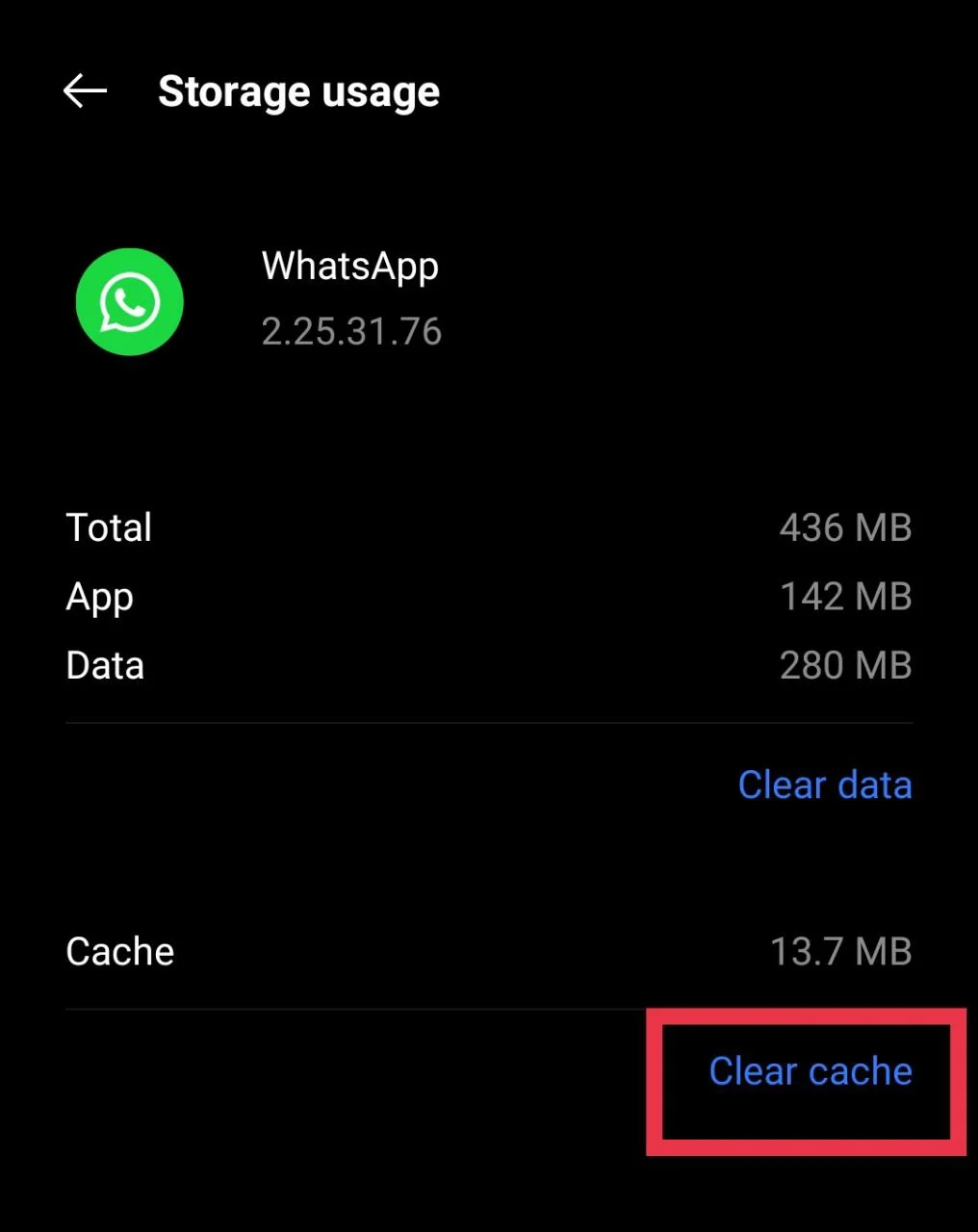
iPhone does not have a separate Clear cache button for individual apps. You can instead try Offloading WhatsApp from Settings > General > iPhone Storage > WhatsApp > Offload App, then reinstall the app from the same screen.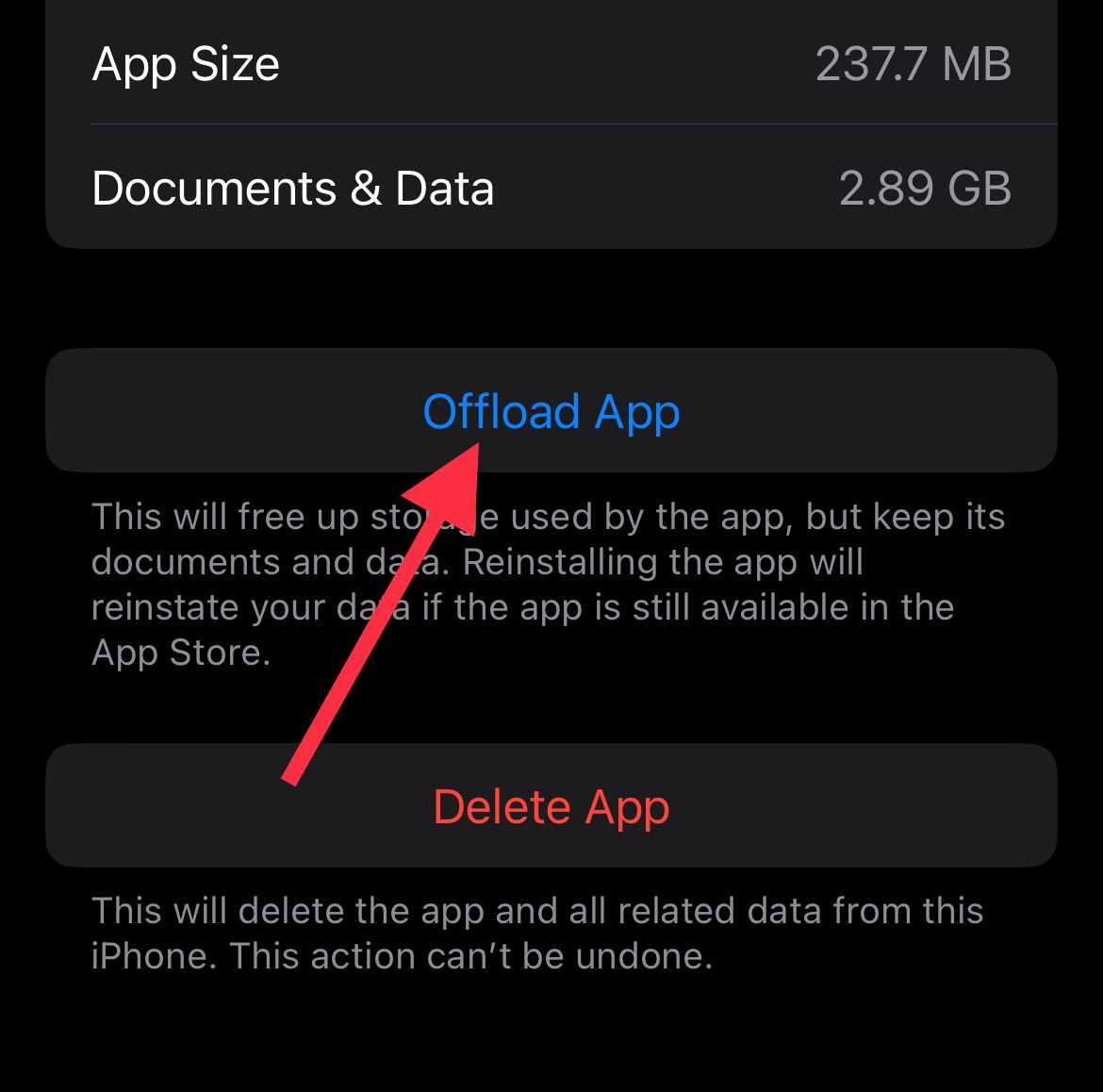
If you would rather not do that yet, skip this step on iPhone and move on to the next method.
Update WhatsApp
If it has been a while since you updated the app, an older version could be behind the maintenance message. WhatsApp also makes changes in the background from time to time, so an update may help if the app is getting stuck during that process.
Reinstall WhatsApp
If the earlier methods have not made a difference, reinstalling WhatsApp is the more drastic option. Before deleting it, make sure your WhatsApp chats are backed up so you have a copy of your conversations available.
Press and hold the WhatsApp icon, choose Uninstall or Delete App, and confirm. Head to the Google Play Store or App Store, and reinstall WhatsApp again. Then open the app, verify your number, and restore your chat backup when prompted.
RELATED GUIDES:
- How to Fix WhatsApp Internal Storage Required Error
- How to Fix WhatsApp “Unable to restore your chats from this backup”
So, did one of these methods work for you? I know how annoying it can be to see the WhatsApp “Please wait a moment. App maintenance in progress” error sitting on the screen when messages are still coming in.
If you have found another fix that worked, do share it in the comments. Your method could save someone else a lot of waiting. And if this guide helped you, feel free to share it with other WhatsApp users who are dealing with the same message.