Seeing “Due to local regulations, this content is restricted on X” can be surprising, especially when you could view the same type of post a few days ago. The message means that X has placed a regional restriction on the content based on rules that apply in your country.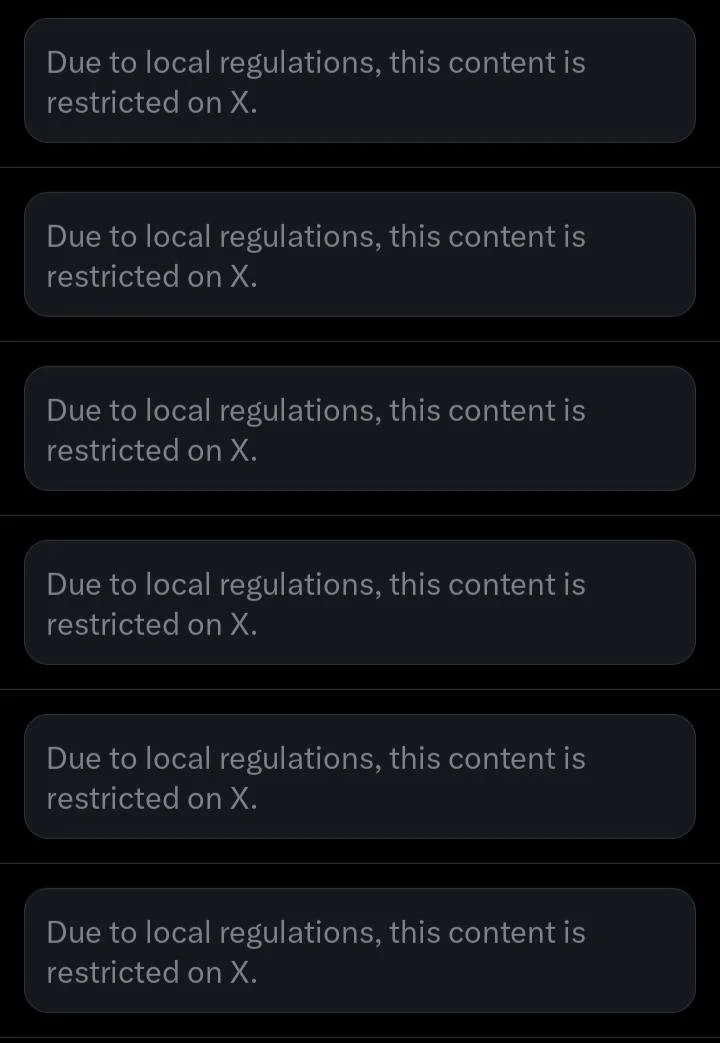
The restriction is mainly seen with sensitive or adult media. Your account may still work as usual, while certain posts, images, or videos remain hidden. Age verification and other account related checks can also affect access to this type of content.
For users in India and other countries with specific online safety requirements, these restrictions can appear without any change to the post itself. That can leave you wondering why the content is available to some users but not visible from your account or region.
X has to follow local regulations in the countries where its service is available, and these requirements can affect what users are allowed to view. If you are trying to understand why this message appears and how to bypass the restriction, check out the simple methods below.
How to Fix “Due to Local Regulations This Content Is Restricted on X”
Use a VPN
A VPN can help if X is restricting the content based on your current region. It changes the network location that X sees, so the content may be available after connecting to a different region. You can use any VPN you already trust. ProtonVPN has a free option, while NordVPN is a paid choice.
Before connecting, fully close the X app or the browser tab where X is open. This part matters because the app or browser may keep the earlier network connection active.
- Install a VPN such as ProtonVPN or NordVPN on your PC or smartphone.
- Sign in to the VPN and connect to a server in another country, such as Singapore or Japan.
- Once the VPN connection is active, open the X app again. If you are using a browser, open X in a new tab.
- Sign in to your X account if needed and open the post containing the restricted content.
- Check if the video or media is now available.
You can also use another VPN service you already have and trust. The important part is that the VPN changes your apparent network region before you open the restricted content.
Change Your X Country Setting
Another option is to change the country listed on your X account and then use a VPN that matches the same location. This can matter because X may use account and network location details when applying regional content restrictions.
- Open X settings and select Account information.
- Enter your password when asked, then tap Country.

- Choose a country such as the United States or Norway from the list. Confirm the change by selecting Agree and continue.
- Now connect your VPN to the same country you selected. For example, if you chose the United States on X, connect to a US VPN server.
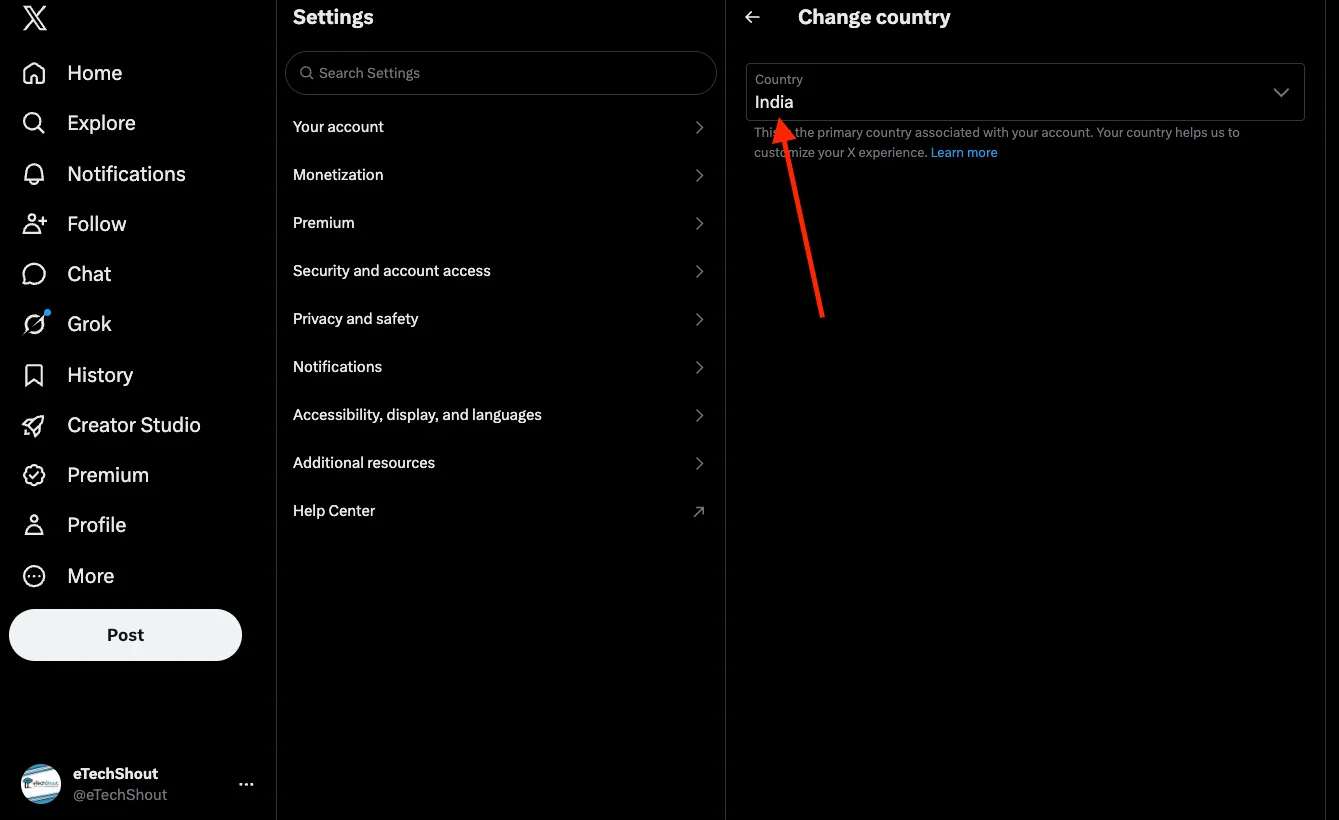
Once the VPN connection is active, reload X and open the post again. The content may appear if the regional restriction was linked to your previous account and network location.
Note: Keep in mind that changing your country setting can affect other parts of your X account, so check the account settings carefully before making the change.
Turn On Sensitive Content
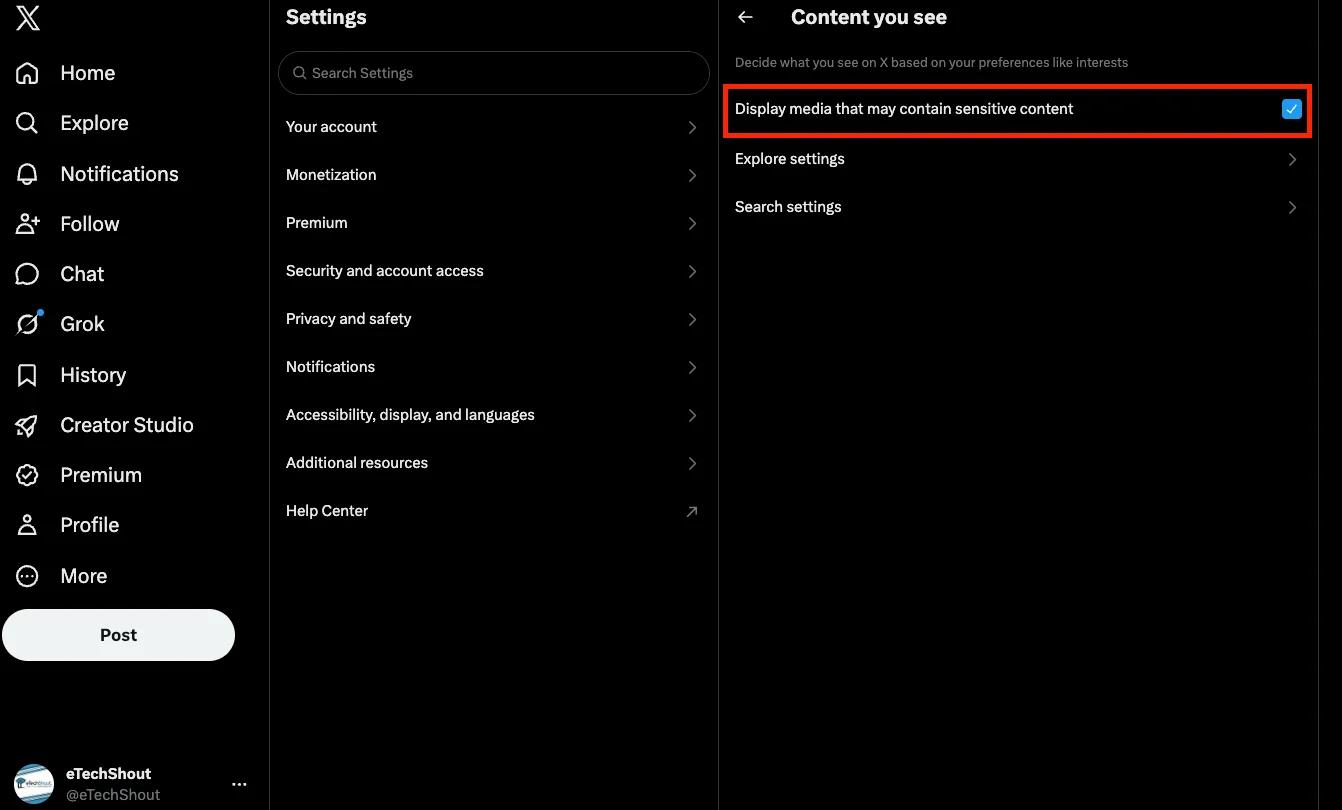
X has a setting that controls media marked as sensitive. Check this option on the web version of X and make sure it is enabled. This setting can allow sensitive media to appear on your account when it is available in your region.
- Open Content you see section on X on a browser on your PC.
- Now, turn on “Display media that may contain sensitive content” option.

- After that, go back to X and try opening the video again.
ALSO READ: How to Fix X (Twitter) “It Looks Like You Have Turned Off Permissions Required for This Feature”
Hopefully, one of the methods above helped you deal with the “Due to local regulations, this content is restricted on X” message. Since the cause can differ based on your region and account settings, the result may not be the same for everyone.
If one of these methods worked for you, let us know which one helped in the comments. Also, share this article with anyone else who is seeing the same message on X.