WhatsApp has come a long way since it was first introduced as a simple messaging app. Over time, voice calling became an important part of the platform, making it possible to speak with people directly through the app instead of relying only on text messages.
Today, a WhatsApp voice call can feel like a normal part of daily communication. So, when a call ends with a message such as “Failed voice call” or “Voice call failed”, you might then wonder what happened on the other end.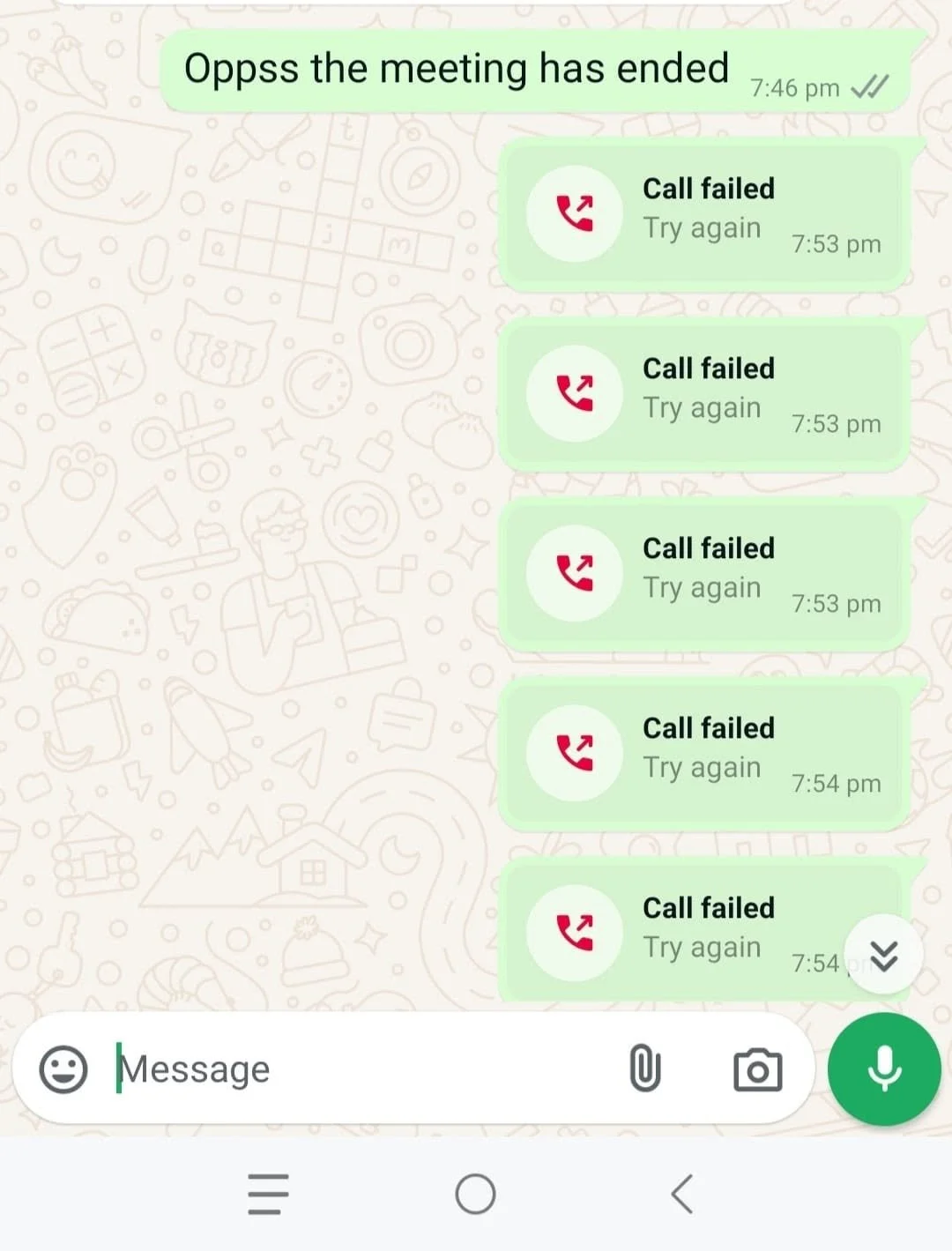
Now comes the interesting part. If the other person was online at that exact moment, did they actually receive a call notification? Or did the call end before anything appeared on their phone? The way WhatsApp handles a failed call can leave you with that question.
In the sections below, we will look at the different possible situations related to failed WhatsApp voice calls and explain the solutions for each one.
How to Fix WhatsApp Call Failed Error
Turn Aeroplane Mode On for 10 Seconds
A quick way to test the connection is to turn on Aeroplane Mode for about 10 seconds. Open the quick settings or settings on your phone, tap the Airplane Mode icon, wait for 10 seconds, and then turn it off again. Once your phone reconnects to the mobile network or WiFi, open WhatsApp and call the same person again. 
Save the Contact Number Again
First, make sure the person’s phone number is saved in your contacts. WhatsApp calls can sometimes fail when you try calling a number that is not saved on your phone.
If the number has already been saved for a long time and you suddenly start seeing the failed voice call message, try removing that contact from your phone. Then save the same number again and open WhatsApp to call the person.
Update WhatsApp to the Latest Version
WhatsApp receives regular updates, and these updates can include changes to the calling feature, network handling, and other parts of the app. So, if your calls were working fine earlier and the failed voice call message has suddenly started appearing, an available update is worth checking.
Open your Play Store or App Store and search for WhatsApp. If you see an Update button, install it and let the app finish updating before making another call.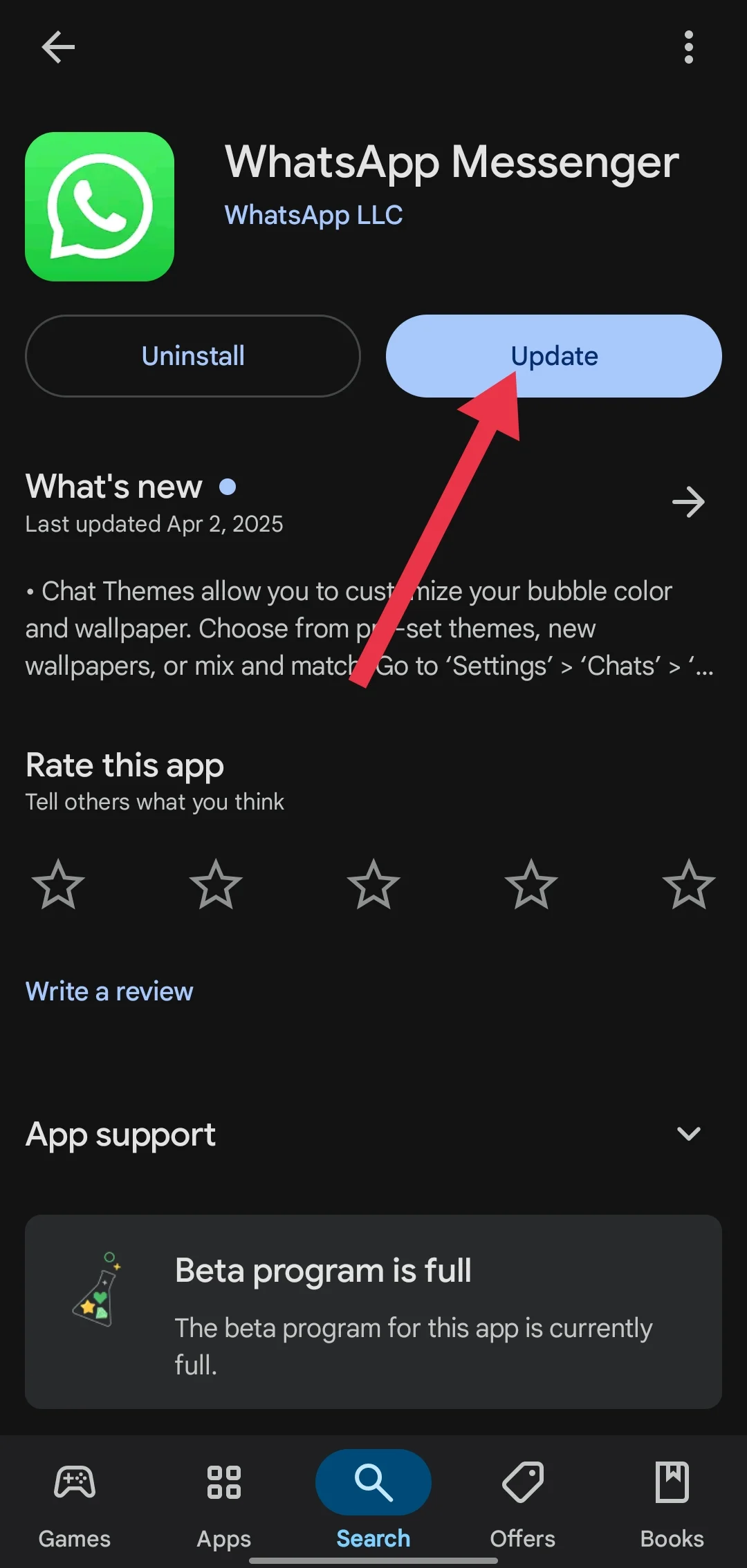
Restart Your Phone
WhatsApp may have been running in the background for a while, along with other phone services, and restarting the device can clear any temporary issues that may be affecting the call.
You definitely know how to restart your phone, since it is one of those basic options available on every smartphone. So there is no need for any complicated steps here. Just restart the device, and once the phone turns back on, wait until your mobile network or WiFi is connected again. Then open WhatsApp and call the same person.
Force Close WhatsApp
You can also try closing WhatsApp completely instead of simply leaving the app in the background. On both Android and iPhone, open the recent apps panel or app switcher and swipe WhatsApp away from the screen. After that, open WhatsApp again and try the voice call.
Android users have one more option. Open Settings > Apps > WhatsApp > Force Stop, and confirm it. 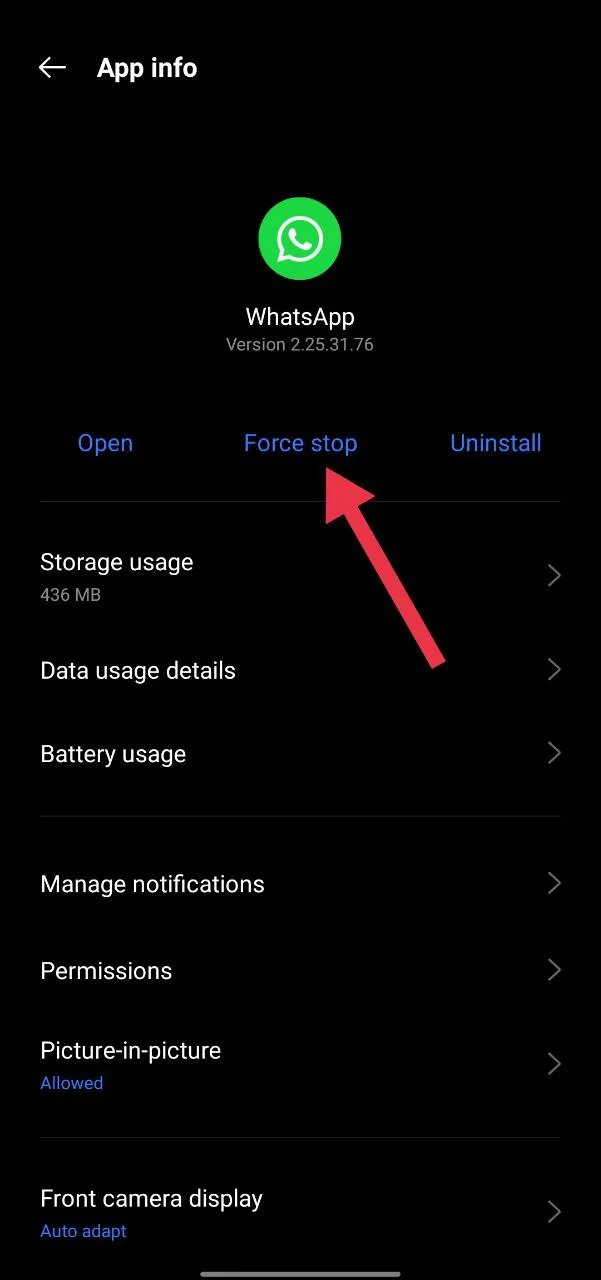
Reinstall WhatsApp
If the failed voice call is still appearing, reinstalling WhatsApp is another option you can try. Before removing the app, though, make sure your WhatsApp chats are backed up. This part is important because deleting WhatsApp without a backup can mean losing your chat history.
Once you have confirmed that your chats are backed up, uninstall WhatsApp from your phone and install it again from the Play Store or App Store. Now, login with the same phone number and restore your backup when WhatsApp gives you the option.
After your chats are restored, open the conversation with the same person and try making the voice call again.