WhatsApp Web changed the way people used WhatsApp on their computers. Before that, users had to rely on their phones to read and reply to every message. With WhatsApp Web, you could simply open a browser on your computer, scan a QR code with your phone, and carry on with your chats from a bigger screen. Later, WhatsApp brought a dedicated desktop app for Windows, giving users another way to access their accounts.
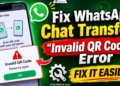
Now, a few users have run into a problem that makes this simple login process difficult. They open WhatsApp Web or the Windows app, scan the QR code with their phone, and see “No Valid QR Code Detected” instead of their chats. Many users even reported that their phone could read the QR code through its regular camera app, but WhatsApp refused to accept that very same code. Others started seeing the error after signing out of WhatsApp Web and trying to link their accounts again.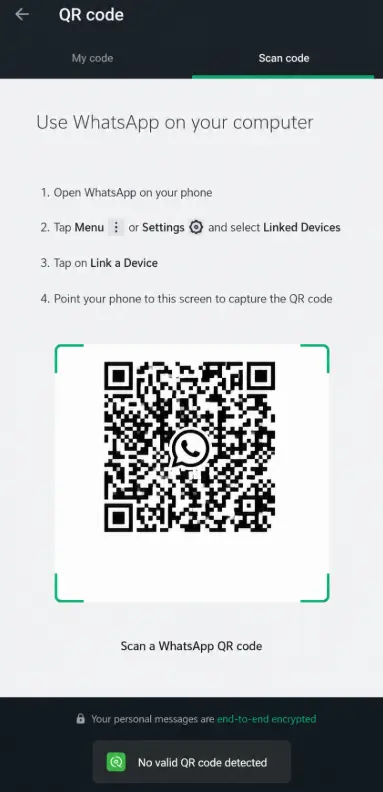
What makes this issue worth looking into is that the QR code is right there on the computer screen, and the phone camera itself is not necessarily the problem. If you have been stuck at the QR code scanning screen, let’s look at the ways to fix the “No Valid QR Code Detected” error in WhatsApp.
9 Ways to Fix “No Valid QR Code Detected” Error on WhatsApp Android & iOS
Clean Your Phone’s Camera Lens
Before looking into app or browser issues, take a look at your phone’s camera lens. Fingerprints, dust, or small smudges on the glass can make it difficult for WhatsApp to read the QR code on your computer screen.
Wipe the camera lens gently with a clean, soft microfibre cloth. Once it is clear, open WhatsApp, head to Linked Devices, tap Link a Device, and point the camera at the QR code on your computer. See if WhatsApp recognizes it this time.
Turn Off Dark Mode on Your Computer or Browser
If your computer or browser is using dark mode, try switching back to the regular light appearance before scanning the WhatsApp QR code. Dark mode extensions and forced dark themes can change how websites display their content, including the QR code on the WhatsApp login page.
On Windows, open Settings > Personalization > Colors and change the mode to Light.
If you use a browser extension such as Dark Reader to apply dark mode to websites, turn it off temporarily while opening WhatsApp Web. Reload the page to display a fresh QR code, then scan it using your phone. You can turn Dark Mode back on after linking your account.
Scan the QR Code Using Linked Devices
One small mistake while scanning the QR code can stop WhatsApp from linking your phone to your computer. WhatsApp has a separate QR code scanner for connecting other devices. If you use the regular camera icon from your chat screen, it may not recognize the code displayed on your PC. So, make sure you open the scanner from the Linked Devices section.
- Open WhatsApp on your phone.
- On Android, tap your profile picture or the three-dot menu in the top right corner. On an iPhone, tap Settings at the bottom.
- Select Linked Devices.

- Tap Link a Device.
- Verify your identity using Face ID, fingerprint, or your phone PIN if asked.
- Point your phone camera at the QR code displayed on WhatsApp Web or the Windows app.

Once WhatsApp reads the code, it will link your phone to the computer and load your chats.
Make Sure You Are Scanning the Official WhatsApp QR Code
Before trying anything else, check where the QR code is coming from. WhatsApp uses its own QR code to link your phone with WhatsApp Web or the Windows desktop app. A QR code from another website or a regular QR code displayed on your computer will not link your WhatsApp account.
Open web.whatsapp.com in your computer’s browser and wait for the WhatsApp login QR code to appear. If you are using the Windows app, open it and check the code displayed on its login screen. Now, open WhatsApp on your phone, go to Linked Devices, tap Link a Device, and scan that code.
Make sure you are scanning the QR code directly from the official WhatsApp login screen, rather than an image or screenshot of the code.
Update WhatsApp on Your Phone
Check which version of WhatsApp is installed on your phone. If you haven’t updated the app in a while, an older version could be causing trouble when linking your account to WhatsApp Web.
On Android, open the Google Play Store, search for WhatsApp, and tap Update if the option appears. On an iPhone, open the App Store, tap your profile picture in the top right corner, scroll down to the available updates, and tap Update next to WhatsApp. 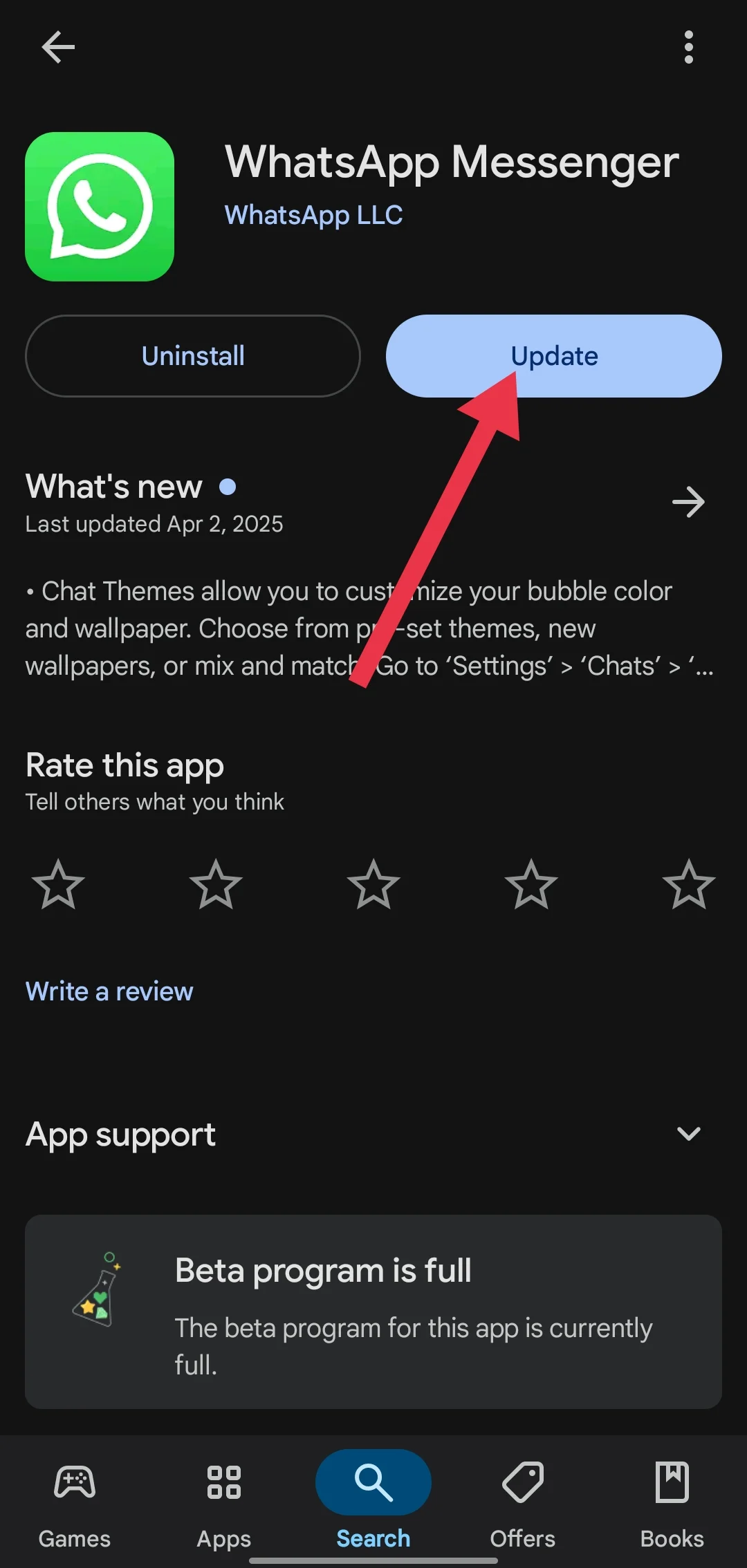
If you see an “Open” button instead, your app is already up to date. Once the update is complete, open WhatsApp and try scanning the QR code again.
Log Out of WhatsApp and Try Linking Again
If WhatsApp keeps saying the wrong QR code even after updating the app, try logging out of your linked devices and setting up the connection again.
- Open WhatsApp on your phone, go to Linked Devices, and check the list of connected devices.
- Now, log out of the devices you no longer use, then return to your computer and reload WhatsApp Web or reopen the Windows app.
- Once a new QR code appears, scan it using the “Link a Device” option on your phone and check if your account connects this time.
Remove and Reinsert Your SIM Card
Here is another thing you can try. Close WhatsApp completely by swiping it away from the recent apps screen on Android or the App Switcher on iPhone. Now switch off your phone, take out the SIM card, wait for a few seconds, and put it back in. Turn your phone on and launch WhatsApp. Head to Linked Devices and check if the ‘Link a Device’ option is available. Once you see it, scan the QR code on your computer and check if WhatsApp accepts it.
Clear WhatsApp Cache on Your Android Phone
WhatsApp stores temporary files on your phone to load certain app content faster. If some of these files are damaged or outdated, they may interfere with the app. Android lets you clear this cached data without deleting your chats, photos, or other WhatsApp information.
Close WhatsApp on your phone, open Settings, go to Apps > WhatsApp > Storage, and tap Clear Cache. 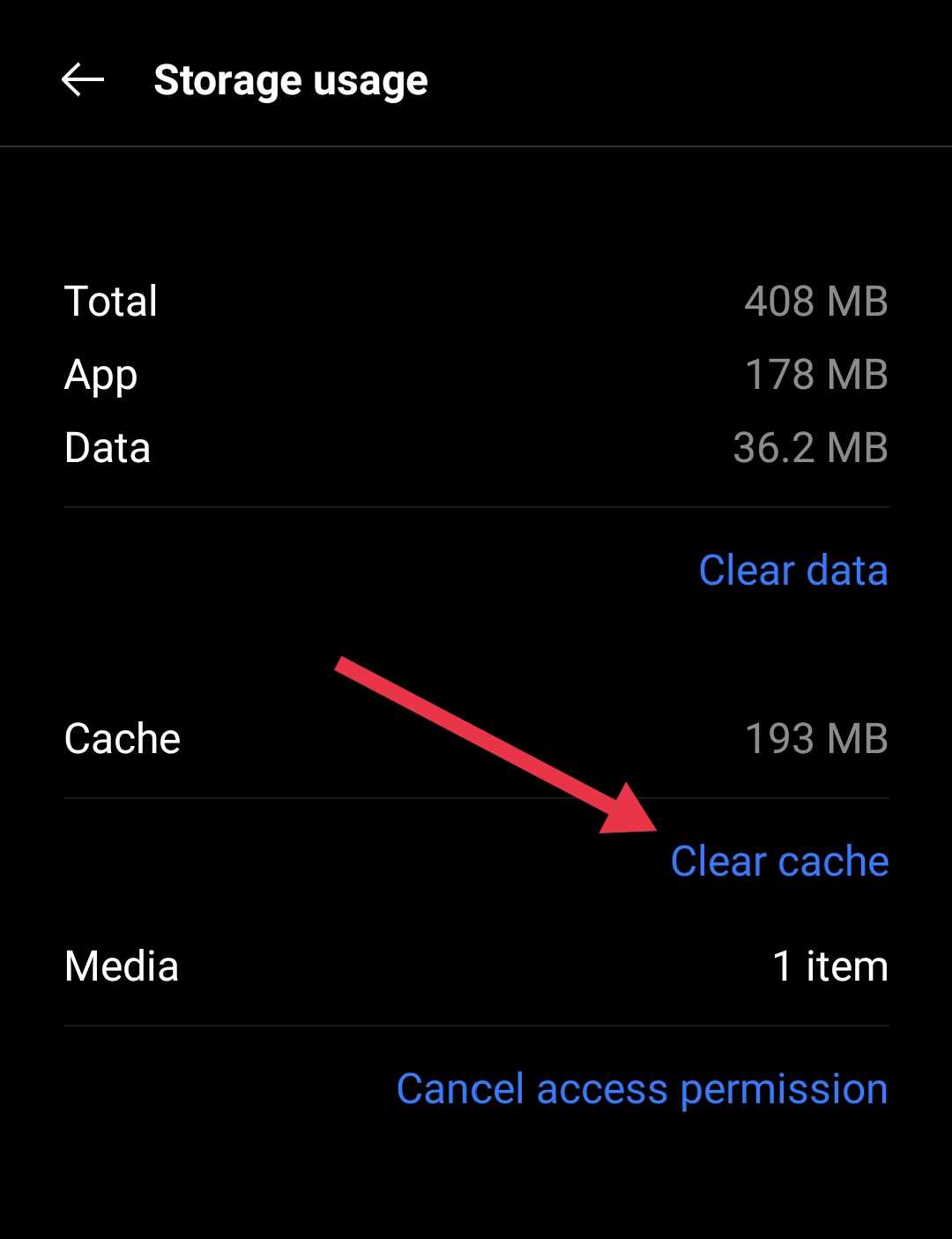
Try WhatsApp Web in Incognito or Another Browser
You don’t have to change your default browser just to test this. First, open an Incognito window in Chrome or a Private window in Firefox, Edge, or Safari. Visit web.whatsapp.com and scan the QR code again using your phone. This gives you a chance to check WhatsApp Web without your usual browsing session and extensions getting in the way.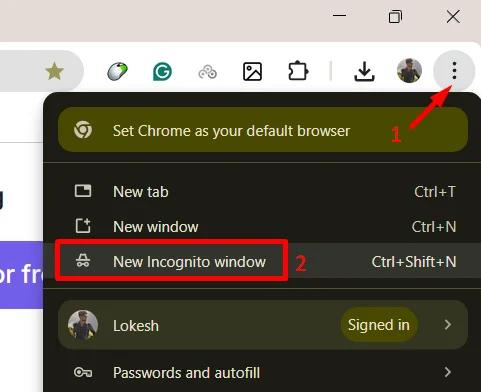
If the error is still there, try a different browser. There is no shortage of browsers to choose from, and you may already have another one installed on your computer. For example, if you are a Chrome user on Windows, open Microsoft Edge, which comes preinstalled with Windows. On a Mac, you can try Safari without downloading anything extra. Open WhatsApp Web in that browser and scan the QR code again. If it works there, the issue is likely limited to your usual browser.
I hope one of the methods above helped you sort out the “No Valid QR Code Detected” error in WhatsApp and link your account again. If you found a fix that isn’t covered here, leave a comment and share what worked on your phone or computer. I’d love to hear about it. And if this guide saved you some time, pass it along to someone else dealing with the same WhatsApp QR code error.