Samsung Wallet, previously known as Samsung Pay, offers features similar to Google Wallet, with unique options like using MST and NFC for payments. However, it only works on Samsung devices. While the app promises convenience, many users have complained about bugs and poor performance, especially on older models, in reviews on the Galaxy Store and Play Store.
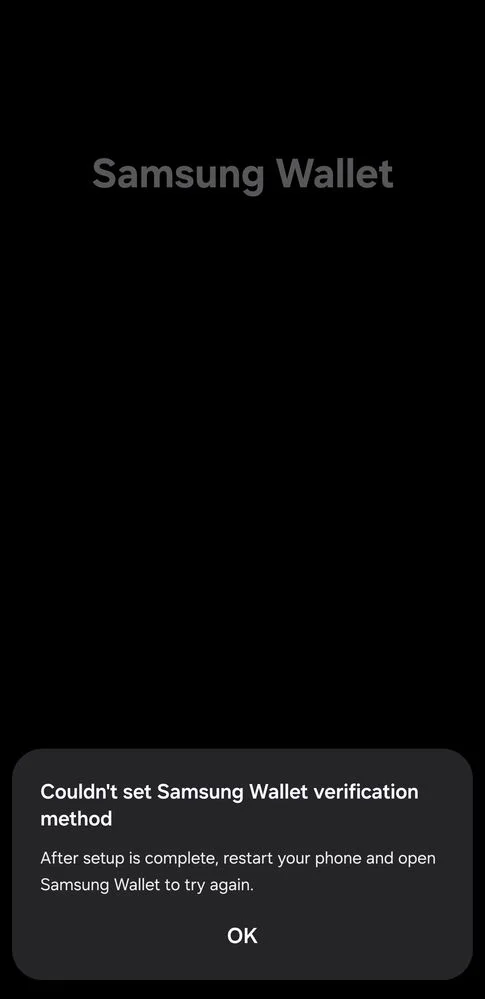
One common problem is the error: “Couldn’t set Samsung Wallet verification method. After setup is complete, restart your phone and open Samsung Wallet to try again.” This issue stops users from setting up the app and accessing its features, which can be very frustrating.
For people who depend on Samsung Wallet for payments, such errors can be a big inconvenience, especially when there aren’t clear solutions available online. This article explains how to fix it easily.
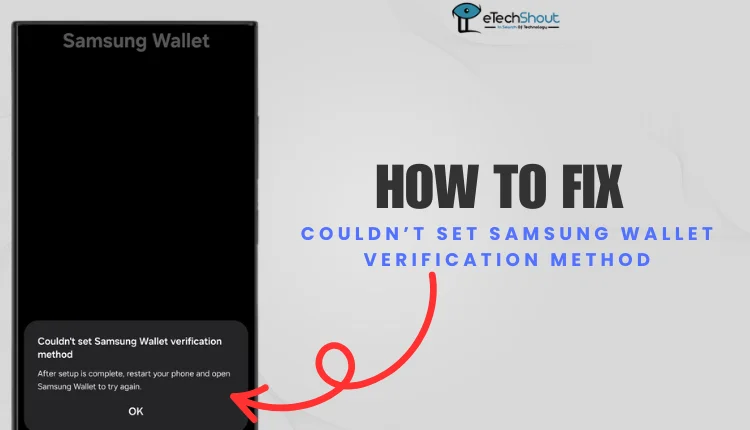
Couldn’t Set Samsung Wallet Verification Method? Try These 7 Quick Fixes
Uninstall the Samsung Pay Framework
If you’re encountering the error “Couldn’t set Samsung Wallet verification method. After setup is complete, restart your phone and open Samsung Wallet to try again,” uninstalling the Samsung Pay Framework can often resolve the problem. Follow these steps carefully to remove the framework using either a mobile app or your PC.
After removing the app, reinstall Samsung Wallet from the Play Store or Samsung Galaxy Store to resolve the error and set it up properly.
Using ADB App Control on PC
ADB AppControl is a simple desktop tool that helps you manage apps on your Android phone. You can remove unwanted pre-installed apps, disable bloatware, or install new apps easily. Since many brands, like Samsung, don’t let you uninstall pre-loaded apps, this tool makes it possible without needing root access. It’s an easy and useful way to improve your phone’s performance.
Note: This method requires basic technical knowledge.
Set Up ADB on Your PC
- Download ADB AppControl software from its official website.
- Install it and follow the on-screen instructions to set it up.
Enable USB Debugging on Your Phone
- Open the Settings menu.
- Select About Phone or About Device.
- Choose Software Information.
- Tap Build Number repeatedly seven times.
- Provide your pattern, PIN, or password if required.
- Locate Developer Options in Settings (it may be listed under General on some models).
Connect Your Phone to the PC
- Use a USB cable to connect your phone to the computer.
- Ensure the phone is unlocked and grant permission for USB debugging when prompted.
Uninstall the Samsung Pay Framework
- Open the ADB AppControl software.
- Look for Samsung Pay Framework in the list of installed apps.
- Select the app and choose the uninstall option to remove it from your device.
Using Lucky Patcher
If you don’t have access to a PC or are unfamiliar with using ADB tools, Lucky Patcher can be an alternative method to uninstall the Samsung Pay Framework directly on your phone. While we haven’t tested this method personally, it’s worth a try if you’re looking for an easier solution without needing technical knowledge.
Lucky Patcher is a third-party app that lets you manage and modify apps on your device, including removing pre-installed system apps. Since it’s not available on the Play Store due to its ability to alter apps, be sure to download it from a trusted source to avoid security risks. After installing, open the app, grant necessary permissions, find Samsung Pay Framework, and select Uninstall to remove it.
Once the app is completely removed from your phone using any of the methods above, reinstall Samsung Wallet from the Google Play Store or Samsung Galaxy Store. This should resolve the error and allow you to set up the app properly.
Clear the Samsung Wallet Cache and Data
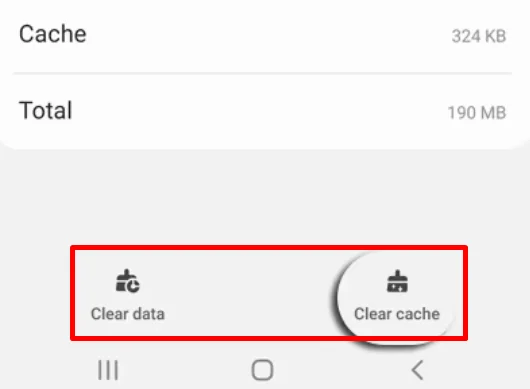
You can the Samsung Wallet cache and data by using a dedicated option in the Settings app which can help fix issues like the “Couldn’t set Samsung Wallet verification method” pop-up error.
- Go to your device’s Settings.
- Tap on Apps or Applications.
- Find and select Samsung Wallet from the list of apps.
- Tap on Storage, then select Clear Cache and Clear Data.

Uninstall and Reinstall the App
If you continue to get the error after trying above solutions, simply uninstall Samsung Wallet from your device and then reinstall it from the Google Play Store or Samsung Galaxy Store.
To uninstall Samsung Wallet on your Samsung device, go to your home screen, press and hold the Samsung Wallet app icon, and tap Uninstall. Alternatively, you can go to Settings > Apps, find Samsung Wallet, and tap Uninstall to confirm the action.
After uninstalling the app, go to the Google Play Store or Samsung Galaxy Store, search for “Samsung Wallet”, and tap Install to download it again.
Grant All Necessary Permissions
App permissions are crucial but often overlooked by many users. These permissions determine what an app can access or do on your phone. For example, if you deny location permission, the app won’t be able to track your visits. When you first open an app after installing it, you’re usually prompted to grant certain permissions, but some users may blindly accept or accidentally deny them.
For Samsung Wallet to work properly, check its permissions by going to Settings > Apps > Samsung Wallet and enabling the necessary permissions. If possible, grant all requested permissions and see if that helps resolve any issues.
Disable VPN
If you’re using a VPN, try disabling it as it can sometimes interfere with the Samsung Wallet app’s functionality. Temporarily turn off the VPN and check if that resolves the issue.
Restart the Device
Restarting your phone is often an overlooked solution, yet it can resolve many issues. Simply power off your device, wait a few seconds, and turn it back on to see if the problem is fixed. 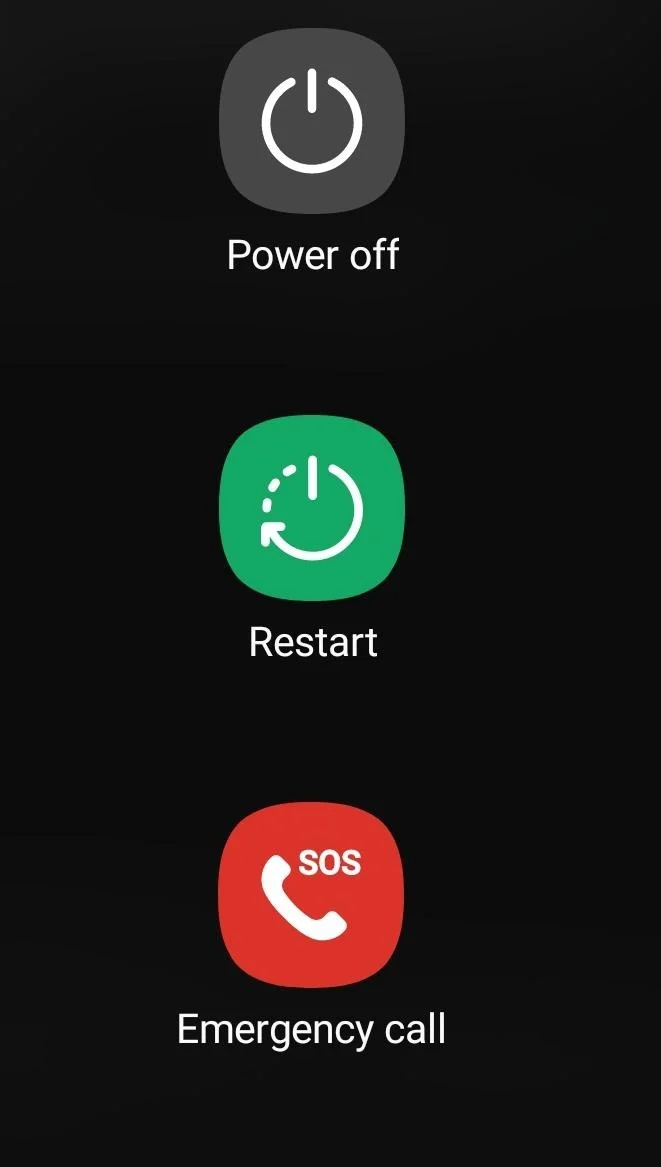
Update the App
Sometimes, the simplest fix is to update the Samsung Pay app. So head over to the Google Play Store or Samsung Galaxy Store, search for Samsung Pay, and hit Update to ensure you’re using the latest version.
ALSO READ:
- How to Fix Samsung Members App Not Working
- How to Fix Samsung Members Server Error 400 [6 Easy Ways]
- How to Stop Apphub Processing Requests on Samsung Phones
These are the simplest yet easiest ways to resolve the “Couldn’t set Samsung Wallet verification method” error on your Samsung device whenever it occurs. Let us know which method worked for you or if you found another solution.